Tutorials
Batch-Exporting Notion Database Rows as Individual PDFs
A complete guide on how to batch export Notion Database rows as individual PDFs using PDFOutput automation. Convert database rows into polished professional PDFs using a defined template.
By Sanat Biswal · 2026-07-19 · 10 min read

In this guide, we will talk about how to batch export Notion Database rows as individual PDFs. This automation will help you directly convert Notion Database row's data to a polished professional looking PDF using a defined template.
We will use a document automation platform PDFOutput in mins which will help convert Notion Database rows as PDFs. Let's get started.
But, before we setup the automation, here's the prerequisites for setting up automation in PDFOutput…
Prerequisites for setting up automation in PDFOutput
In order to setup automation in PDFOutput, here's 3 things to configure beforehand:
1. Notion Account - Make sure to first create an account in Notion, which is free to start. Once an account is created in Notion, follow along with the rest of the steps to setup remaining things.
2. Google Account - Next requirement is to have a Google Account. We will be using Google Document as a template to generate PDFs. So having a Google Account is a must before proceeding further.
3. PDFOutput Account - Needless to say, as we are going to setup the automation in PDFOutput, we need to also have an account in PDFOutput.
So make sure before proceeding further create an account in PDFOutput and then follow along steps mentioned below.
Step-by-Step: Complete Guide To Batch Exporting Notion Database Rows as PDFs
Here's the complete step-by-step guide on how to batch export Notion Database Rows as PDFs:
Step 1: Prepare the Notion Database to Export PDFs
First and foremost step is to create a Notion Database which has the required rows of data to be exported as PDFs.
Eg: For this demonstration, I have created the following Contracts Agreement Database with rows of data which will be converted into PDFs on automation.
| Property | Used For |
|---|---|
| ContractNumber (Title Type) | Define the Contract Number |
| ContractDate (Date Type) | Define the Date of Contract |
| CompanyName (Text Type) | Define the Company Name |
| CompanyAddress (Text Type) | Defines the Company Address |
| CompanyPhone (Phone Type) | Defines the Company Phone |
| CompanyEmail (Email Type) | Defines the Company Email |

Step 2: Prepare the Contract Agreements template file
A template file once created will serve how the generated Contracts Agreements PDFs will look like.
A template file can be added in one of the following 4 formats:
- Word File or
- Google Document (Recommended) or
- PDF File or
- Notion Pages
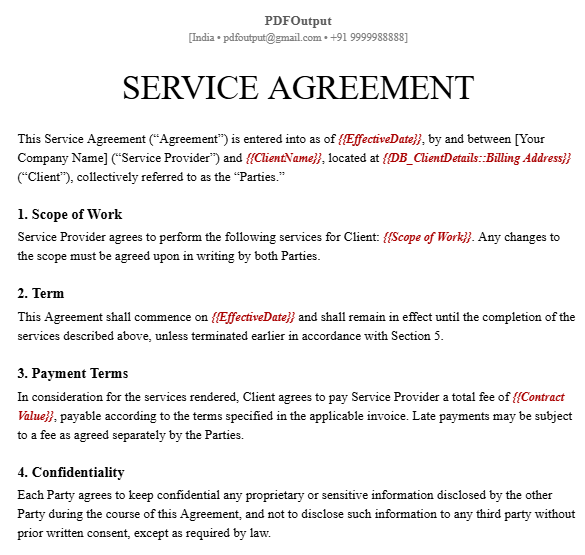
So before proceeding further to the next step, make sure to prepare a template file for use to generate the Database rows as PDFs on automation.
Notice how the Google Document is marked with placeholders in the form of {{placeholder_name}}, (eg \{\{ClientName\}\}, \{\{Scope of Work\}\}, \{\{EffectiveDate\}\} etc).
These placeholders will get replaced with their corresponding values from the Contracts Agreement Database when the automation starts to generate PDFs and thus PDFs will be generated from Notion Database rows.
> Note: If you simply want to convert the Notion Database rows to PDFs without using a template, then click here to follow the complete detailed guide on how to convert Notion Pages as PDFs.
Step 3: Setup the PDFOutput automation
The last step is setting up the PDFOutput automation where both the Notion Database prepared in Step - 1 earlier and Template File created in Step - 2 above will be connected.
Now I have already prepared a complete detailed guide which talks about how to setup PDFOutput automation, please refer to this guide which explains everything about the third step, i.e. Setting Up PDFOutput Automation.
While setting up the automation, make sure to use Preview Document feature which will allow to preview the document live and then once you are satisfied with the output, click on Setup Automation to activate the automation.
Once the automation is activated, it will be visible in the PDFOutput dashboard (as shown below)…
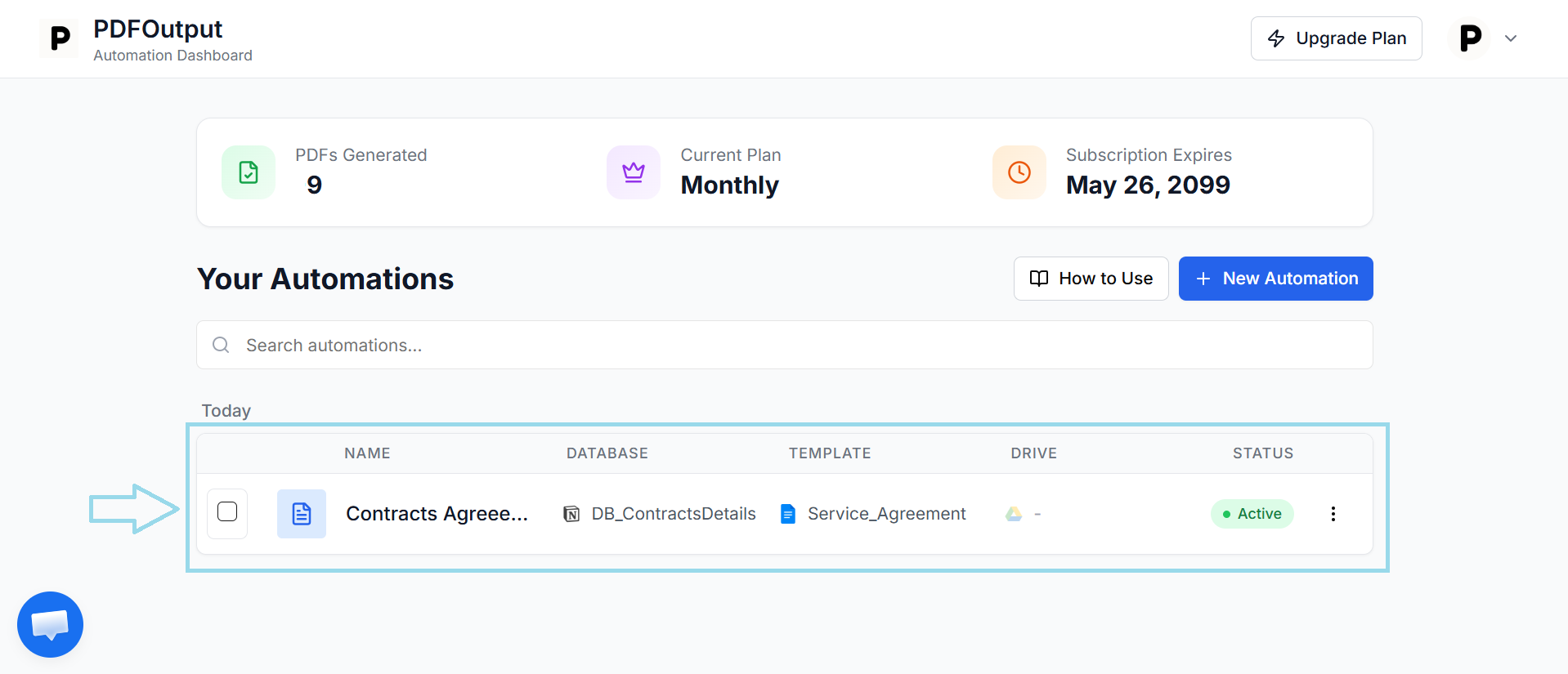
These 3 steps combined completes the automation setup. Now its time to start generating the PDFs in Notion Database.
Step 4: Exporting PDFs from Notion Database
In order to generate the PDFs from the Notion Database, there are 2 ways:
1. Using Button to Create PDFs (Only available for paid users of Notion)
This method is the fastest method to generate the PDFs.
You can generate the PDFs directly inside the Notion Database clicking a button directly. However this feature is available onto the users who are on a paid plan in Notion.
Click Here to learn more how to generate PDFs in Notion using a button →
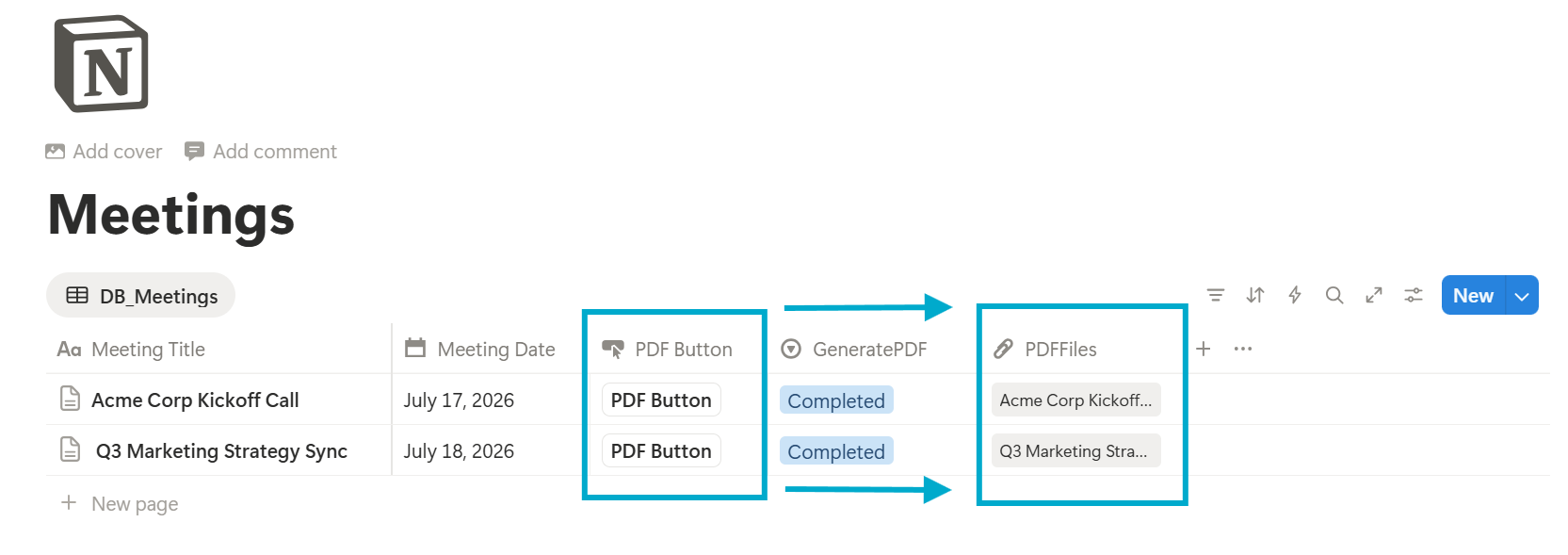
2. Using GeneratePDF property to mark records to generate PDFs
This method takes a while to generate the PDFs.
Also this is available to all types of users (free or paid) who are looking to generate PDFs from Notion Database rows.
In order to generate the PDFs, simply mark the record as "Ready to Generate" and it will start generating the PDFs inside the Notion Database.
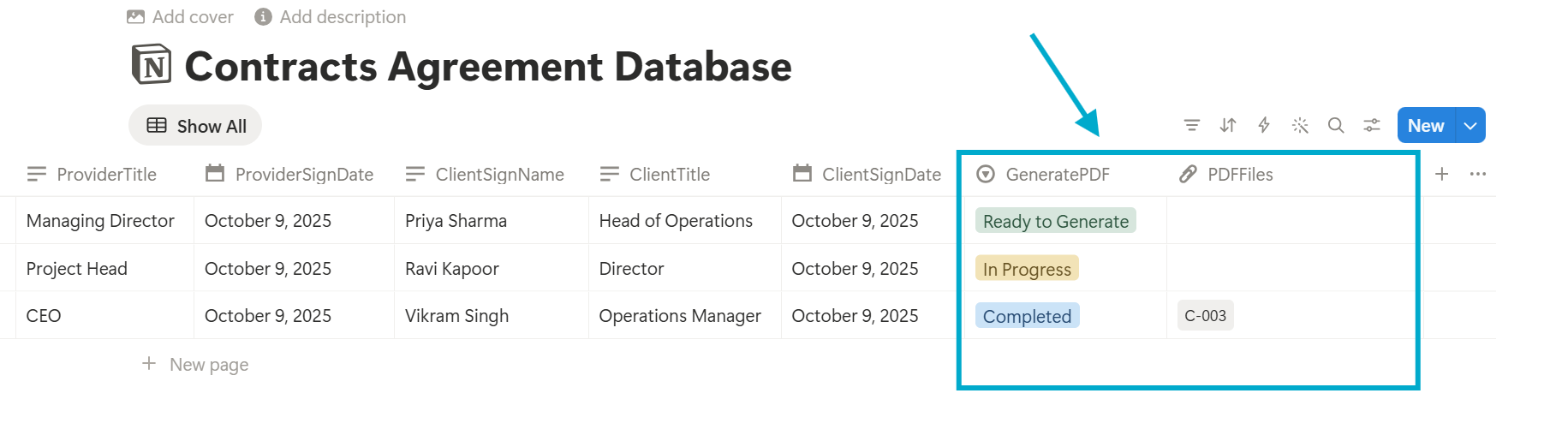
So once the automation is setup make sure to mark the records as "Ready to Generate" or setup a button to generate the PDFs in the Notion Database (it will work either way for your usecase).
> Note: As long as the automation stays active, it will keep generating the PDFs right inside the Notion Database.
Here's a sample PDF generated from the automation right inside the Notion Database…
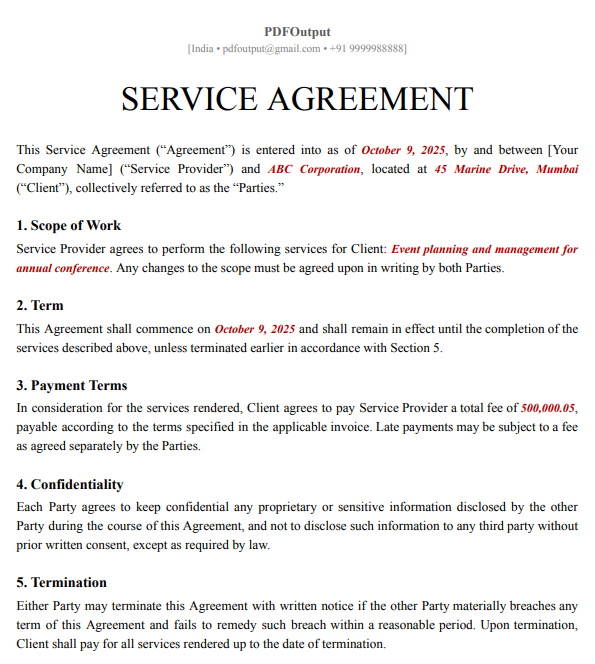
This PDF generated is for the record C-001 in the Contracts Agreements which is shown above.
How to generate PDFs in batches for the Notion Database
In order to generate PDFs in batches for the entire Notion Database, we will use the feature of Batch PDFs.
Now its time to understand how to generate PDFs in batches directly within the Notion Database…
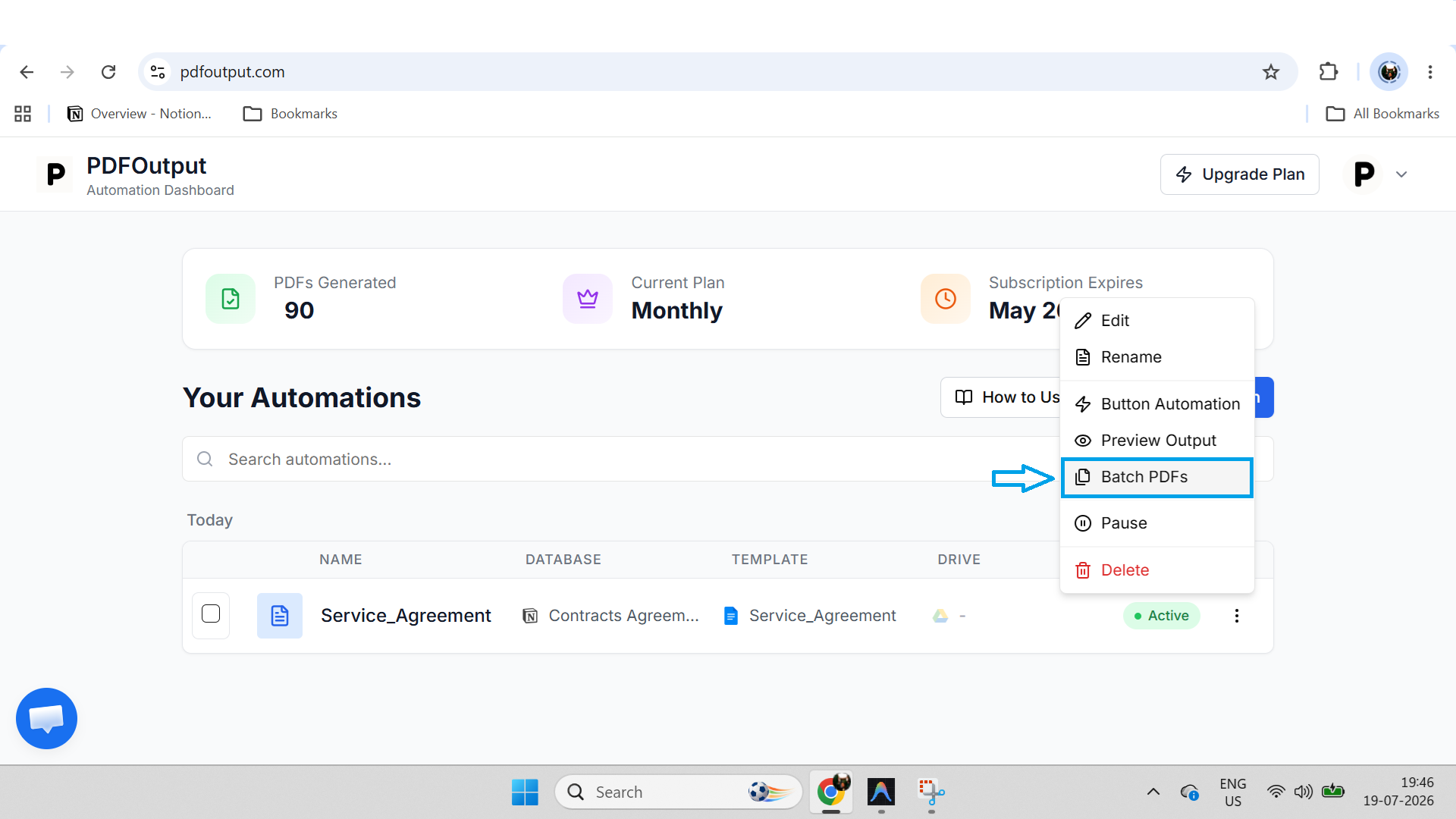
When you click on Batch PDFs, it generates upto 100 PDFs in one go in the Notion Database at one time. This is a powerful feature to produce lot of PDFs at once if you are in need of generating bulk PDFs in one go!
Conclusion
Exporting notion database rows as PDFs is made simpler and possible with the use of the PDFOutput automation tool which helps to produce the PDFs on automation directly within the Notion Database.
Using PDFOutput not only saves time but also makes the entire automation process truly efficient and effective to use.