Tutorials
How to create NDA Agreements on automation in Notion
A step-by-step guide on how to create Non-Disclosure Agreement (NDA) documents on automation using Notion and PDFOutput
By Sanat Biswal · 2026-06-28 · 11 min read
A Non-Disclosure Agreement (NDA) is a legal document that establishes a confidential relationship between parties and ensures that sensitive information shared during a business relationship remains protected.
It helps safeguard proprietary information, trade secrets, business plans, customer data, and other confidential materials from unauthorized disclosure or misuse.
If you are maintaining client, vendor, employee, or partner records in Notion and want to generate NDA documents automatically without manual copy-paste, then this guide is for you.
In this guide, we will look at how you can set up an automated NDA generation workflow that creates professionally formatted PDF agreements directly from your Notion database.
Prerequisites for using PDFOutput
Here's 2 essential things required for using PDFOutput:
- Notion Database - This is connected with Non-Disclosure Agreement information saved in the database that would be used to produce the PDFs.
- PDFOutput Account - PDFOutput account will connect both template source and Notion Databases to produce Non-Disclosure Agreement PDFs on automation.
- Party Information Details
- Agreement Terms Details
- Execution Details
- Non-Disclosure Agreement Database
- GeneratePDF - Click on GeneratePDF property and set this as 'Generate Page'.
- PDFFiles - This is the field where the PDFs created are stored within the database.
- google_drive_file - This is where files are stored in a Google Drive folder (if selected) earlier under Additional Settings.
We will create a new template page (Non-Disclosure Agreement template) which would be the default template for use.
Everytime we add a new record to the database it would use the template and generate the PDFs.
> Eg: We need a database to keep track of Non-Disclosure Agreement information and it's associated details in the Parties database.
How to setup Notion Database for tracking Non-Disclosure Agreement Details
In order to track NDA agreement details, we need a setup which can manage everything within Notion.
Here's a quick setup which would help:
Non-Disclosure Agreement
| Property | Type |
|---|---|
| Disclosing Party Name | Text |
| Disclosing Party Address | Title |
| Receiving Party Name | Text |
| Receiving Party Address | Text |
| Term Length | Text |
| Effective Date | Date |
| Expiration Date | Date |
| Survival Period | Text |
| Governing Law State/Country | Text |
| Disclosing Party Title | Text |
| Signature Date | Date |
| Receiving Party Title | Text |
| NDA Status | Select |
| Days Left | Formula |
| Renewal Needed? | Checklist |
| Reminder Sent? | Checklist |
How to create Non-Disclosure Agreement template file in PDFOutput
In order to create a Non-Disclosure Agreement template, here's the fields that we will use:
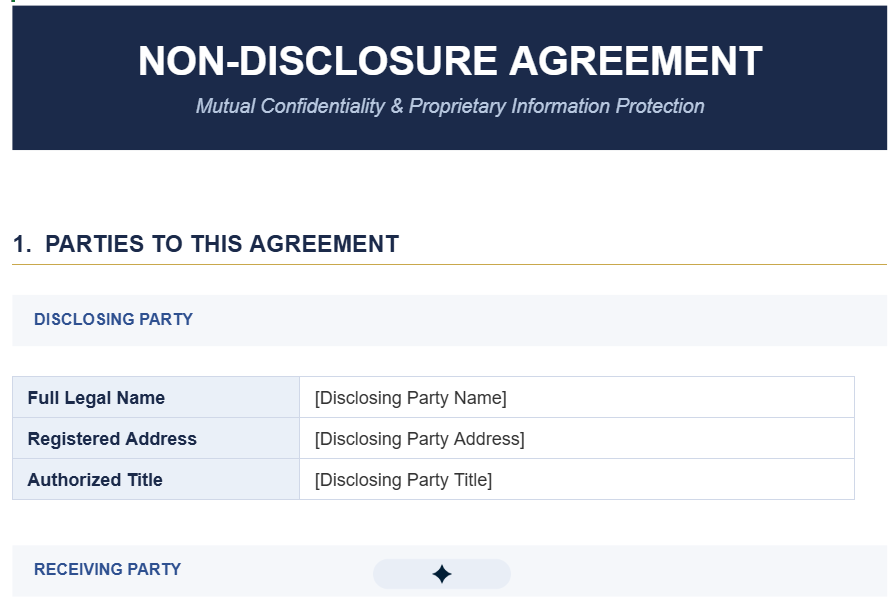
Here's a sample Non-Disclosure Agreement template which we will use for this setup:
How to setup PDFOutput to create Non-Disclosure Agreement documents on automation
In order to setup PDFOutput to initiate Non-Disclosure Agreement documents on automation we need the following key things setup:
1. Signin to PDFOutput
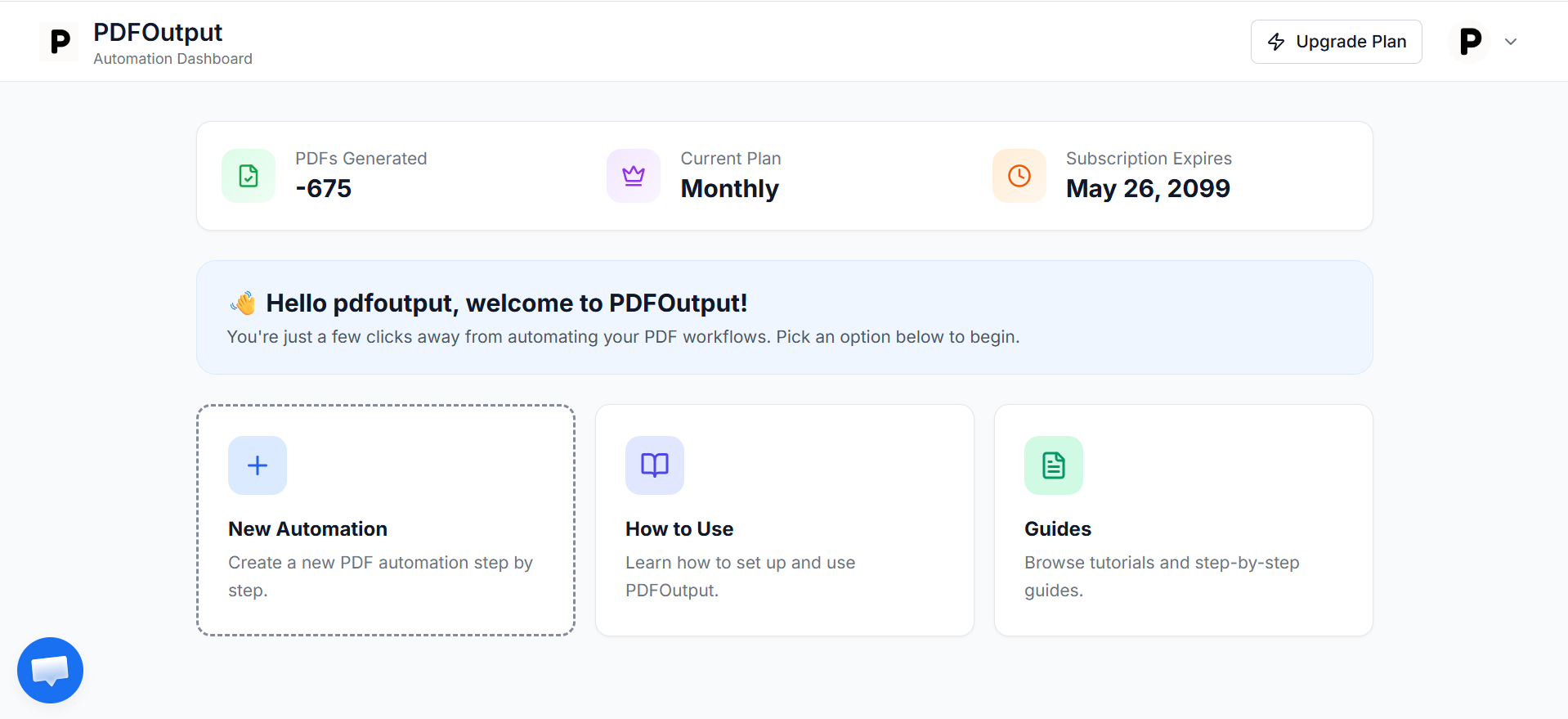
Signin to PDFOutput and setup your account.
Once you signin to PDFOutput you will be able to setup a new automation to get started with generating PDFs.
2. Click on New Automation and setup automation
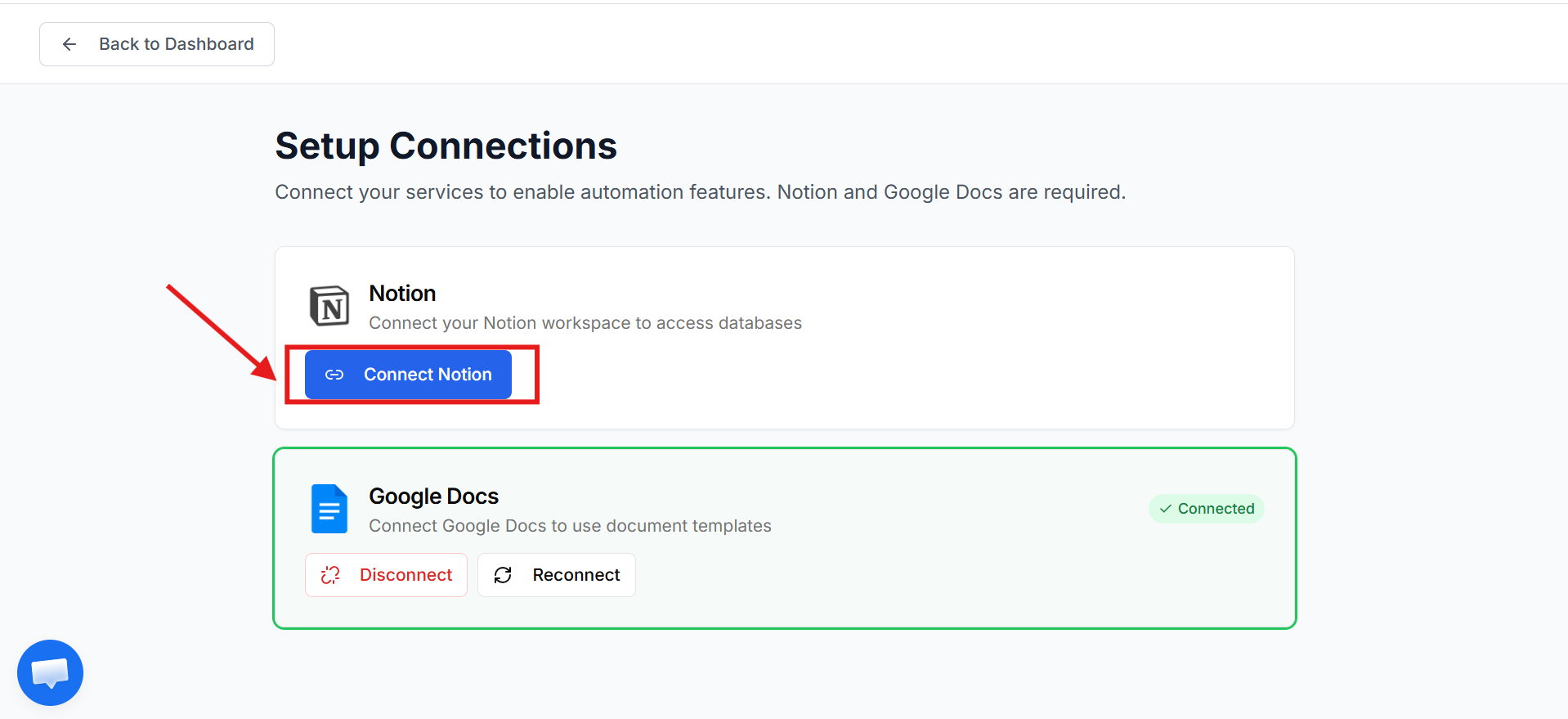
Once you click on a new automation it will take us to the setup section where we can connect our Notion Database to generate the PDFs from a defined template.
3. Connect the Notion Databases for adding all linked databases
In this step we will add the following databases for setting up the workflow:
Click on Connect Notion and it will take you to the database selection screen.
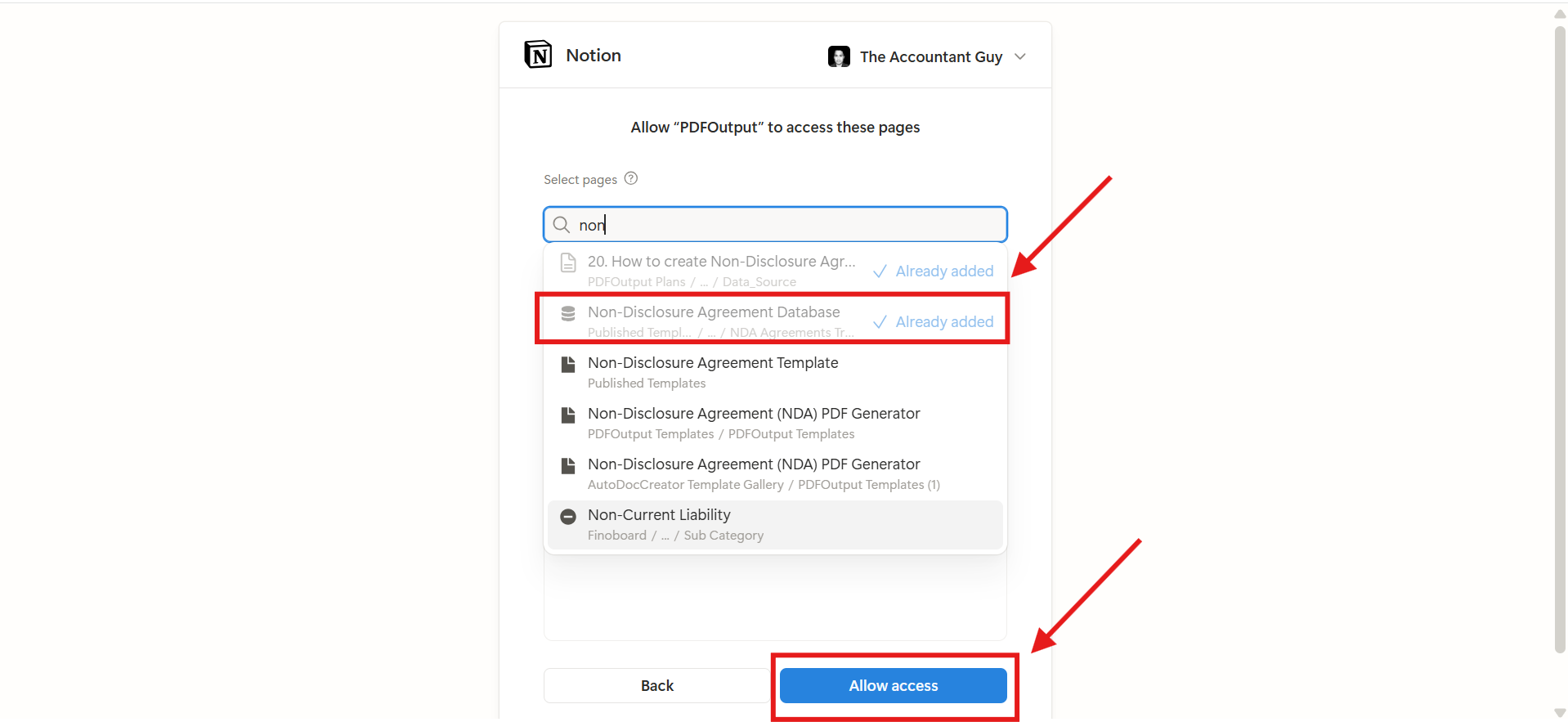
In order to add the database simply search for all the databases, eg: Non-Disclosure Agreement, Parties Details.
Select all the databases that needs the access and then click on Allow Access to allow the access to the databases used.
Once you click on Allow Access, it will provide access to the above databases being connected.
4. Setup Notion Template and map the placeholders
Before we start automating we are going to setup the template which will define the NDA PDF.
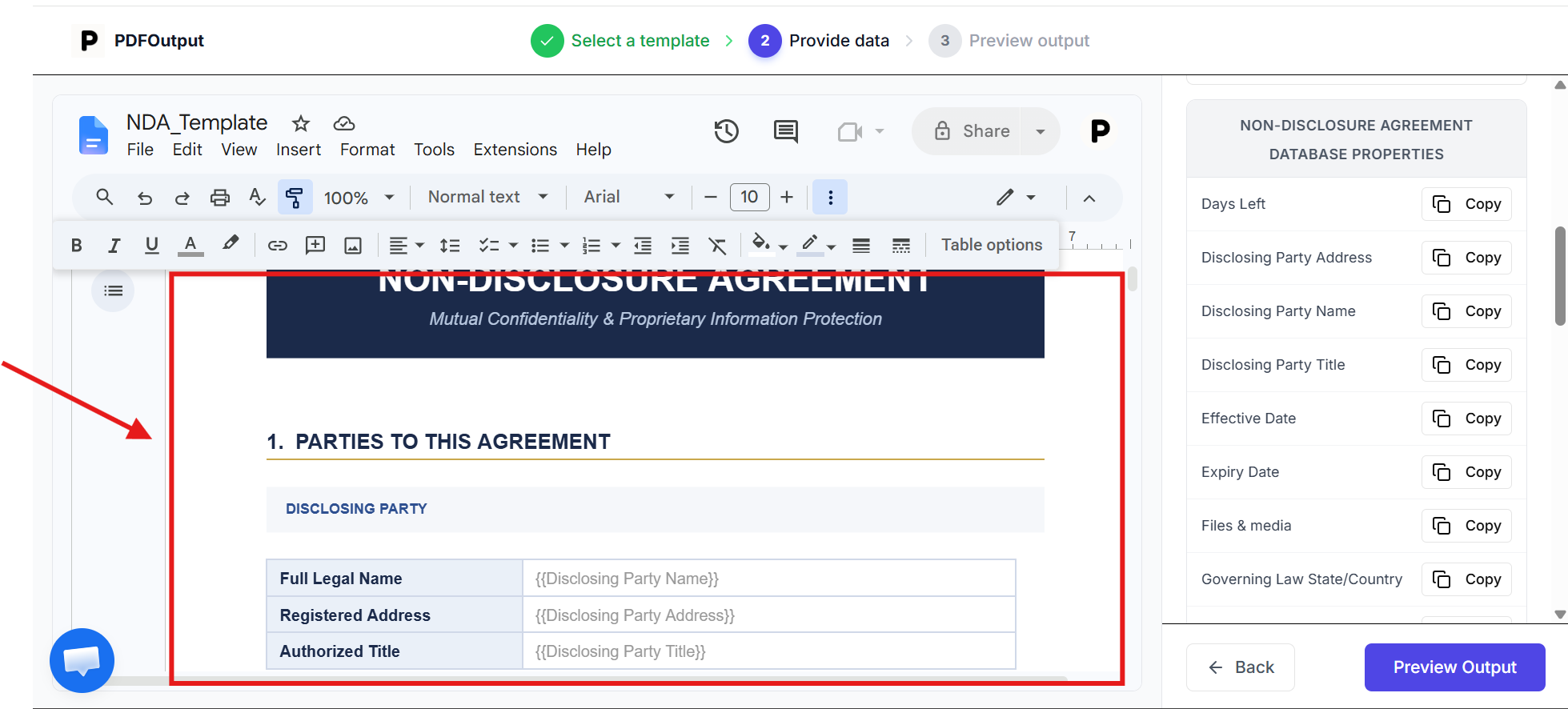
Note : Besides using Google Document, we can also use Notion Pages or Word File or PDF File.
As we setup the template, we are going to make sure to add placeholders in the template in the form of {{…}}.
This will allow the PDFs to be generated with the placeholders replaced from the values of the Notion Database used.
This is how the placeholders are mapped onto the template and once they are mapped we are ready to generate the PDFs.
5. Create a Preview Document and Setup Automation
Once all the properties (fields) have been mapped and we are happy with the entire setup it's time to generate a preview document to check how the output looks like.
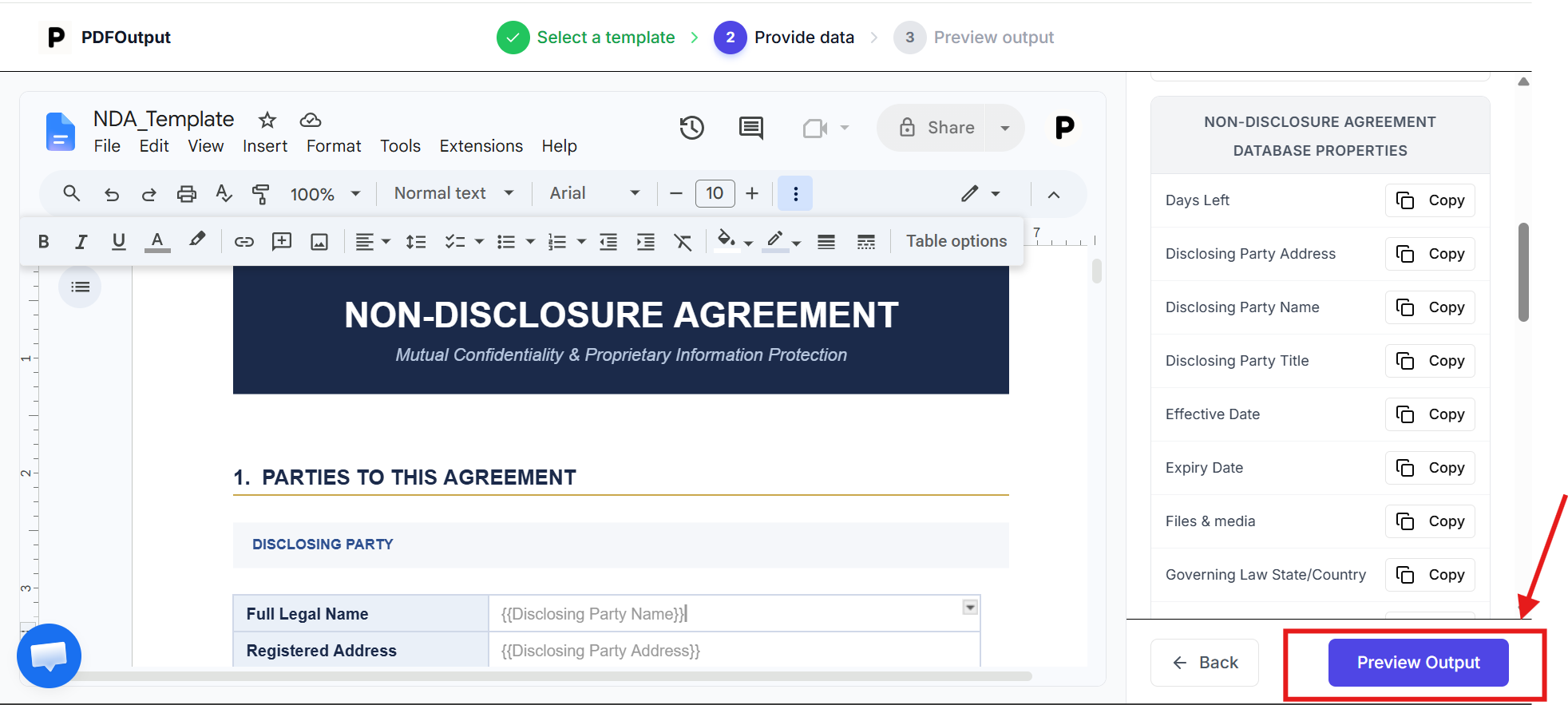
Clicking on the Preview Output will generate a preview output file for the document to check the output.
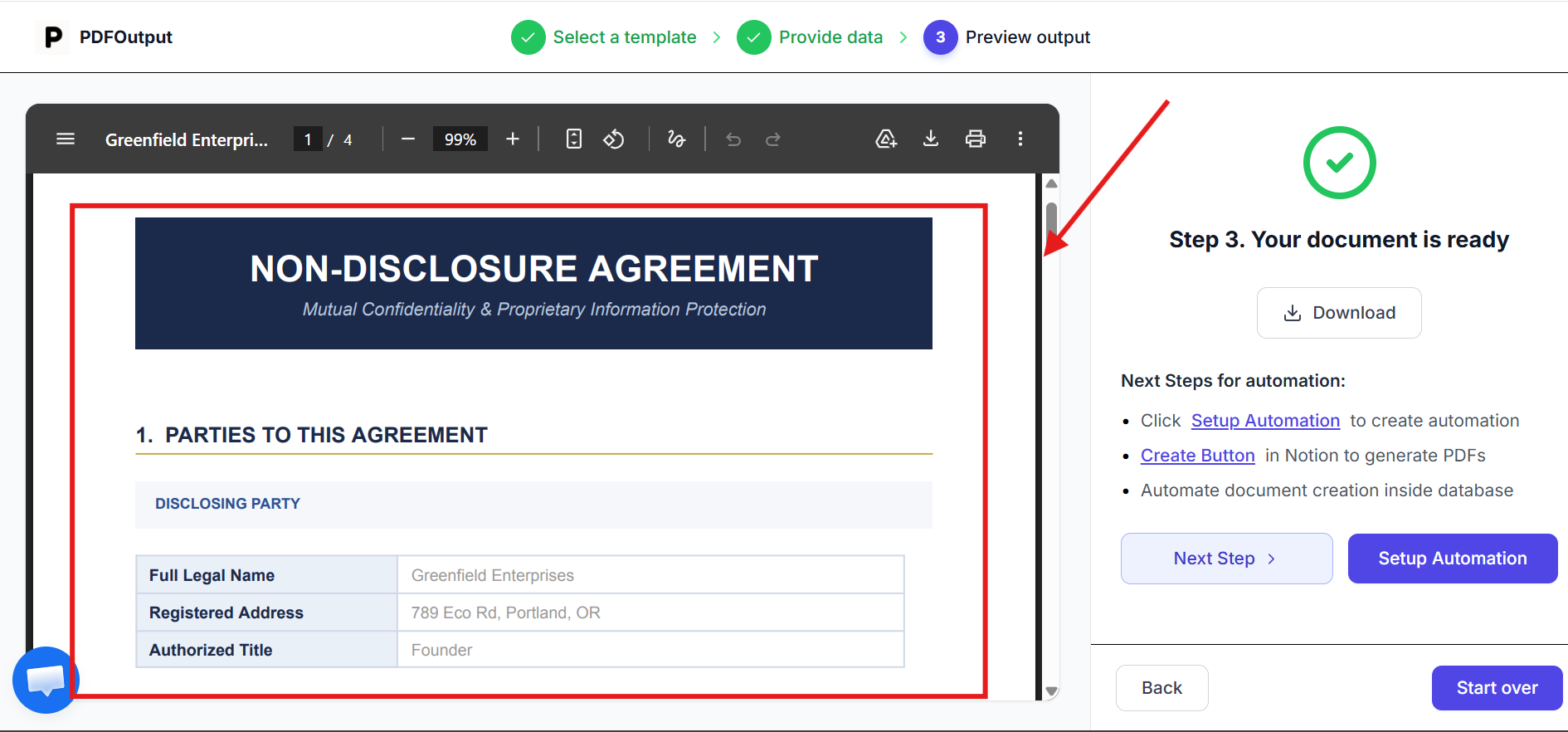
Here is the preview Output.
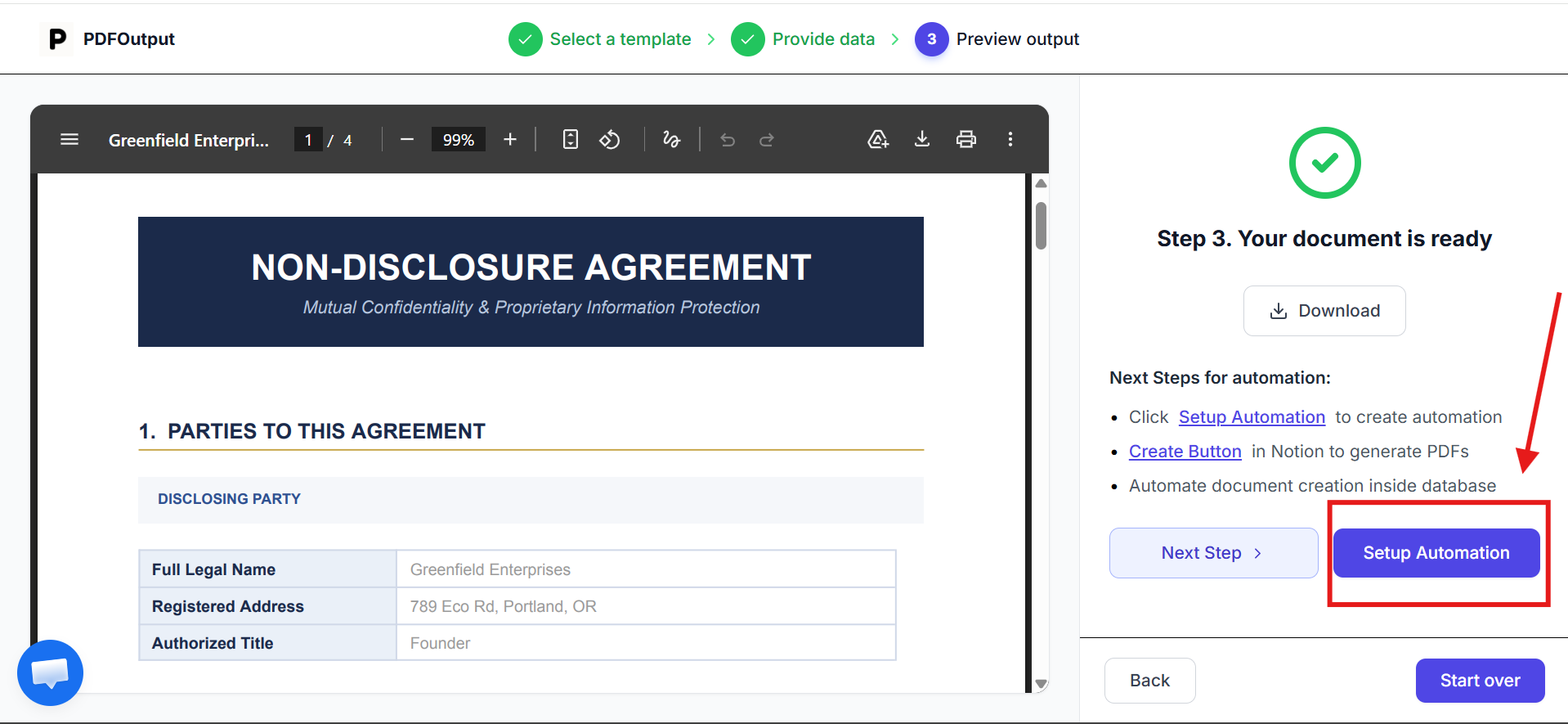
Once the preview is generated and we are happy with the setup, its time to setup the automation.
Click on Setup Automation and it will create an active automation that will generate the PDFs forever.
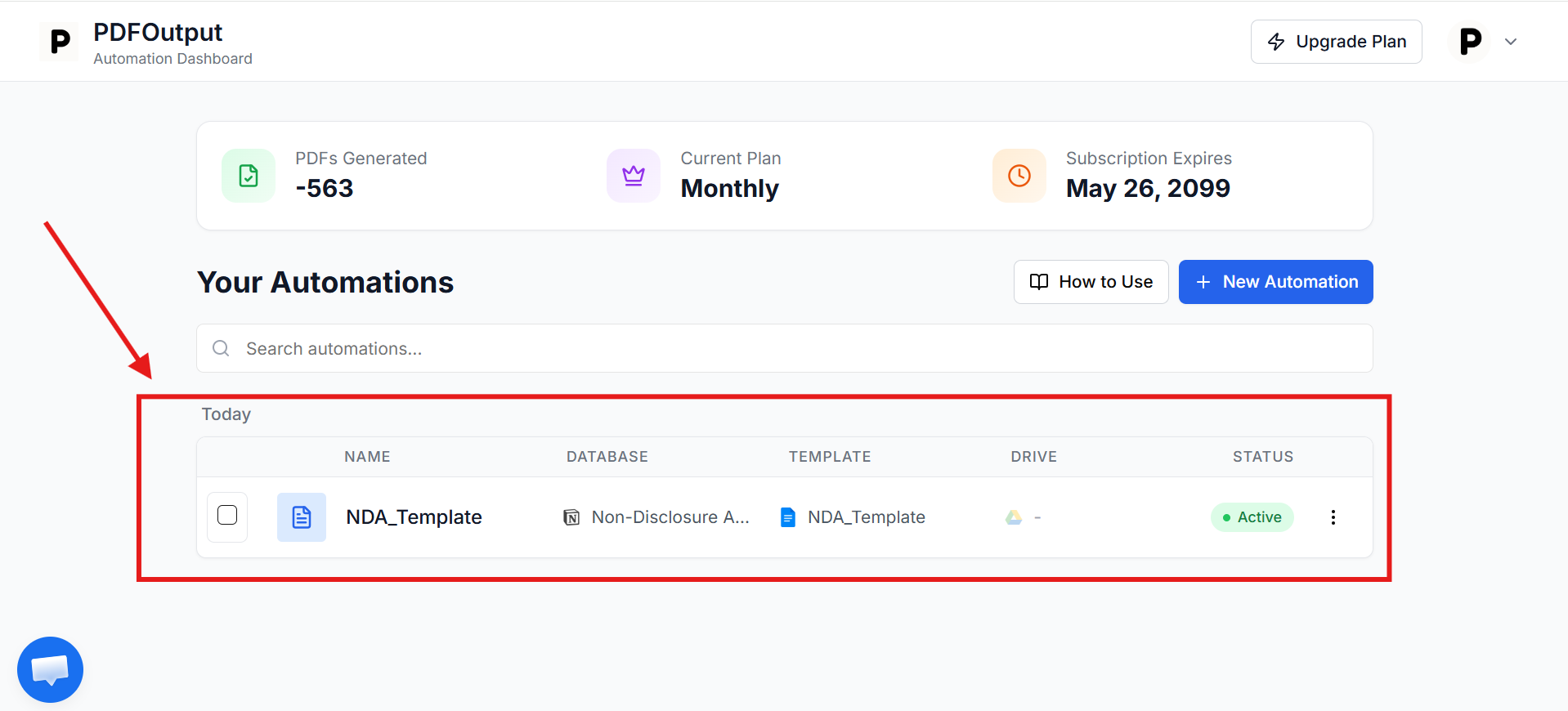
If you are not happy with the setup, simply go back and redo the mapping process within the notion page as required and regenerate the preview document again.
How to trigger NDA PDFs within Notion Database?
Once, automation is activated and setup correctly you will be able to see an active NDA automation showing in the dashboard.
Now simply head over to the Notion Database and follow the below mentioned steps to start producing PDFs:
This will convert the Notion Page to PDFs right inside the Notion Database.
So, the moment you set the record as 'Generate Page', it will process the record and create a PDF file for the same.
Other ways to produce PDFs within Notion Database
There are several other ways we can look to generate the PDFs on automation in PDFOutput from a Notion Database:
1. Button Automation (Recommended Method)
This is the recommended way to generate the PDFs directly inside the Notion Database.
In a click of a button, a PDF would be generated directly inside the notion database.
Here's the steps we can follow to setup the button automation directly inside Notion Database (one-time setup):
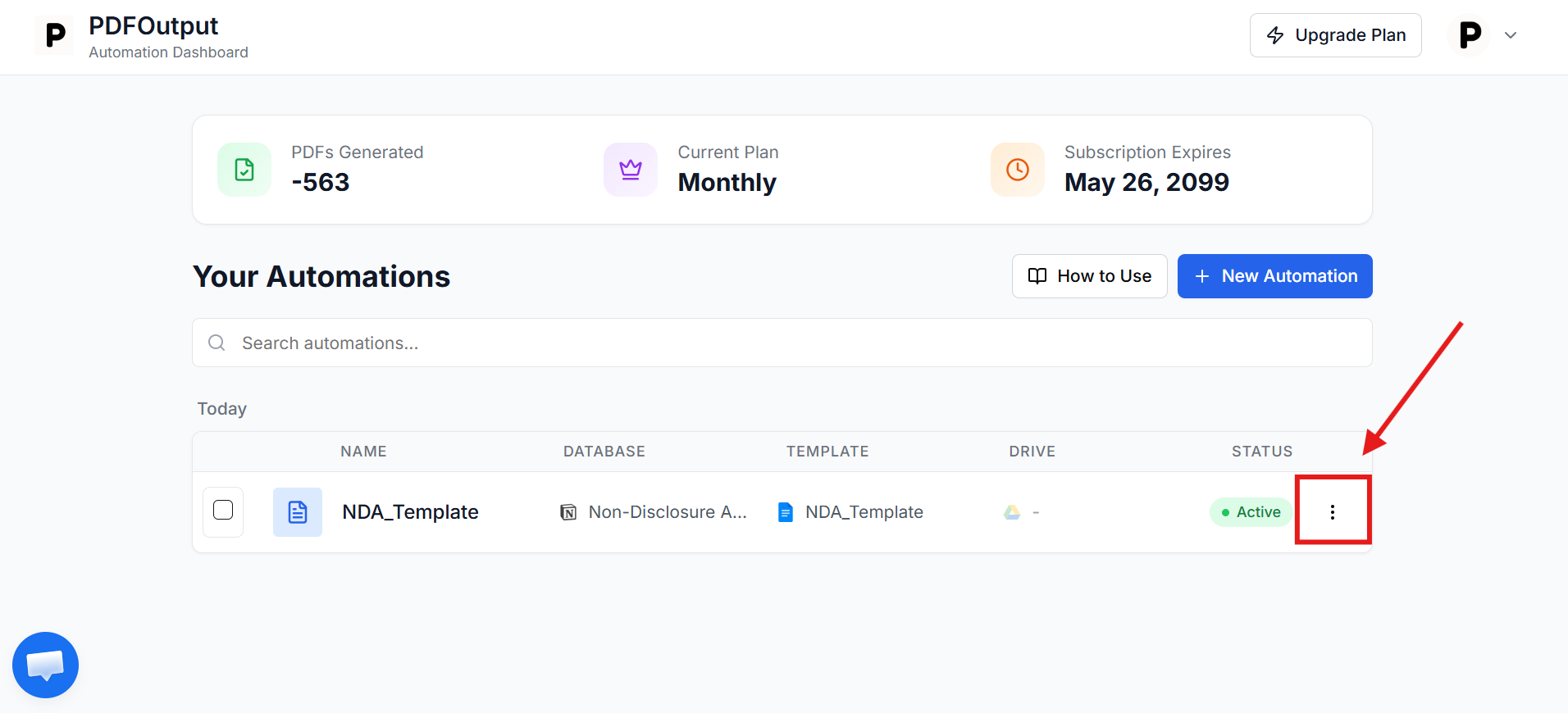
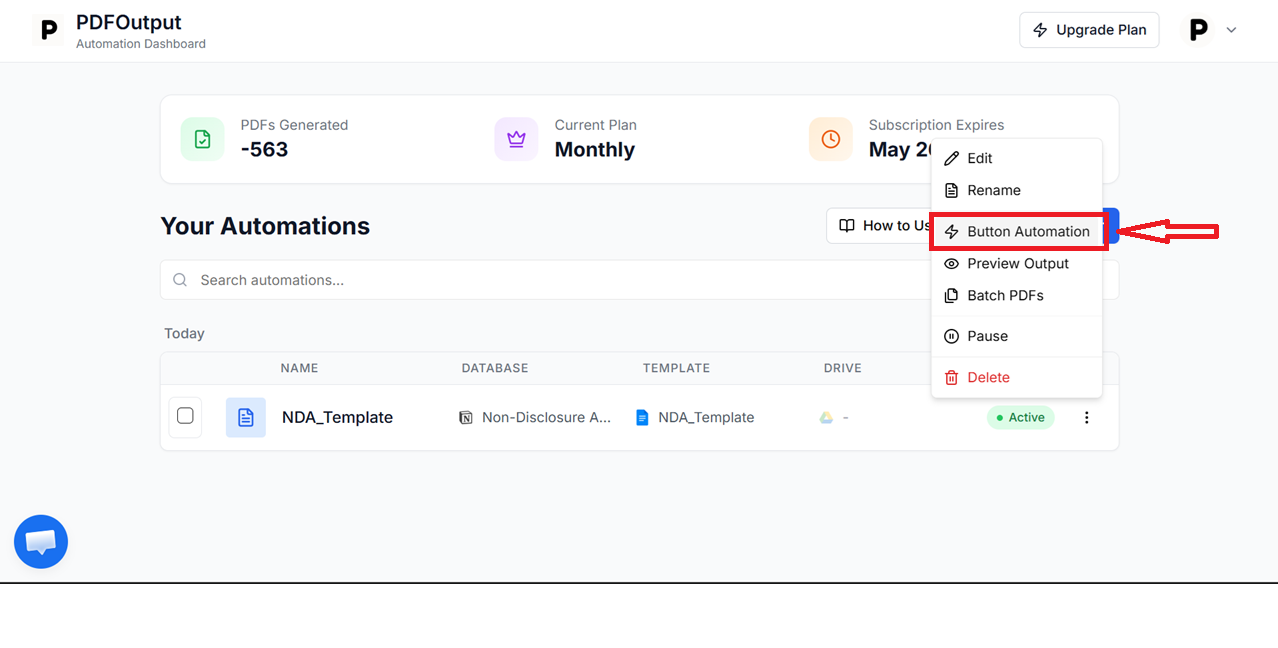
> Note : For this demonstration as we are generating PDFs directly from Notion Pages, we will use the automation steps for Notion Button.
Once the above steps are followed, clicking on the button will allow generating PDFs directly within the Notion Database from the Notion Page used as the template.
2. Using GeneratePDF property in Notion Database
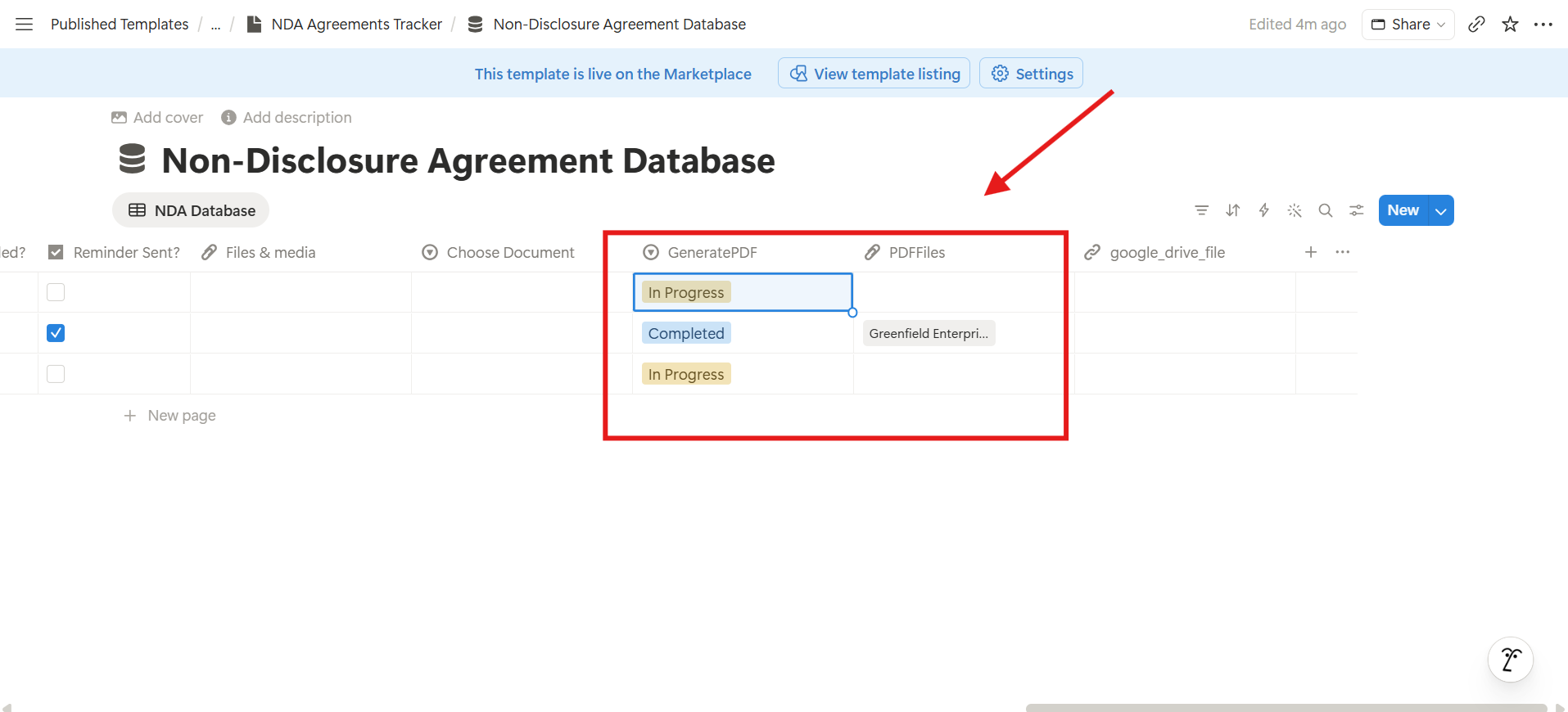
This is the default method available to all users to generate PDFs.
When a connection is setup successfully, PDFOutput automatically creates a new property by the name of GeneratePDF inside the database.
In this property, there's an option to click, i.e. "Generate Page".
When that's clicked, the PDFs start generating automatically inside the Notion Database which are fetched from the Notion Page created earlier.
Follow the steps mentioned below to start generating PDFs directly inside the Notion Database:
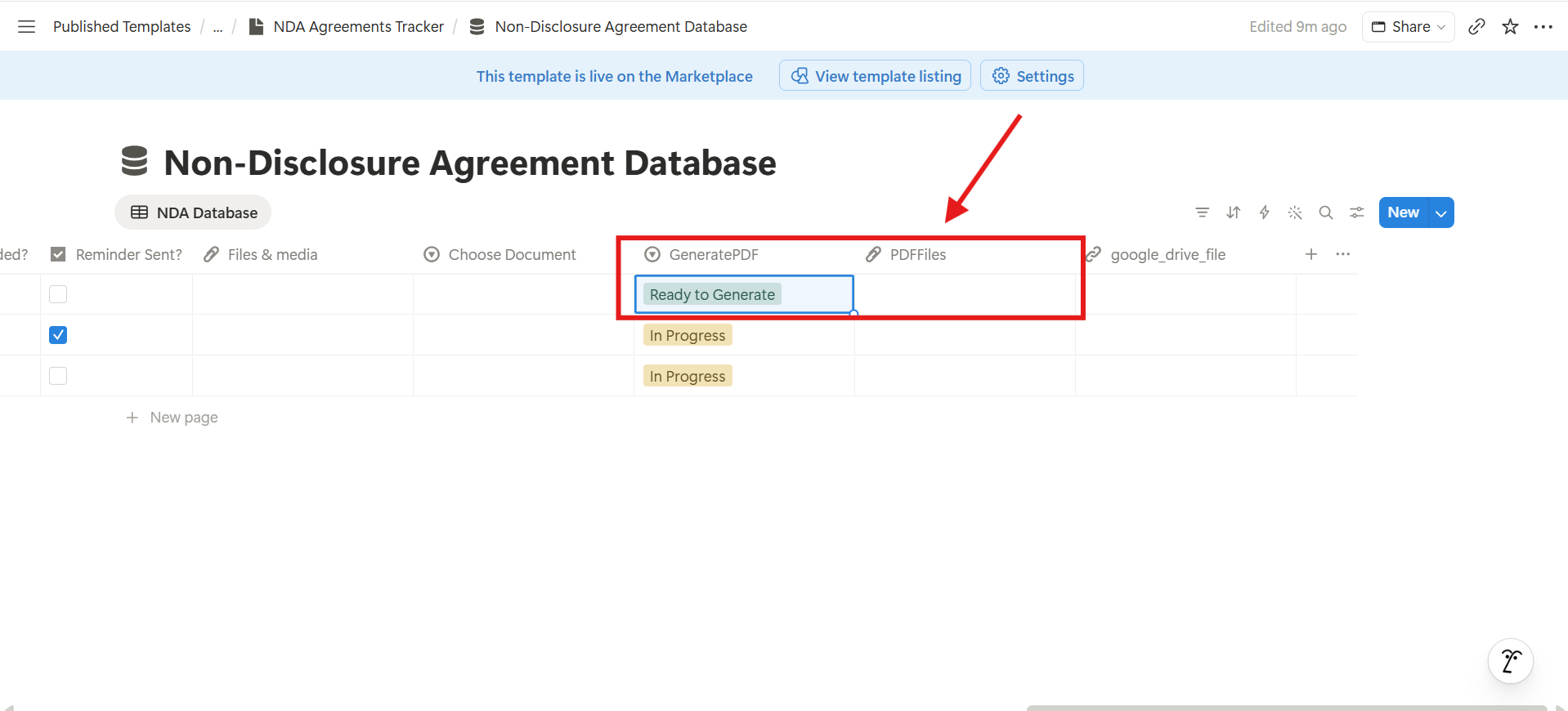
The PDFs generated will be stored in the PDFFiles (default property) field in the Notion Database.
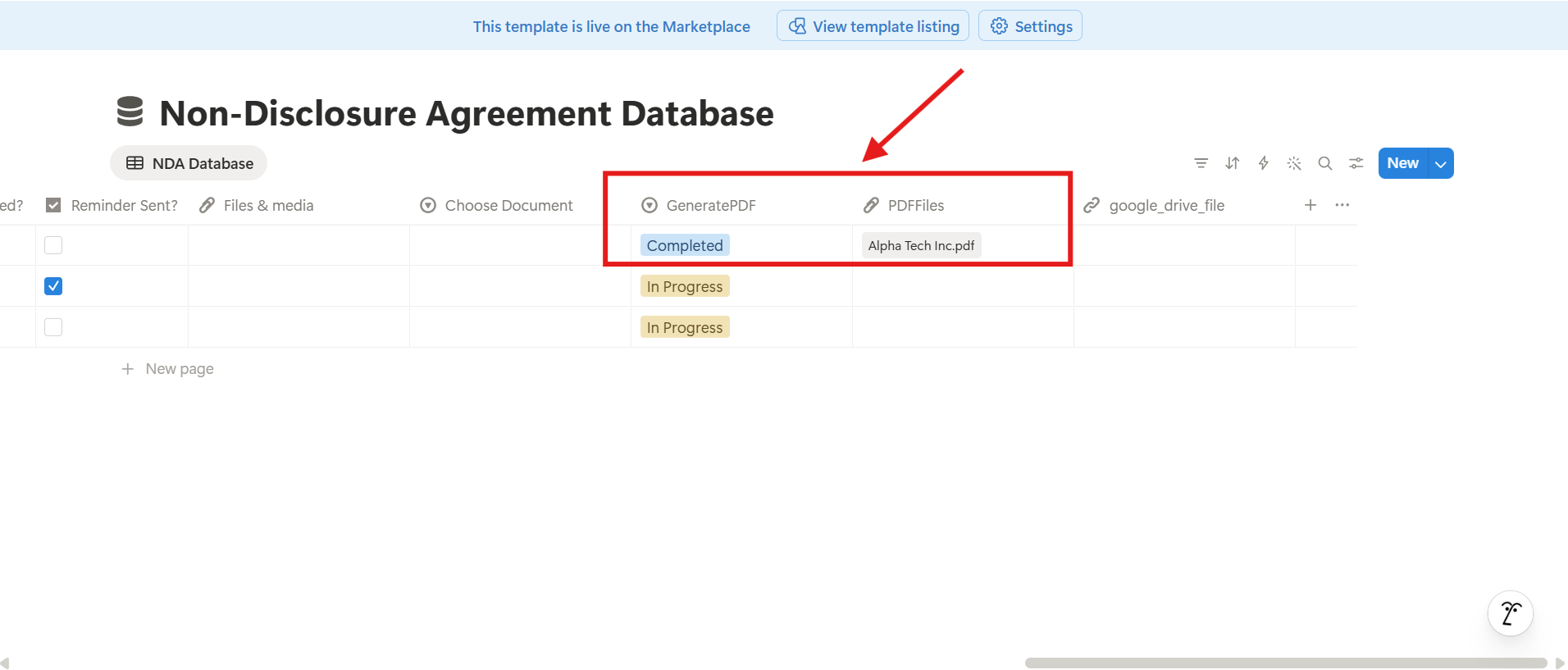
This takes a while to produce the PDF but once the automation is setup and activated it works swiftly to produce the PDF files right inside the Notion Database.
3. Using Batch PDFs option
PDFOutput also allows you to process batches of PDFs for users.
It can generate upto 100 PDFs at once.
For this to happen, follow the steps mentioned below:
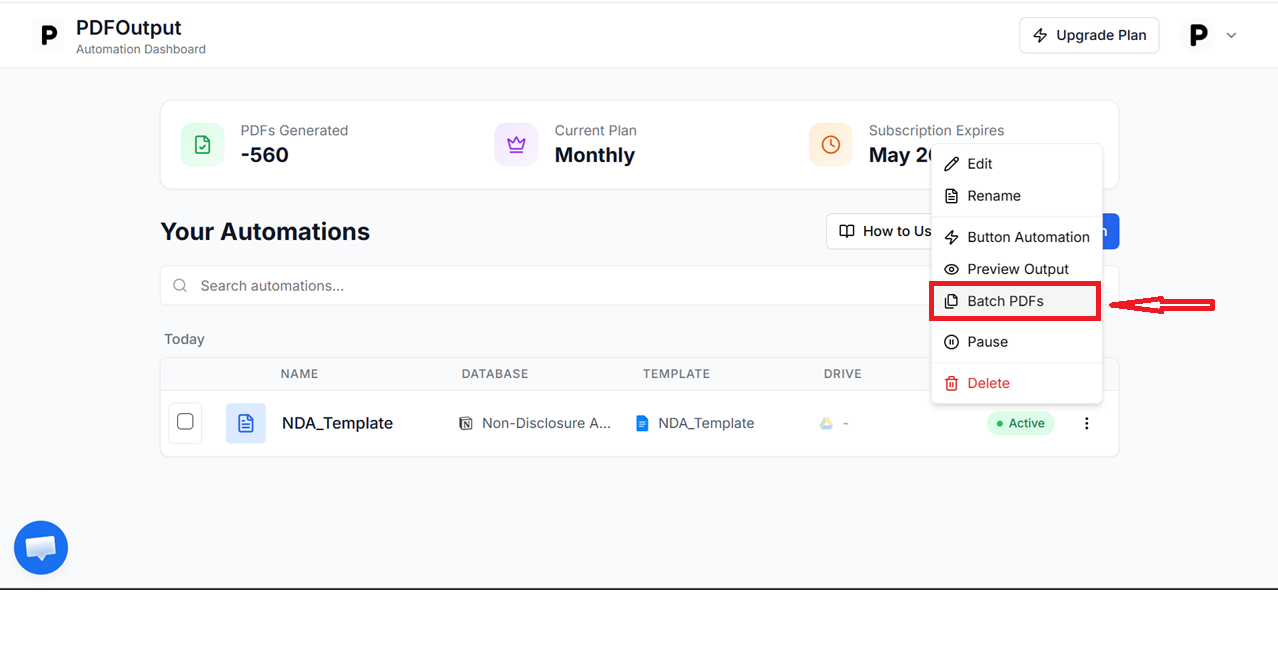
This helps to generate the PDFs directly within the database and thus it works in producing batches of 100 PDFs at a time.
What are the common issues while generating PDFs using PDFOutput and what are ways to fix them
Some of the most common problems that arise with generating PDFs in PDFOutput include the following:
1. Placeholders don't generate correctly onto the document used
Issue: The placeholders that are used in the notion page template source file don't get replaced with the values that are mapped from the datasource side.
Solution: This is quite a common problem and quite often happens because the field that is being mapped isn't exactly the same field that is added to the template source being connected.
Eg: If the field name that is available in the database is "NDA_ID" and the placeholder text that is mapped onto the template source "nda_Id" then it will not replace the placeholder text used correctly as expected.
So, make sure to use the exact same placeholder as expected, to be able to map the correct properties from the database while generating the required PDFs using the Notion Page as template.
Notice that while using the placeholders make sure to use the correct syntax as well such as capitalisation or underscores being used as this can also cause inconsistencies with the output being generated.
So, always make sure to use the exact same placeholder name as added onto the properties of the notion database.
2. Line Items added to the template don't generate dynamically with placeholders in the output
Issue: Line Items that are added from Parties Database don't correctly fetch and generate the right values as expected from the secondary databases that are connected dynamically to the output.
While adding the placeholders onto the template document, always ensure to check upon the Line Items Database used (secondary database) and ensure that the database is connected with PDFOutput or not.
Here's how to resolve the issue:
If PDFOutput doesn't show in the connections list yet, then it means PDFOutput hasn't been connected together with the secondary database.
> Note: Try to connect your notion Database once again to be able to establish the connection with the Notion Database once again.
3. PDF File is not created as per correct desired format
Issue: The pdf file that is generated doesn't happen to preserve the desired formatting of the document as it is expected from the output.
Solution: This can happen only if the template file that is being used has a complex layout which is not natively supported in the Notion Page layout.
So, always make sure to use simplistic elements which are natively supported by Notion Pages that will help to avoid any design related issues which might come up during the generation of the PDF files.