Tutorials
How to Turn Notion Meeting Notes into Shareable PDFs
A step-by-step guide on how to convert Notion meeting notes into clean, shareable PDF recaps using PDFOutput — no reformatting required.
By Sanat Biswal · 2026-07-19 · 8 min read

If you run meetings in Notion, you already know how it works. As soon as the call ends, the meeting notes are full of the following:
- Filled with bullet points.
- Unfinished action items.
- Half finished thoughts randomly jittered out.
- Not everyone has a Notion account in the first place,
- Permissions given often get complicated fast,
- A live Notion link can often feel unfinished / cluttered to someone who is outside your team.
- Meeting title
- Date
- Attendees
- Key discussion points
- Decisions made
- Action items
- Use proper headers to break the pages into multiple sections such as (H2 or H3s used) to break the whole page into different sections such as "Summary of Meeting," "Decisions Made," and "Next Steps to Implement"
- Use toggle lists across the entire page where its required — collapsed content won't render onto a static PDF.
- Keep your paragraphs short and brief as required and replace long text blocks with bullet points where possible.
- Remove any form of internal shorthand, or half-finished sentences, and anything not for your team's eyes.
- Turn any form of scattered bullet points into short, complete thoughts which provide meaning.
- Tag your action to-do items clearly, which can include a checklist or even bolding the owner's name as mentioned to each task.
- Google Drive Folder — This defines the Google Drive Folder where the generated PDFs will be saved.
- PDF File Name — This defines the notion database column reference which will define the name of the PDF. (eg: If Meeting Title is selected, the PDFs are generated with the Meeting Title name such as
Acme Corp Kickoff Call.pdf). - PDF Attachment Field — This defines where the generated PDFs will be saved in the Notion Database. (eg: By default all the generated PDFs will be saved in the PDFFiles column).
- Always use clear, descriptive headings so readers can quickly jump to the sections that matter the most.
- Prefer to add a date or version number to the page before exporting the page so that it becomes easy to identify the latest copy.
- Make sure to check the page breaks in the PDF preview to ensure that important sections or tables aren't split up awkwardly across any pages.
- Any collapsed toggle blocks must be expanded before exporting if you want the contents to appear in the PDF generated.
- Replace any embedded content (such as videos or interactive embeds) with a brief summary, since these won't be interactive in nature.
- Keep images under high resolution and large enough to remain legible and visible after exporting the document.
- If the document is a lengthy one, make sure to include the table of contents at the top of the page so as to improve the navigation of the page.
- Use consistent style of headings, spacing, and formatting throughout the page for a polished and professional look of the document.
- Always proofread the exported PDF once before sharing the document to catch hold of any formatting issues that weren't visible in Notion.
- Consider using page dividers to separate major sections of the page, to make sure the exported document becomes easy to scan.
But you need a clean recap of the exact meeting as it went by. So how would you do it?
You end up typing out all the notes onto a clean Google Document from scratch but it doesn't help serve the purpose for which the notes are taken in the first place.
The good news: you can generate clean shareable PDFs in just a few clicks setting up an automation to generate the PDFs without any reformatting ever required.
This guide helps you walk through how to setup an automation to generate Notion Meeting Notes into Shareable PDFs using PDFOutput, something a client would actually want to read.
Why Turn Notion Notes into PDF Recaps in the First Place
Notion is great for internal collaboration, but it's not an ideal tool when it comes for externally sharing the files because of the following:
A PDF, created on the other hand, is a universal document — a PDF created can be viewed on any device, it prints cleanly, and it can also be attached to an email, and it looks intentionally right rather than being thrown together into one document.
PDFs also generate information as on the time the document is generated.
A meeting recap should essentially reflect what was discussed and decided at the moment when notes are being taken, but not update the notes when someone edits it live later on.
That permanence of the document is important and matters the most when decisions are being documented, action items, or anything that might need to be referenced to later on as a record for the information.
Step by Step Guide on How to Turn Your Meeting Notes into Shareable PDFs
Here's the entire process broken down so you can go from raw notes to being client ready documents each time without beginning from scratch.
Step 1: Set Up Your Meetings Notion Database
Create or setup a new meetings Notion Database and add pages for each of the meetings done. Use a simple, consistent structure every time:
Here's a sample Notion Database which has my Meeting Notes added:
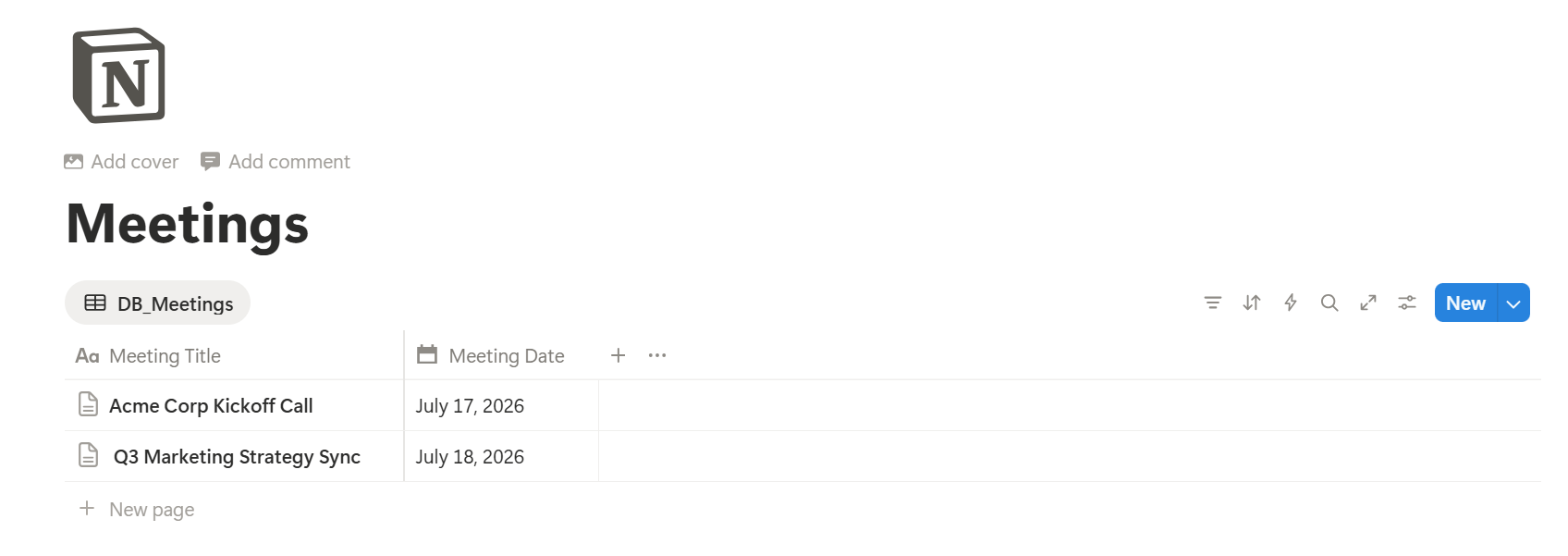
Here's how a sample Meeting Notes looks like for the Meeting "Acme Corp Kickoff Call":
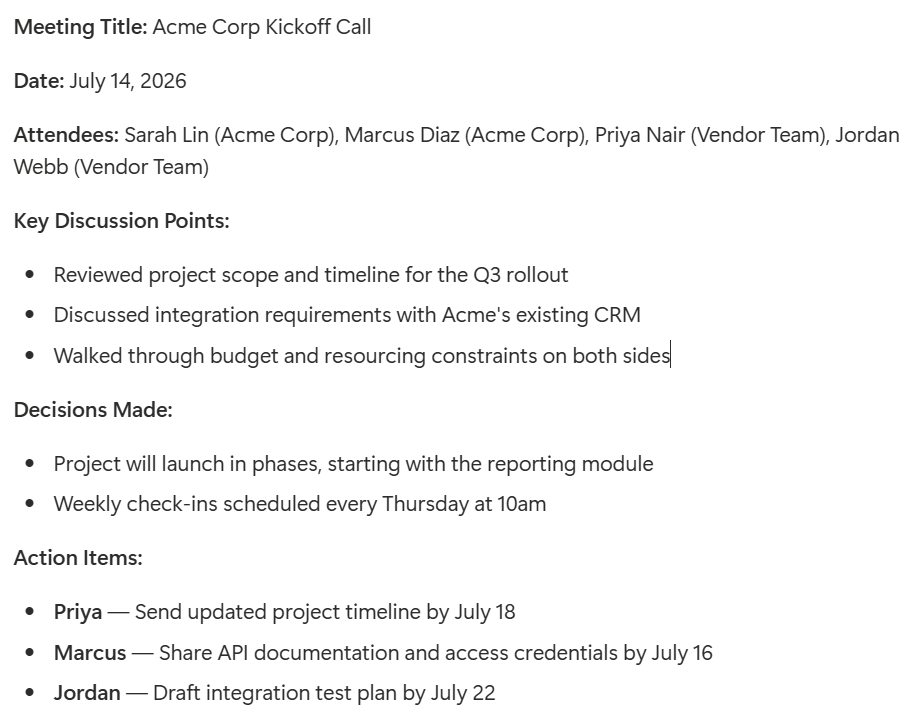
How to use proper formatting for Meeting Notes created in Notion?
Here are the key things to keep in mind while creating Meeting Notes in Notion:
Make sure to use proper format to make sure the readability of the meeting notes is properly captured:
Clean up your PDFs before exporting the files:
Step 2: Connect Your Database with PDFOutput
Once your Notion Database (Meeting Notes) is setup properly and ready-for-use, its time to connect it with PDFOutput.
This automation tool will read your Notion Pages and converts the pages into PDFs, so you're not manually exporting each of the Notion Pages one by one.
I have written a detailed guide on how to setup the PDFOutput automation to convert Notion Pages to PDFs, before moving further kindly follow the given guide and setup the automation to start converting Notion Pages to PDFs using the tool.
Read the full Notion Page to PDF setup guide here →
Step 3: Generate PDFs in the Meeting Notes Notion Database
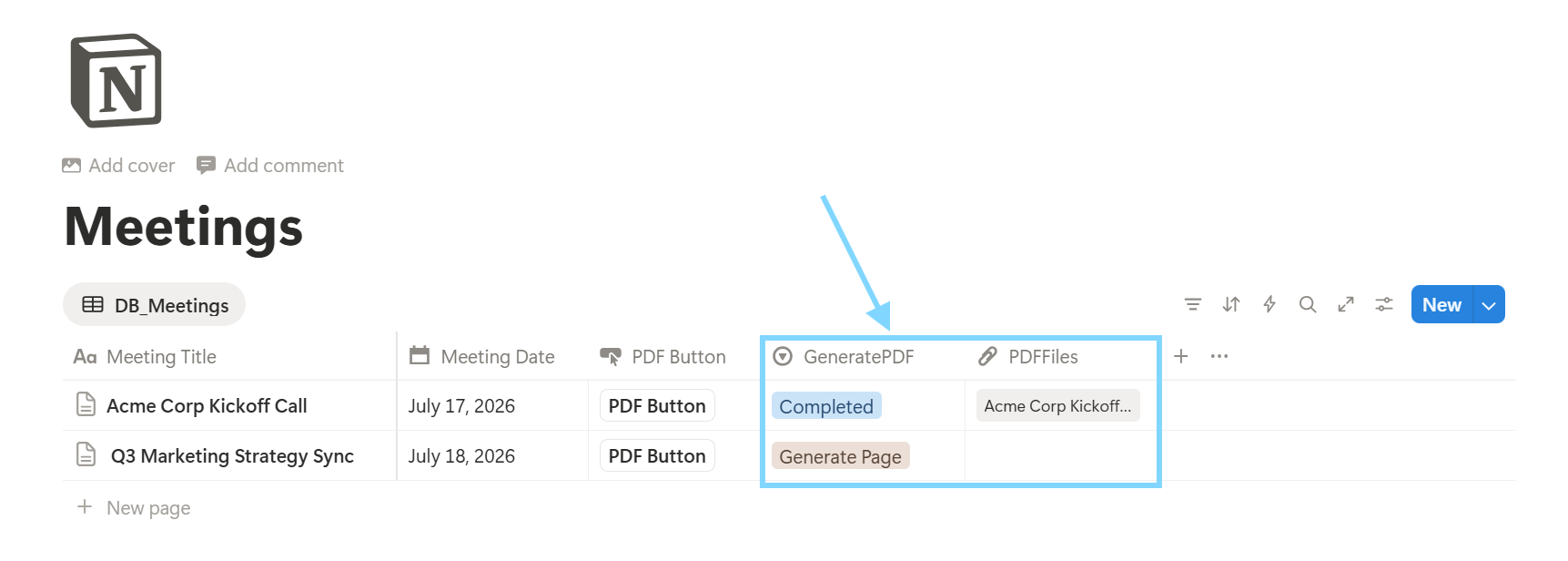
Once the automation is setup correctly, simply click on the Button to generate the Notion Pages as PDFs or mark the records as Generate Page in the GeneratePDF property to convert Notion Page (Meeting Notes) to PDFs.
Once the PDFs are generated, it will be stored in the PDFFiles column (eg: Acme Corp Kickoff Call.pdf)
Here's how a sample output file will look like:
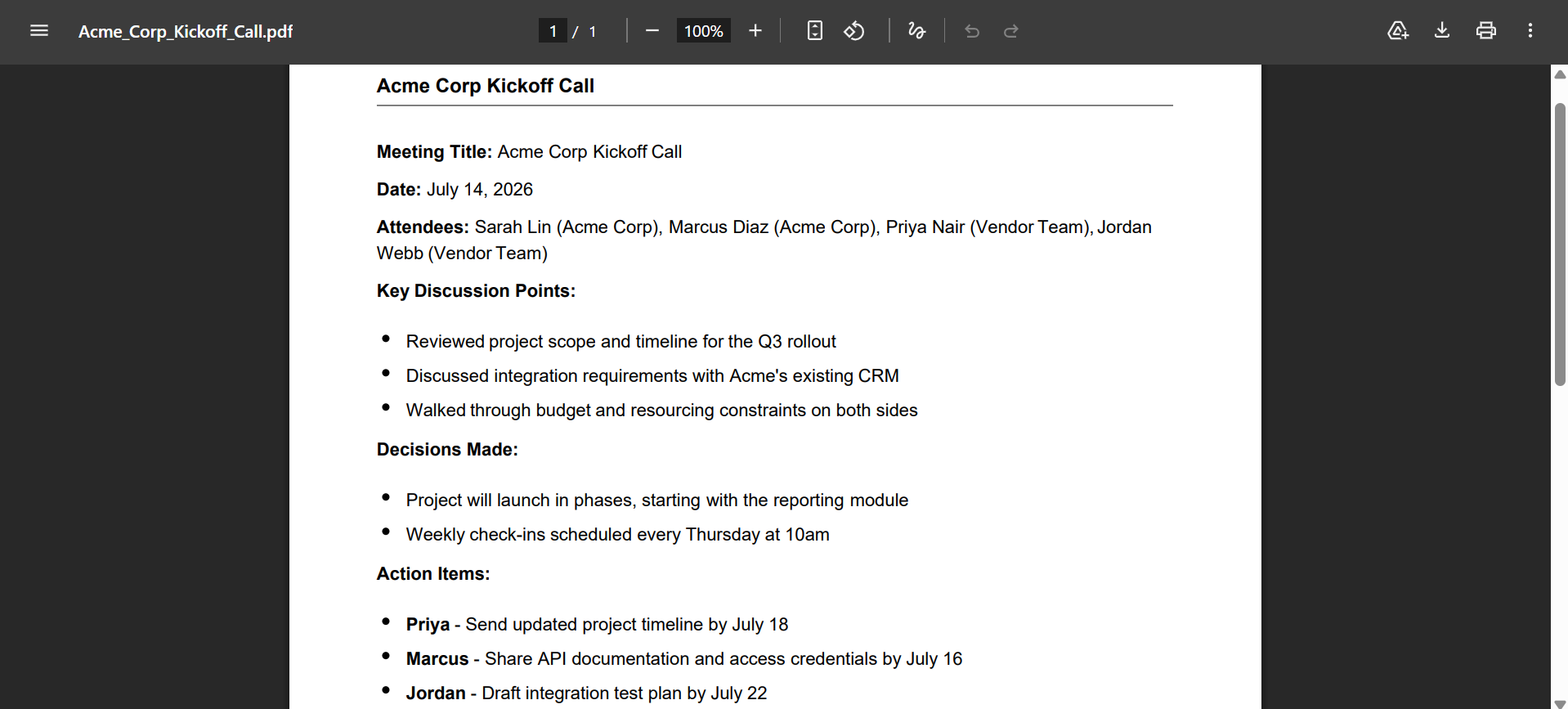
But make sure that the automation is correctly setup following the step by step guide as mentioned above.
A few additional settings worth considering while setting up the automation:
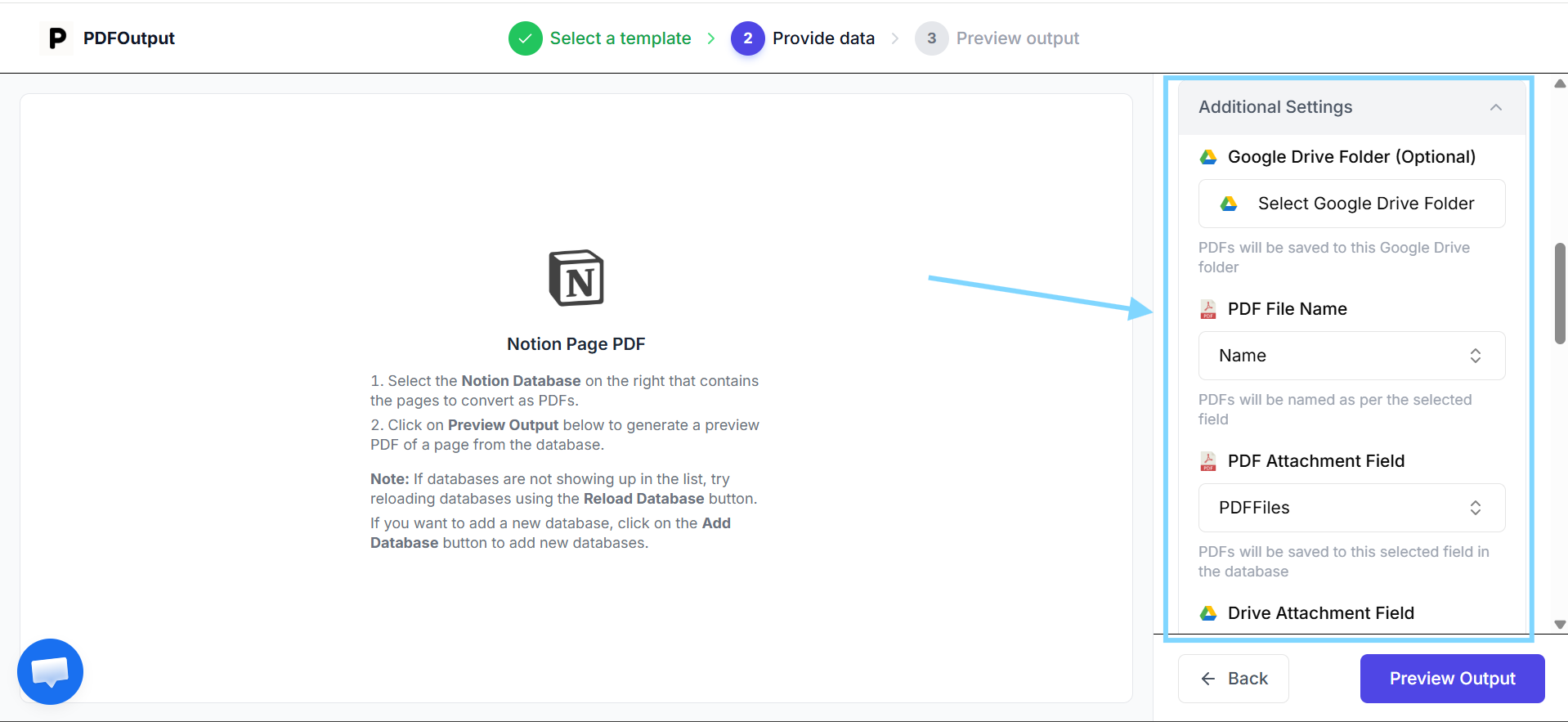
Once all of the above additional settings are defined it will help to produce the PDFs as per the defined settings.
Now you can add more meeting notes into the database as required and simply use the button to create a polished, shareable PDF without setting up the automation again in PDFOutput.
Tips to Make Your Meeting Notes Look More Professional
FAQs
Can I export just part of a Notion page as a PDF, not the whole thing?
No, not directly. Notion exports the entire page as it's structured. If you only want certain sections shared externally, it's best to duplicate the page first, delete anything internal-only, and then export that cleaned-up copy.
Will my Notion page's formatting stay exactly the same in the PDF?
Yes, almost all the elements are always perfectly generated in the PDFs as rendered on the Notion Page. Elements such as toggles, embeds, and even database views may not always render the same way as in a static PDF. It's always worth to review the export before actually sending the document.
Is there a faster way to do this if I send recaps every week?
Yes, you can create a Notion template with the standard sections being used and then build a Notion template with your standard sections already in place which becomes a biggest time-saver. You just fill in the details after each meeting notes are taken and exported, rather than rebuilding the structure each time from scratch.
Do I need a paid Notion plan to export PDFs?
Notion's PDF export feature is available on both free and paid plans, though larger workspaces with advanced permission settings may have some restrictions depending on the page.
But to use PDFOutput to convert Meeting Notes to PDFs, it doesn't depend upon which plan you opted for Notion.
What's the best way to share a PDF with someone who isn't on my team?
Email attachment is usually the simplest and most reliable option. It doesn't require the recipient details to sign into anything or navigate a shared workspace as such, which matters more when you're sending recaps to clients or external partners.
Conclusion
Turning Notion meeting notes into shareable PDF recaps isn't complicated once you have a repeatable process in place. PDFOutput will help you implement the automation you need for converting the Meeting Notes to PDFs.
The real work happens before the export, in how you structure the notes and how the notes are cleaned up. It's not present anywhere in the PDFs exported. So, set up a solid template one time and follow the steps each time and you will spend less time reformatting and rearranging things which are actually crucial for your meetings.