Tutorials
How to Build a Notion-to-PDF Contract Generator
A step-by-step guide on how to turn Notion into a real contract generator that outputs clean, professional PDFs on demand using PDFOutput.
By Sanat Biswal · 2026-07-19 · 10 min read

If your team regularly drafts contracts in Notion, but finds it difficult to generate a polished and properly drafted PDF, you are not alone.
Notion is considered a great tool when it comes to collaborative writing, but it falls short when it comes to producing documents for any use case (including Contracts). It's just not built to produce high quality PDFs which are properly formatted and well structured to fulfill user's needs.
What is left out in this scenario is simply copying-pasting elements into a word file, reformatting the document each time, and then exporting it manually. It works well for a one-off PDF, but it doesn't scale when volume of Contracts increases.
In this guide, we will tackle this limitation and discuss how to turn Notion into a real contract generator that outputs clean PDFs on demand.
Why Notion Export Doesn't Work
Notion's native "Export to PDF" works well for casual documents, but it's not meant for generating contracts.
You will often face a lot of issues with the default Notion to PDF export which involves:
- Inconsistency in page breaks in the pages.
- Database properties don't look good when the documents are printed.
- There's no way to fill up the client names or dates or terms of the deal into a template file.
- The template that is to be used must be structured to be used to generate the contracts.
- There must be a way to populate the data dynamically.
- The template must be turned into a professional PDF which must be reliable to be rendered properly.
- Contract Title
- Effective Date
- Scope of Work
- Contract Value
- Status
- Client Details etc
- Client Name
- Contact Email
- Billing Address
- Related Contracts etc
- Legal/compliance teams who are actively managing high volumes of vendor activities, client activities, or even partner agreements across the business that would require an automation tool to keep track of different versions, approvals and even renewal dates.
- Small businesses or startups who are operating without a dedicated legal department to help them with generation of PDFs, routing and even execution of standard contracts.
- HR departments who issue employment contracts, offer letters, and NDAs for every new hire would need automation to standardize terms and ensure consistent execution across the organization.
- Sales teams who regularly send out customer contract and / or subscription agreements and require fast turnaround, they would need automation to speed up signature collection and even reduce deal-closing delays.
- Procurement/vendor management teams who are looking for signed supplier or service contracts that are needed to formalize the terms before Purchase Orders are to be issued and thus would need automation to link contract execution with downstream PO and payment workflows.
This means every contract which is generated needs to be manually cleaned up with all the issues before the contract is ready to be sent.
Thus, to be able to fix this issue there needs to be 3 things that need to work together:
All of the above issues can be fixed using an automation tool PDFOutput which helps to generate the PDFs using Notion Database (Contracts Database) as the CRM.
Let's see how we can get this done using PDFOutput by setting up an automation pipeline within mins…
Step by Step Guide for Notion to Contracts PDF Generator
In order to setup the automation for generating the contracts from Notion using PDFOutput, we need to follow the steps below:
Step 1: Build the Contracts Database in Notion
The first step before setting up the PDFOutput automation is to setup the Contracts Database in Notion.
For this demonstration, we will be using 2 databases connected to each other to capture all the details for the contracts.
1. DB_ContractsDetails — Stores all the information about the contract being made.
| Property | Used For |
|---|---|
| ContractTitle (Title Type) | Defining the Contract Title |
| Client (Relation with DB_ClientDetails) | Connecting with the clients |
| EffectiveDate (Date Type) | Date of Contract |
| Scope of Work (Text Type) | Defines the scope of the work |
| Contract Value (Number Type) | Defines the value of the contract |
| Status (Select Type) | Defines the status of the contract |

2. DB_ClientDetails — Stores all the information about the client for which contracts are prepared.
| Property | Used For |
|---|---|
| Client Name (Title Type) | Defines the client name |
| Related Contracts (Relation with DB_ContractsDetails) | Sets up relation with the contracts database |
| Contact Email (Email Type) | Defines the contact email address |
| Billing Address (Text Type) | Defines the billing address for the contracts |

Here's the details of the information that will be stored in both the databases:
Contracts Details database will contain the primary information of the contracts such as:
Client Details database will contain the information about the clients for which contracts are being prepared which includes:
For your use case you can modify the contracts details as per your choice and add more information as necessary.
Once the database is setup correctly its time to setup the Contracts Template to generate as PDFs.
Step 2: Setup the Contracts Template
In this step, we will prepare the Service Agreement Contracts Template which will be used to generate the contracts for us.
The template can be setup using a Google Document or a Word File or even an existing Contracts PDF File which can be used for the setup.
Here's a sample Contracts template which will be used for the process…
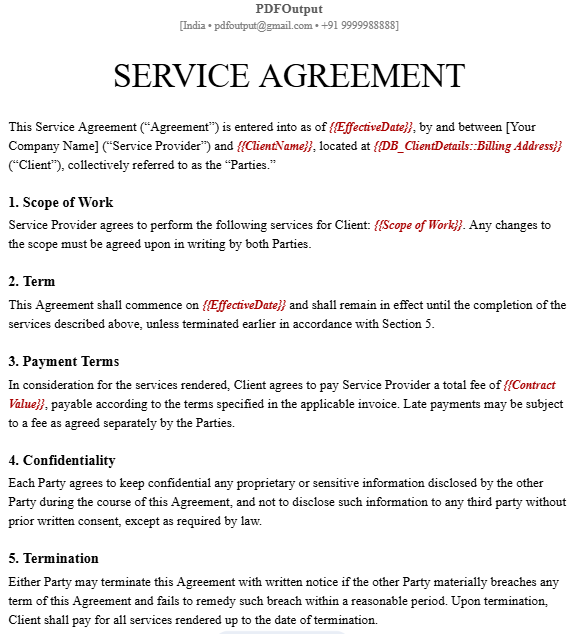
Note: Here we have used the placeholders inside double curly braces such as \{\{Contract Value\}\}, \{\{EffectiveDate\}\}, \{\{Scope of Work\}\} etc and created the template as such.
Once the template and the database are connected in PDFOutput and the automation is setup, the PDFs will be generated directly within the Notion Database making the automation work swiftly to generate Contracts with ease.
Step 3: Setup PDFOutput Connection
In this step, we will connect the Notion Database and the Template File in PDFOutput to start generating the Contract PDFs with ease.
I have created a detailed guide on how to create NDA agreements on Automation in Notion.
Once all the steps are followed from start to end, we will be able to setup a similar automation that can generate PDFs directly inside Notion Database using the template file added, but for Contracts.
Please refer to the above guide and follow the steps but for Contracts Agreements using the above two Notion Databases (DB_ContractsDetails and DB_ClientDetails) and template file (Google Document).
Inside PDFOutput once everything is connected, before setting up an automation first generate a Preview Document and if the preview document fits as per the requirement then click on Setup Automation button to setup the automation to run forever.
> Note: PDFOutput also supports adding the signatures onto the PDF generated, so for adding e-signatures to the PDFs generated, click here to learn how to add e-signatures to the PDFs generated.
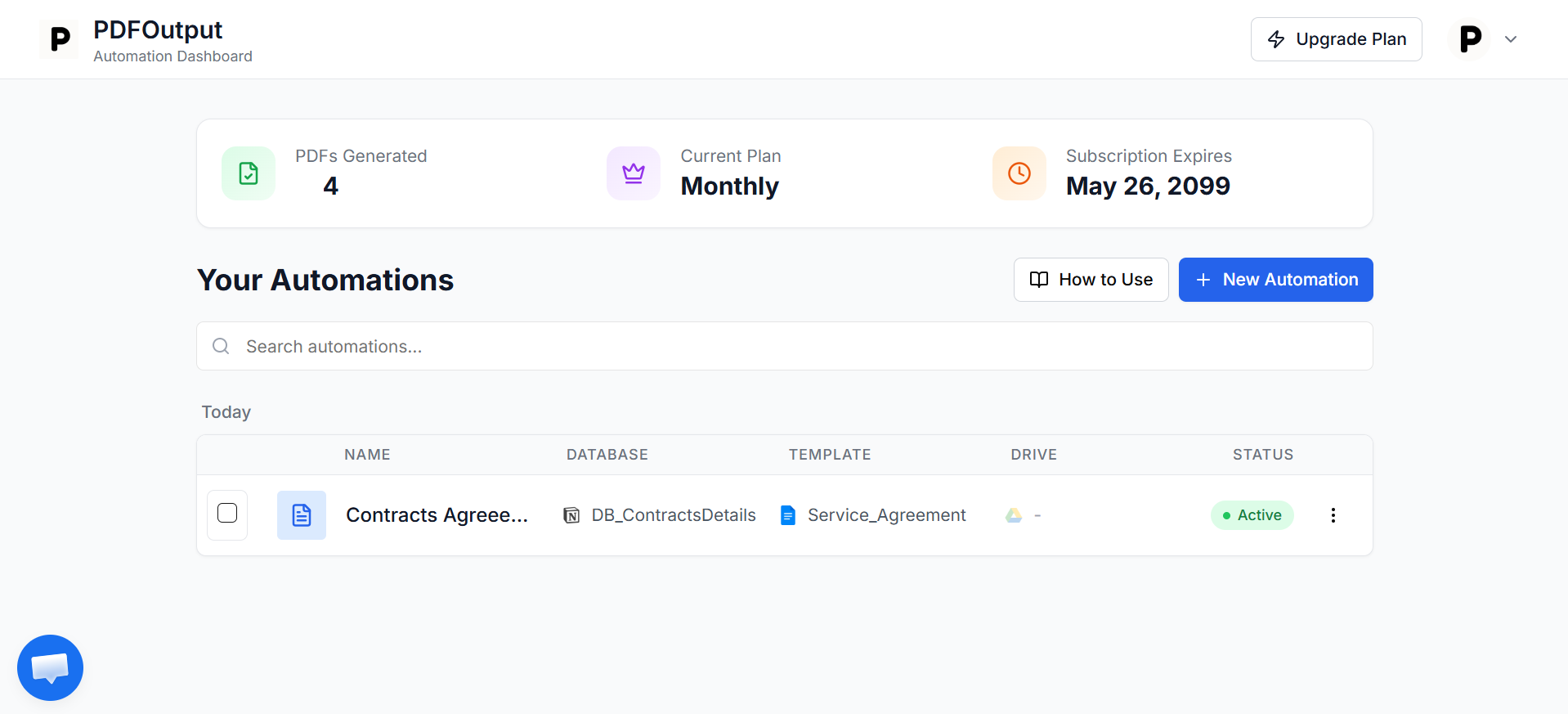
Once the automation is setup and is showing an Active status, its time to start generating the PDFs.
Generating a Contracts Agreement From Notion Database
When the automation is set as active, creating a contract just means updating a property.
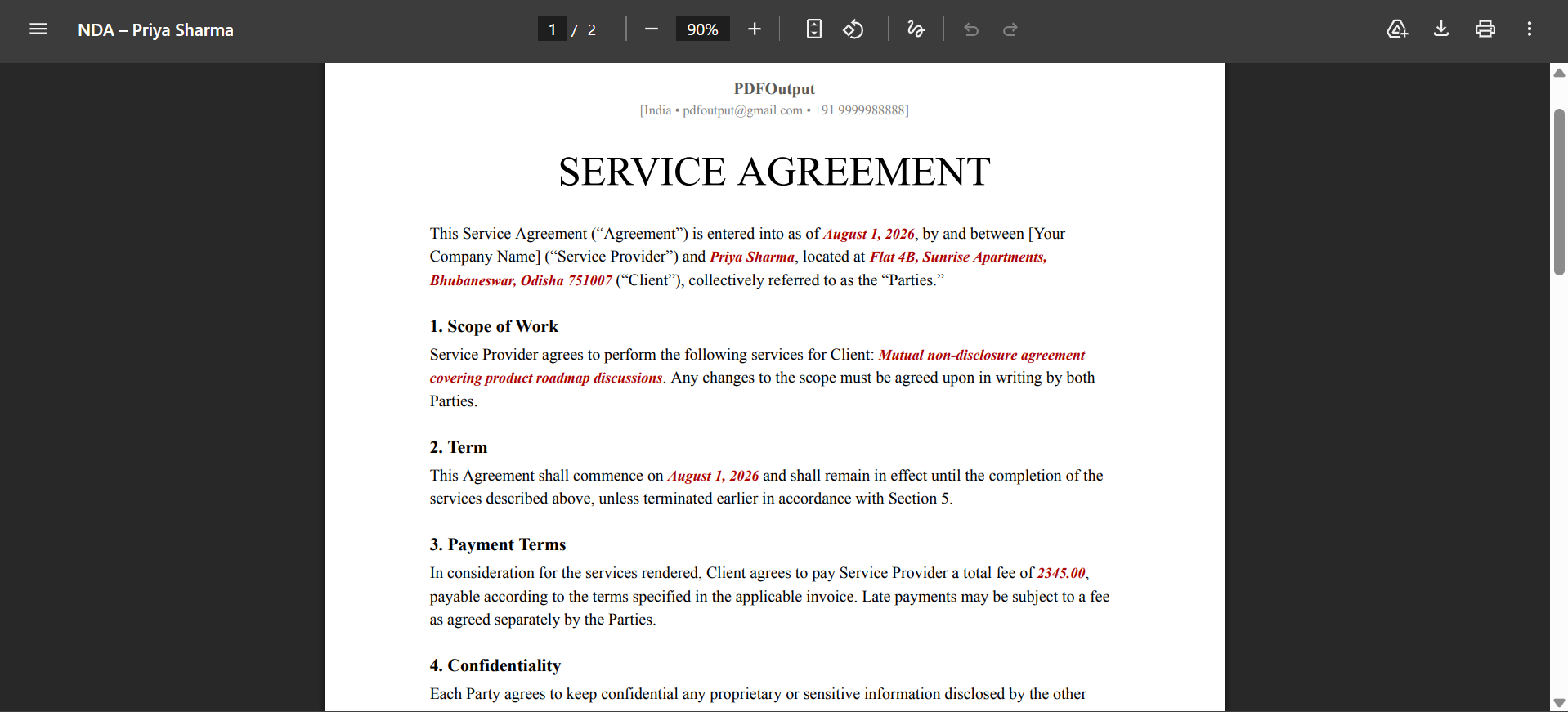
Set GeneratePDF property to Ready to Generate on any record, and PDFOutput builds the document and drops it into the PDFFiles column, marking the record Completed once done.
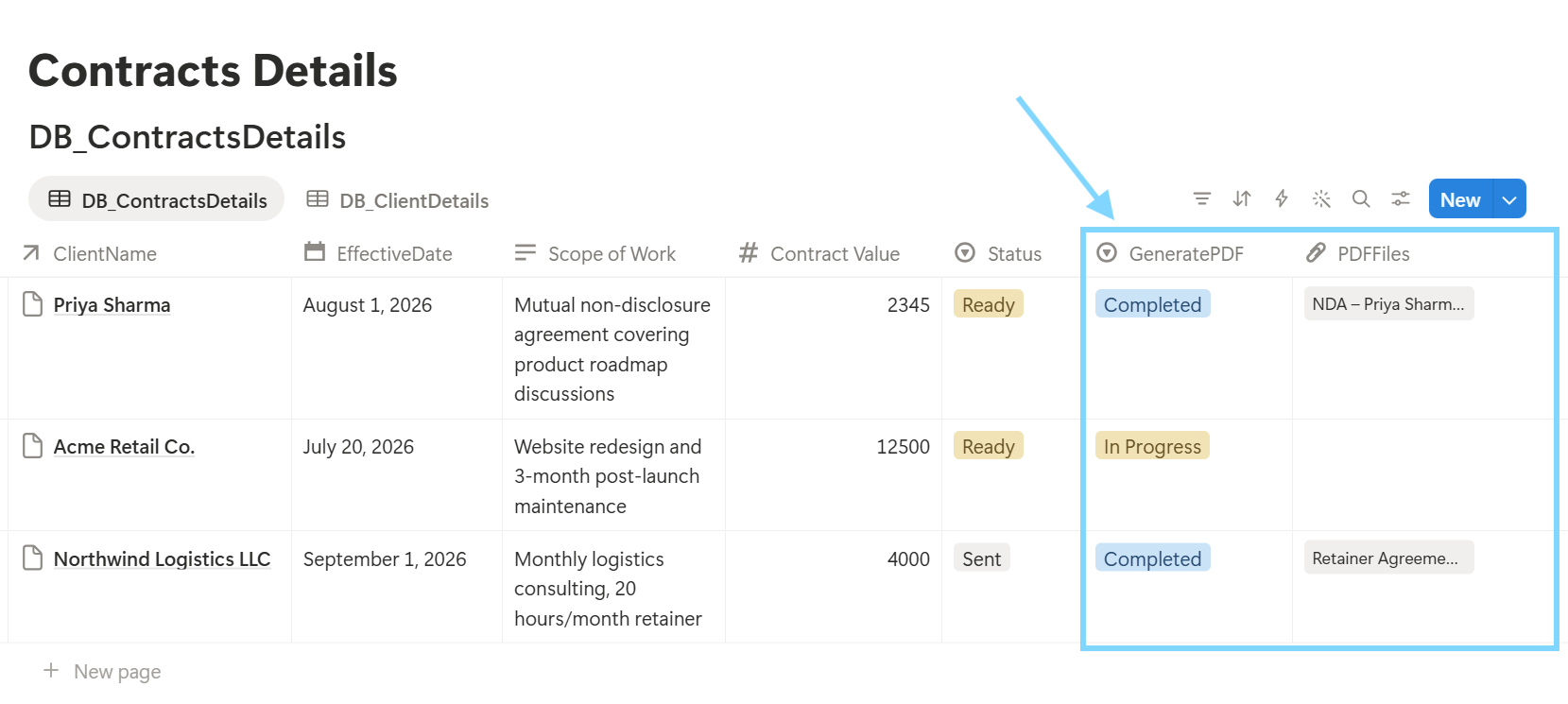
Here's a sample PDF generated from the automation for one of the records of the Contracts Database…
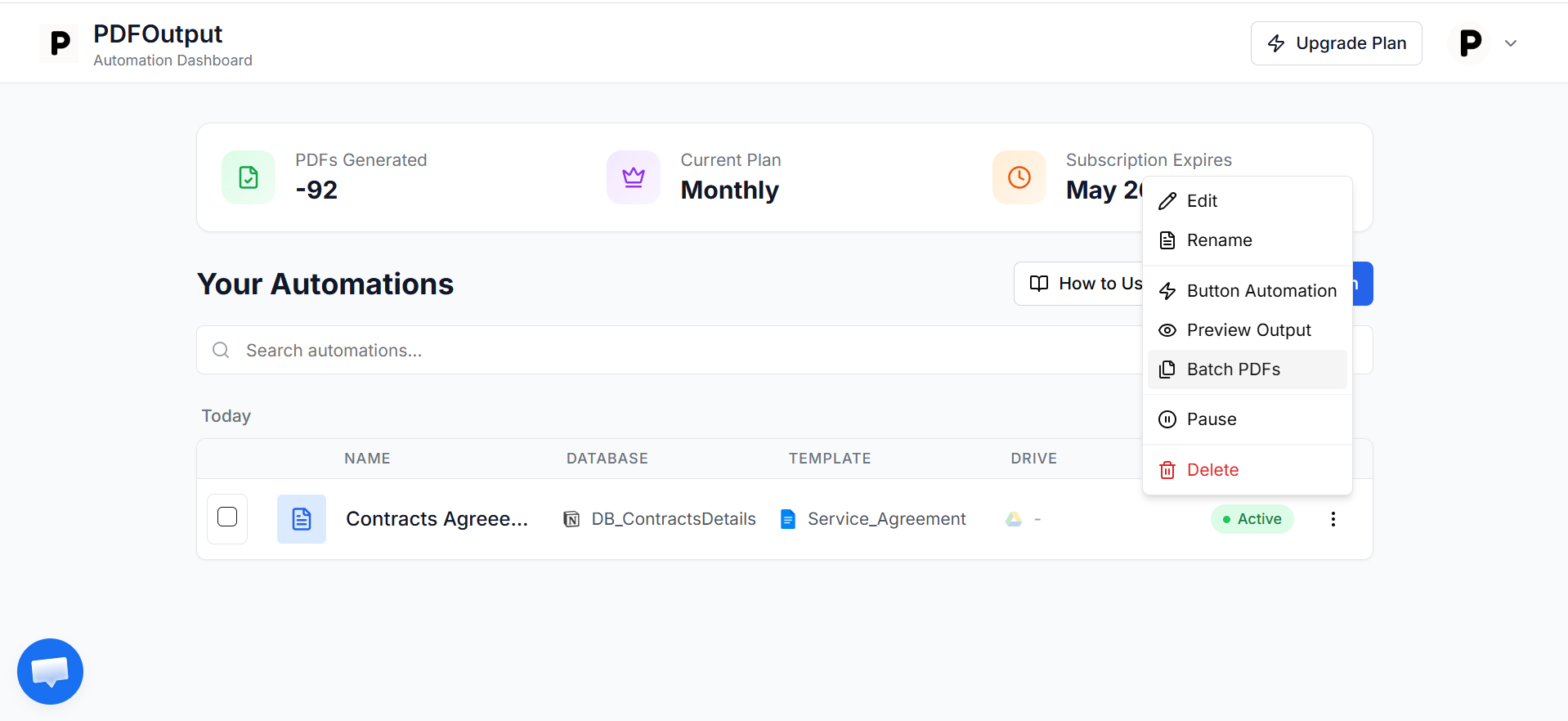
For teams who need to place several contracts at once and generate the PDFs for it, PDFOutput can help process upto 100 PDFs at once in a single batch of files.
Here's how the batch PDFs can help generate PDFs in batches at once.
Who Would Need To Execute Contracts
Conclusion
Once the automation is setup, creating a new contract becomes really simple as filling out a Notion Database row and switching a status.
There's no need of any formatting, any manual exports, any inconsistent versions floating around. The heavy lifting of the data such as merging data, rendering the PDF, and delivering it — happens automatically in the background, which is exactly what a tool like PDFOutput is meant to handle for you.