Guides
How PDF Automation Streamlines Safety Inspections in Notion
Discover how PDF automation for safety inspections turns Notion data into accurate, shareable reports and certificates with real‑time PDF generation.
By Sanat Biswal · 2026-09-28 · 5 min read

{/ synced-from-notion — do not edit manually /}
Safety inspections generate a lot of paperwork. You need a fast way to turn those checklists into clean PDFs that can be filed, shared, or signed. Below we break down how PDF automation works in Notion, the docs you can create, and when the investment pays off.
Table of Contents
What PDF Automation for Safety Inspections Actually Does
PDF automation links a Notion database to a template file. When a record meets a trigger, the platform pulls the field values, swaps them into placeholders like{{Inspector_Name}}, and spits out a finished PDF. The whole flow runs without you opening a word processor. This is the same core approach used by document automation software for Notion across repeatable business workflows.
Because the template lives outside Notion, you can keep branding, fonts, and tables exactly the way you want. The engine then writes the data into the template, renders a PDF, and attaches the file back to the same Notion row.
PDFOutput handles this end-to-end. It watches a status property (e.g., Ready to Generate) or a button click, runs the merge, and stores the result in a designated file field. The process is instant, so you never have to manually export a page.
PDFs preserve layout across platforms. That reliability is why regulators often demand PDF reports for safety audits.
Key Takeaway: PDF automation moves data from Notion straight into a locked-down PDF, eliminating manual copy-paste and formatting errors.
Which Safety Inspection Documents Can You Generate Automatically?
Any form that follows a repeatable structure works as a template. Common safety-inspection outputs include:
Each template contains placeholders that match the Notion database columns. When you add a new inspection record, the placeholders fill in the inspector name, date, site ID, and any findings.
Because PDFOutput accepts Google Docs, Word files, PDFs, and even Notion pages as sources, you can start with the format you already use. A Notion page works well for quick forms; a Word file is better for complex tables and branding. Teams that connect inspections with work orders and maintenance records can also apply the same approach described in PDF automation for manufacturing with Notion.
Here’s a quick visual of a safety-inspection template with placeholders:
How Notion Inspection Records Become Finished PDFs
First, you create a Notion database that holds every inspection field: inspector, date, site, checklist items, and any notes. Next, you add a GeneratePDF property that lets you set the status to Ready to Generate.
When you flip that status, PDFOutput reads the record, matches each field to the template’s placeholders, and calls the rendering engine. The engine builds a Google Doc behind the scenes, replaces all placeholders, and then exports the doc as a PDF.
The PDF lands back in the Notion row’s PDFFiles column, ready to be downloaded or emailed. You can also enable e-signature mode so the PDF includes a signed block automatically.
Watch the walkthrough of the full process, from entering inspection data in Notion to attaching the finished PDF.
How PDFOutput Triggers PDF Generation in Notion
PDFOutput offers several ways to start a merge. The simplest is the native Notion button. You add a button block to the database view, point it at the automation, and each click fires the process.
If you prefer a status-change trigger, set the GeneratePDF property toReady to Generate. PDFOutput monitors that property and launches the merge as soon as the value appears.
Both methods rely on the same underlying API calls. PDFOutput talks to a document-generation service to build the temporary document, then uses its own PDF engine to create the final file.
| Status Property | Action Triggered | Result |
|---|---|---|
| Ready to Generate | Button or status change | PDF stored in PDFFiles |
| Generate Page | Button | Notion page saved as PDF |
| Generate PDF and Doc | Button | PDF + Google Doc copy |
| Generate E-Signed Doc | Button | PDF with embedded signature |
| Preview | Button | Google Doc preview only |
When Safety Inspection Automation Pays Off—and When It Does Not
Automation shines when you run the same form dozens or hundreds of times a month. A construction firm that does daily site checks can save hours each week by letting the button generate PDFs on the fly.
It also helps when compliance requires a signed PDF record within minutes of an incident. The e-signature feature lets you close the loop without a separate signing step.
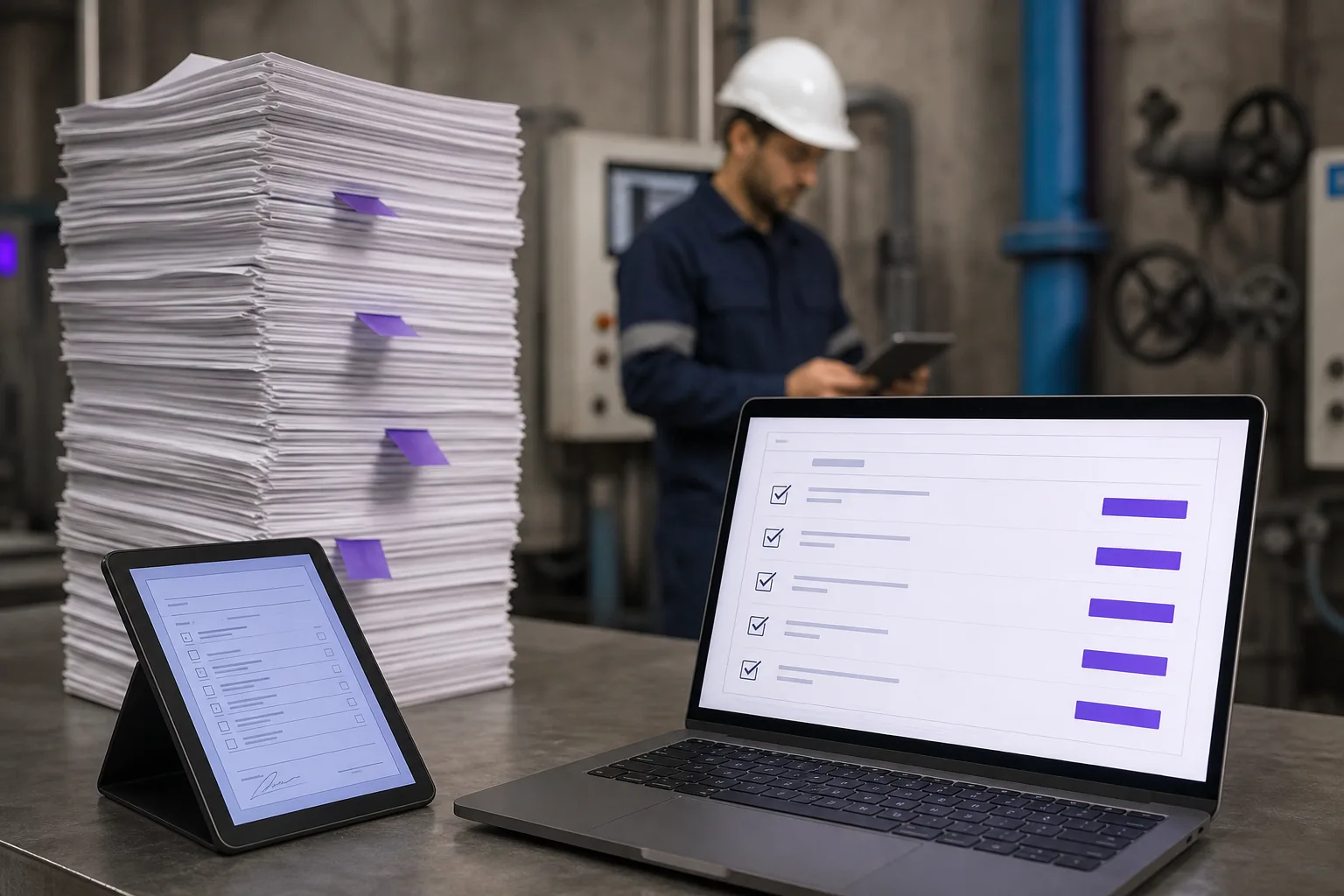
But if your inspections are rare, say a quarterly fire drill, building a Notion template may be more work than it saves. In that case a manual export might be simpler.
Another warning sign is a highly custom layout that relies on complex Notion blocks. The conversion engine works best with clean tables and standard fonts. Overly decorative pages can lose their exact look in the PDF.
Pro Tip: Set up a scheduled batch run each night to process any inspections marked “Ready to Generate” overnight. That way the next morning the team sees a complete PDF archive ready for review.
In short, the ROI comes from volume, speed, and the need for signed, immutable records. Small, one-off checks may not need the overhead.
FAQ: PDF Automation for Safety Inspections
Can I generate PDFs without writing any code?
Yes. PDFOutput uses a no-code placeholder system, so you just add{{Field_Name}}to a template and set a button or status trigger.
Does the automation work with relational data in Notion?
Yes. PDFOutput can pull values from related databases and rollups, so you can include client details, equipment specs, or audit scores that live in separate tables.
What file formats can I export besides PDF?
PDFOutput also outputs Google Docs and other presentation files. You can choose the format that fits your downstream workflow.
Is there a limit on how many PDFs I can create per month?
The free tier lets you test up to ten PDFs. Paid plans remove that cap, allowing bulk generation of hundreds of documents.
Can I add an e-signature automatically?
Yes. Turn on the “E-Signed Doc” status, and PDFOutput will embed a signature block that complies with common electronic-signature standards.
Conclusion
If you need reliable, repeatable safety-inspection reports, set up PDF automation in Notion with PDFOutput. Start by creating a template, add the GeneratePDF status, and watch the PDFs appear instantly.