Guides
How PDF Automation for Donation Receipts Works in Notion
Learn how PDF automation for donation receipts works in Notion, from templates and data mapping to triggers, batch creation, and e‑signatures.
By Sanat Biswal · 2026-09-28 · 6 min read

{/ synced-from-notion — do not edit manually /}
You're juggling donor data in Notion and need receipts that look professional, ship fast, and stay error‑free. PDF automation for donation receipts does exactly that, it pulls your database rows, fills a template, and drops a ready‑to‑send PDF back into Notion.
What PDF Automation for Donation Receipts Actually Does
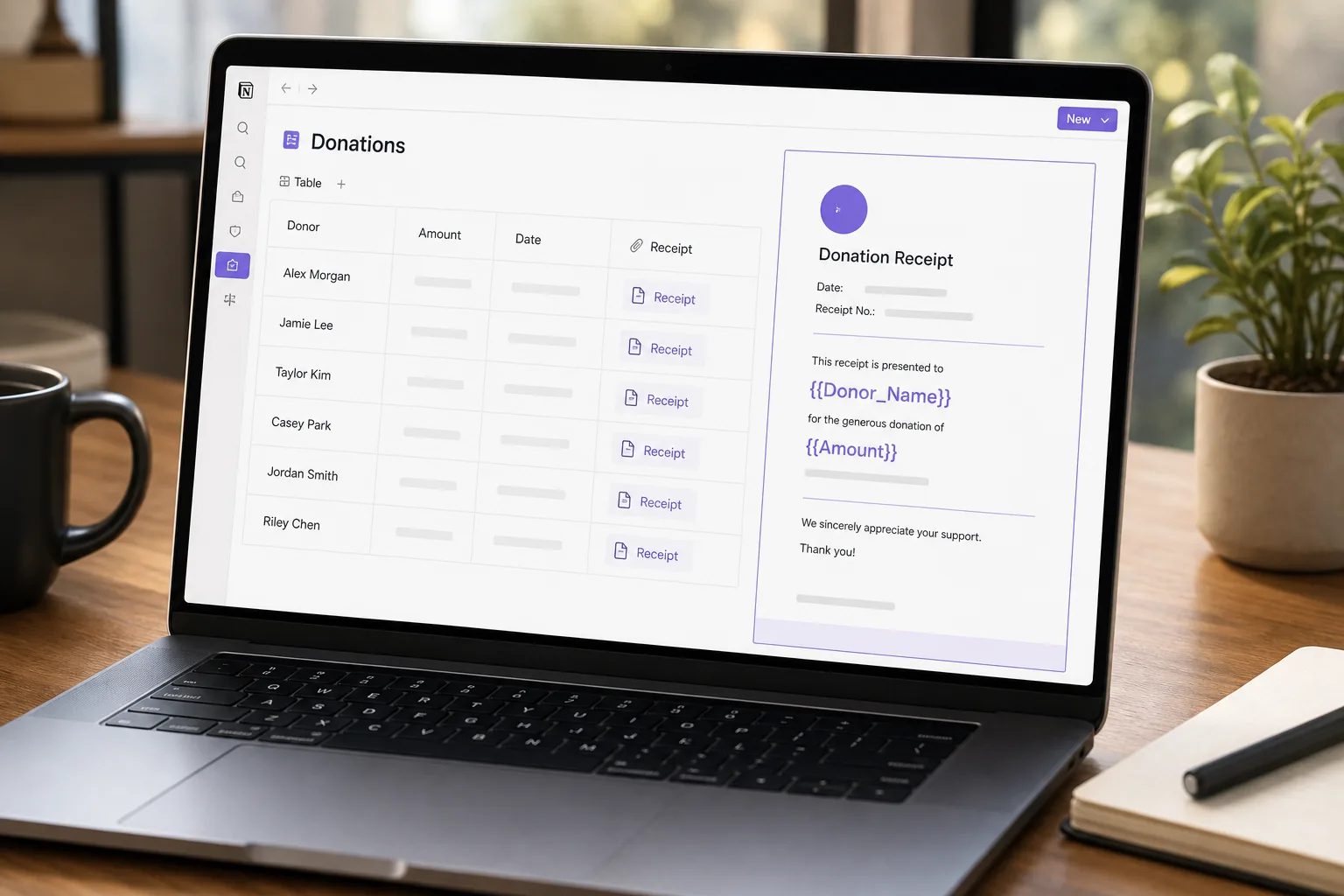
At its core, the automation reads each record in a Notion database, matches its properties to placeholders like{{Donor_Name}}in a template, and outputs a finished PDF. The process runs without code, so you don’t need a developer on call.
PDFOutput makes this flow possible. It connects to your Notion workspace, grabs the data, and hands it to a Google Doc (or Word, or an existing PDF) that holds the layout. Once the placeholders are filled, the service converts the document to PDF and stores it where you tell it to, often a Google Drive folder linked back to the Notion row.
Because the mapping is literal, the property name must match the placeholder exactly, you avoid mismatched fields that cause blank spots in the final receipt. The result is a clean, tax‑ready receipt that can be emailed or printed directly from Notion.
Read more about the underlying Notion template on the Notion template page. How to Automate NGO PDFs in Notion walks through a similar setup for charities.
Donation Documents You Can Generate from a Notion Database
Notion can hold many kinds of donor‑related records, and each can become a PDF with the same automation engine. Common documents include:
- Standard donation receipts, the legal proof donors need for tax deductions.
- Year‑end summary letters, a single PDF that lists all gifts a donor gave in a calendar year.
- Thank‑you letters, a personalized note that reinforces the donor relationship.
- Gift acknowledgment certificates, especially useful for large donors or corporate sponsors.
A written receipt can help document a donation and support donor trust. By generating them automatically, you remove a repetitive manual step and keep your stewardship record flawless.
How Notion Data Becomes a Personalized Receipt
First, you design a template in Google Docs, Word, or even a Notion page. In the template you write the static text, your logo, a thank‑you paragraph, the legal statement about 501(c)(3) status, and drop placeholders where the donor‑specific data belongs.
Next, you tell PDFOutput which Notion database to watch. The service reads the property schema:Donor_Name,Donation_Amount,Gift_Date, etc. When a row’s status changes to “Ready to Generate,” PDFOutput pulls those values, swaps them into the placeholders, and runs a conversion to PDF.
The conversion happens in real time. You can see the new PDF appear in a column calledPDFFilesinside the same Notion table. That column holds a clickable link to the file stored in Google Drive, so you can share it instantly.
> 📌 Key Takeaway: Matching placeholder names exactly to Notion property names is the single most reliable way to avoid blank fields in your receipts.
How PDFOutput Triggers PDF Generation in Notion
PDFOutput offers several ways to kick off a PDF build. The most common method uses a status property calledGeneratePDF. When you set the value to “Ready to Generate,” the automation fires.
Other status options include “Generate Page” (turn a Notion page into a PDF), “Generate PDF and Doc” (produce both PDF and Google Doc), and “Generate E‑Signed Doc” (adds an e‑signature field before the PDF is saved). These options let you tailor the output to the exact workflow you need.
Behind the scenes, PDFOutput watches Notion for changes to the status field. As soon as it detects the trigger, it queues the record, runs the placeholder mapping, and writes the file back to Notion. The whole cycle usually finishes in seconds, even for a batch of 100 receipts.
Because the trigger lives inside Notion, your team doesn’t need to manage a separate scheduler or webhook. Simply change the status, and the system does the rest.
Designing a Reliable Donation Receipt Workflow for Nontechnical Teams
Non‑technical staff often feel uneasy about automation. The trick is to keep the setup visual and step‑by‑step inside Notion itself.
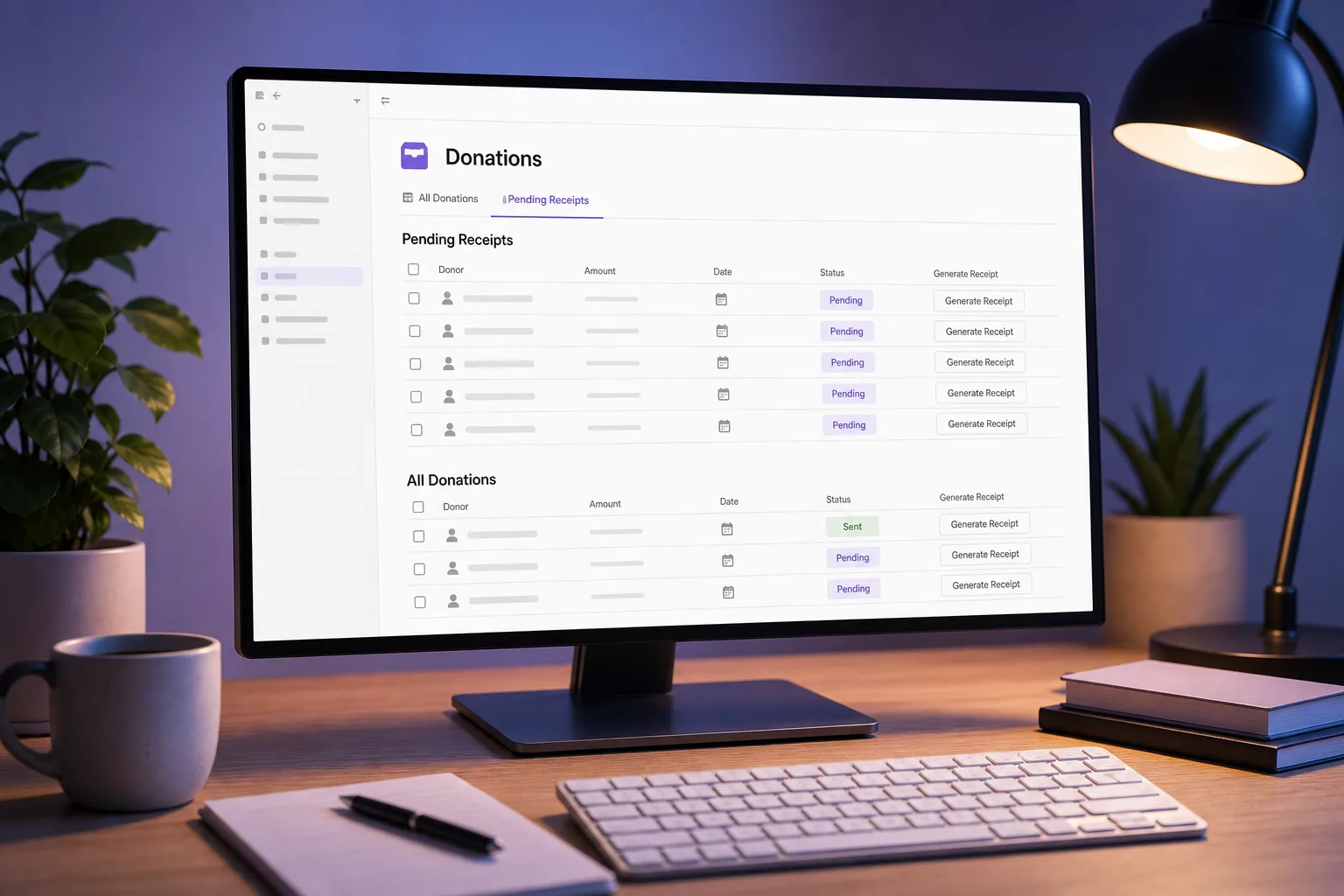
Start with a simple “Donations” database that has the core fields: donor name, amount, date, and aGeneratePDFstatus. Add a button column that runs the “Ready to Generate” status change with one click. This button appears in each row, so the user just clicks it after entering a new donation.
Next, configure PDFOutput once, connect the Notion workspace, select the receipt template, and map the fields. After that, the only ongoing task for staff is to set the status or press the button.
> 💡 Pro Tip: Use a filtered view that only shows rows whereGeneratePDFis “Ready to Generate.” That view becomes a clear “to‑process” queue for the team.
When you need to handle a surge, for example, after a fundraising event, you can switch the status for many rows at once using Notion’s multi‑select edit feature. PDFOutput will then batch‑process up to 100 PDFs in a single run, saving hours of manual work.
Finally, set up a Google Drive folder for storage and a second Notion column that holds the Drive link. This double‑record keeps a backup outside Notion and lets you audit every receipt later.
FAQ: Donation Receipt Automation in Notion
Can I generate donation receipts for free?
Yes, PDFOutput offers a free tier that lets you create up to ten PDFs per month, so you can test the workflow before upgrading.
Do I need coding skills to set this up?
No. The whole process relies on placeholder text and simple status changes.
What file formats can I output?
PDFOutput can output PDFs, Google Docs, and Microsoft Word files, letting you choose the format that fits your downstream process.
Is bulk generation possible?
Yes. Once the status is set to “Ready to Generate” for many rows, PDFOutput will create up to 100 PDFs in a single batch run.
Can I add e‑signatures to the receipts?
Absolutely. Selecting the “Generate E‑Signed Doc” status adds an e‑signature field that your donor can sign electronically before the PDF is finalized.
How does the automation keep data secure?
PDFOutput uses OAuth to connect to Notion and Google Drive, so credentials never leave your account. Files are stored in a Drive folder you control, and access permissions follow your Google settings.
Conclusion
If you need reliable, tax‑ready donation receipts without manual copy‑pasting, set up PDFOutput in Notion today. Click the “Ready to Generate” button on a new donation row and let the system handle the rest. How to Build a Notion Document Workflow shows the next steps for scaling the solution across your organization.