Guides
Notion to Word: How to Export and Fix Formatting
Notion has no direct Word export. Learn 3 ways to move a Notion page into Word, how to fix broken formatting, and how to generate documents from a template.
By Sanat Biswal · 2026-10-07 · 5 min read

{/ synced-from-notion — do not edit manually /}
You finished a page in Notion, and now a client, manager, or teammate wants it as a Word file. Notion's export menu offers PDF, HTML, and Markdown, but it doesn't offer a Word (.docx) option. That means you need a workaround, and each one affects how the formatting works for the output produced.
This useful guide covers 3 different ways to get Notion content converted into Word File, and also how to fix the formatting problems that follows after that, and what to do if you send the same kind of document each week.
Here’s the steps to follow to get started…
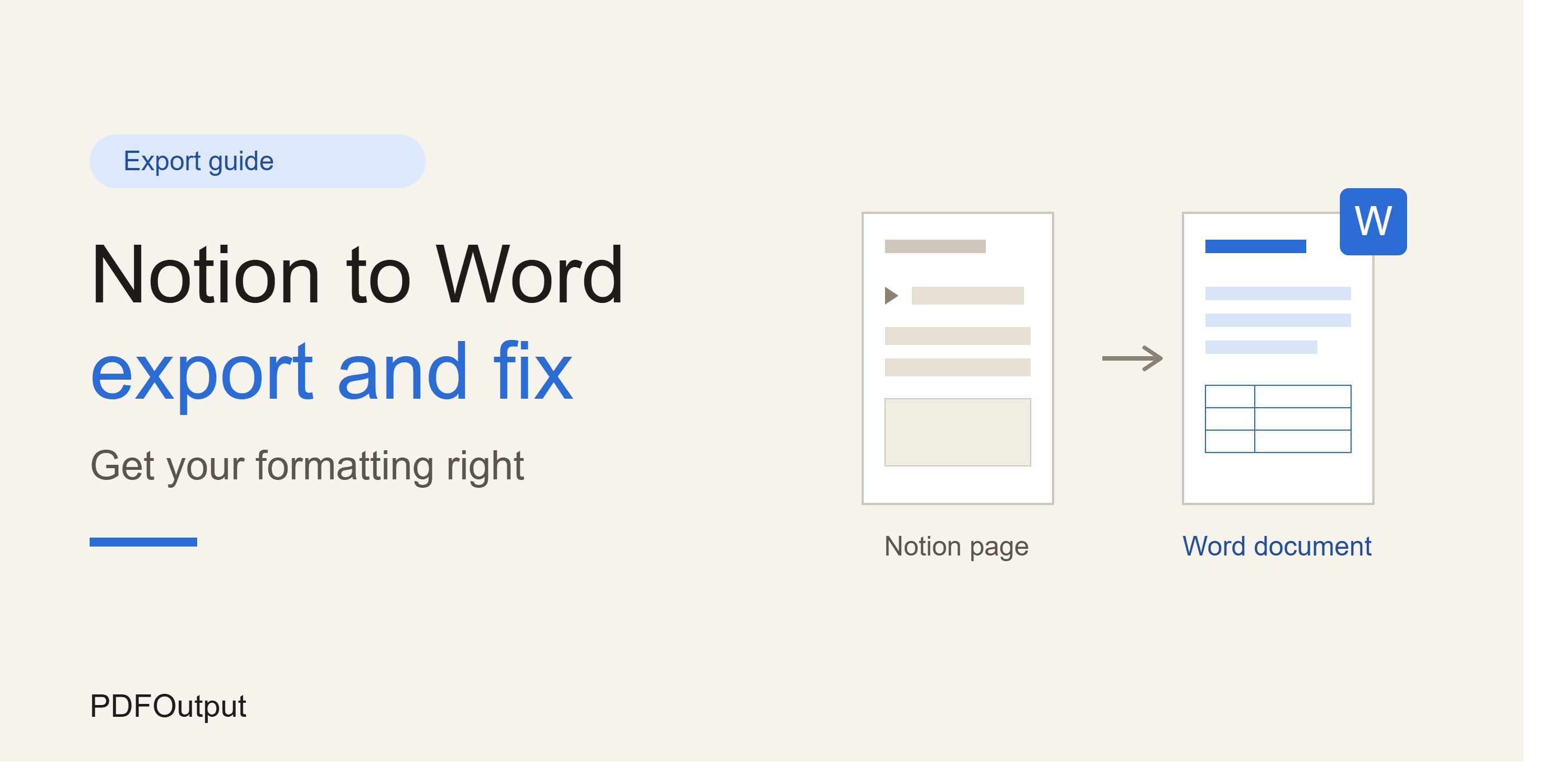
Step 1: Choose the Right Method That Works for Your Page
The best method depends upon the content that is written in the notion page. Check this before you export.
- Plain text pages that has headings, lists, and a few images: Copy and paste the content what works well for your export.
- Pages with tables, toggles, or many images: The HTML export generated keeps more of the structure expected.
- Pages that must look exactly as they do on the screen: Export the content to PDF, then open the PDF in a Word File.
- Pages you share with people who use Google Docs: Use the Google Docs route used in Method 3.
- Open the Notion page and select all the content.
- Copy it.
- Open a blank Word document and paste.
- In Word, use Keep Source Formatting or Merge Formatting from the paste options and compare the two results.
- Open the page, select the •• menu, and choose Export.
- Set Export format to HTML.
- Choose whether to include subpages and images.
- Download and unzip the file if Notion gives you a ZIP.
- In Word, choose File, then Open, and select the HTML file.
- Save it as a .docx file.
- Copy the Notion content and paste it into a new Google Doc.
- Fix any layout problems there.
- Choose File, then Download, then Microsoft Word (.docx).
- Headings use real Word heading styles.
- Tables fit the page width.
- All images appear and sit in the right place.
- Toggles and callouts have been converted.
- Fonts, spacing, and page margins are consistent.
- Links still work.
- You have scrolled through every page once.
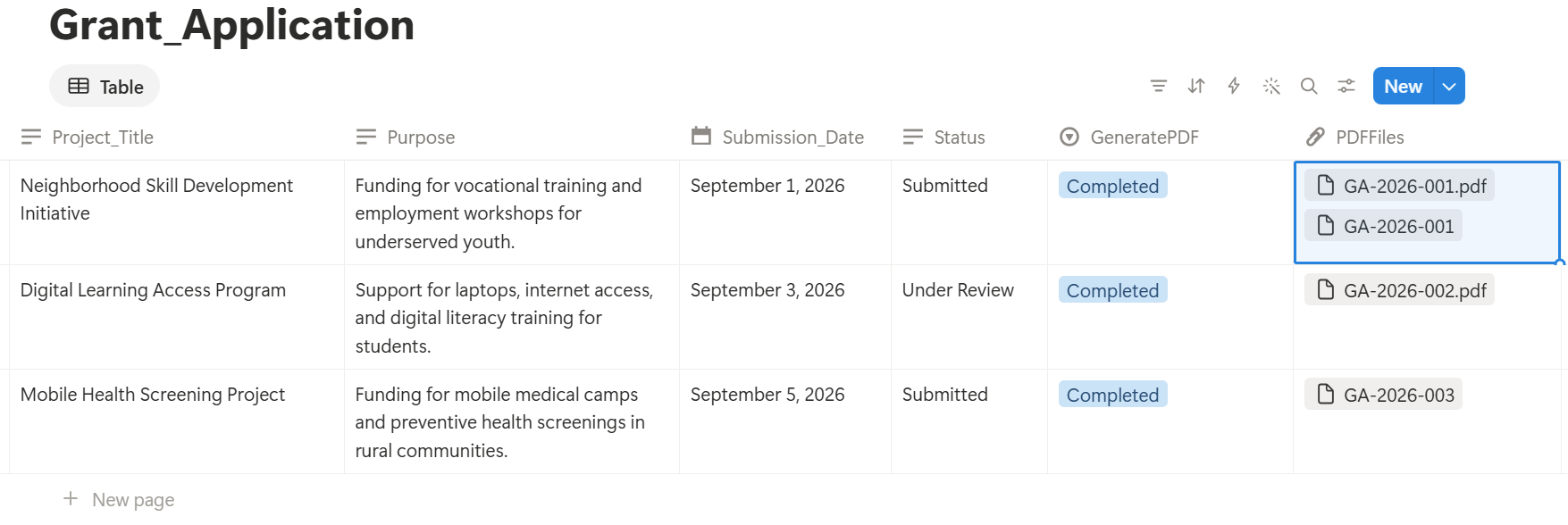
- Ready to Generate: creates a PDF from the database record.
- Generate PDF and Doc: creates a PDF and a Google document.
- Preview: creates a Google document for review before final PDF generation.
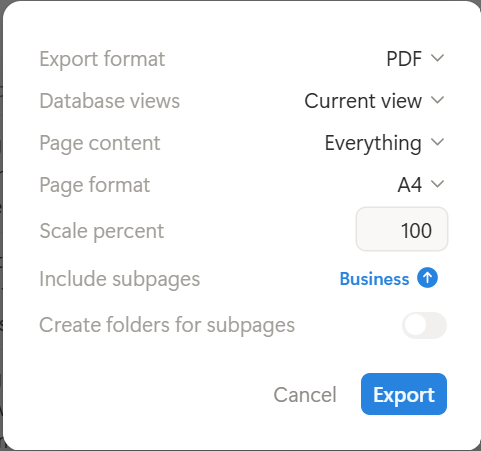
Decide whether the Word file needs to be edited. If the user only needs to read it, a PDF is usually the safe choice, because it looks the same on every device exported.
Step 2: Move Your Notion Page into Word
Method 1: Copy and Paste
This is the fastest option for short pages.
Headings, bold text, bullet lists, and links usually carry over. Toggles, callouts, columns, and database views may flatten or lose their layout.
Method 2: Export to HTML and Open in Word
Use this when the page has tables or several images.
Keep the images in the same folder as the HTML file, or they may not appear in Word.
Method 3: Go Through Google Docs
This route suits teams that already work in Google Workspace.
Google Docs often handles tables and lists cleanly, so this can be a good middle step when pasting straight into Word looks messy.
Another Useful Option: Export to PDF, Then Open in Word
Notion exports PDF directly. Word can open many PDFs and convert them into editable text, but the result depends on the layout. Simple text pages are converted well.
Pages which have columns, tables, or design elements often need cleanup. If the PDF itself comes out wrong, see our guide on Notion PDF export not working.
💡 Pro Tip: Do the export from a clean copy of the page. Duplicate it, and expand toggles, remove the blocks you don't need, and then you can export. That saves you from deleting any content in Word afterward.
Step 3: Fix Common Formatting Problems in Word
After making the changes as done above, scan the document from top to bottom. These are some of the most common issues that are noticed.
Problem 1: Headings Lose Their Original Style
Pasted headings sometimes show up as bold, larger text rather than real heading styles. Select each one and apply Heading 1, Heading 2, or Heading 3 from Word's Styles panel. This also lets you build a table of contents.
Problem 2: Tables Are Too Wide or Misaligned
Select the table, then use AutoFit to fit it to the window. If the table has many columns, reduce font size or switch the page to landscape.
Problem 3: Images Are Missing or in the Wrong Place
Check that the images were included in the export, and keep image files in the same folder as an exported HTML file. If an image still won't load, download it from Notion and insert it directly in Word.
Problem 4: Toggles, Callouts, and Columns Disappear
Word has no direct equivalent of these Notion blocks. Before exporting, expand every toggle and convert callouts into normal paragraphs, or format them in Word afterward with a shaded text box or table cell.
Problem 5: Fonts and Spacing Look Different
Notion's fonts don't match Word's. Select all text, set one font and size, and then adjust line spacing. Applying a Word template or theme gives the document a consistent look in one step.
Problem 6: Database Content Is Missing or Messy
A database doesn't paste as a clean table in every case. Create a view with only the properties you need, then copy it, or export that view and check the result. For more detail, see how to export a Notion database to PDF.
📌 Key Takeaway: Notion doesn't export to Word directly. Use copy and paste for simple pages, HTML for tables and images, and Google Docs as a cleanup step, then fix headings, tables, and images in Word.
Step 4: Use a Quick Checklist Before You Send the File
Step 5: Stop Rebuilding the Same Document by Hand
If you move the same type of Notion page into Word every week, such as client reports, quotes, or invoices, the manual cleanup adds up. The better approach is to keep your data in Notion and put the layout in a template.
PDFOutput generates documents from Notion data using a template. It accepts a Google document, Word file, PDF file, or Notion page as the template. You add placeholders in double curly braces, such as {{Client_Name}}, and each placeholder must match the related Notion property name. Your logo, fonts, and layout stay the same on every file because they live in the template and not in each export.
You can start generation with a Notion database button or a status property. Depending on your setup, PDFOutput can use these status options:
To see how this works for a specific document, read our guide to the Notion invoice template, or learn how to export a Notion page to PDF.
Frequently Asked Questions
Can Notion export directly to Word?
No. Notion's export options include PDF, HTML, and Markdown and CSV, but not .docx. You need to copy and paste, export to HTML and open it in Word, go through Google Docs, or convert a PDF.
What is the best way to get a Notion page into Word?
For short text pages, copy and paste is the fastest. For pages with tables and images, the HTML export keeps more structure. For the most predictable result, paste into Google Docs first and download as a Word file.
Why does my Notion page look different in Word?
Word has no direct equivalent for some Notion blocks, such as toggles, callouts, columns, and database views. Fonts and spacing also differ. Expand toggles and simplify the layout before you export.
Should I send a Word file or a PDF?
Send Word when the reader needs to edit the document. Send a PDF when the layout must stay fixed, as with invoices, contracts, and finished reports.
Can I generate Word-style documents from Notion automatically?
Yes, with a template-based tool. PDFOutput can use a Word file as a template and fill it with Notion data, then generate a PDF or a Google document that you can download as Word. Check how this fits your workflow before relying on it for live records.
Conclusion
Notion has no direct Word export, so pick the method that fits your page: copy and paste for simple content, HTML for tables and images, or Google Docs as a cleanup step. Then fix headings, tables, and images in Word before you send the file. If you create the same document again and again, move the layout into a template. PDFOutput can generate the document from your Notion data and save it back to your chosen storage workflow.