Guides
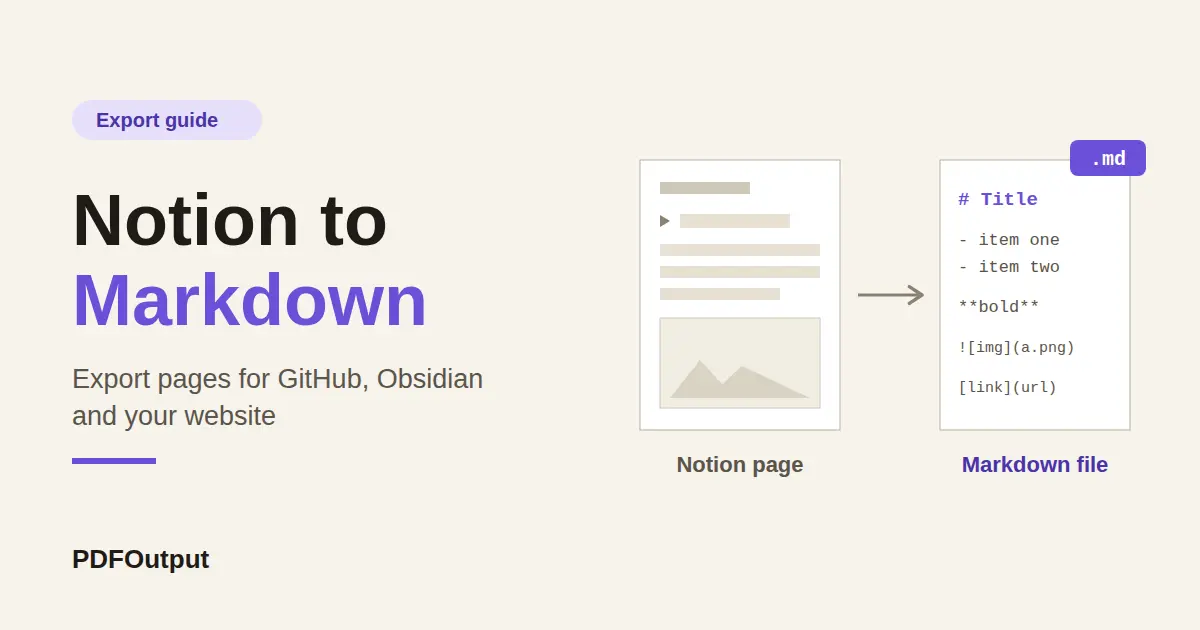
Notion to Markdown: How to Export Pages for GitHub, Obsidian, and Your Website
Learn how to export Notion to Markdown in a few clicks, what the ZIP contains, and how to fix broken images and links in GitHub, Obsidian, or your website.
By Sanat Biswal · 2026-10-09 · 5 min read

{/ synced-from-notion — do not edit manually /}
You wrote something really good in Notion, and now it needs to be used somewhere else: a GitHub repository, or an Obsidian vault, or even a blog post. What comes first to mind is to copy and paste the content, but this works when the content is short and is not extensively written to full length. But the main issues happens when the headings are needed to be shown properly which don’t appear exactly as intended, and the images shown don’t appear and look flat and vanish from the output when its not needed.
Exporting Notion to Markdown is the cleanest way out. Markdown is simply just the plain text which has a few symbols in use:
# used for a heading, * for a bullet. So nearly every tool on the planet is able to read this out. No lock-in required, no weird formatting issues present at all.
Here’s a quick shortest version as to how to export Notion to markdown formatting works:
You'll get a ZIP file with a .md format and a folder that contains the images.
The rest of this guide here covers what's exactly inside the ZIP file created, where do people find this difficult when the output is generated and how to fix the mess created all out of this process.
Here’s how to start while looking to export from Notion to Markdown formatting…
Step 1: Export Your Notion Page to Markdown
One habit that often can save a lot of time doing cleanup work later on:
Step 2: See What Is Inside the Export
Don't rush to import anything onto Notion. First look to unzip the file and look around. A typical export would look something like this:
``
Notion-Export.zip
└── My Page abc123.md
└── My Page abc123/
    ├── image1.png
    └── image2.png
`
3 things people often miss to catch:
Exact names and folder layout depend on your version of Notion being used, so run a quick test with a short page before you export something big out of the file.
Step 3: Use Your Markdown in GitHub, Obsidian, or Your Website
Where the file goes in the end will decide what needs to be fixed in the process. Here's how the common destinations for the export will work like:
a. Notion to Markdown for GitHub Repository
Rename the file to README.md (or whatever your project uses) and drop it onto the repo with its image folder.
Check that the image paths match the folder name, then preview it on GitHub Repository. Tables and task lists sometimes look a little different from what you had in Notion, so give them a second look.
b. Notion to Markdown for Obsidian
This is the easiest one to export and use.
Copy the .md files and image folders into your vault, strip the long IDs from the file names, and open them. Links that pointed to other Notion pages will still point to the old names, so update the ones you care about.
c. Notion to Markdown for a Website or Blog
Most static site generators and CMS tools accept Markdown.
Paste the text into your editor, upload the images through your media library, and swap the old image paths for the new ones. Many platforms also want a title and slug at the top of the file, so add those.
Then check how your platform renders tables and code blocks.
d. Notion to Google Docs or Word
Markdown doesn't open in a properly formatted document in either one. For Google Docs, paste the text in and apply headings with the toolbar.
The full walkthrough is in Notion to Google Docs. For Word, see Notion to Word.
Pro Tip: Export one short page first and move it all the way to its destination. Whatever breaks on that test page will break on the big ones too, and in this process it’s also much easier to find out.
Step 4: Know What Markdown Drops
Markdown is simple on purpose, so it can't carry everything Notion does. This is what would usually happen:
| Notion content | In Markdown | What to do |
|---|---|---|
| Headings, bold, italics | Become #, *, and | Check heading levels |
| Bulleted and numbered lists | Carry over | Check nested indents |
| Links | Carry over as text and a URL | Fix links to other Notion pages |
| Images | Saved as files, referenced by path | Keep the image folder next to the file |
| Code blocks | Carry over, often with a language tag | Check the language label |
| Tables | Usually become Markdown tables | Watch wide tables and merged cells |
| Toggles | Often lose the toggle, content shows as plain text | Open them before exporting |
| Callouts | Lose color and icon | Rewrite as a quote or note |
| Columns | Stack into one column | Rebuild in the destination if needed |
| Databases | Export as CSV files | Use the CSV in a spreadsheet or import tool |
| Embeds and bookmarks | Often shrink to a plain link | Check each one |
📌 Key Takeaway: Markdown keeps your words, headings, lists, links, and images. It drops layout extras like toggles, callouts, and columns. Simplify the page in Notion first and keep the image folder with the file.
Step 5: Fix Common Notion to Markdown Problems
file, or edit the paths.Step 6: Decide If Markdown Is the Right Format
Markdown is great for moving words around. It's a poor choice for anything that has to look designed.
Go with Markdown if:
- You want a copy of your notes that no single app owns.
- The content is headed to GitHub, a notes app, or a Markdown-based site.
- You're making a plain-text backup.
- The reader expects a polished invoice, quote, or report. Markdown has no logo, no page layout, and no fixed styling.
- The reader only needs to look at it. A PDF looks the same on every device, and if your Notion PDF comes out broken, Notion PDF export not working walks through the fixes.
Pick something else if:
Step 7: Turn Notion Data into Real Documents
Nobody wants a .md file from their accountant. When the end result is a finished document built from Notion records, skip the export and use a template.
PDFOutput generates documents from Notion data using a template. It accepts a Google document, Word file, PDF file, or Notion page as the template, and it can generate PDFs, Google Docs, and PPTX files. You add placeholders in double curly braces, such as {{Client_Name}}, and each placeholder has to match the related Notion property name. Your logo, fonts, and layout sit in the template, so every file comes out looking the same.
To kick off a document, use a Notion database button or a status property.
Set a record's status to Ready to Generate to create a PDF from it, or choose Preview to get a Google document you can check first.
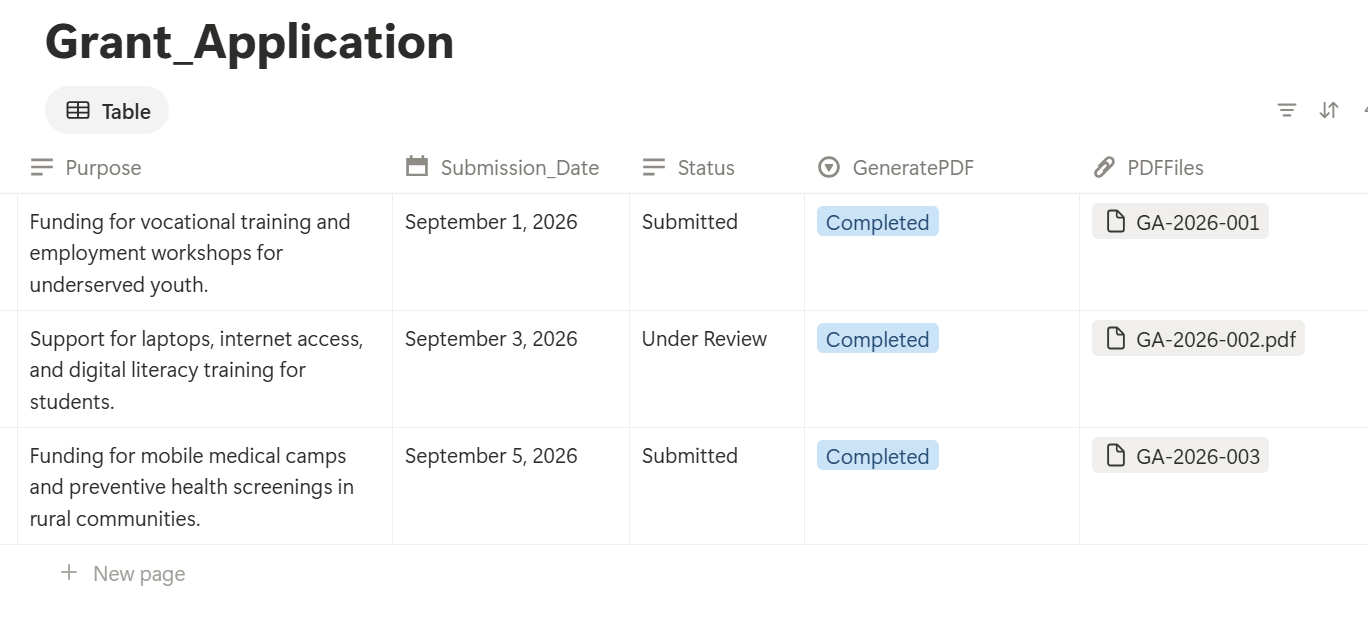
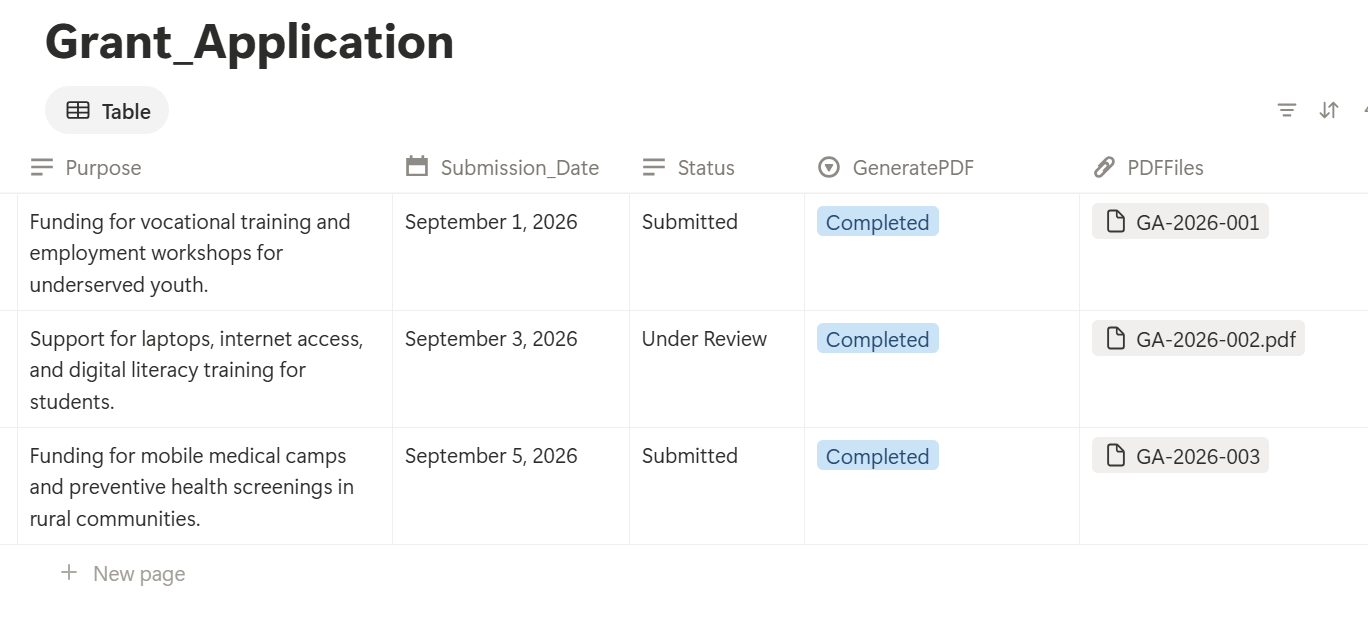
Finished files are saved back to the notion database with the GeneratePDF status set to Completed and the pdfs are saved onto the PDFFiles column and it also has an option to save the PDFs to a Google Drive folder, so each one stays attached to the record it came from.
A simple way to think about it:
Markdown is for text that moves between tools, and PDFOutput is for documents that other people receive.
Frequently Asked Questions
Can you export Notion to Markdown?
Yes. Click •••, choose Export, and set the format to Markdown & CSV. Pages come out as .md files, and databases come out as CSV files.
Why does my exported Markdown file have a long string of letters and numbers in its name?
Notion adds a unique ID to file and folder names in exports. You can rename them. If you rename an image folder, update the image paths in the Markdown file so the pictures still show up.
Why are my images missing from the Markdown file?
The file points to images by path. Keep the image folder next to the .md` file and make sure the folder name matches the path in the text.
Does Markdown keep toggles, callouts, and columns?
Usually not. Markdown has no version of them, so they often turn into plain text or a single column. Open your toggles and rewrite your callouts before you export.
Can I export my whole Notion workspace to Markdown?
Notion has a workspace export, but what you can do depends on your plan and your role in the workspace. Check the export settings in your own account to see what's available.
Should I send a Markdown file to a client?
Almost never. Clients expect a finished document. Send a PDF, or generate one from a template so it carries your branding.
Conclusion
To export Notion to Markdown, choose Markdown & CSV, unzip the download, and keep the images next to the file. Then fix what Markdown can't hold, like toggles, callouts, and columns, and check your links and tables where the file lands. It's a great format for portable text and a bad one for client-facing documents. For those, PDFOutput can generate a PDF or Google document from your Notion data and save it back to your chosen storage workflow.