Guides
Notion to Google Docs: 3 Ways to Move Your Pages for Review and Editing
Notion has no one-click Google Docs export. Compare 3 ways to move a page, see what each Notion block turns into, and learn how to create Google Docs from Notion data.
By Sanat Biswal · 2026-10-07 · 5 min read

{/ synced-from-notion — do not edit manually /}
Notion is a good place to write. Google Docs is a good place to get feedback. When an editor, client, or manager says "just send it as a Google Doc," the page you built in Notion has to cross over, and Notion doesn't have a button for that.
There are still three reliable ways to do it. This guide compares them, shows what happens to each type of Notion block on the way, and covers how to create Google Docs straight from Notion data when you do this on a schedule.
Step 1: Compare the Three Ways to Move a Page
Each method trades speed against how much of the structure survives. Use this table to pick one before you start.
| Method | Speed | Best for | Weak spot |
|---|---|---|---|
| Copy and paste | Fastest | Short text pages, notes, drafts | Toggles, columns, and databases flatten |
| Markdown export | Medium | Pages with many headings and links | Symbols can stay visible, images need handling |
| PDF upload | Medium | Finished pages you only have as a PDF | Layout-heavy pages convert poorly |
Menu names and options change as Notion and Google Docs update their interfaces, so check what your version shows rather than relying on older screenshots.
Step 2: Know What Happens to Each Notion Block
Most formatting trouble comes from blocks that Google Docs has no version of. Check this table against your page before you move it, so you know what to fix in advance.
| Notion block | What usually happens | What to do |
|---|---|---|
| Headings, bold, italics | Carry over | Check that headings use real heading styles |
| Bulleted and numbered lists | Carry over | Check that nested levels kept their indent |
| Links | Carry over | Test a few |
| Images uploaded to Notion | Usually carry over | Re-insert any that are missing |
| Images linked from other sites | Often missing | Download and insert them |
| Tables | Carry over with changes to widths and shading | Reset column widths |
| Toggles | Flatten or hide their content | Expand them before you copy |
| Callouts | Lose their color and icon | Use a shaded single-cell table |
| Columns | Stack into one column | Rebuild only if layout matters |
| Database views | May paste as messy text | Copy a clean view with only the needed properties |
💡 Pro Tip: Duplicate the page before you move it. On the copy, expand toggles, delete blocks the reader doesn't need, and turn callouts into normal paragraphs. You'll fix the page once in Notion instead of many times in Google Docs.
Step 3: Pick the Fix That Matches Your Situation
Rather than a list of every problem, here are the four situations people most often face.
You Are Sending a Draft to an Editor
Use copy and paste. Choose Paste without formatting (Ctrl+Shift+V or Cmd+Shift+V) if the text arrives with odd fonts, then apply Heading 1, 2, and 3 from the styles menu. Editors work faster when headings are real styles, because they can jump through the outline.
You Are Moving a Long Guide or Article
Use the Markdown route.
Open the page, select the ••• menu, choose Export, and set the format to Markdown & CSV.
Unzip the download, open the Markdown file, and copy the text into Google Docs.
Google Docs has Markdown-related options in Tools, then Preferences, and what's available depends on your version.
If symbols such as # or * stay visible, apply headings and lists with the toolbar instead. Images come in the ZIP as separate files, so insert them yourself.
You Only Have a PDF
Upload the PDF to Google Drive, right-click it, and choose Open with, then Google Docs.
Google Docs will try to convert it into editable text. Simple text converts well. Pages with columns or design elements usually need cleanup, so check every page.
You Are Moving a Table or Database
Create a Notion view that shows only the properties the reader needs, then copy it.
If the table arrives with uneven columns, select it in Google Docs and set one column width. For wide tables, change the page to landscape under File, then Page setup.
📌 Key Takeaway: Simplify the Notion page first, then pick the method. Most of the cleanup you'd do in Google Docs can be avoided by fixing toggles, callouts, and linked images before you copy.
Step 4: Set Up Google Docs for Review
The reason to move a page into Google Docs is usually collaboration, so set that up before you send it.
Step 5: Create Google Docs from Notion Data Instead
Copying a page works for a one-off. It doesn't work well when the same document is needed every week, such as a client report, a project summary, or a proposal. In those cases, keep your data in Notion records and put the layout in a template.
PDFOutput generates documents from Notion data using a template. It accepts a Google document, Word file, PDF file, or Notion page as the template. You add placeholders in double curly braces, such as {{Client_Name}}, and each placeholder must match the related Notion property name. Your logo, fonts, and layout live in the template, so they're the same on every file.
A review workflow might run like this:
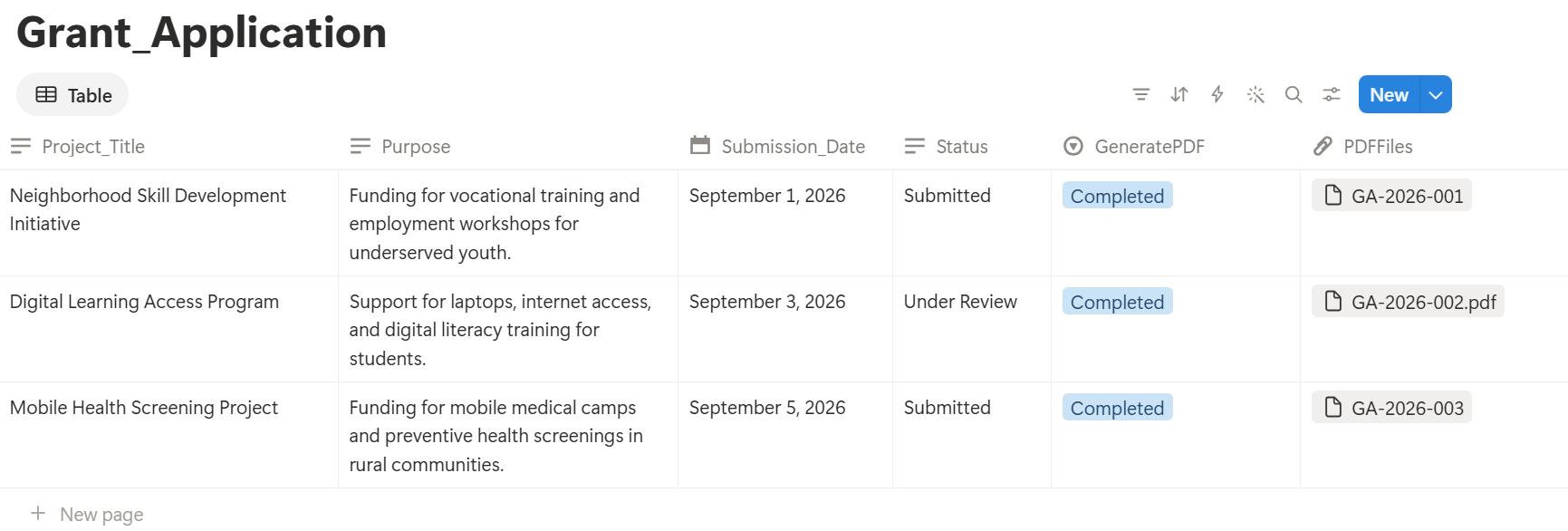
PDFOutput can start generation from a Notion database button or a status property. Other status options include Generate PDF and Doc, which creates a PDF and a Google document together. Generated files can be saved to a database property, or to a Google Drive folder with the link stored in a database property, so each document stays attached to its record.
Because the preview is a separate Google document, edits made there don't flow back into the Notion record, so decide in advance where the approved wording lives.
To see how this works for a specific document, read our guide to the Notion invoice template, or see how to export a Notion page to PDF.
If you need a Word file instead, read Notion to Word.
Frequently Asked Questions
Can Notion export directly to Google Docs?
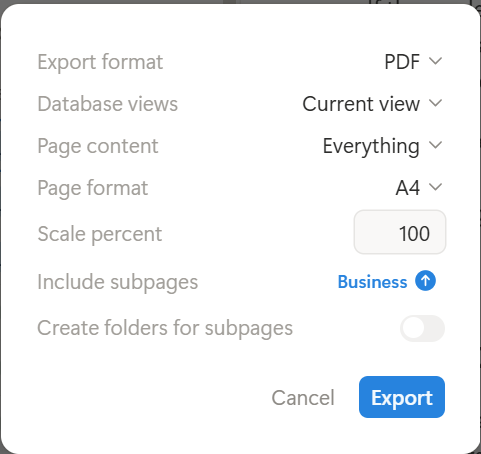
No. Notion's export options include PDF, HTML, and Markdown and CSV, but not a direct Google Docs option. You can copy and paste, move Markdown text, or upload a PDF and open it in Google Docs.
What is the fastest way to move a Notion page into Google Docs?
Copy and paste. Select all the content on the Notion page, copy it, and paste it into a new Google Doc. It works best for text pages, and you may need to fix toggles, columns, and tables.
Why do my toggles and columns disappear?
Google Docs has no matching blocks. Expand toggles before you copy, and accept that multi-column layouts will stack into one column unless you rebuild them with a table.
Will changes in Google Docs update my Notion page?
No. The two copies are separate, so edits in one don't appear in the other. Decide which holds the final version.
Can I create Google Docs from Notion automatically?
Yes, with a template-based tool. PDFOutput can fill a template with Notion data and create a Google document, with or without a PDF, from a database button or status property. Test it on a few sample records before you use it for live documents.
Conclusion
Notion has no direct Google Docs export, but a short workaround gets you there: copy and paste for simple pages, Markdown for long guides, and a PDF upload when a PDF is all you have. Simplify the Notion page first, then set up Google Docs for review. If you create the same document again and again, move the layout into a template. PDFOutput can generate the Google document or PDF from your Notion data and save it back to your chosen storage workflow.