Guides
Notion to Excel: How to Export a Database to CSV and Open It Cleanly
Export a Notion database to CSV and open it in Excel without broken characters, wrong dates, or missing values. Includes a property-by-property guide and fixes.
By Sanat Biswal · 2026-10-07 · 5 min read

{/ synced-from-notion — do not edit manually /}
Notion helps to track the data and excel analyzes the same. When you would need totals, pivot tables, or a file that can be sent to someone who doesn't use Notion, the database has to move into a spreadsheet, and that's where odd things tend to happen: accented letters turn into symbols, dates tend to flip, and relations start show up as plain text.
Quick answer on how to export a database to CSV and open it properly:
Steps to follow to export database to CSV and open it properly:
The steps below cover the export, what each property type turns into, and how to fix the problems that will follow after that.
Step 1: Decide Whether You Need the Whole Database or One View
Before you export, decide what the spreadsheet is for. The answer changes what you should clean up in Notion first.
| Your goal | Best approach |
|---|---|
| Totals, charts, or pivot tables | Export the CSV and open it in Excel |
| Send a one-time list to a person | Create a filtered view, then export |
| Move data into another tool | Export the CSV and import it there |
| Quick copy of a small table | Select the rows and paste into Excel |
| A formatted document per record | Use a template instead (Step 5) |
Step 2: Export the Database as CSV
Notion often delivers the export as a ZIP file.
So make sure to unzip the file and look for the CSV file that is named after your database.
Open it in Excel using the import route in the next step rather than double-clicking it, since double-clicking is what causes most of the character problems.
Step 3: Open the CSV in Excel Without Breaking It
If you find any strange symbols in place of accented letters, or have use of any quotation marks, or non-English text, the file origin is the likely cause. Menu names tend to vary by Excel version and operating system, so look at what yours is showing.
💡 Pro Tip: Check the preview before loading. If dates or ID numbers already look wrong in the preview, set those columns to Text during import, so Excel doesn't convert them.
Step 4: Know What Each Notion Property Becomes
A spreadsheet cell holds simple values, while Notion properties can hold links, lists, and calculations. This table shows what to expect and what to check.
| Notion property | What you usually get in the CSV | What to check in Excel |
|---|---|---|
| Title | The text of the title | Nothing, usually clean |
| Text | The text | Line breaks inside cells |
| Number | The number | Currency symbols and decimal format |
| Select | The option name | Spelling variants of the same option |
| Multi-select | Several options in one cell, separated by commas | Split into columns if you need to filter |
| Date | Text in Notion's date format | Excel may read the day and month in the wrong order |
| Checkbox | Yes or No style values | Convert to TRUE or FALSE if needed |
| Person | A name in text form | Names, not user accounts |
| Relation | The titles of related pages as text | Not live links; duplicates if titles repeat |
| Rollup | The calculated value | The result at export time only |
| Formula | The calculated result | Values, not the formula |
| Files and media | File names or links | Links may expire or need Notion access |
The key point is that the CSV is a snapshot. Relations, rollups, and formulas arrive as plain values, so they won't update in Excel when the Notion data changes.
Step 5: Fix the Problems You Are Most Likely to See
| Symptom | Likely cause | Fix |
|---|---|---|
| Accented letters or symbols look wrong | Excel opened the file in the wrong encoding | Import with Data, From Text/CSV, and choose UTF-8 |
| Dates show in the wrong order, such as 03/04 vs 04/03 | Excel is using your regional date format | Import the date column as Text, then convert with a date function |
| Leading zeros disappear from IDs or phone numbers | Excel reads the column as a number | Import that column as Text |
| One cell holds a whole list of tags | Multi-select exports as one cell | Use Text to Columns with a comma delimiter |
| Relation columns show names, not links | Relations export as text | Keep the related database's own CSV and match on name or ID |
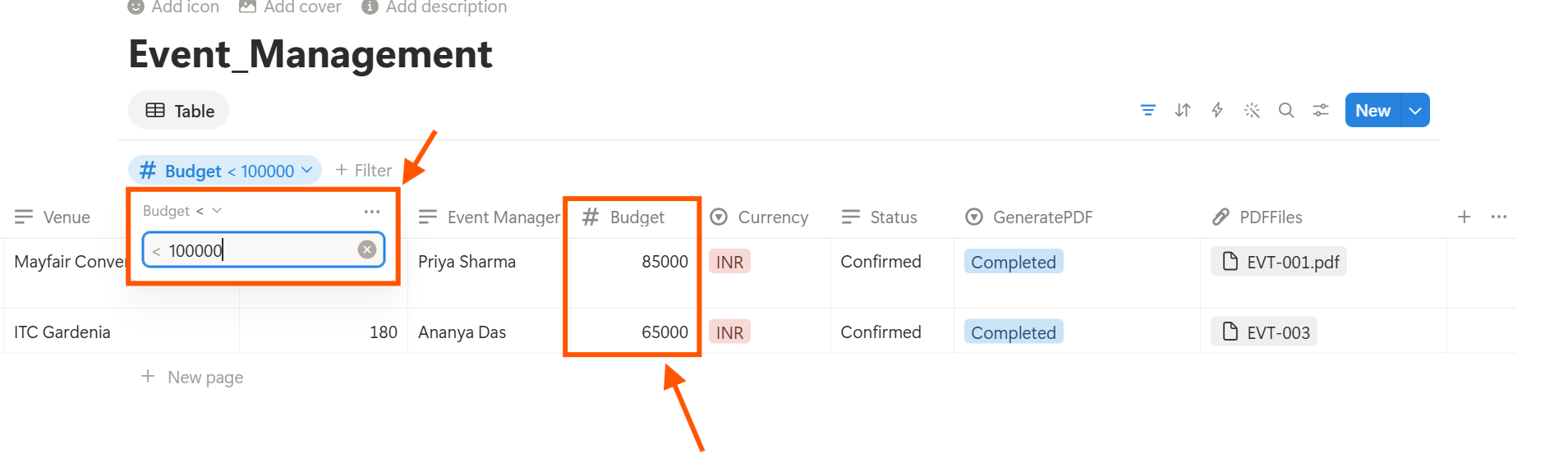
| Some rows are missing | A filter was active in the view | Clear the filter or export from an unfiltered view |
| Numbers are treated as text | Currency signs or spaces in the data | Remove the symbols in Notion or use Find and Replace in Excel |
| Columns are in a different order | The CSV follows the property order, not the view | Reorder the columns in Excel |
| Rows split strangely | Line breaks inside a text cell | Check that the cell is quoted and reopen with the import wizard |
Step 6: Decide Whether Excel Is the Right Destination
Moving data into Excel is useful for analysis, but it isn't always the right choice. Think about what happens after the export.
Stay in Excel when:
- You need pivot tables, charts, or heavy calculations.
- You are sharing a one-time snapshot.
- Someone else will take the numbers into their own system.
- The data changes daily and the spreadsheet would be out of date by tomorrow.
- You need relations and rollups to stay connected.
- People edit the records as part of their regular work.
Stay in Notion when:
Step 7: Turn Database Records into Documents Instead of Spreadsheets
A spreadsheet is a good tool for analysis, but it isn't a good report. If your end goal is a document built from each record, such as a client report, a quote, or an audit summary, exporting to Excel adds a step you may not need.
PDFOutput generates documents from Notion data using a template. It accepts a Google document, Word file, PDF file, or Notion page as the template, and it can generate PDFs, Google Docs, and PPTX files from Notion data. You add placeholders in double curly braces, such as {{Client_Name}}, and each placeholder must match the related Notion property name. That means the property names you cleaned up for your CSV are the same ones your template uses.
You can start generation with a Notion database button or a status property.
For example, set a record's status to Ready to Generate to create a PDF from that record, or use Preview to create a Google document for review first. Generated files can be saved to a database property or to a Google Drive folder, so each file stays attached to its record.
A practical split is to keep Excel for analysis across many rows and use PDFOutput for documents about one record. Excel and PDFOutput don't replace each other here. They do different jobs on the same Notion data.
To see how this works for a specific document, read our guide to the Notion invoice template, or learn how to export a Notion page to PDF.
To move a page into an editable file, see Notion to Word or Notion to Google Docs.
Frequently Asked Questions
Can Notion export directly to an Excel (.xlsx) file?
No. Notion exports databases as CSV through the Markdown & CSV option. Open the CSV in Excel and save it as .xlsx.
Why do accented characters look wrong in Excel?
Excel often reads CSV files in the wrong encoding when you double-click them. Use Data, then From Text/CSV, and set the file origin to UTF-8.
Will my formulas and relations still work in Excel?
No. Formulas, rollups, and relations arrive as plain values, based on the data at the time of export. They won't update when your Notion data changes.
How do I export only some rows from a Notion database?
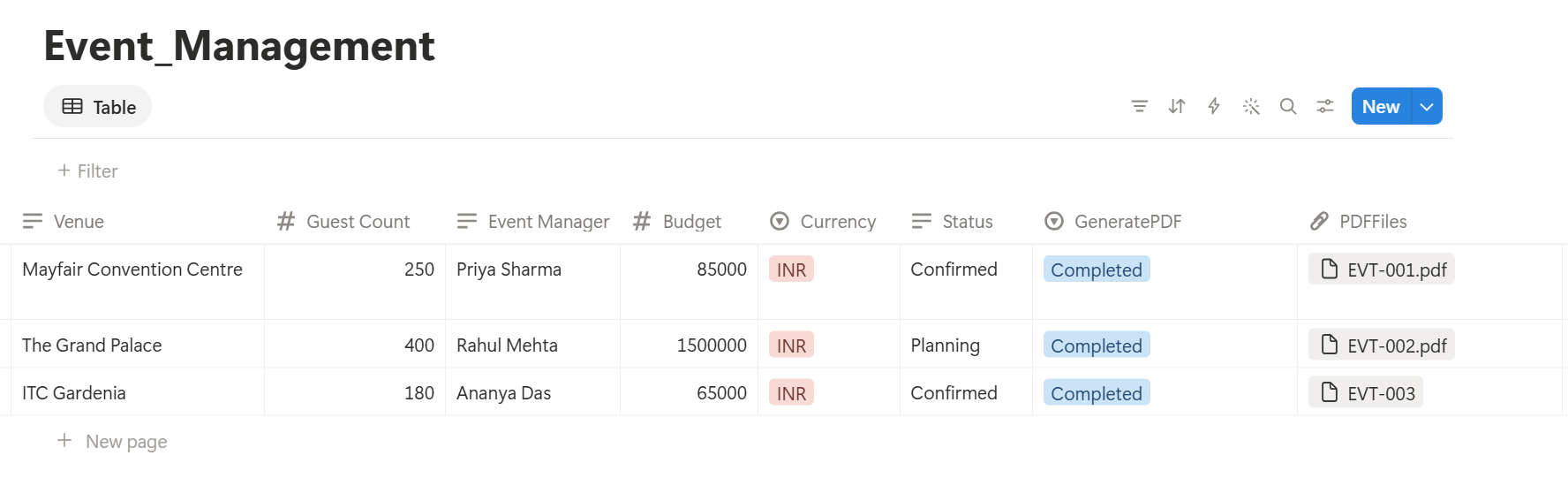
Create a view with the filters you want, hide unneeded properties, and export from that view. Check the CSV afterward to confirm the row count matches what you expected.
Can I copy a Notion table straight into Excel?
For a small table, yes. Select the rows, copy, and paste into Excel. For large databases or when you need clean encoding and dates, the CSV import is more reliable.
Can I generate documents from Notion data without using a spreadsheet?
Yes. A template-based tool such as PDFOutput fills a template with the values from a Notion record and creates a PDF or Google document. Test it on a few sample records before using it on live data.
Conclusion
To move Notion data into Excel, export the database as CSV, import it with UTF-8 selected, and treat dates and ID numbers as text so Excel doesn't change them. Expect relations, rollups, and formulas to arrive as static values. If what you actually need is a document for each record, skip the spreadsheet and use a template. PDFOutput can generate the PDF or Google document from your Notion data and save it back to your chosen storage workflow.