Guides
Notion PDF Export Not Working: 9 Common Problems and Fixes
Notion PDF export cutting off tables, dropping images, or breaking pages? Fix 9 common problems, then learn how to generate cleaner PDFs automatically.
By Sanat Biswal · 2026-10-07 · 5 min read

{/ synced-from-notion — do not edit manually /}
You click Export in Notion and the PDF comes out wrong. A table runs off the page, images are blank, or a heading sits alone at the bottom of a sheet. Most of these problems come from page width, scale, or content that doesn't translate well into a printed page, and most of it can be fixed.
Work through the steps mentioned below in order. Start with the export settings, then fix layout, add missing content, and fix the database output.
If you tend to export the same type of document often, the last step shows how to avoid these kind of problems.
Step 1: Check Your Notion Export Settings
Many export problems start with the export dialog.
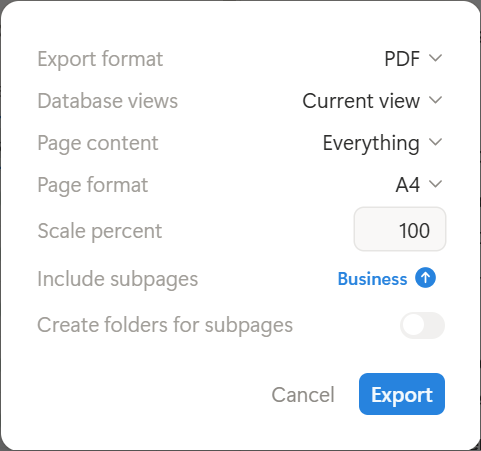
Open the page, select the ••• menu, choose Export, and review each option before you click the button to export the PDF.
Check these settings:
- Export format: set to PDF.
- Page format: choose a size that matches your reader, such as A4 or Letter.
- Scale: this shrinks or enlarges content. Start at 100% and adjust.
- Include subpages: turn on only if you want child pages in the file.
- Content: decide whether to include images and files.
- Google document,
- Word file,
- PDF file, or
- Notion page as the template.
- Ready to Generate: creates a PDF from the database record.
- Generate Page: converts the Notion page to a PDF.
- Generate PDF and Doc: creates a PDF and a Google document.
- Preview: creates a Google document for review before final PDF generation.
- Expand toggles and confirm images load.
- Set page size and scale.
- Hide database columns you don't need.
- Turn subpages on or off.
- Open the PDF and scroll through every page before sending it.
Export once with the defaults, open the file, and scroll through every page. Note what is wrong before changing anything.
That tells you which of the fixes below you need.
Step 2: Fix Layout Problems in the PDF
Layout problems are the most common complaint. They happen because Notion lays out the page automatically, and you have limited control over the result.
Problem 1: Tables and Columns Are Cut Off
Wide tables and multi-column layouts may not fit the page width. Lower the scale (try 70 to 80%) or choose a larger page format.
You can also reduce the number of visible properties in a table view before exporting.
Problem 2: Awkward Page Breaks
Notion decides where pages break, so a heading can be generated alone at the bottom of a page.
Add a divider or an empty block before a section you want to start higher on the page. Shorten long sections where you can, and check the PDF again after each change.
Problem 3: Fonts, Colors or Branding Looks Wrong
Notion's PDF export gives you little control over fonts, headers, colors, and logos.
For an internal note, that is usually fine to be generated. For documents clients will see, such as invoices or proposals, the built-in export may not be enough to export the PDF.
Step 5 explained ahead covers this use case.
💡 Pro Tip: Keep the page layout simple when you plan to export it. Fewer columns, fewer nested blocks, and shorter tables survive the export better than complex layouts.
Step 3: Fix Missing Content in Notion Block
When content is missing in the block, the root cause is usually how it was added or how the export was usually set up in the beginning.
Problem 4: Images Are Missing or Appear as Blank
An image which is embedded from an outside link can often times fail if the source blocks used has no access to the image or the link has expired.
Download the image, and upload it directly into Notion, and export again. Also confirm that your export settings includes images and files.
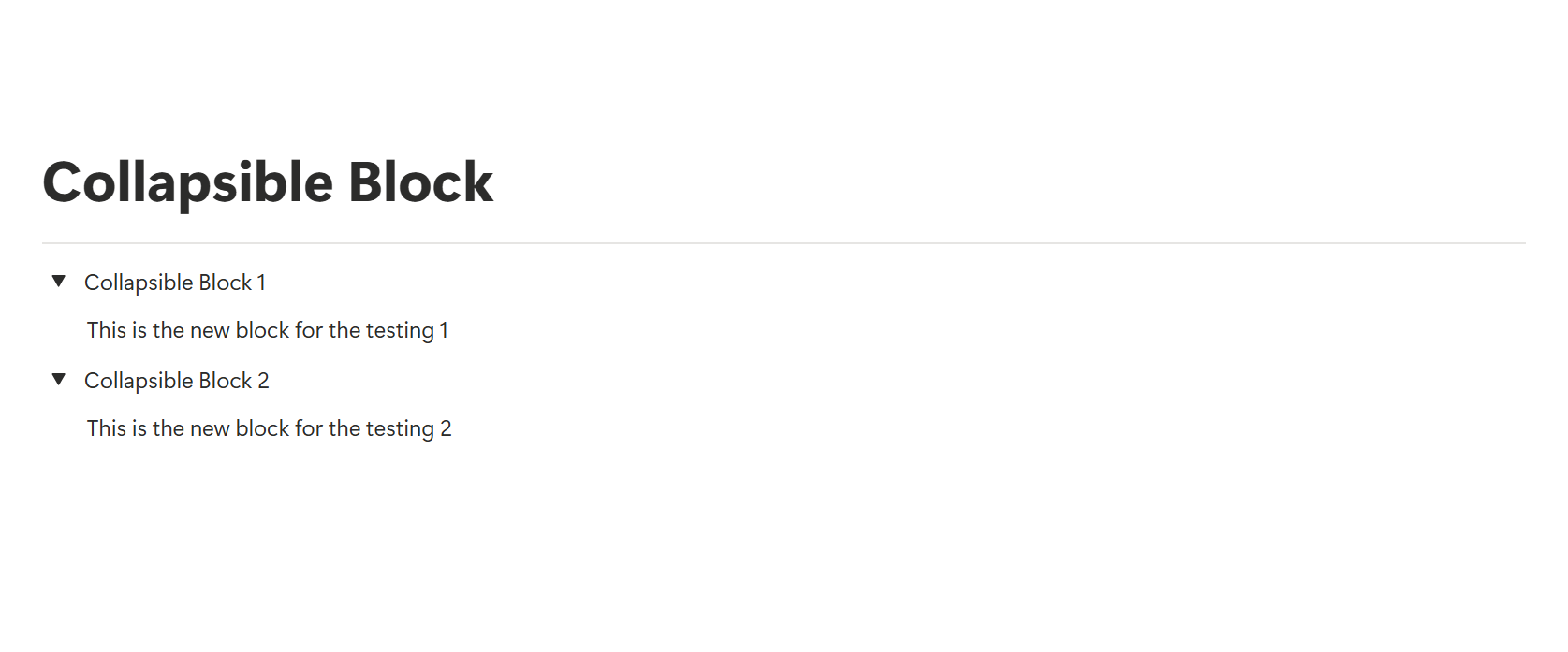
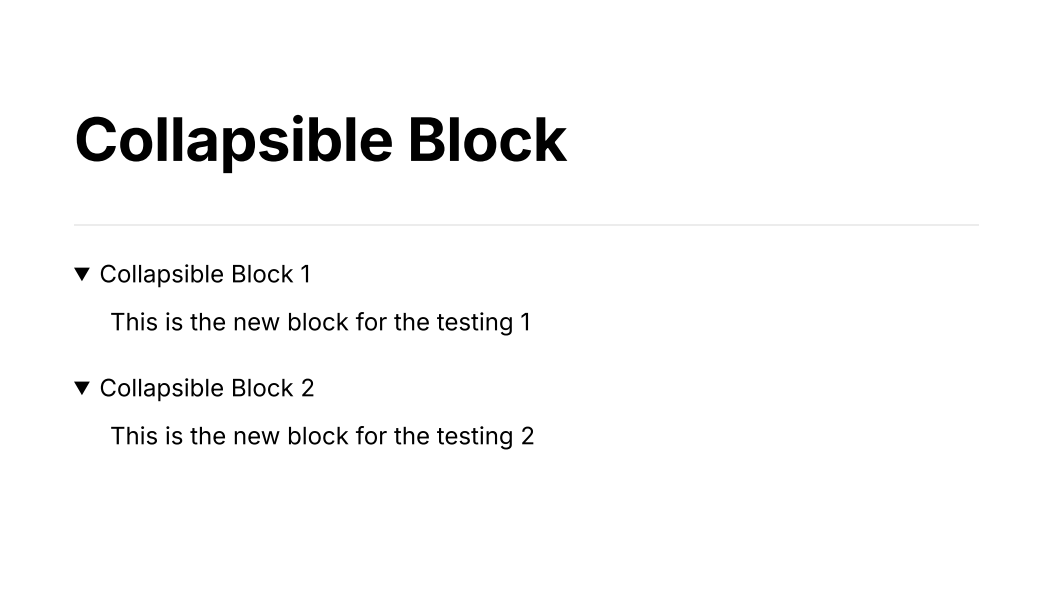
Problem 5: Content Inside Collapsed Toggle Goes Missing
Collapsed Toggles may not always show the contents in the exported file created. Make sure to expand every toggle you want to appear, then export and check the result. If you need collapsible content on the page but not in the PDF, duplicate the page and turn the toggles into normal text for the export copy.
Problem 6: Subpages Goes Missing in Output
The export covers only the current page unless you turn on the option to Include subpages. If you want one combined document instead of several files, copy the content into a single page first.
Sample Notion Page
Output PDF Page
Step 4: Fix Database and Large-Page Exports
Databases and very large pages behave differently from simple pages.
Usually while exporting large pages the pages are not exported smoothly as expected as it happens with simple pages when its exported.
Problem 7: A Database Exports as a Messy List
Notion treats each database row as its own page, so the output may not look like the view you would want on your screen.
Create a view that shows only the properties you need, or place the view on a clean page and export that page. Check the result, since the output depends on the view and the properties shown.
Problem 8: The Export Is Slow, Fails, or Never Arrives
Pages with many images, files, or subpages can take a long time to process or time out.
Split the page into smaller sections and export them separately, or exclude images and files to reduce the size. Wait a few minutes and try again. If the problem continues, check Notion's status page or contact Notion support.
Problem 9: It Works on Desktop but Not on Mobile
The mobile app may offer fewer options than the web or desktop version.
Use the web or desktop version when you need precise settings like scale and page size, and use mobile for quick exports only.
Key Takeaway: Most Notion PDF problems trace back to scale, page size, collapsed content, or externally linked images. Fix those four first.
Step 5: Avoid Repeat Problems with Automated PDF Generation
If you fix the same issues every week, the manual export is the real problem. Invoices, client reports, audit reports, and quotes all need the same layout each time, and Notion's built-in export gives you limited control over it.
PDFOutput is an automation tool that generates documents from Notion data using a template.
It accepts a template in one of the following formats:
You add placeholders in double curly braces, such as {{Client_Name}}, and each placeholder must match the related Notion property name. This keeps your logo, fonts, and layout the same on every file.
You can start generation with a Notion database button or a status property. Depending on your setup, PDFOutput can use these status options:
Generated files can be saved to a database property or a Google Drive folder, so each PDF stays attached to the record it came from. Use the preview to check spacing, blank fields, and dates before you turn generation on for live records.
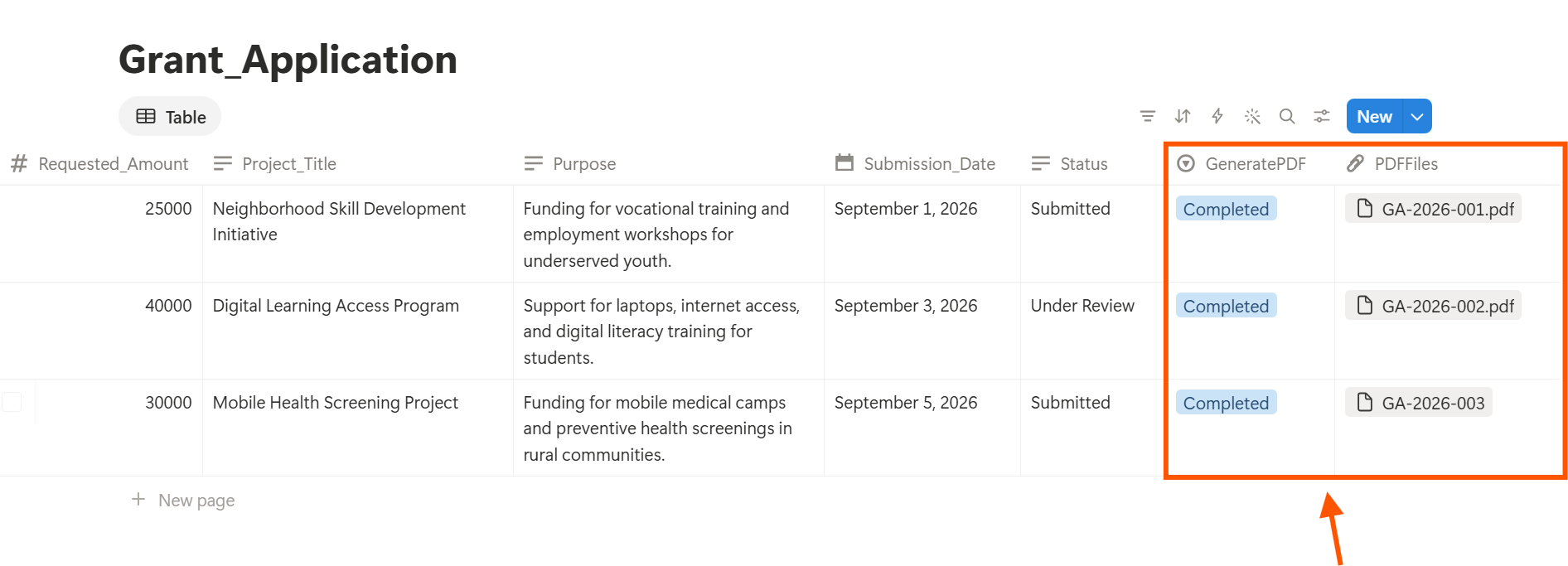
To see how this applies to a specific document, read our guide to the Notion invoice template, or learn how to add your logo and brand colors to Notion PDFs.
Quick Checklist Before You Export
Frequently Asked Questions
Why is my Notion PDF cut off on the right?
The content is wider than the page. Lower the scale, choose a larger page size, or reduce the number of visible columns in the table.
Why are images missing from my Notion PDF?
They may be linked from an outside site that blocks access, or excluded in your export settings. Upload the images directly to Notion and export with images included.
Can I control page breaks in Notion?
Only indirectly. Dividers, spacing, and shorter sections help, but Notion does not offer full control over where a page breaks.
Can I add a logo or header to a Notion PDF?
Notion's built-in export offers limited options for this. A template-based tool such as PDFOutput lets you place your logo and brand styling in a Google Doc, Word, PDF, or Notion page template and apply it to every file.
Is there a way to export Notion to PDF automatically?
Not within Notion alone. You need an integration or a tool like PDFOutput, which can start generation from a database button or status property. For manual steps, see how to export Notion to PDF.
Conclusion
Start with the export settings, then fix scale, page size, toggles, and image sources. Those changes solve most Notion PDF problems. If you send the same kind of document repeatedly, move the layout into a template so the formatting stops depending on each export. PDFOutput can generate the document from your Notion data and save it back to your chosen storage workflow.