Guides
How to Use Maintenance Report Software in Notion
Set up maintenance report software in Notion with a structured database, reusable templates, and automated PDF generation using PDFOutput.
By Sanat Biswal · 2026-10-01 · 10 min read

{/ synced-from-notion — do not edit manually /}
Maintenance records are useful only when your team can find them and share them in the format people need. You can use Notion to track maintenance work, then turn finished records into consistent PDFs with PDFOutput.
Step 1: Decide Which Maintenance Reports to Automate
Start by picking one recurring report, not every document your team might ever need. Maintenance report software can support records for work orders, inspections, preventive tasks, equipment repairs, and service visits. Choose the report that takes the most repeated typing or causes the most follow-up.
Think about the handoff. A supervisor may need a weekly list of open repairs, while a property manager may need a PDF after each unit inspection. A shop floor team might need a completed work order that shows the asset, fault, repair, and parts used. Those are different outputs, so define the reader and the decision the report supports.
For the first workflow, write down the fields staff already record. Include the asset or site, the job date, the person responsible, the reported issue, work completed, status, and any follow-up needed. Add labor or cost fields only if someone uses them in the final report. Extra fields that nobody fills out make records harder to complete.
A Notion tracker can organize maintenance history and give staff a shared place to update work. It isn't automatically a full computerized maintenance management system, or CMMS. If you need advanced asset monitoring, meter-based triggers, inventory control, or offline mobile work, check that your setup meets those needs before you move the whole process.
Use a simple test: if a report doesn't help someone assign work, confirm completion, review cost, or keep a record, it may not need automation yet. Common visit details can help shape a service report; see our related guidance.

Set the first report's scope now. For example, you might automate a completed equipment repair record while leaving complex compliance reviews for a later phase.
Step 2: Build a Maintenance Database in Notion
Build the Notion database around one clear record type. For a maintenance report workflow, one row can represent one request or completed job. If your team tracks assets separately, make a second database for equipment, rooms, vehicles, or sites.
In the maintenance database, create properties that support both daily work and the final report. Useful starting fields include:
- Job title: a short label, such as “Inspect loading bay door.”
- Asset or location: the equipment, room, site, or vehicle involved.
- Status: a small set such as New, In Progress, Waiting, and Complete.
- Reported date and due date: when the issue came in and when work is expected.
- Assigned person: who owns the next action.
- Issue and work notes: what was found and what the team did.
- Cost or time: add these only if they're needed for review.
- Report status: a separate field for document generation.
- Ready to Generate: generates a PDF.
- Generate Page: converts a Notion page to PDF.
- Generate PDF and Doc: creates a PDF and Google Document.
- Generate E-Signed Doc: generates an e-signed PDF.
- Preview: creates a Google Document for review before PDF generation.
Keep maintenance progress separate from document status. “Complete” means the work is done. “Ready to Generate” means the record is ready to become a document. This distinction helps staff avoid creating a report before they finish the job details.
Connect the maintenance database to an asset database with a relation. A relation links a record in one database to a record in another. A rollup can then display selected information from linked records, such as an asset code or site name. Keep the main report fields in the maintenance record where possible, so the person filling it out doesn't have to search across several pages.
Make a few views for common tasks. A board grouped by status can show current work. A table filtered to overdue jobs can support a morning review. A completed-work view can help someone check records before reports go out.
Try entering several sample records before building the report template. That quickly exposes missing fields, unclear status names, or dates staff may not know. You can also use PDFOutput's equipment maintenance report template as a starting point for deciding which information belongs in a printable report.
> 💡 Pro Tip: Ask one person who enters the records and one person who reads the reports to review the field list before you build the template.
Step 3: Create a Reusable Maintenance Report Template
A reusable template gives each maintenance report the same layout. Keep it focused on what the reader needs to verify. A repair report might have a header for the work order and asset, a section for the reported issue, a summary of work done, and a space for follow-up actions.
Choose the template format that fits your current process. PDFOutput can use a Word file, Google Document, existing PDF, or Notion page as a template. Add placeholders in double curly braces, then match each placeholder to the same-named Notion database property. For example, {{Asset_Name}} should match the property named Asset_Name.
Draft the report in the order people will read it. Put the job and asset details near the top. Keep long notes in a section with enough space. If staff need to record parts or multiple inspection items, check how those fields appear when there are several entries. A layout that works for one line of text may become crowded with longer notes.
Include the details that help someone review the job later: who reported it, when it was done, what was found, what work took place, and whether another action is needed. Add a signature or approval field only if your process requires it. A template doesn't make a record compliant by itself; confirm any legal or safety record rules that apply to your work and location.
Keep your placeholders exact. A small mismatch between a Notion property and the placeholder can leave a blank spot in the output. Use clear property names without unnecessary punctuation. Then test with sample records that include a short note and a longer note, as well as records with optional fields left blank.
PDFOutput supports output as PDF, Google Docs, and PPTX. If the team needs a working draft, you can create a Google Document before converting it to PDF. For related records, relations and rollups can bring selected asset or site details into the report.
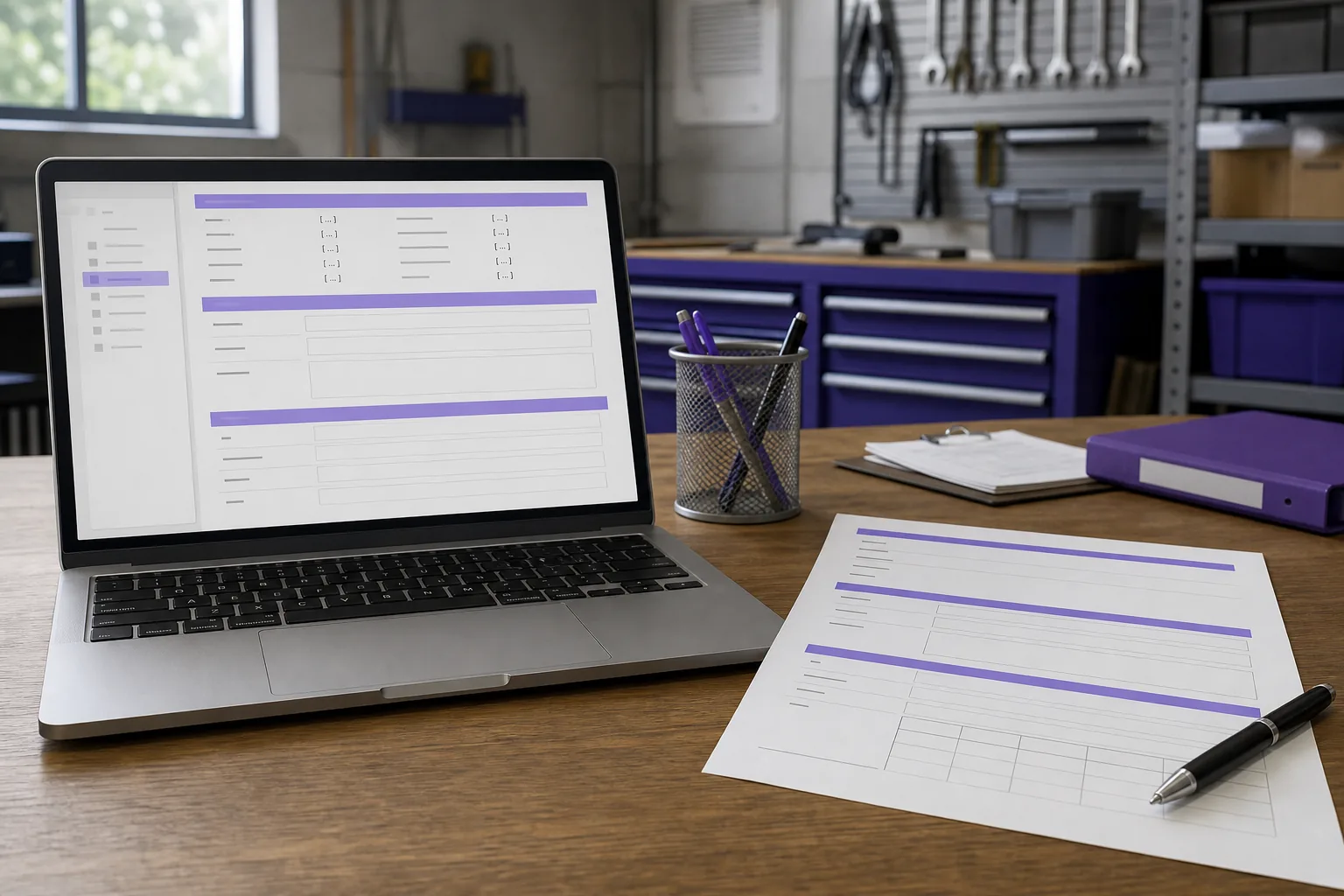
Use a sample report with realistic data before connecting automation. Check that names, dates, notes, and linked asset details land in the right places. If the output will be shared outside your team, ask the intended reader to review a draft too.
Step 4: Connect PDFOutput and Set Up Report Generation
Once the database and template are ready, connect PDFOutput to the Notion database that holds the maintenance records. PDFOutput uses matching placeholders to fill the template with each record's values. We support document generation from Notion data, including PDF output, Google Docs, and PPTX files.
Choose the output your workflow needs. A maintenance completion record may need a PDF for filing or sharing. A team that still edits reports may want a Google Document first. For a batch of closed jobs, batch generation can create documents for multiple records. PDFOutput can also merge PDFs and use relations or rollups to draw on linked database information.
Before enabling a trigger, map every placeholder to the right property. Check names closely. Then choose a test record with a filled asset relation, a long work note, and any optional fields your staff often leave blank. Generate one file and confirm that it opens and reads well on screen and on paper.
Read our guide to report generator software for Notion.
PDFOutput can generate documents in response to a database button or a status property. You can use a button when a supervisor should decide when a report is ready. A status field works well when the team follows a clear review step. Set the trigger only after the record contains the required job information.
PDFOutput is a document automation platform for Notion users. See PDFOutput's official site for its document generation service. Plans are subscription-based with monthly or annual billing; confirm current plan details before choosing one.
> 📌 Key Takeaway: Treat the document trigger as the final step in the maintenance record, not a substitute for checking the record's content.
Step 5: Choose a Notion Trigger, Test the Report, and Roll It Out
Choose a trigger based on who should control document creation. A database button gives an authorized user a clear manual action. A status property can start generation when a record reaches a chosen value. PDFOutput supports several status options for different outputs:
Run an end-to-end test with a sample record. Start with a new job, fill in the required properties, mark the work complete, and use the trigger. Review the generated file for missing fields or awkward page breaks. Then check that the right file is attached or stored where your team expects it. If you use Google Drive storage, confirm the folder and access settings with your team.
As a general maintenance practice, re-test the workflow after renaming a property or changing a status value. A small field change can affect the match between the Notion record and the template.
Roll the workflow out to a small group first. Give staff a short instruction: what to enter, who checks the record, and which trigger creates the report. If the team works from mobile devices, test the form or database view on the device they use. Photo evidence and location notes can support a job record, but confirm the fields and attachment handling in your own setup.
Once the pilot works, review a handful of completed reports with the people who use them. Fix confusing labels before adding more report types. A good first workflow should make routine handoffs clearer without adding fields nobody can keep up to date.
FAQ
Can I use Notion as maintenance report software?
Yes, Notion can organize maintenance records and related asset details, while a document tool can turn selected records into reports. It can suit teams with a clear workflow and modest tracking needs. If your operation needs advanced asset readings, offline work, or complex maintenance planning, assess whether Notion alone can support those tasks before you rely on it.
What should a maintenance report include?
A maintenance report should show the asset or location, the work date, the issue, the work completed, and any follow-up. Add the technician, job status, parts, time, or cost when those details help the reader make a decision. Maintenance report software works best when fields reflect the real process rather than an ideal form staff won't complete.
How does PDFOutput generate a PDF from Notion?
PDFOutput fills a template by matching its double-curly-brace placeholders to Notion database properties. You can generate a document with a database button or a status property such as “Ready to Generate.” PDFOutput can produce PDFs and other supported formats, including Google Docs and PPTX, depending on the workflow you set up.
Can maintenance PDFs be generated in bulk?
Yes, PDFOutput supports batch PDF generation, which can help when you need documents for many completed records. Test a small group first and check each output for correct asset details and complete notes. Bulk maintenance report software workflows save manual document work, but they still depend on accurate database entries and a well-mapped template.
Conclusion
Start with one maintenance report your team repeats often, then build and test its Notion database and template before automating more. Set up a sample record in PDFOutput and generate a draft to check the full workflow before staff depend on it.