Guides
How to Use Notion for a Travel Agency: Bookings, Itineraries, and Supplier Quotes
Set up Notion for a travel agency: enquiries, bookings, day-by-day itineraries, supplier quotes, and payments, plus PDF itineraries, quotes, and confirmations.
By Sanat Biswal · 2026-10-22 · 5 min read

{/ synced-from-notion — do not edit manually /}
A travel agency runs because of different moving parts.
A client wants a weekly vacation in Italy in June month. 3 hotels have sent 3 different quotation in 3 different currencies. A flight option is due to expire tomorrow. A deposit is due coming Friday, and a final payment is due next month, and a family leaving in ten days still haven’t received their documents for travel.
Most of these information is often stuck in email threads, spreadsheets, and head personnel who tool the call.
Notion can help to hold all those moving parts together in one place.
This guide is meant for travel agencies, tour operators, and independent travel advisors of any size.
It shows how to set up enquiries, trips, itinerary items, suppliers, quotes, and payments, and how to turn records into PDFs such as itineraries, quotes, and booking confirmations.
It also explains what traveler data to keep out of Notion.
The information presented here is general information about organization of an agency, its not to be considered as any form of legal advice, financial advice, or any form of compliance advice.
Short answer on how to use Notion for Travel Agency:
To use Notion for a travel agency, start with building linked databases for Enquiries, Trips, Itinerary Items, Suppliers, Supplier Quotes, Payments, and Travelers.
Use formulas to work out margins, balances due, days to departure, and quote expiry, and to flag enquiries that need a follow-up, options that are about to lapse, and payments that are late.
Keep passport numbers, card details, and medical information out of Notion. When you need to give a client or supplier a document, such as an itinerary or a quote, create a PDF from the record.
Notion works well as the planning and operations workspace for a travel agency.
Each enquiry, trip, itinerary item, quote, and payment is a record, and the records are linked, so a trip shows its day-by-day plan, its costs, and what the client has paid.
Notion isn’t a booking engine, a global distribution system, a payment processor, or an accounting package.
It is where you plan, compare, track, and decide. For documents that clients and suppliers receive, you can export a page as a PDF or generate one from a template.
Table of Contents
What Notion Can and Can’t Do for a Travel Agency
Notion is good for:
- Tracking enquiries and following up on time.
- Comparing supplier quotes side by side.
- Building day-by-day itineraries from linked items.
- Working out cost, price, margin, and commission.
- Following supplier options, holds, and confirmation references.
- Tracking client payments and supplier payments.
- Keeping pre-departure checklists.
- Creating consistent itineraries, quotes, and confirmations.
- Searching live availability or making bookings.
- Ticketing flights.
- Taking card payments or storing card details.
- Accounting, tax, and client money accounts.
- Sending email or messages to clients.
- Enquiries stores every lead. Add these properties: Lead Name, Email, Source (Website, Referral, Social, Repeat Client, or Other), Destination Idea, Travel Dates (range), Travelers (number), Budget, Status (New, Quoted, Won, Lost, or On Hold), Last Contact, and Owner.
- Trips stores each booking you manage. Add: Trip Name, Booking Reference, Client (relation to Travelers), Departure, Return, Status (Planning, Quoted, Booked, Travelling, Completed, or Cancelled), Final Payment Date, Documents Sent (checkbox), and Owner.
- Itinerary Items stores each flight, hotel, transfer, and tour. Add: Item, Trip (relation), Type (Flight, Hotel, Transfer, Tour, Insurance, or Other), Start Date, End Date, Supplier (relation), Confirmation Reference, Status (Requested, Held, Confirmed, Ticketed, or Cancelled), Option Expires, Cost, Sell Price, Currency, and Notes.
- Suppliers stores hotels, airlines, ground operators, and wholesalers. Add: Supplier, Type, Contact, Commission Rate, Payment Terms, Cancellation Terms, Region, and Notes.
- Supplier Quotes stores each price you receive. Add: Quote Reference, Enquiry or Trip (relation), Supplier (relation), Description, Currency, Cost, Exchange Rate, Valid Until, Status (Requested, Received, Accepted, Declined, or Expired), and File Link.
- Payments stores money in and out. Add: Trip (relation), Type (Client Deposit, Client Balance, Supplier Payment, or Refund), Amount, Due Date, Paid On, and Status (Due, Paid, or Overdue).
- Travelers stores who is travelling. Add: Name, Email, Phone, Trips (relation), Passport Checked (checkbox), Visa Needed (checkbox), Visa Done (checkbox), and Notes (kept free of sensitive details).
- Follow up today: enquiries with the flag, sorted by days since contact.
- By owner: a board of enquiries by status for each advisor.
- Won and lost this month: to see how many enquiries become trips.
- By source: enquiries grouped by source, to see where good clients come from.
- Quotes for this enquiry: a table grouped by enquiry or trip, to compare options.
- Expiring soon: quotes with the Expires soon flag.
- By supplier: quotes grouped by supplier, with a count of those accepted, to see who gives you competitive prices and who responds.
- Timeline by trip: a timeline or calendar of items by date, filtered to one trip, so you see gaps and overlaps.
- By type: items grouped by type, to check that every trip has a transfer from the airport.
- Unconfirmed: items with the status Requested or Held, which is the list to work down before departure.
- Client payments due: payments of the client types that are Due or Overdue, sorted by date.
- Supplier payments due: payments to suppliers, so a deposit doesn’t miss its deadline.
- Final payments this month: trips with a final payment date in the month.
- Cash position: payments grouped by month, with sums in and out.
- All itinerary items Confirmed or Ticketed, with references recorded
- Passports checked as valid for the destination and dates, as the rules require
- Visas or entry permissions handled, where needed
- Travel insurance confirmed with the client
- Transfers and local contacts confirmed
- Final payment received
- Itinerary and vouchers sent to the client
- Emergency contact details for the trip shared with the client
- Day-by-day itineraries: dates, places, and times for the client, in your branding
- Quotes and proposals: what is included, the price, the payment schedule, and the validity date
- Booking confirmations: a summary with references, sent when the client confirms
- Invoices and payment schedules: deposit and final payment amounts with dates
- Supplier booking requests: a clean request for a hotel, transfer, or tour operator
- Rooming lists and passenger lists: names and dates for group trips, sent only to the suppliers that need them
- Vouchers: one per service, with the supplier, dates, and reference
- Pre-departure information sheets: contacts, meeting points, and reminders
- Monthly reports: enquiries, conversion, margin, and payments due, for the owner or accountant. Notion to Excel helps if your accountant wants the numbers in a spreadsheet.
- Create your template with your agency’s name, logo, and layout.
- Add placeholders in double curly braces where the data should go, such as
{{Trip_Name}},{{Departure}},{{Booking_Reference}}, and{{Total_Sell}}. - Make sure each placeholder matches the name of a Notion property.
- Start the document with a Notion database button or a status property.
- Ready to Generate creates a PDF from the database record.
- Generate Page converts the Notion page into a PDF.
- Generate PDF and Doc creates a PDF and a Google document.
- Preview creates a Google document so you can check it before making the final PDF.
- Generate E-Signed Doc creates an e-signed PDF in the database workflow.
- Give advisors access to enquiries, trips, itineraries, and quotes, and keep cost, margin, and commission fields limited to those who need them.
- Keep supplier payment terms and commission rates limited to the owner, managers, and finance.
- Give freelancers or part-time agents access to their own enquiries and trips only, using separate pages or a separate workspace, and not just a filtered view. Filters change what people see, and they are not a security boundary.
- Don’t share the workspace with clients or suppliers. Give them finished PDFs.
- Write down your rules about what may and may not be stored in Notion, and make sure every new team member reads them.
- Remove access on the day someone leaves, including freelancers.
- Review who has access every few months.
- Archive or delete old trip records on the schedule in your retention rule.
- How to Use Notion for a Salon or Spa
- How to Use Notion for a Training Center
- How to Export a Notion Database to PDF
- How to Add Your Logo and Brand Colors to Notion PDFs
Notion is not made for:
If you already use a booking tool or an accounting package, treat Notion as the planning layer beside it.
It is where the trip is designed and tracked, and the other tools book, charge, and account.
Traveller Data: Draw the Line First
A trip record can quickly collect some of the most sensitive data a business holds: passport details, dates of birth, health and mobility needs, and payment information. Before you build anything, decide what will never go into Notion.
| Usually a good fit | Usually a poor fit |
|---|---|
| Lead name, email, and trip ideas | Passport numbers and scans of passports |
| Traveler names as they appear on bookings | Dates of birth, unless a supplier requires them and your rules allow it |
| Itinerary, dates, and supplier confirmations | Payment card numbers or bank details |
| Costs, prices, and margins | Medical conditions, allergies, and mobility needs in detail |
| Payment amounts, due dates, and status | Insurance policy details tied to health |
| A checkbox for passport checked | Emergency contact details beyond what you need |
Examples include GDPR in the European Union and various privacy laws in the United States, among many others. Some travel data, such as health and dietary needs, can be treated as sensitive.
Check which rules apply to your agency, and ask a professional if you’re not sure. If you can’t get a clear answer for a type of data, keep it out of Notion.
Two design rules keep most agencies safe.
First, use references, not documents. Record that a passport has been checked and is valid for the trip, in a checkbox, and keep the number and the scan in the system or channel you use for that.
Second, pass on only what a supplier needs. If an airline requires a date of birth, enter it where the booking is made, and not into every record.
Also decide how long you keep trip records after the trip ends. Write a retention rule, and archive or delete on schedule.
While you are testing, use made-up travellers only.
Use of The 7 Databases
Start with these 7. You can add more later.
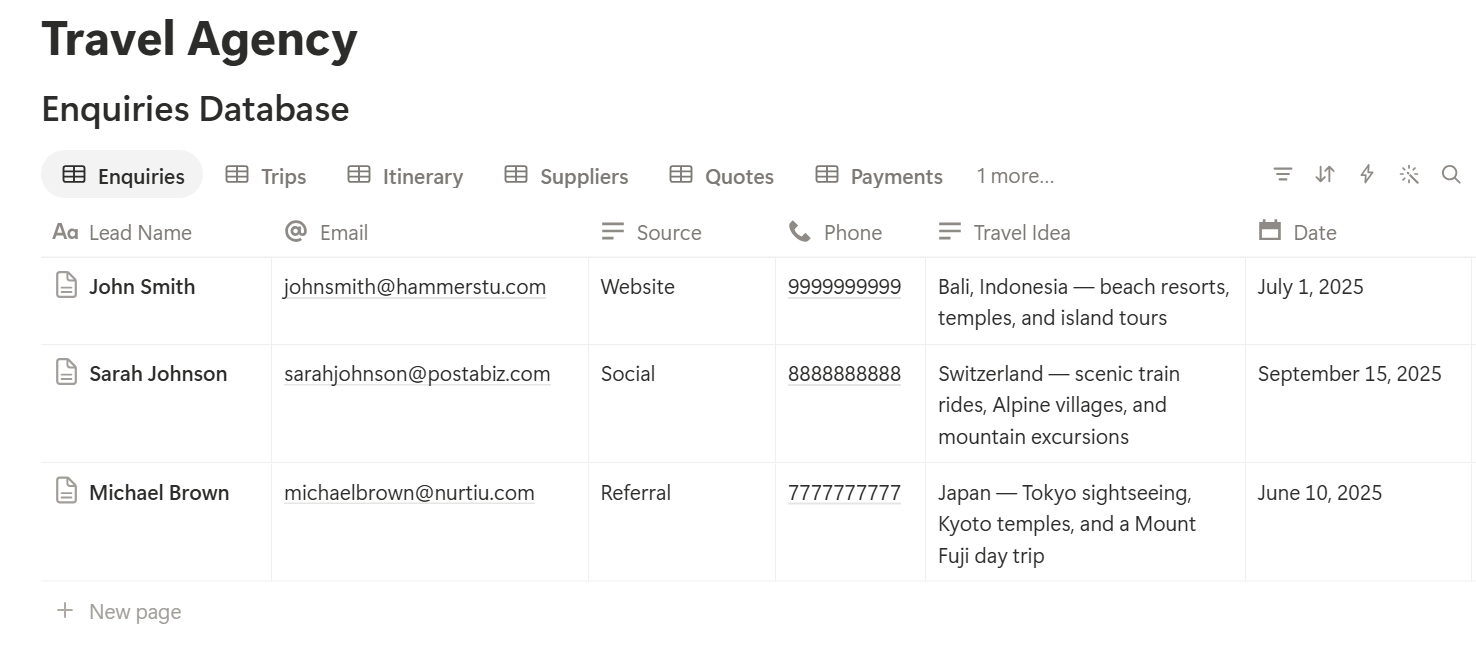
A relation connects a record in one database to a record in another. Link Itinerary Items to Trips and Suppliers, Quotes to Suppliers, and Payments to Trips.
Now a trip page shows its itinerary, its costs, and its payments together, and a supplier page shows every quote and booking you have made with them.
Enquiries: Never Let a Lead Go Cold
An enquiry that waits three days for a reply is often a booking lost to a faster agency. A simple flag fixes most of it.
As soon as a lead arrives, add a record with the destination idea, the dates, the number of travelers, and the budget. Update Last Contact every time you speak with them. Then add:
*Days since contact: dateBetween(now(), prop("Last Contact"), "days") Follow-up flag: if((prop("Status") == "New" or prop("Status") == "Quoted") and prop("Days since contact") >= 3, "Follow up", "")*
The flag shows Follow up when an open enquiry has had no contact for three days. Change the number to match how fast you want to move. A quote sent with no reply is the most common place for a lead to disappear.
Make these views:
When an enquiry is Won, create a Trip and link it. When it is Lost, add a short reason. After a few months, those reasons show you whether you lose on price, speed, or something else.
Supplier Quotes: Compare Like With Like
A single trip can need quotes from several hotels, ground operators, and airlines, and every quote arrives in a different format. Notion’s strength here is putting them in one table, so that the comparison is easy.
For each quote, add a record linked to the enquiry or trip and the supplier. Enter the cost in the quote’s own currency, the exchange rate you use to convert it, and the date until which the price is valid. Then add:
Cost in base: prop("Cost") prop("Exchange Rate") Days left: dateBetween(prop("Valid Until"), now(), "days") Quote flag: if(prop("Status") == "Received", if(prop("Days left") < 0, "Expired", if(prop("Days left") <= 2, "Expires soon", "")), "")*
Set the exchange rate to 1 for quotes already in your base currency. Add a Sell Price property, and then a formula for the margin on each option:
*Margin: prop("Sell Price") - prop("Cost in base") Margin %: if(prop("Sell Price") > 0, prop("Margin") / prop("Sell Price"), 0)*
Here is a made-up comparison for three hotel quotes for one trip, all in the base currency:
| Quote | Cost | Sell price | Margin | Margin % |
|---|---|---|---|---|
| Hotel A | 1,200 | 1,500 | 300 | 20% |
| Hotel B | 1,100 | 1,300 | 200 | 15.4% |
| Hotel C | 1,350 | 1,500 | 150 | 10% |
Make these views:
Keep the quote file, such as a PDF or an email, linked on the record, so the original is always one click away.
Trips and Itinerary Items
A trip is a container, and an itinerary is what fills it. Each flight, hotel night, transfer, and tour is an Itinerary Item linked to the trip, with its own dates, supplier, reference, and price. Build the plan from items, and the day-by-day view comes for free.
On Itinerary Items, add a formula for the length of a stay:
Nights: dateBetween(prop("End Date"), prop("Start Date"), "days")
Then make views on the Itinerary Items database:
On Trips, add rollups from Itinerary Items: Total Sell (sum of Sell Price), Total Cost (sum of cost in the base currency), and Items Unconfirmed (count of items not yet Confirmed or Ticketed). Then add:
*Days to departure: dateBetween(prop("Departure"), now(), "days") Trip margin: prop("Total Sell") - prop("Total Cost") Trip margin %: if(prop("Total Sell") > 0, prop("Trip margin") / prop("Total Sell"), 0)*
A seven-night trip with a total sell price of 3,360 and a total cost of 2,800 shows a margin of 560, or 16.7%. That one number, seen on every trip, tells you whether you are building a business or just booking holidays.
Keep reusable pieces. Create a template trip, such as “Five nights in Lisbon”, and duplicate it for the next client. Change the dates, update the prices, and you have a start. A good template library is where agencies save the most time.
Margins and Multiple Currencies
Suppliers quote in euros, dollars, pounds, and local currencies, and your client pays in one. Mistakes here are expensive and hard to spot.
Keep the rules simple. Choose one base currency for your agency, and convert every cost into it using an exchange rate you record on the record. Don’t change an old record when rates move. The rate on the day you quoted or booked is the history you need. If you are paid in a different currency from the one you pay suppliers in, add a note about when and how you convert.
Commission is the other half. Add a Commission Rate to each supplier, and, if a supplier pays you commission, a formula for what you earn:
Commission: prop("Sell Price") prop("Commission Rate")*
Check the figure against the supplier’s terms, because some pay on the net rate and some on the gross, and some pay only after the client travels. Whether you earn a margin, a commission, or both, record which one it is, so your reports compare like with like.
Taxes, fees, and the rules for client money differ by country. Treat the formulas here as planning tools, and keep your official accounts in your accounting system.
Options, Holds, and Confirmations
Many suppliers will hold a room or a seat for a few days. If you forget the deadline, the price changes or the space goes. The Option Expires date on each itinerary item handles it.
On Itinerary Items, add:
Option flag: if(prop("Status") == "Held", if(dateBetween(prop("Option Expires"), now(), "days") < 0, "Option lapsed", if(dateBetween(prop("Option Expires"), now(), "days") <= 2, "Option expiring", "")), "")
The flag shows Option expiring two days before the hold ends, and Option lapsed afterward. Put a view called Options to chase on your home page, sorted by date. Check it each morning.
When the client says yes, change the status to Confirmed, and add the supplier’s confirmation reference to the record. Don’t use the word Confirmed for anything the supplier hasn’t confirmed in writing.
For flights, use Ticketed once the ticket is issued, and record the ticketing deadline wherever the airline or fare rules set one.
Also record the supplier’s cancellation terms and the date when charges start. A client who changes their mind in week three is much easier to help when you can see the date their free cancellation ended.
Payments and Final Balances
A trip has two payment streams. The client pays you, and you pay the suppliers. Both have dates, and both can be late.
On Payments, add one record per payment due, linked to the trip, with the type, amount, due date, and the date paid. Then add:
Payment flag: if(prop("Status") == "Paid", "", if(dateBetween(now(), prop("Due Date"), "days") > 0, "Overdue", if(dateBetween(prop("Due Date"), now(), "days") <= 7, "Due soon", "")))
The flag shows Due soon in the week before the due date, and Overdue after it. On Trips, add rollups for Client Paid and Supplier Paid, then:
*Balance due: prop("Total Sell") - prop("Client Paid") Trip payment: if(prop("Balance due") > 0 and dateBetween(now(), prop("Final Payment Date"), "days") > 0, "Final payment overdue", "")*
Make these views:
Record the amount and the status in Notion, and leave card and bank details to your payment system. Match the figures against your accounting system regularly, because Notion won’t reconcile a bank account for you.
Pre-Departure Checklists
The last ten days before a trip are where small misses turn into problems. Make a checklist template for each trip, and apply it when the trip is booked:
On Trips, add a flag:
Docs flag: if(not prop("Documents Sent") and prop("Days to departure") <= 14 and prop("Days to departure") >= 0, "Send documents", "")
Then make a Departing in 14 days view with the flag, the unconfirmed item count, and the balance due, sorted by date. It is the list the manager checks every Monday.
Entry rules, visas, health requirements, and travel advisories change. Check the official sources for the destination, and pass the information on to the client. Use Notion to make sure that it was done, and not to hold the rules themselves.
> 💡 Pro Tip: Record the date you sent each document to the client. If someone says they never received their vouchers, you can answer in ten seconds.
A Day at a Small Travel Agency
To see how the pieces fit, here is one made-up day.
8:30 am. The agency owner opens the home page. The Follow up today view shows three enquiries with no contact for three days. She sends two messages and passes one to a colleague.
9:15 am. The Options to chase view shows a hotel hold expiring tomorrow. She calls the client, who confirms. She sets the item to Confirmed and adds the supplier’s confirmation reference.
10:30 am. A ground operator’s quote arrives. She adds it to the enquiry, enters the cost, the exchange rate, and the valid-until date. The margin is 18%, and she moves it to the client proposal.
1:00 pm. The Client payments due view shows a deposit three days overdue. She sends a reminder from her email, and notes it on the record.
2:30 pm. The Departing in 14 days view shows a family trip with one unconfirmed transfer and no documents sent. She chases the operator, and when the confirmation comes in, she updates the record.
3:30 pm. She generates the itinerary PDF for the family trip using Preview, checks it, and then sends the final version with the vouchers. She ticks Documents Sent.
5:00 pm. She changes the status of a won enquiry, creates a trip from a template, and adds the first two items.
No passport numbers were stored anywhere in Notion.
The Documents That Leave Notion
Clients, suppliers, and partners don’t use your workspace, so many records need to become files:
For a single page, you can use Notion’s export option. How to Export Notion to PDF shows the settings, and How to Export a Notion Database to PDF helps with tables, such as a payment schedule. Clients judge a travel agency by the first document they receive, and Notion’s own export gives you limited control over layout, fonts, and logos. How to Add Your Logo and Brand Colors to Notion PDFs explains how a template solves that.
Generating Itineraries and Quotes with PDFOutput
PDFOutput creates documents from your Notion data using a template. A template can be a Google document, a Word file, a PDF file, or a Notion page. If you already have an itinerary or quote layout in Word or Google Docs, you can reuse it.
Here is how it works:
These are some of the status options:
The e-signed option can help with booking terms and acceptance of a quote. Whether an electronic signature is valid for a given document depends on your location, so check before you rely on it. You can save the finished file to a property in your database, so a quote or itinerary stays on its trip. You can also save it to a Google Drive folder and store the link in a property.
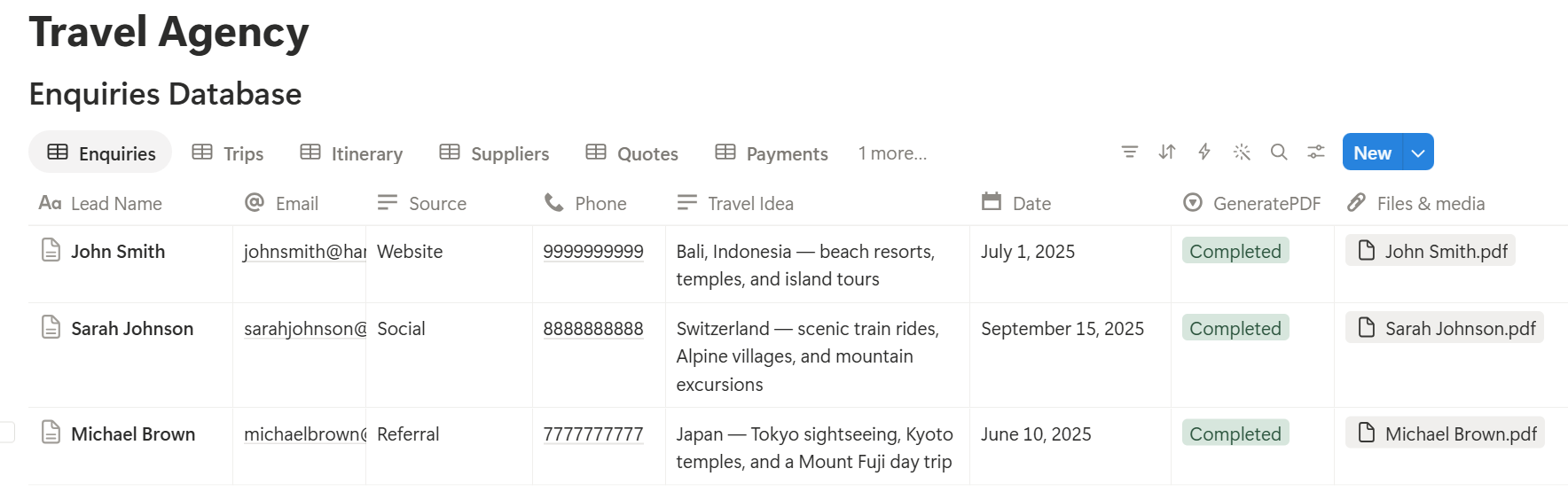
An itinerary lists many items, and a quote can list several services, each stored as its own linked record. Before you rely on a template to list them all, test it with a trip that has many items, and check that each appears in the right order and with the right dates. If it doesn’t, a simple fallback is to keep a short text summary of the day-by-day plan on the trip record, and use that in the template. Many agencies keep one summary property for the itinerary text, and another for what is included and excluded.
Always use Preview before sending a document to a client. Check names, dates, the currency, the totals, and the payment dates, because a wrong date on an itinerary is not a small mistake. Keep a copy of every version you send, so you know exactly what the client agreed to.
Before using any document tool with traveler data, ask the provider how data is handled, where it’s stored, and what agreements are available, and keep the answers with your records. Generate documents only from the fields they need.
> 📌 Key Takeaway: Plan and track the trip in Notion, and hand the client a polished PDF. When the itinerary, the quote, and the payment schedule all come from the same records, they can’t disagree with each other.
Who Can See What
A travel agency workspace holds pricing, margins, supplier terms, and client details, and not everyone needs all of it.
Common Mistakes
Storing passport numbers or card details. Use a checkbox to show that a passport was checked, and leave the numbers and the cards to the systems built for them.
Quoting from a stale price. Always record the date a quote is valid until, and check the flag before you send a proposal.
Forgetting option dates. A hold that lapses costs you the price, or the room. Use the option flag and check it every morning.
Changing old exchange rates. Keep the rate used on the day. If you overwrite it, your margins for past trips become wrong.
Calling things confirmed too early. Confirmed means confirmed in writing by the supplier, with a reference on the record.
Overwriting the quote the client accepted. If the price changes, create a new version, and keep the old one. Otherwise you can’t show what was agreed.
Missing the final payment date. Put the date on the trip, and use the flag.
Sending a live Notion link to a client. A link can show other fields or change after you send it. Send a PDF.
Relying on formulas for rules and law. Margins and balances are arithmetic, but licensing, client money, and package travel rules are not. Check them with a professional.
No owner for the structure. Pick one person responsible for the setup. Properties get renamed and formulas break, so tell that person not to rename properties used in PDF templates, because the placeholders must match exactly.
Skipping a test. Run a week with made-up trips first, and fix what annoys the team before you use real bookings.
Frequently Asked Questions
Can Notion be used for a travel agency?
Yes, for operations such as enquiries, trips, itineraries, supplier quotes, payments, and checklists. It isn’t a booking engine or an accounting package, so book, ticket, and account in the tools built for that, and use Notion to plan and track.
Can Notion replace a booking system or a GDS?
No. Notion can’t search live availability, make bookings, or issue tickets. It works beside those tools, as the place where you record the trip, the references, the costs, and the dates.
How do I compare supplier quotes in Notion?
Create a Supplier Quotes database linked to the enquiry or trip, with the cost, currency, exchange rate, and valid-until date. Add formulas for the cost in your base currency and the margin, and group the table by trip to see the options side by side.
How do I build an itinerary in Notion?
Create an Itinerary Items database linked to Trips, with one record for each flight, hotel, transfer, and tour. Use a timeline or calendar view filtered to one trip to see the plan day by day, and keep a template trip for each popular destination.
How do I track client and supplier payments in Notion?
Create a Payments database linked to Trips, with the type, amount, due date, and paid date. Add a formula that flags payments that are due soon or overdue, and rollups on the trip for what the client has paid and what is still owed.
Can I store passport details in Notion?
It’s best not to. Record that a passport has been checked, with a checkbox, and keep the number and the scan in the system built for secure documents, as your rules require. If you aren’t sure what you may store, check with a professional.
Can I create itineraries and quotes from Notion?
Yes. You can export a page as a PDF, or use a template-based tool such as PDFOutput to fill an itinerary or quote design with data from each record. Test it with a trip that has many items, and use Preview before you send anything to a client.
Related Reading
Conclusion
The best Notion setup for a travel agency is a calm planning desk: enquiries that remind you to follow up, quotes you can compare in one table, options that warn you before they lapse, and payments that never sneak up on you. Keep sensitive traveler data in the systems built for it, record references and dates instead, and test with made-up trips before you use real bookings.
When it is time to send the itinerary, the quote, or the confirmation, PDFOutput can fill your branded template from the trip record and save the PDF back to it.
Want polished itineraries and quotes straight from Notion? Try PDFOutput.