Guides
How to Use Notion for a Training Center: Courses, Students, and Certificates
Set up Notion for a training center: courses, cohorts, students, attendance, fees, and certificates, plus PDF certificates and attendance sheets from your records.
By Sanat Biswal · 2026-10-22 · 5 min read

{/ synced-from-notion — do not edit manually /}
A training center runs on a long chain of small handoffs.
A student starts enrolment. A cohort session fills up, or doesn’t. An instructor requires a room for a class. Attendance is taken on paper and typed up later on. Fee are still paid or unpaid.
Then, at the end of the course, someone has to check who qualifies and then manually creates certificates by hand, hoping nobody’s name is misspelled in the certificate.
Most of this lives in spreadsheets, a messaging app, and in the administrator’s head.
Notion can hold that chain together in one place for you.
This guide is for training centers, institutes, and academies of any size. It shows how to set up courses, cohorts, students, enrollments, attendance, instructors, and certificates, and how to turn records into PDFs such as certificates, attendance sheets, and enrollment confirmations.
It also covers what to be careful about with student data.
It is general information presented here for organizing a training business, but not to be considered for any legal or compliance advice.
Short answer on Using Notion for Training Centres:
To use Notion for a training center, start with building linked databases for Courses, Cohorts, Students, Enrollments, Attendance, Instructors, and Certificates.
Use formulas to work out seats left, attendance rate, balance due, and certificate eligibility, and to flag cohorts at risk of not running.
When a student qualifies, create a certificate PDF from their record.
Collect only the student data you need, keep sensitive details and payment card numbers out, and share the workspace with as few people as possible.
Notion works well as the operations workspace for a training center.
Each course, cohort, student, and enrollment is a record, and the records are linked, so a cohort shows its students and a student shows every course they’ve taken.
Notion isn’t a learning platform, a video host, a payment processor, or a messaging tool. It is the back office: who is learning what, when, with whom, and who has earned what.
For documents that students, employers, and accreditors receive, you can export a page as a PDF or generate one from a template.
Table of Contents
What Notion Can and Can’t Do for a Training Center
Notion is good for:
- Managing a course catalog, cohorts, and timetables.
- Tracking enrollments, seats, and waiting lists.
- Recording attendance and working out attendance rates.
- Following fees and balances due.
- Planning instructors, rooms, and sessions.
- Deciding who qualifies for a certificate.
- Keeping certificate records and expiry dates.
- Creating consistent certificates, attendance sheets, and confirmations.
- Delivering lessons, video, or quizzes (that’s a learning platform’s job).
- Taking online payments or storing card details.
- Sending bulk email or messages to students.
- Giving students a login to see their own progress.
- Proctored or secure testing.
- Courses stores what you teach. Add these properties: Course Name, Code, Category, Duration (hours), Default Fee, Certificate Offered (checkbox), Pass Mark, Minimum Attendance, Certificate Valid For (months, blank if it doesn’t expire), and Active (checkbox).
- Cohorts stores each run of a course. Add: Cohort Name, Course (relation), Start Date, End Date, Instructor (relation), Room or Link, Capacity, Minimum to Run, Status (Planned, Open, Running, Completed, or Cancelled), and Fee.
- Students stores who you teach. Add: Student Name, Student ID, Email, Phone (optional), Enrollments (relation), and Notes (kept free of sensitive details).
- Enrolments links a student to a cohort. Add: Student (relation), Cohort (relation), Status (Enrolled, Waiting List, Completed, Withdrawn, or Did Not Complete), Fee, Amount Paid, Assessment Score, and Assessment Passed (checkbox).
- Attendance stores one record per student per session. Add: Session Date, Cohort (relation), Student (relation), and Status (Present, Late, Absent, or Excused).
- Instructors stores your teaching team. Add: Name, Courses They Teach, Hourly Rate, Hours Taught (rollup), and Availability notes.
- Certificates stores each certificate you issue. Add: Certificate ID (a Unique ID property with a prefix such as CERT), Student (relation), Cohort (relation), Issue Date, Expiry Date, and Status (Draft, Ready, Issued, or Revoked).
- Open for enrollment: cohorts with status Open, sorted by start date.
- At risk: cohorts with the At risk flag.
- Running now: cohorts with status Running, as a board by instructor.
- Calendar: all cohorts by start and end date.
- By course: cohorts grouped by course, with average fill rate, to see which courses are popular.
- Week by room: a calendar or table grouped by room, so two sessions in the same room at the same time stand out.
- Week by instructor: sessions grouped by instructor, to see double-booking and heavy weeks.
- This month: all sessions for the month, to share with the team.
- Certificates: one per student, with their name, the course, the date, and a certificate number
- Attendance sheets: a printable sign-in list for each session or cohort
- Enrolments confirmations: course, dates, location, and fee, sent to a new student
- Invoices and receipts: fees and payments, for students or their employers
- Statements of attendance or completion: for students who need proof but didn’t earn a certificate
- Timetables: a clean weekly or monthly schedule for students and instructors
- Course outlines: a one-page summary of a course, for prospects and accreditors
- Instructor timesheets or agreements: hours taught and pay due
- Cohort reports: attendance, results, and feedback for an employer who paid for a group
- Monthly reports: enrolments, fill rate, and revenue for the owner or accountant. Notion to Excel helps if your accountant wants the numbers in a spreadsheet.
- Create your template with your center’s name, logo, and layout.
- Add placeholders in double curly braces where the data should go, such as
{{Student_Name}},{{Course_Name}},{{Issue_Date}}, and{{Certificate_ID}}. - Make sure each placeholder matches the name of a Notion property.
- Start the document with a Notion database button or a status property.
- Ready to Generate creates a PDF from the database record.
- Generate Page converts the Notion page into a PDF.
- Generate PDF and Doc creates a PDF and a Google document.
- Preview creates a Google document so you can check it before making the final PDF.
- Generate E-Signed Doc creates an e-signed PDF in the database workflow.
- Give the administrators who run enrollments access to Students, Enrollments, and Attendance.
- Give instructors access only to what they need, such as their own cohort’s sign-in sheets, and send them a PDF if you don’t want to share a database.
- Keep fees, balances, and instructor pay limited to the owner and the person who handles finance.
- Don’t share the student database with students, employers, or partners. Give them finished PDFs.
- Write down your rules about what may and may not be stored in Notion, and make sure every new team member reads them.
- Remove access on the day someone leaves, including part-time instructors.
- Review who has access every few months.
- Archive or delete old student records on the schedule in your retention rule.
- How to Use Notion for a Salon or Spa
- How to Use Notion for a Dental Clinic
- How to Export a Notion Database to PDF
- How to Add Your Logo and Brand Colors to Notion PDFs
Notion is not made for:
If you already use a learning platform or a payment system, treat Notion as the operations layer beside it.
It decides and records. The other tools teach, charge, and send.
Student Data: Draw the Line First
A training center holds personal data about every student, and sometimes about children.
The rules about that data vary by country, and in many places they are strict. Before you build anything, decide what you will and won’t store.
| Usually a good fit | Usually a poor fit |
|---|---|
| Course catalog, schedules, and cohort dates | Payment card numbers or bank details |
| Student name, student ID, and email | Government ID numbers or scanned ID documents |
| Which cohort a student is enrolled in | Health information or details of special needs |
| Attendance status and rate | Passwords or login details |
| Paid or unpaid status and balance | Detailed behavior or disciplinary notes |
| Certificate numbers and issue dates | Anything about children that your rules don’t allow you to hold |
Examples include GDPR in the European Union and, in the United States, FERPA for some educational institutions and COPPA for children’s online data, among many others.
They can affect what you may collect, how long you may keep it, who may see it, and how a student can ask to see or delete it.
Check which rules apply to your center, and ask a professional if you’re not sure. If you can’t get a clear answer for a type of data, keep it out of Notion.
Two design rules keep most centers safe.
First, collect the minimum. A name, a student ID, and an email are usually enough for operations.
Second, use IDs to link. A student ID lets you match Notion to your payment and learning systems without copying everything into every tool.
Also decide how long you keep records.
A student who finished three years ago may not need to be in your active database. Write a retention rule, and archive or delete on schedule.
While you are testing, use made-up students only.
Use The 7 Databases
Start with these 7 databases. You can add more later.
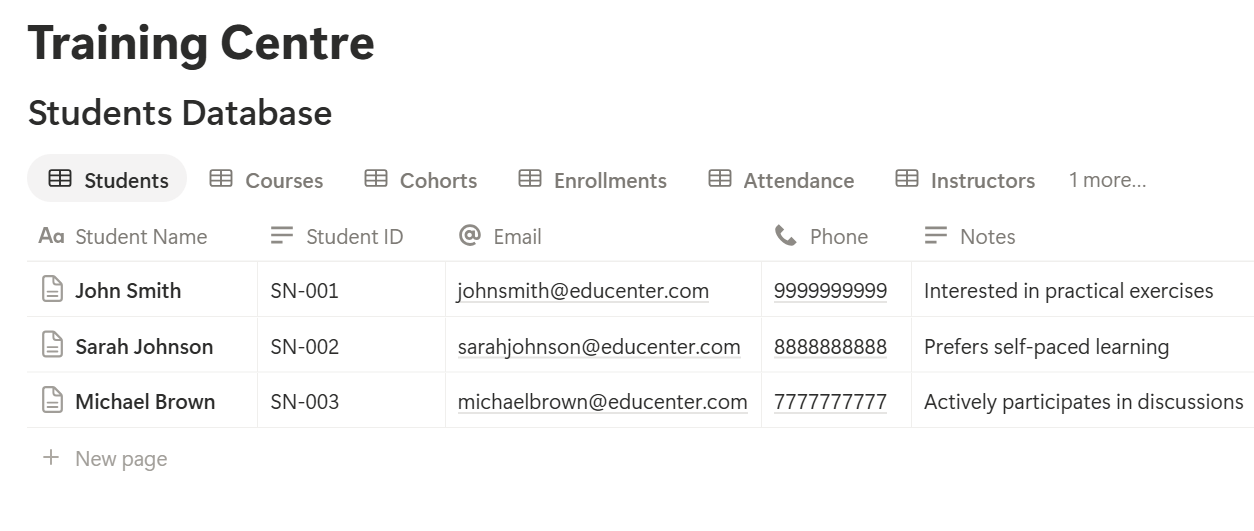
A relation connects a record in one database to a record in another.
Link Cohorts to Courses, Enrollments to Students and Cohorts, and Attendance to Enrollments. Now a cohort page shows its students and their attendance, and a student page shows their full learning history.
Courses and Cohorts
A course is what you teach. A cohort is one run of it, with dates, an instructor, a room, and students. Keeping them separate is the most important structural choice, because the same course runs again and again.
On Cohorts, add a rollup that counts the linked Enrollments with the status Enrolled, and call it Enrolled. Then add:
*Seats left: prop("Capacity") - prop("Enrolled") Fill rate: if(prop("Capacity") > 0, prop("Enrolled") / prop("Capacity"), 0) Cohort flag: if(prop("Seats left") <= 0, "Full", if(prop("Enrolled") < prop("Minimum to Run") and dateBetween(prop("Start Date"), now(), "days") <= 14 and dateBetween(prop("Start Date"), now(), "days") >= 0, "At risk", ""))*
Format Fill rate as a percent. The flag shows Full when there are no seats left, and At risk when a cohort starts within two weeks and still has fewer students than the minimum you need to run it. An At risk flag is a prompt to promote, merge, or postpone, while there is still time.
Make these views:
After a few months, the fill rate by course tells you what to run more of, and what to retire.
Enrollments, Fees, and Waiting Lists
Every student in a cohort has an enrollment record. This is where fees, payment status, and results live.
On Enrollments, add:
*Balance due: prop("Fee") - prop("Amount Paid") Payment flag: if(prop("Balance due") > 0, "Balance due", "Paid")*
Enter Amount Paid from your payment system when a payment arrives. Notion records the amount and the status, and not the card or bank details. Make a Balances due view, sorted by cohort start date, so the person chasing payments sees what matters first.
For waiting lists, add enrollments with the status Waiting List. When a seat opens, change the status to Enrolled, and the seat count updates. Make a Waiting list view grouped by cohort, sorted by the date added, so the longest-waiting student is offered the seat first.
Withdrawals and refunds need care. Write down your refund rules, and record the decision on the enrollment record. If a student withdraws, change the status instead of deleting the record, so your history and numbers stay correct.
> 💡 Pro Tip: Give every student a student ID the first time they appear, and use it everywhere. Names repeat, spellings differ, and the ID is what keeps two students from being merged into one.
Attendance Without the Paperwork
Attendance decides who qualifies for a certificate, and in some programs, who may continue. It is also the part most likely to live on paper.
The simplest method is an Attendance database with one record per student per session. For each session, the instructor or the administrator adds the records, using a template that fills the cohort and date. To save time, create the records from a cohort’s student list, then change the Status of anyone who isn’t Present.
Then, on Enrollments, add two rollups: Sessions Held, which counts the cohort’s attendance records for that student, and Sessions Attended, which counts those with the status Present or Late. Then add:
*Attendance rate: if(prop("Sessions Held") > 0, prop("Sessions Attended") / prop("Sessions Held"), 0) Attendance flag: if(prop("Sessions Held") > 2 and prop("Attendance rate") < 0.8, "Low attendance", "")*
Format the rate as a percent. The flag shows Low attendance for a student who has missed too many sessions, so you can speak to them while they can still recover. Match the 0.8 to the minimum attendance your course requires. How you count Late and Excused is a policy choice, so write it down and apply it the same way for everyone.
For a center with large cohorts, a paper sign-in sheet is still the quickest at the door. Generate it as a PDF from the cohort record, and type the results in afterward. The attendance sheet in the documents section below shows how.
Instructors, Rooms, and Timetables
A timetable fails when two classes want the same room, or the same instructor is in two places. Notion can make conflicts visible, even though it can’t block them automatically.
Add a Sessions database linked to Cohorts, with the date, start and end time, room or online link, and instructor. Then make views:
On Instructors, add a rollup of Hours Taught from their sessions, and a formula for pay:
Pay due: prop("Hours Taught") prop("Hourly Rate")*
Filter the rollup to the month you are paying for, and check the figure against your agreement with each instructor before you pay. If instructors are paid a different way, such as a fixed fee per course, adjust the formula.
Assessment and Certificate Eligibility
A certificate means something because it is earned. Make the rule explicit, and let a formula apply it the same way to everyone.
On Enrollments, record the assessment score and tick Assessment Passed when the student reaches the course’s pass mark. Then add:
Certificate check: if(prop("Attendance rate") >= 0.8 and prop("Assessment Passed") and prop("Balance due") <= 0, "Eligible", "Not yet")
This shows Eligible when a student has attended at least 80% of sessions, passed the assessment, and paid in full. Change the numbers, and the conditions, to match your rules. Some centers don’t hold back a certificate over an unpaid balance, and some do. Decide and publish your policy, so a student knows the rules before the course starts.
Here is a made-up example for one cohort.
| Item | Value |
|---|---|
| Capacity | 20 |
| Enrolled | 17 |
| Seats left | 3 |
| Fill rate | 85% |
| Student A: sessions held / attended | 10 / 9 |
| Student A attendance rate | 90% |
| Student A fee / paid | 400 / 400 |
| Student A assessment | Passed |
| Student A certificate check | Eligible |
Certificate Records and Numbers
A certificate is a document, and also a record. Someone may call you in three years to ask whether a certificate is genuine. A Certificates database lets you answer in seconds.
For each certificate, create a record with the student, the cohort, the issue date, and, if the certificate expires, an expiry date. Use a Unique ID property with a prefix for the Certificate ID, so every number is unique and in order. That number goes on the PDF.
If the certificate expires, such as a safety course that must be renewed, add:
*Days to expiry: dateBetween(prop("Expiry Date"), now(), "days") Expiry flag: if(prop("Status") == "Issued", if(prop("Days to expiry") < 0, "Expired", if(prop("Days to expiry") <= 60, "Renew soon", "")), "")*
A Renewals due view, sorted by date, becomes a list of people to contact about the next course. That is useful for the student and for your enrolments.
Use the Status to control the process. A record starts as Draft. When someone has checked the name, the course, and the date, they change it to Ready. After the PDF is created and sent, it becomes Issued. If a certificate must be withdrawn, change it to Revoked, and don’t delete it. Only the people who check certificates should be able to set Ready.
To let employers confirm a certificate, give them a way to ask you with the certificate number, and look it up. Don’t make your student or certificate database public to do it.
Feedback and Course Health
A course can look full and still be a problem. Add a Feedback database linked to Cohorts with a rating from 1 to 5, a comment, and the date. On Cohorts, add a rollup that averages the rating, and one that counts the responses.
Then make a Course health view grouped by course, showing average fill rate, average rating, and the share of students who completed. A course with high fill rate and a falling rating needs attention before it affects enrolments. A course with a high rating and low fill rate may only need better promotion.
Send the feedback survey from your usual survey or email tool, and copy results into Notion, or have the instructor enter a summary. Keep comments free of personal details, and follow your rules on how long to keep them.
A Week at a Training Center
To see how the pieces fit, here is one made-up week.
Monday, 8:30 am. The administrator opens the home page. The At risk view shows one cohort starting in nine days with six students and a minimum of eight. She sends it to the marketing lead, and a reminder goes out to the waiting list of a related course.
Monday, 9:00 am. The Week by room view shows two sessions booked in the same room on Thursday. She moves one and tells the instructor.
Tuesday, 6:30 pm. An evening class meets. The instructor takes attendance on the printed sign-in sheet, and the administrator enters it the next morning.
Wednesday, 11:00 am. A seat opens in a full cohort. She changes the first person on the waiting list to Enrolled, and the Seats left count updates.
Thursday, 2:00 pm. A cohort finishes. The Eligible for certificate view shows fourteen of seventeen students. Two are short on attendance, and one has a balance due. She reviews the list, and moves the fourteen certificate records to Ready.
Thursday, 2:30 pm. She checks one certificate in Preview, then generates all fourteen as PDFs. Each one is saved to its record.
Friday, 10:00 am. The Balances due view shows the student with the unpaid fee. She sends a reminder from the payment system. At the end of the day, she exports the monthly report for the owner.
No spreadsheets were merged, and no certificate was typed by hand.
The Documents That Leave Notion
Students, employers, accreditors, and instructors don’t use your workspace, so many records need to become files:
For a single page, you can use Notion’s export option. How to Export Notion to PDF shows the settings, and How to Export a Notion Database to PDF helps with tables, such as a timetable.
A certificate is the one document that has to look right, and Notion’s own export gives you limited control over layout, fonts, and logos. How to Add Your Logo and Brand Colors to Notion PDFs explains how a template solves that.
Generating Certificates and Documents with PDFOutput
PDFOutput creates documents from your Notion data using a template. A template can be a Google document, a Word file, a PDF file, or a Notion page. If you already have a certificate design in Word or Google Docs, you can reuse it.
Here is how it works:
These are some of the status options:
Because each certificate is its own record, you can set the status on a whole cohort’s records at once, and each student gets their own PDF.
You can save the finished file to a property in the database, so the certificate stays on its record. You can also save it to a Google Drive folder and store the link in a property.
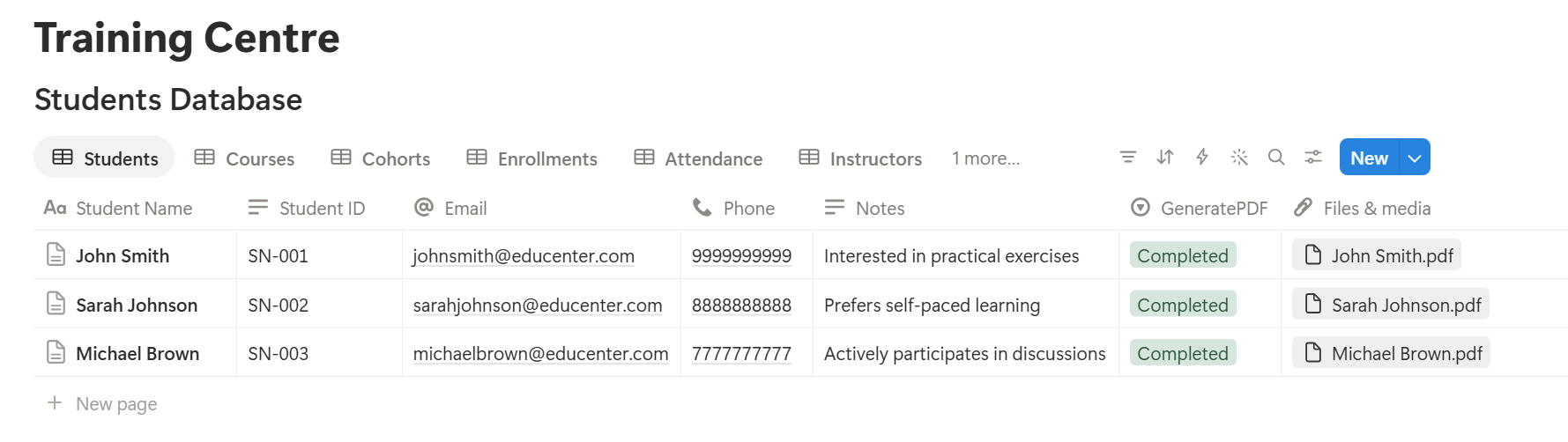
The e-signed option can help with enrolment agreements and policy acknowledgements. Whether an electronic signature is valid for a given document depends on your location, so check before you rely on it.
Before you generate a whole cohort, test the template with one record. Check the spelling of the name, the course title, the date format, and the certificate number. Use Preview first, and then generate the rest. A certificate with a wrong name is a small mistake that is annoying to fix after it is sent.
For an attendance sheet or a timetable that lists many rows, such as every student in a cohort, test the template with a cohort that has several students, and check that each appears the way you want. If it doesn’t, a simple fallback is to keep a short text summary on the record, and use that in the template.
Before using any document tool with student data, ask the provider how data is handled, where it’s stored, and what agreements are available, and keep the answers with your records. Generate documents only from the fields they need.
> 📌 Key Takeaway: Use Notion to decide and record who has earned what, and use a PDF template to turn each record into a certificate that looks right. A good rule, a clean record, and a tested template remove most of the manual work at the end of a course.
Who Can See What
Student and payment information needs more care than a course catalog. Notion’s views and filters change what people see, but they are not a security boundary. Anyone with access to a database can usually reach all of its rows, so control access with permissions and with separate pages.
Common Mistakes
Collecting too much. Every extra field is something you have to protect and, in many places, justify. Collect what operations need.
Storing payment details. Record the amount and the status. Leave card and bank details to your payment system.
Mixing courses and cohorts. If a course and its runs live in one record, you can’t tell one run from another. Keep them separate.
Using names as the link. Two students can share a name, and a name can change. Use a student ID.
Trusting the formula without review. The certificate check is a starting point. A person should confirm the list before certificates go out.
Deleting instead of changing the status. Withdrawals, cancellations, and revoked certificates are part of your history. Change the status, and keep the record, unless your retention rule says otherwise.
Skipping the test. Generate one certificate and check it before you generate thirty.
Treating filters as security. A filtered view hides rows from a casual look, and not from someone with access to the database.
Keeping every record forever. Old student data is a risk and a cost. Follow a retention rule.
No owner for the structure. Pick one person responsible for the setup. Properties get renamed and formulas break, so tell that person not to rename properties used in PDF templates, because the placeholders must match exactly.
Frequently Asked Questions
Can Notion be used for a training center?
Yes, for operations such as courses and cohorts, enrollments, attendance, fees, timetables, and certificates. It isn’t a learning platform or a payment system, so teach and take payments in tools built for that, and use Notion to organize and record.
Can Notion replace a learning management system?
No. Notion doesn’t host lessons, run quizzes, or give students a login to track their progress. It works well beside one, as the place where you manage cohorts, attendance, fees, and certificates.
How do I track attendance in Notion?
Create an Attendance database with one record per student per session, linked to the student and the cohort. Then add rollups and a formula on each enrollment to work out the attendance rate, and flag students who fall below your minimum.
How do I generate certificates from Notion?
Create a Certificates database with one record per student, then use a template-based tool such as PDFOutput to fill a certificate design with the name, course, date, and certificate number from each record. Test with one record first, and check the spelling.
Can I generate certificates for a whole cohort at once?
Yes. Because each certificate is its own record, you can set the status on many records at the same time, and each one produces its own PDF. Review the list and test a single certificate before you generate the rest.
How do I track student fees in Notion?
Add a fee and an amount paid to each enrollment, then use a formula for the balance due and a flag for unpaid balances. Record amounts and statuses only, and keep card and bank details in your payment system.
Can I store student information in Notion?
Often yes, for basic operational details, but it depends on the laws and agreements that apply to you. Collect only what you need, keep sensitive information out, limit who can see it, and check your obligations with a professional if you’re unsure.
Related Reading
Conclusion
The best Notion setup for a training center is a calm back office: cohorts that tell you when they are at risk, enrollments that show who has paid, attendance that adds itself up, and a clear rule for who has earned a certificate.
Collect only the student data you need, keep the rest in the right systems, and test with made-up students before you use real ones. When the course ends, PDFOutput can turn each qualifying record into a certificate that looks like it came from your center, and save it back to the record.
Want certificates, attendance sheets, and confirmations straight from Notion? Try PDFOutput.