Guides
How to Use Notion for Small Business: Customers, Work, and Documents
Learn how to set up Notion for a small business with customers, sales, projects, and invoices, then create branded PDF quotes, invoices, and reports.
By Sanat Biswal · 2026-10-12 · 5 min read

{/ synced-from-notion — do not edit manually /}
How to Use Notion for Small Business: Customers, Work, and Documents
Slug: how-to-use-notion-for-small-business
Status: Draft
Meta Description: Learn how to set up Notion for a small business with customers, sales, projects, and invoices, then create branded PDF quotes, invoices, and reports.
Author: Sanat Biswal
Keywords: notion for small business, how to use notion for small business
Most small businesses run with the aid of several available tools which are patched together to keep the small business ongoing.
Customer details tend to live in a phone contacts list, quotes are written in a word file, jobs are tracked on sticky notes, and invoices are created in another app.
What the owner wants to know is who still owes money or which leads need a to have a follow-up request to be done, the answer usually is not straight forward process but usually takes a while or so to stitch all things together in one place.
Notion can help bring these pieces into one workspace so you can see how the business is doing at a glance. This guide shows you how to set up Notion for customers, sales, projects, and invoice tracking, and how to turn those records into PDFs your customers can receive.
How to Use Notion for a Small Business? Quick Answer
To use Notion for a small business, start with linked databases for Customers, Deals (or Leads), Projects, and Invoices.
Use formulas to flag overdue invoices and stale leads, build simple views for daily work, and keep your repeated processes in templates.
When you need to send something to a customer, such as a quote, invoice, or report, create a PDF from the record instead of rebuilding it by hand.
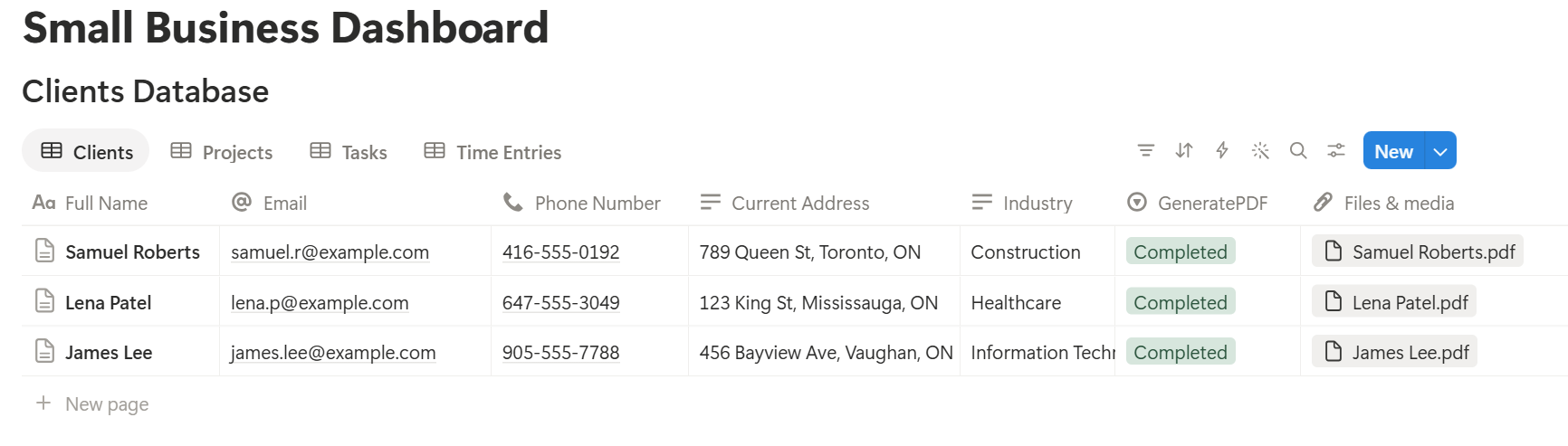
What Does Notion Do for a Small Business?
Notion is a flexible workspace made of pages and databases. For a small business, that means one place to plan work, keep records, and write down how things are done.
Every customer can have deals, every deal can become a project, and every project can have invoices. Because these records are linked, you can see the full history of a customer on one page.
Notion is not an accounting, payroll, or point-of-sale system, and it does not replace the tax and invoicing rules that apply to your business.
Think of it as the place where you organise the work, and keep your accounting software for the money that officially moves.
What Notion Can and Can't Do for a Small Business
Notion is good for:
- Keeping customers, leads, and projects in one place.
- Tracking the sales pipeline and follow-ups.
- Tracking which invoices are sent, paid, or overdue.
- Storing checklists, policies, and how-to guides for your team.
- Creating consistent quotes, invoices, and reports.
- Bookkeeping, tax filing, or payroll.
- Inventory management for a large catalogue of products.
- Taking payments in a shop or online store.
- Customers Database: This database stores who you work for. Add the following properties: Name, Contact Person, Email, Phone, Status (Lead, Active, or Past), and Source (how they found you).
- Deals Database: This database stores each sales opportunity. Add the following properties: Deal Name, Stage (New, Contacted, Quote Sent, Won, or Lost), Value, Expected Close Date, Last Contacted, and Owner.
- Projects Database: This database stores the work you deliver. Add the following properties: Project Name, Status (Not Started, In Progress, Waiting on Customer, or Done), Start Date, Due Date, Budget, and Owner.
- Invoices Database: This database stores what you have billed. Add the following properties: Invoice Number, Amount, Issue Date, Due Date, and Status (Draft, Sent, Paid).
- In Deals, add a relation to Customers.
- In Projects, add a relation to Customers and to Deals.
- In Invoices, add a relation to Customers and to Projects.
- Pipeline board: Deals grouped by Stage, so you can drag a deal forward as it progresses.
- Follow-up list: Deals where the Needs Follow-Up flag shows.
- Unpaid invoices: Invoices that are not Paid, sorted by Due Date.
- Active projects: Projects that are In Progress or Waiting on Customer.
- New customer template: a checklist for collecting details, agreeing on scope, and sending a welcome message.
- Project template: deliverables, timeline, and who is responsible for what.
- Quote template: a standard layout for scope, price, and terms.
- Meeting notes template: date, attendees, decisions, and next steps.
- Quotes and proposals: scope, timeline, and pricing.
- Invoices: the amount, due date, and payment details.
- Project reports: work completed and next steps.
- Agreements and statements of work: a clear description of what you will deliver.
- Receipts and statements: a record of what has been paid.
- Create your template with your logo and layout.
- Add placeholders in double curly braces where the data should go, such as
{{Customer_Name}}or{{Invoice_Number}}. - Make sure each placeholder matches the name of a Notion property.
- Start the document with a Notion database button or a status property.
- Ready to Generate creates a PDF from the database record.
- Generate Page converts the Notion page into a PDF.
- Generate PDF and Doc creates a PDF and a Google document.
- Preview creates a Google document so you can check it before making the final PDF.
- Generate E-Signed Doc creates an e-signed PDF in the database workflow.
- Keep prices, margins, and customer details private from people who do not need them.
- Do not give customers access to your workspace. Send them a PDF instead.
- Give freelancers and part-time staff access only to the pages they need.
- Check who has access every few months, and remove people who have left.
- Notion for Agencies
- Notion Proposal Template
- How to Export Notion to PDF
- How to Add Your Logo and Brand Colors to Notion PDFs
- Notion to Google Docs
Notion is not made for:
If you store customer data, passwords, or contracts, check the privacy rules that apply to your business and the terms in your customer agreements before deciding what goes into Notion.
Step 1: Create 4 Core Databases
Start with these four. You can add more later.
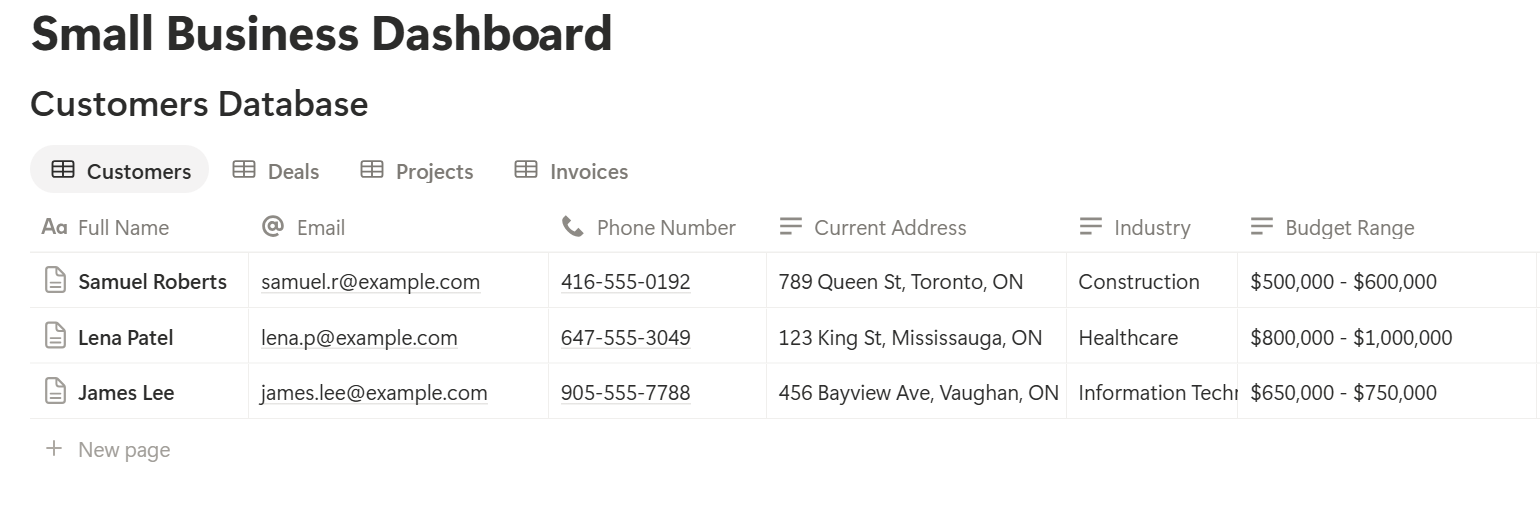
Step 2: Link the Databases Together
A relation connects a record in one database to a record in another. This is what makes your records work as a system instead of separate lists.
Add these relations:
Now a customer page shows every deal, project, and invoice connected to that customer, and a project page shows what has been billed for it.
Step 3: Add Formulas That Flag Problems
Formulas help you notice things before they become problems. On the Invoices database, add:
Overdue: if(prop("Status") != "Paid" and prop("Due Date") \< now(), "Overdue", "")
On the Deals database, add a simple follow-up reminder:
Needs Follow-Up: if(prop("Stage") != "Won" and prop("Stage") != "Lost" and dateBetween(now(), prop("Last Contacted"), "days") > 7, "Follow up", "")
On the Customers database, add a rollup that sums the Amount from the related Invoices where Status is Paid, and name it Total Paid. This shows you your most valuable customers at a glance.
Test each formula with a few made-up records before you rely on it. If a formula errors, check that the property names match exactly.
Pro Tip: Update the Last Contacted date every time you speak to a lead. A follow-up reminder is only as good as the data behind it.
Step 4: Make Views for Daily Work
A view is a different way of looking at the same database. Create these views:
Put the views you check most on a single home page, so you can see what needs attention each morning.
Step 5: Use Templates for Repeat Work
Small businesses do the same things again and again. Templates keep you from starting from a blank page each time and make it easier for a new team member to follow your process.
Make a template for each of these:
Step 6: Write Down How Your Business Works
Notion also works well as a simple company handbook. Create a page for each process you repeat, such as how to onboard a customer, how to handle a refund, or how to close the shop at the end of the day. Use short steps and checklists.
This is useful when you hire your first employee or go on holiday. Instead of explaining the same thing repeatedly, you can point people to a page. Review these pages every few months so they stay accurate.
Step 7: Plan Marketing and Content
If you promote your business online, add a Content database. Add these properties: Title, Channel, Publish Date, Status (Idea, Draft, In Review, Approved, or Published), and Owner.
Then add two views: a calendar view by publish date, and a board grouped by Status. This gives you a clear picture of what is going out and when, without relying on memory.
Step 8: Create PDFs for Customers
Customers do not use your Notion workspace, so some records need to become files. Common examples are:
For a single page, you can use Notion's built-in export option. How to Export Notion to PDF shows the settings, and How to Export a Notion Database to PDF helps if your page is a table.
Small businesses also care about how their documents look. A quote with your logo and colors looks more professional than a plain export.
Notion's own export gives you limited control over this. How to Add Your Logo and Brand Colors to Notion PDFs explains how a template solves it.
Step 9: Generate PDFs with PDFOutput
PDFOutput creates documents from your Notion data using a template. A template can be a Google document, a Word file, a PDF file, or a Notion page.
Here is how it works:
These are some of the status options:
The e-signed option may help with quotes and agreements that need approval. Check whether e-signatures are accepted under your local rules and customer contracts before you rely on it.
You can save the finished file to a property in your database, so it stays on the record. You can also save it to a Google Drive folder and store the link in a property.
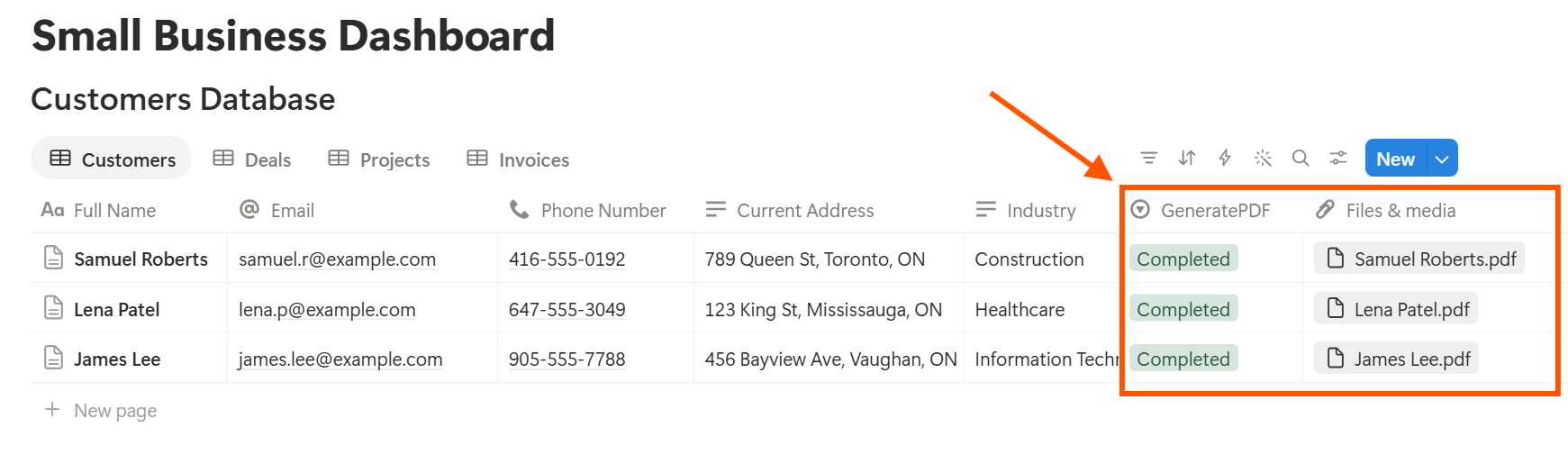
Start with the document you send most often, which for many businesses is the quote or the invoice. Use Preview first and check for empty fields, wrong date formats, and long text that does not fit.
Important: Notion can help you prepare invoice data, but your invoices may need to meet tax and legal requirements in your country. Confirm what your invoices must include before you send them to customers.
Key Takeaway: Start small. Four databases, a couple of formulas, and one good document template are enough to save hours every month. Add more once you and your team use the basics every day.
Step 10: Control Who Can See What
Decide who can see what before you share anything.
Frequently Asked Questions
Is Notion good for small business?
Yes, for planning, records, and processes. It can hold customers, deals, projects, invoice tracking, and your internal guides. It does not replace accounting, payroll, or point-of-sale software.
Can I use Notion as a simple CRM?
Yes. A Customers database linked to a Deals database gives you a basic CRM with a pipeline view and follow-up reminders. If you need advanced email tracking or automation, a dedicated CRM may suit you better.
How do I track invoices in Notion?
Create an Invoices database with an invoice number, amount, due date, and status, and link each invoice to a customer. Add an Overdue formula and a view that shows unpaid invoices. Keep your accounting software as the official record.
Can I create quotes and invoices from Notion?
Yes. You can export a page as a PDF, or use a template-based tool like PDFOutput to fill a quote or invoice template with the data from each record. Test it on a few sample records first.
Should customers have access to my Notion workspace?
Usually not. A workspace can contain information about other customers, prices, and internal notes. It is safer to send customers a finished PDF.
Can I use Notion for customer approvals?
You can track approval status in a database. For a formal sign-off, you may need a PDF with a signature. PDFOutput lists a Generate E-Signed Doc option, but check that it is valid for your contracts.
Related Reading
Conclusion
A good small business setup in Notion has three things: customers linked to deals, projects, and invoices; formulas that flag what needs attention; and documents that look professional. Start with four databases and a couple of formulas. Use them for a month and fix what feels slow. When your quotes, invoices, and reports need to leave Notion, PDFOutput can fill your template from each record and save the PDF to your chosen storage.
Want customer quotes, invoices, and reports as clean PDFs? Try PDFOutput.