Guides
How to Use Notion for a School: Students, Attendance, and Reports
Set up Notion for a school with students, attendance, assessments, and parent updates, then turn records into clean PDF reports and letters.
By Sanat Biswal · 2026-10-11 · 5 min read

{/ synced-from-notion — do not edit manually /}
It’s a weekend night, and then a teacher has a lot of comments to address. The marks are written in one spreadsheet, while the attendance is maintained in another register, while the parent contact details are in a third place. Every comment begins with around 20 minutes of hunting for facts, and only then does the actual writing begin to start.
Most of a school’s paperwork problem is a “where is that?” problem.
Notion can put students, classes, attendance, and assessments into one connected workspace, so the facts are already there when you sit down to write.
Here’s a quick short answer on how to use Notion for school?
To use Notion for a school, build linked databases for students, classes, attendance, and assessments. Use relations so each record knows its student and class, rollups to calculate attendance and averages, and views for teachers and administrators. When a record has to reach a parent, such as a progress report or a permission slip, generate it as a PDF.
In more detail: Notion works for schools as an organizing layer, not a replacement for your official student records system or learning platform. A Students database holds one record per student. Attendance and Assessments are separate databases linked back to each student, so a rollup can show an attendance percentage or an average score without anyone adding it up. Views give each person what they need: teachers see their class, administrators see everyone, and nobody has to scroll through a giant table. Because student data is sensitive, access controls matter as much as the setup itself.
Is Notion the Right Tool for Your School?
Be honest about the fit before you build anything.
| Good fit | Poor fit |
|---|---|
| Small schools, tutoring centers, and individual classrooms | Large schools that need an official records system |
| Lesson planning and curriculum notes | Delivering online classes with built-in video and grading |
| Tracking attendance and assessments informally | Official transcripts and legally required records |
| Parent communication logs | Mass messaging to hundreds of families |
| Staff tasks, meeting notes, and policies | Timetabling across many teachers and rooms |
Start with the Privacy Question
Schools hold information about children, and that changes how you plan. Before you add a single student to Notion, get answers to these:
- Does your school, district, or local law restrict where student data can be stored or who can access it?
- Who is allowed to see grades, attendance, and contact details?
- Do you need approval from your administration before using a new tool?
- Students. One record per student. Properties includes Name, Class (relation), Guardian Name, Guardian Contact, Start Date, and Notes. Keep sensitive details limited to what you actually need.
- Classes. One record per class or group. Properties includes Class Name, Teacher, Year or Level, Room, and a relation back to Students.
- Attendance. One record per student per day. Properties includes Date, Student (relation), Present (checkbox), and Reason (select, for example Sick, Family, Other).
- Assessments. One record per piece of work. Properties includes Title, Class, Student (relation), Due Date, Status (Not Started, Submitted, Marked), Score, Max Score, and Score % (formula).
- My class today: Attendance filtered to today for the current class.
- Needs follow-up: Students whose attendance or average is below a threshold you choose.
- Late work: Assessments where the Late flag shows.
- Upcoming deadlines: Assessments sorted by due date.
- Admin overview: Classes with their student counts and teachers.
- Student profile template: a standard page with sections for background, strengths, and goals, so every profile is organized the same way.
- Lesson plan template: objective, materials, activities, and notes, ready to fill in.
- Parent meeting template: date, attendees, points discussed, and agreed actions.
- Progress comment template: a short structure such as strengths, next steps, and support at home, so comments are specific without starting from a blank page.
- Progress reports and report cards
- Attendance summaries for a parent or the administration
- Permission slips for trips and activities
- Certificates for achievements
- Parent letters about events and policy changes
- Fee receipts, which you can structure like the ones in Notion Receipt Template
- Ready to Generate creates a PDF from the database record.
- Generate Page converts the Notion page into a PDF.
- Generate PDF and Doc creates a PDF and a Google document.
- Preview creates a Google document so you can check it before the final PDF.
- Generate E-Signed Doc creates an e-signed PDF in the database workflow.
- Share each class only with the teachers who work with it.
- Keep guardian contact details and sensitive notes out of views that don’t need them.
- Don’t share a whole workspace with parents. Send them a finished PDF instead.
- Decide who can edit grades and attendance, and who can only view them.
- Review access at the start of each term and when staff change.
- Starting with real student data. Test with made-up students first.
- Building a database that mirrors every school form. Start with the four above.
- Letting attendance slide. The percentages are only as good as the daily entries.
- Treating the average as the whole story. Numbers are a starting point for a comment, not a substitute for one.
- Sharing too widely. If someone doesn’t need to see a student’s record, they shouldn’t.
- No owner. Pick one person responsible for the structure.
- How to Export Notion to PDF
- How to Export a Notion Database to PDF
- Notion Receipt Template
- Notion to Excel
Student privacy rules differ from country to country and from school to school, so check yours first. A good rule while you’re testing on this is to use fake students until you know the answers.
What Databases to Build for School Attendance and Reports
Start with 4 databases to begin with.
Formulas and Rollups That Do the Arithmetic
**Score %: if(prop("Max Score") > 0, prop("Score") / prop("Max Score"), 0) Late work: if(prop("Status") != "Submitted" and prop("Due Date") < now(), "Late", "")**
On the Students database, add two rollups. For attendance, roll up the Present checkbox from Attendance and choose Percent checked. For performance, roll up Score % from Assessments and choose Average.
Format both as percent and check a few students against your own figures.
A simple average treats every task as equal. If your marking uses weights, you’ll need extra formulas, so keep the first version simple and add weighting later.
Pro Tip: Mark attendance in a table view with today's date filter and the Student column visible. It's much faster to tick boxes down a list than to open each record.
One Term in the Life of the System
Here’s how it feels in practice for a teacher with a class of twenty-eight.
Week one. The teacher imports the class list from a spreadsheet as a CSV and links each student to the class. Notion to Excel covers working with CSV files.
Every morning. Attendance takes two minutes. The Present box gets ticked, and the percentages update by themselves.
After each test. Scores go into Assessments. The Score % formula works out the percentages, and the Students view shows each average.
Mid-term. The teacher opens a view filtered to students below a certain attendance or average. Four names appear. Those are the conversations that need to happen this week.
End of term. The progress reports are mostly assembled already. The teacher’s job is to add the human part: the comment.
Views for Different People
One database, several views:
Give teachers their own dashboard with only their classes, and give administrators a separate one.
Templates That Save Evenings
Database templates are where a school workspace saves the most time.
The Documents That Have to Leave Notion
Parents, inspectors, and other schools don’t have access to your workspace, so some records have to become files.
For a single page, the built-in export works.
How to Export Notion to PDF covers the settings, and How to Export a Notion Database to PDF helps with tables.
If the school’s logo and colors have to appear on every document, How to Add Your Logo and Brand Colors to Notion PDFs explains why that belongs in a template.
Generating Reports and Letters with PDFOutput
PDFOutput generates documents from Notion data using a template. The template can be a Google document, Word file, PDF file, or Notion page. You mark where data goes with placeholders in double curly braces, such as {{Student_Name}} or {{Attendance}}, and each placeholder has to match the related Notion property name.
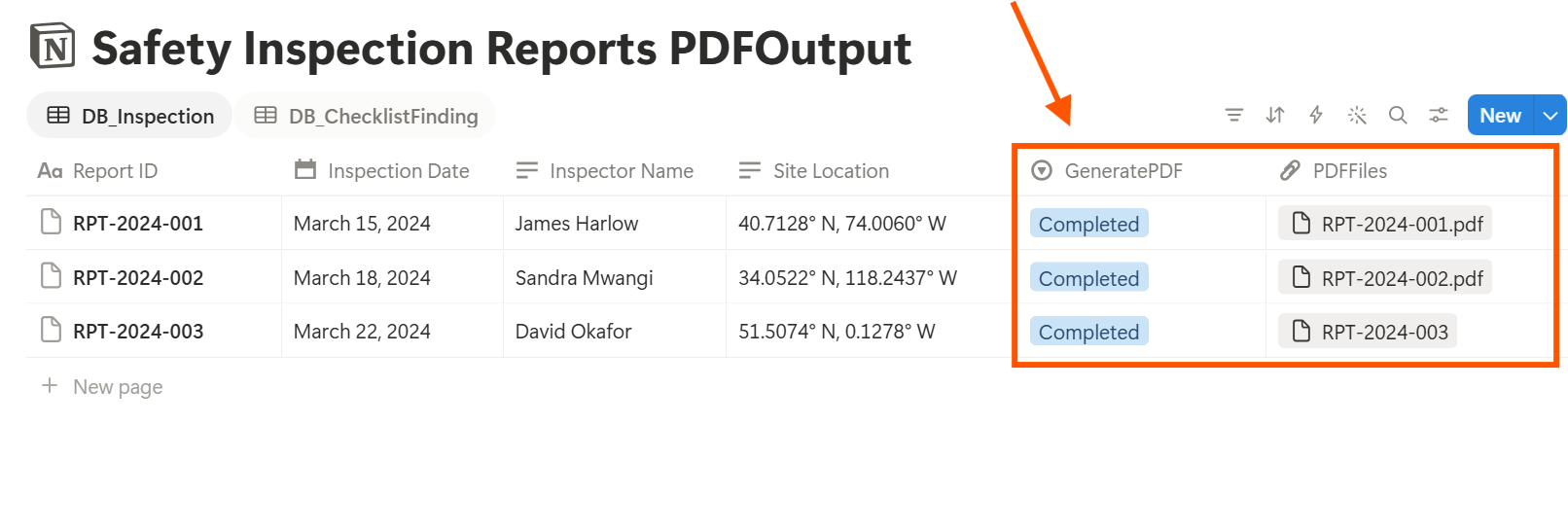
You start generation from a Notion database button or a status property. A few of the status options:
The e-signed option could suit things like permission slips, though whether an electronic signature is accepted for parental consent depends on your school’s rules, so check before you rely on it. Finished files can be saved to a database property, so each report stays attached to the student’s record, or to a Google Drive folder with the link stored in a database property.
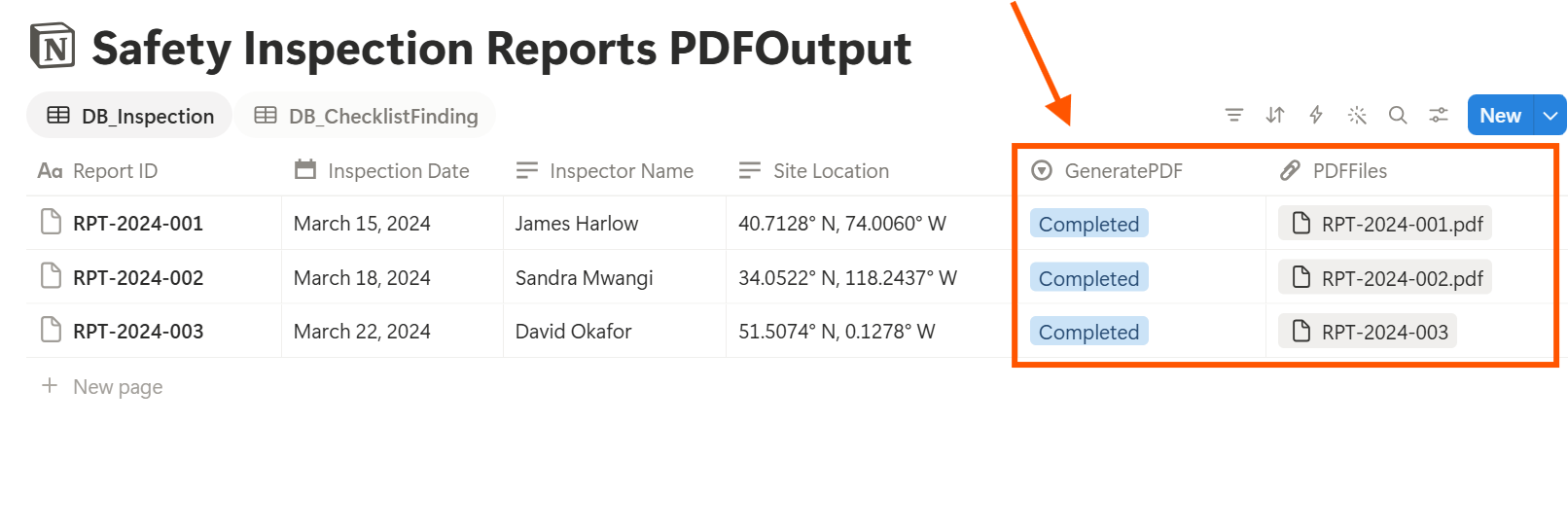
Run Preview on a sample student with fake data first. Look for blank fields, a long comment that runs past its box, and names or dates that don’t look right.
Key Takeaway: Let Notion collect and calculate the facts, and keep the judgment human. A good progress report is a teacher's words on top of numbers that were already waiting.
Control Who Can See What
This is the part to get right before anything else.
Check your school’s data rules on storage, retention, and sharing before you use real student information.
Mistakes to Avoid
Frequently Asked Questions
Can Notion be used for school management?
For small schools, tutoring centers, and classroom organization, yes, covering things like attendance, assessments, lesson plans, and parent notes. It isn’t a full student information system, so check what your school requires in an official system.
How do I track attendance in Notion?
Create an Attendance database with a date, a student relation, and a Present checkbox. On the Students database, add a rollup of that checkbox with the Percent checked calculation.
Can I create report cards in Notion?
You can compile the data in Notion and export a student’s page as a PDF, or use a template-based tool such as PDFOutput to fill a report template with each student’s data. The teacher still writes and reviews the comments.
Is it safe to store student information in Notion?
That depends on your school’s policies and the privacy rules where you work. Check them before using real data, limit access to the people who need it, and test with fake students first.
Can parents access Notion?
You can share pages, but it’s usually safer to send parents a finished PDF than to give them access to a workspace that holds other students’ information.
Can I use Notion for lesson planning?
Yes. A lesson plan template with sections for objectives, materials, activities, and reflections works well, and you can reuse it every week.
Related Reading
Conclusion
Notion can take the hunting out of school admin. Connect students, attendance, and assessments, let formulas and rollups do the arithmetic, and keep access tight. Start with fake students, test the setup for a few weeks, then use it for real. When records need to reach parents, PDFOutput can fill your template from each Notion record and save the PDF back to your chosen storage.
Want progress reports and parent letters as clean PDFs? Try PDFOutput.