Guides
How to Use Notion for a Salon or Spa: Appointments, Clients, and Inventory
Learn how to set up Notion for a salon or spa with appointments, client records, and inventory, plus PDF receipts, gift vouchers, and aftercare sheets.
By Sanat Biswal · 2026-10-17 · 5 min read

{/ synced-from-notion — do not edit manually /}
In a salon, the details matter more for what we are offering to the clients.
Which color was used for the client last time? Which products made her scalp itch? Does the client prefer a quiet appointment or not?
Most of that lives in a stylist’s head, a paper card, or a phone full of old messages. When that stylist is off sick, or leaves, the details go with them.
Notion can keep those details in one shared place. This guide is for salons, barbershops, spas, and beauty studios of any size. It shows how to set up appointments, client records, and inventory, and how to turn records into PDFs such as receipts, gift vouchers, and aftercare sheets.
Consider this as a general information on how to organize a business, but not legal or health advice.
Short answer: To use Notion for a salon or spa, create linked databases for Clients, Services, Appointments, Products, and Team.
Use formulas to work out appointment end times, visit totals, and how long since a client’s last visit, and add stock flags for products that are running low.
When you need to give a client a document, such as a receipt, a gift voucher, or an aftercare sheet, create a PDF from the record.
In more detail: Notion works well for small salons and spas as a shared back office. Each client has a record with their visit history, preferences, and notes.
Each appointment is linked to a client, a service, and a team member, so a client page shows everything you’ve done for them.
Notion isn’t a booking app. It doesn’t take online bookings, send text reminders, or process payments on its own, so it works best beside those tools. For documents that clients receive, you can export a page as a PDF or generate one from a template.
Table of Contents
What Notion Can and Can’t Do for a Salon or Spa
Notion is good for:
- Keeping client records, preferences, and visit history in one place.
- Planning the day’s appointments for each team member.
- Working out visit totals and how much each service earns.
- Tracking products and flagging low stock.
- Planning staff schedules and training.
- Creating consistent receipts, vouchers, and aftercare sheets.
- Online booking for clients.
- Sending automatic text or email reminders.
- Taking card payments or running a till.
- Payroll.
- Contact details are normal and expected.
- Allergies, skin conditions, and patch test results are health-related, and they matter. Record what you need to treat the client safely, keep it to the people who need it, and check the privacy rules where you work.
- Photos, such as before and after shots, need the client’s clear permission. Record that permission on their record.
- Payment details such as card numbers should never be stored in Notion. Keep them with your payment provider.
- Consent for marketing should be recorded separately from consent for treatment. Add a checkbox, and respect it.
- Clients stores the people you look after. Add these properties: Name, Phone, Email, Birthday (day and month only, if you want to send a greeting), Preferred Stylist, Allergies and Notes, Marketing OK (checkbox), and Photo Consent (checkbox).
- Services stores your menu. Add: Service Name, Category (Hair, Nails, Skin, Massage, or Other), Duration (in minutes), Price, and Product Cost (what you spend on supplies for one service).
- Appointments is the main database. Add: Client (relation), Service (relation), Team Member (relation), Start Time, Status (Booked, Confirmed, Done, No-show, or Cancelled), Tip, and Notes.
- Products stores what you buy and sell. Add: Product Name, Brand, Type (Retail or Professional Use), Supplier, Cost, Selling Price, In Stock, Reorder Level, and Expiry Date.
- Team stores your staff. Add: Name, Role, Working Days, Phone, and Specialities.
- Today: Appointments with a start time of today, sorted by time, grouped by team member.
- Tomorrow: the same for tomorrow. Use it to prepare and to send reminders.
- Week calendar: a calendar view of Appointments, so everyone can see the week.
- Unconfirmed: Appointments with the status Booked, so someone can follow up.
- Consultation: what the client wants and any concerns
- Treatment: what you did, with product or formula details
- Result: how it turned out, and any photos (with consent)
- Next time: what to do differently, and when to rebook
- Reorder list: Products with the Reorder flag, grouped by supplier.
- Expiring soon: Products with the expiry flag, sorted by date.
- Retail best-sellers: Products sorted by how often they appear in Visit Items, if you track that.
- Weekly schedule: a Shifts database with team member, date, and start and end time, shown as a calendar view.
- Time off: a status of Leave on a shift, so appointments aren’t booked on that day.
- Training: a simple database of courses with a date, a person, and a certificate.
- Service menu knowledge: a page for each service with steps, products, and timing, so new staff learn the same way.
- Receipts: a clear record of what the client paid. Notion Receipt Template shows how to structure one.
- Gift vouchers: a nicely designed voucher with a code, an amount, and an expiry date
- Aftercare sheets: advice for the client to take home
- Consent and patch test forms, if your local rules or insurance call for them (have the wording checked by someone qualified)
- Price lists and menus: a clean, printable version of your services
- Supplier orders: a clear order sheet for each supplier
- Staff schedules: a printable weekly rota
- Monthly sales summaries: a simple report for an accountant
- Create your template with your logo and layout.
- Add placeholders in double curly braces where the data should go, such as
{{Client_Name}}or{{Total}}. - Make sure each placeholder matches the name of a Notion property.
- Start the document with a Notion database button or a status property.
- Ready to Generate creates a PDF from the database record.
- Generate Page converts the Notion page into a PDF.
- Generate PDF and Doc creates a PDF and a Google document.
- Preview creates a Google document so you can check it before making the final PDF.
- Generate E-Signed Doc creates an e-signed PDF in the database workflow.
- Give stylists access to their own clients and appointments, and to the client notes they need.
- Keep allergy and health notes limited to the people who treat the client.
- Keep prices, margins, and product costs out of views that other staff don’t need.
- Don’t give clients access to your workspace. Send them a finished PDF.
- Remove access on the day someone leaves.
- Review who has access every few months.
- How to Use Notion for a Gym or Fitness Studio
- How to Use Notion for a Hotel
- How to Use Notion for Freelancers
- Notion Receipt Template
Notion is not made for:
If you already use a booking app or a till system, treat Notion as the planning and records layer beside it.
Let those tools take the booking and the payment, and use Notion for the knowledge behind each client.
Protect Your Clients’ Information
A salon or spa holds more personal information than it seems.
Privacy and consent rules differ by country and by type of treatment, so check yours before adding real data. While you are testing, use made-up clients.
Use of the 5 Databases
Start with these 5 databases. You can add more later.
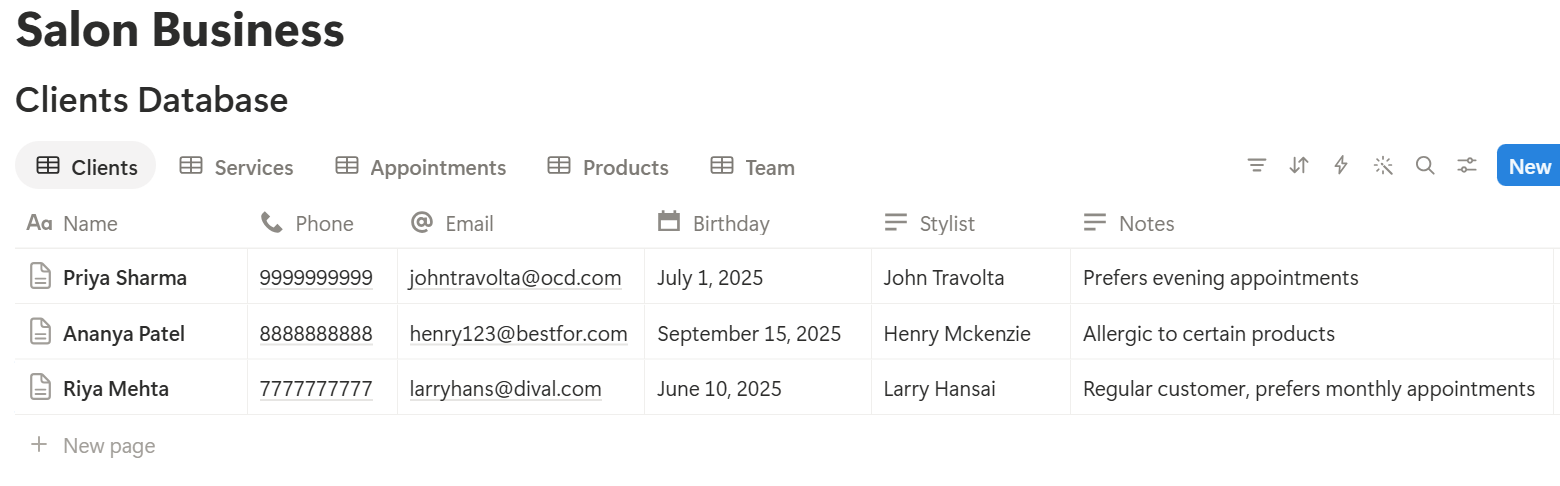
A relation connects a record in one database to a record in another.
Link Appointments to Clients, Services, and Team. Now a client page lists every appointment, and a team member’s page lists their day.
Before the Visit: Appointments and Preparation
A smooth visit starts the day before.
Use Formulas for Appointments
Bring the service’s duration and price into each appointment with rollups from the linked service, and name them Duration and Price. Then add:
End Time: dateAdd(prop("Start Time"), prop("Duration"), "minutes")
An appointment record now shows when it starts and when it ends, so you can spot gaps and overlaps.
Views for Appointments
About Reminders and Double Bookings
Notion doesn’t send text or email reminders, and it can’t stop two appointments overlapping for one team member. A calendar view makes overlaps easy to see. If you take bookings through an app, let that tool handle availability and reminders, and copy confirmed appointments into Notion. Use the Tomorrow view as a checklist for your own reminder calls.
Preparation Notes
Before each client arrives, the stylist opens the client page. They should see, in one place, the last service, the color formula or treatment notes, any allergies, and what the client said they wanted next time. That is the real value of the system. It takes half a minute to read and saves the awkward “what did we do last time?”
Pro Tip: Write notes for the next person, not for yourself. If a colleague could take over the client tomorrow using only your notes, they are good enough.
During the Visit: Client Notes and Totals
While the client is in the chair, you need to record two things: what you did, and what it cost.
A Simple Visit Template
Make a database template for Appointments with these sections:
Keep it short. Three lines in each box is enough.
Visit Totals
Here is a made-up visit, so you can see how a total comes together. Amounts are in your own currency.
| Item | Amount |
|---|---|
| Cut and finish | 45 |
| Color | 80 |
| Retail: shampoo | 20 |
| Total | 145 |
| Tip | 15 |
| Paid | 160 |
Paid: prop("Total") + prop("Tip")
Test the formulas with made-up visits and check the totals against a calculator.
After the Visit: Rebooking and Aftercare
Many salons lose clients because nobody asked them to come back.
Rebooking Flags
On Clients, add a rollup from Appointments that shows the latest start time, and name it Last Visit. Then add:
Days since visit: dateBetween(now(), prop("Last Visit"), "days") Rebook flag: if(prop("Days since visit") > 56, "Rebook", "")
The flag shows Rebook for clients who haven’t been in for eight weeks. Change the number to match your services. A color client might need a visit every five weeks, and a massage client might come every three months.
Make a view called Time to rebook, showing clients with the Rebook flag and Marketing OK ticked, sorted by Last Visit. A short, friendly message to each one works better than a mass promotion.
Aftercare Sheets
Clients forget what you told them. A short aftercare sheet for each service helps them look after the result and reduces calls later. Keep a page for each service with the advice, and create a PDF from it when needed. The documents section below explains how.
No-shows
Mark missed appointments with the status No-show. A rollup that counts them on the client record shows patterns. Handle the conversation kindly, and check your own cancellation policy before acting on it.
Inventory: Products and Supplies
Running out of a color in the middle of an appointment is stressful and embarrassing. Stock flags prevent it.
Formulas for Products
Reorder flag: if(prop("In Stock") <= prop("Reorder Level"), "Reorder", "") Margin: if(prop("Selling Price") > 0, (prop("Selling Price") - prop("Cost")) / prop("Selling Price"), 0) Expiry flag: if(dateBetween(prop("Expiry Date"), now(), "days") <= 30, "Expiring soon", "")
Format margin as a percent. Check the formulas with made-up products, and compare them against a calculator and a calendar.
Views for Products
A weekly stock check takes ten minutes. Update In Stock as part of it, because the flags are only as good as the counts.
Follow your local rules about storing, labeling, and disposing of professional products, and check how long a product may be kept after opening.
Your Team: Schedules and Performance
A salon is only as good as its team, and a team runs better with a clear plan.
If you want to see which services earn the most, add a rollup on Services that sums the amounts from Visit Items. Use it to decide what to promote, but don’t use numbers alone to judge your team. Quality and client loyalty matter too.
A Day at a Four-Chair Salon
To see how the pieces fit, here is one made-up day.
8:30 am. The salon manager opens the Today view. Fourteen appointments are booked across four stylists. Two are marked Booked and not Confirmed, so the receptionist calls them.
9:00 am. A returning client arrives. The stylist opens her client page. It shows the color formula from last time, a note about a sensitive scalp, and a reminder that she wants a shorter cut. The consultation takes two minutes.
11:30 am. A stylist notices the toner is running low. She updates the stock count, and the Reorder flag appears on the Reorder list.
1:00 pm. A new client comes in. The receptionist creates a client record and fills in the allergy question from the consultation. She ticks Marketing OK only because the client agreed.
3:30 pm. The Time to rebook view shows six clients who haven’t visited in two months. The manager sends each a personal message.
5:30 pm. The day’s visits are marked Done, and the totals are checked against the till. One no-show is recorded.
6:00 pm. The manager creates the supplier order from the Reorder list and sends it as a PDF.
The Documents That Leave Notion
Clients and suppliers don’t use your workspace, so some records need to become files:
For a single page, you can use Notion’s export option. How to Export Notion to PDF shows the settings, and How to Export a Notion Database to PDF helps with tables, such as a price list. Clients notice how your documents look, especially in a business built on appearance, and Notion’s own export gives you limited control over layout. How to Add Your Logo and Brand Colors to Notion PDFs explains how a template solves that.
Generating PDFs with PDFOutput
PDFOutput creates documents from your Notion data using a template. A template can be a Google document, a Word file, a PDF file, or a Notion page. If you already have a voucher or receipt design in Word or Google Docs, you can reuse it.
Here is how it works:
These are some of the status options:
The e-signed option may help with consent forms. Whether an electronic signature is valid for a given form depends on your location and the type of treatment, so check before you rely on it. You can save the finished file to a property in your database, so a receipt stays on its appointment record. You can also save it to a Google Drive folder and store the link in a property.
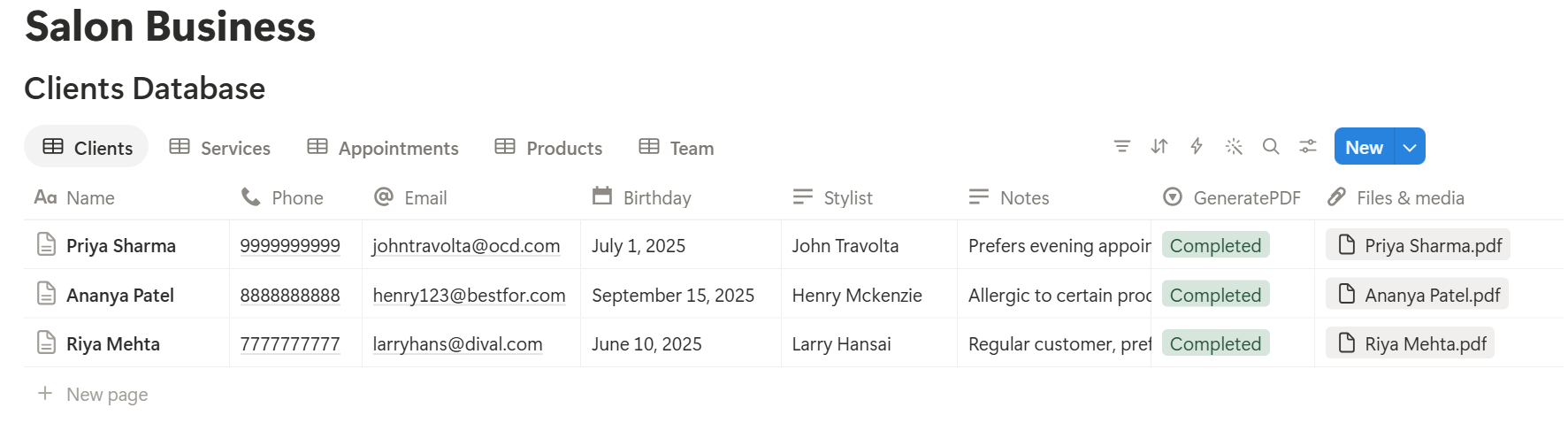
Start with the receipt, since every visit needs one. Use Preview first and check for empty fields, wrong date formats, and totals that don’t match your till.
Key Takeaway: The real value is the client record. If every stylist can see what was done last time and what the client prefers, you give better service and lose fewer clients. Start there, then add inventory and documents.
Who Can See What
Your workspace will hold client details, prices, and staff information, so control access from the start.
Common Mistakes
Writing notes only you understand. If a colleague can’t use them, they won’t help when you’re away.
Collecting too much. Ask only for what you need to treat the client safely and well.
Treating rebook flags as a to-do list for everyone. A flag means “think about this client,” not “message them today.” Some clients are on holiday, and some left on purpose.
Letting stock counts go stale. Flags only work if In Stock is updated. Do a weekly count.
Using marketing without permission. Check the Marketing OK box before sending anything promotional.
Too many properties. If a stylist has to scroll sideways to fill in a visit, they will stop doing it. Cut what you don’t use.
No owner for the structure. Pick one person responsible for the setup. Properties get renamed and formulas break, so tell that person not to rename properties used in PDF templates, because the placeholders must match exactly.
Skipping a test week. Run a week with made-up clients first, and fix what annoys the team before you use real data.
Frequently Asked Questions
Can Notion be used to run a salon or spa?
Yes, for client records, appointment planning, inventory, and team schedules. It doesn’t take online bookings, send text reminders, or process payments, so use dedicated tools for those.
How do I track client preferences in Notion?
Create a Clients database with properties for preferences, allergies, and notes, and link each appointment to the client. A client page then shows every visit, with the notes from each one.
Can Notion send appointment reminders?
Not on its own. Use a booking app or a messaging tool for reminders. In Notion, a Tomorrow view of appointments works as a checklist for your own reminder calls.
How do I track salon inventory in Notion?
Create a Products database with In Stock and Reorder Level properties, then add a formula that flags products at or below the reorder level. Update stock counts with a weekly check.
Can I create gift vouchers from Notion?
You can export a page as a PDF, or use a template-based tool such as PDFOutput to fill a voucher template with a code, an amount, and an expiry date. Test the layout on a few sample records first.
How do I know which clients to contact for rebooking?
Roll up each client’s latest appointment date and add a formula that flags clients who haven’t visited in a set number of days. Only contact clients who agreed to receive messages.
Is it safe to store client allergy information in Notion?
Notion lets you control who sees each page, but your duties depend on the rules where you work. Record only what you need for safe treatment, limit who can see it, and check your local rules.
Related Reading
Conclusion
A good salon or spa setup in Notion keeps the knowledge about each client where the whole team can find it, shows you who is due back, and warns you before products run out. Start with clients, appointments, and visit notes, use made-up clients for a week, and fix whatever slows the team down. When your receipts, vouchers, and aftercare sheets need to leave Notion, PDFOutput can fill your template from each record and save the PDF to your chosen storage.
Want receipts and gift vouchers as clean PDFs? Try PDFOutput.