Guides
How to Use Notion for a Recruiting Agency: Candidates, Clients, and Placements
Learn how to set up Notion for a recruiting agency with candidates, client roles, a pipeline, and placements, plus PDF candidate profiles, shortlists, and invoices.
By Sanat Biswal · 2026-10-19 · 5 min read

{/ synced-from-notion — do not edit manually /}
A recruiter’s has to juggle a lot during a day to finish off the tasks.
Client wants 3 more candidates by end of Friday. But a candidate hasn’t replied in a week. An interview requires rescheduling. And somewhere there’s an offer that must be followed up before the candidate takes up another job.
When names, notes, and dates start to live in a spreadsheet, an inbox, and a phone, good resources will fall through the gaps.
Notion can hold the whole pipeline in one place. This guide is for small recruiting agencies and independent recruiters.
It shows how to set up clients, roles, candidates, the pipeline, and placements, how to handle candidate data responsibly, and how to turn records into PDFs such as candidate profiles, shortlists, and invoices.
It is general information about organizing a business, not to be considered as a legal advice.
Quick answer on using Notion:
To use Notion for a recruiting agency, create linked databases for the following:
- Clients,
- Roles,
- Candidates,
- Pipeline, and
- Placements.
- What Notion Can and Can’t Do for a Recruiting Agency
- Candidate Data: Consent and Care
- The Five Databases
- Winning a Role: The Client Intake
- Finding Candidates
- The Pipeline: From Sourced to Placed
- Know Your Numbers: The Funnel
- The Placement: Fees and Guarantees
- A Week at a Four-Recruiter Agency
- The Documents That Leave Notion
- Generating PDFs with PDFOutput
- Who Can See What
- Common Mistakes
- Frequently Asked Questions
- Related Reading
- Conclusion
- Keeping clients, roles, and candidates in one place.
- Showing each candidate’s stage for each role.
- Reminding you who to contact and when.
- Tracking interviews, offers, and placements.
- Calculating fees and guarantee dates.
- Creating consistent profiles, shortlists, and invoices.
- Posting jobs to job boards.
- Reading and ranking resumes automatically.
- Sending email campaigns or sequences.
- Background or reference checks.
- Payroll and contractor payments.
- Get and record consent. Add a checkbox for whether the candidate agreed to be contacted and to have their details shared with clients. Don’t share a profile without permission.
- Collect only what you need. Skills, experience, location, notice period, and salary expectations are usually enough. Don’t record sensitive details such as health, religion, ethnicity, age, or family plans. In many places, using them in hiring decisions is unlawful, and even recording them is risky.
- Write notes you’d be happy for the candidate to read. In some places, candidates have the right to see what you hold about them.
- Don’t store IDs or bank details. Keep identity documents and payment details in systems built for them.
- Review and delete. Many places limit how long you may keep candidate data. Add a review date to each record, and delete or anonymise old ones.
- Clients stores the companies you recruit for. Add these properties: Company, Main Contact, Email, Terms (Contingent or Retained), Fee Percent, Guarantee Days, and Notes.
- Roles stores each job you are working on. Add: Role Title, Client (relation), Opened On, Status (Open, On Hold, Filled, or Lost), Salary Range, Location, Must-Haves, and Recruiter.
- Candidates stores people. Add: Name, Email, Phone, Current Role, Location, Skills, Salary Expectation, Notice Period, Source (Referral, Job Board, LinkedIn, or Other), Consent to Share (checkbox), Last Contacted, and Do Not Contact (checkbox).
- Pipeline links a candidate to a role. Add: Candidate (relation), Role (relation), Stage (see below), Stage Date, Recruiter Notes, and Client Feedback.
- Placements stores each successful hire. Add: Candidate (relation), Role (relation), Start Date, Salary, Fee Percent, Fee, Guarantee Ends, Invoice Status (Not Sent, Sent, or Paid), and Invoice Date.
- Why the role exists: new, replacement, or growth
- Must-haves and nice-to-haves: keep the must-haves short
- Salary and benefits range
- Interview process: who, how many stages, and how long it takes
- Timeline: when they want someone to start
- What makes a great candidate: in the client’s own words
- Deal-breakers
- Current situation and why they’re looking
- Skills and experience that match
- Salary expectation and notice period
- Other processes they’re in
- Questions they asked
- Next step
- Sourced: you’ve identified them
- Screened: you’ve spoken with them
- Submitted: their profile has gone to the client
- Interview: they’re in the client’s process
- Offer: an offer has been made
- Placed: they accepted and will start
- Rejected or Withdrawn: it didn’t work out, with a reason
- Role board: a board of Pipeline records grouped by Stage, filtered to one role. This is the view you share in client meetings, as a PDF.
- My candidates: Pipeline records for your roles that aren’t Placed or Rejected.
- Waiting on the client: records with the stage Submitted, sorted by Stage Date, oldest first. These need a nudge.
- Interviews this week: a calendar view by interview date.
- Offers out: records with the stage Offer, because these are the most time-sensitive of all.
- Candidate profiles: a consistent, branded summary of one candidate for a client, sent with their consent
- Shortlists: a one-page comparison of the candidates you’re submitting
- Weekly client reports: the pipeline for a role
- Interview schedules: times, people, and addresses for candidates and clients
- Job descriptions: a clean version for sharing
- Placement invoices: the fee, the start date, and payment terms. Notion to Excel helps if your accountant wants the numbers in a spreadsheet.
- Client agreements: terms of business, with wording checked by someone qualified. Notion Proposal Template shows how to structure a document that wins agreement.
- Offer letters: written with advice from someone qualified in employment law
- Create your template with your logo and layout.
- Add placeholders in double curly braces where the data should go, such as
{{Candidate_Name}}or{{Current_Role}}. - Make sure each placeholder matches the name of a Notion property.
- Start the document with a Notion database button or a status property.
- Ready to Generate creates a PDF from the database record.
- Generate Page converts the Notion page into a PDF.
- Generate PDF and Doc creates a PDF and a Google document.
- Preview creates a Google document so you can check it before making the final PDF.
- Generate E-Signed Doc creates an e-signed PDF in the database workflow.
- Give recruiters access to their own roles and candidates, and keep placement fees and commissions private.
- Don’t let freelancers or interns see the whole candidate database.
- Never share your workspace with clients or candidates. Send clients a finished PDF profile, with consent.
- Keep notes professional, and keep sensitive information out.
- Remove access on the day someone leaves, and think about what happens to the candidates they managed.
- Review who has access every few months.
- How to Use Notion for Consultants
- How to Use Notion for an Agency
- How to Use Notion for an Accounting Firm
- Notion to Excel
Use a status for each pipeline stage, formulas to flag stale candidates and calculate fees, and views for each recruiter’s day.
Record candidate consent and review old records regularly. When you need to send something outside the team, such as a candidate profile or an invoice, create a PDF from the record.
Detailed answer:
Notion works well for small agencies as a lightweight tracking system.
Each client, role, and candidate is a record. A separate Pipeline database links a candidate to a role and holds the stage, so one candidate can be in several pipelines and one role can have many candidates.
Notion isn’t a full applicant tracking system. It doesn’t post jobs to boards, read resumes automatically, send email sequences, or run background checks.
It works best beside the tools that do.
For documents that clients and candidates receive, you can export a page as a PDF or generate one from a template.
Table of Contents
What Notion Can and Can’t Do for a Recruiting Agency
Notion is good for:
Notion is not made for:
If you already use a job board, an email tool, or accounting software, treat Notion as the tracking layer beside them.
Candidate Data: Consent and Care
Recruiters hold some of the most personal information in any business: work history, salary, contact details, and often views about someone’s skills and character.
So the information must be handled with care.
Rules about candidate data, consent, and retention differ by country, so check yours before you add real data.
While you are testing, use made-up candidates.
Use The Following 5 Databases
Start with these 5 databases. You can add more later.
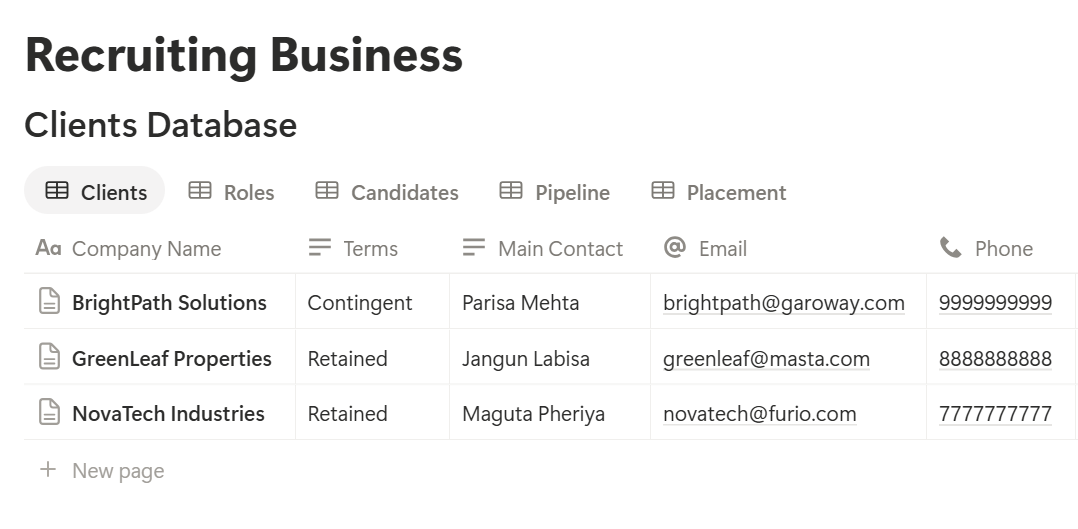
A relation connects a record in one database to a record in another.
Link Roles to Clients, Pipeline to Candidates and Roles, and Placements to Candidates and Roles.
Now a candidate page shows every role they’ve been considered for, and a role page shows every candidate in its pipeline.
Winning a Role: The Client Intake
Good placements start with a clear brief. Use a Role intake template on each role, with these sections:
Write the brief back to the client, and confirm it. A role that’s misunderstood at the start wastes everyone’s time. Agree the fee and terms in writing, using wording checked by someone qualified.
Store the signed terms in a secure place, and record the key numbers, such as fee percent and guarantee days, on the client record.
Finding Candidates
Candidates come from many places: referrals, job boards, social networks, and your own database. Record where each one came from, in the Source property. After a few months, you’ll see which sources produce placements, and which just produce noise.
Make a Candidate screening template with these sections:
Add one formula for follow-up on the Candidates database:
*Days since contact: dateBetween(now(), prop("Last Contacted"), "days") Follow up: if(prop("Do Not Contact") == false and prop("Days since contact") > 30, "Follow up", "")*
The flag shows Follow up for candidates you haven’t spoken to for a month, unless they asked not to be contacted. Change the number to suit your market.
Add a review date, too:
Review data: if(dateBetween(now(), prop("Last Contacted"), "months") >= 24, "Review", "")
The 24 months is only an example. Use the period that fits the rules where you work.
Pro Tip: Update Last Contacted right after each call or message. If you wait, the follow-up flags will point you at the wrong people.
The Pipeline: From Sourced to Placed
The Pipeline database is the heart of the system. Each record says: this candidate, for this role, is at this stage.
Use a Stage property with these options, and keep the list short:
Views for Your Day
Always record a reason when someone is rejected or withdraws. “Salary too low” and “client wanted more experience” are patterns you can act on. They also matter if a candidate asks why.
Interview Feedback
Use an Interview feedback template with the date, who interviewed, what went well, concerns, and next step. Pass feedback to candidates promptly, and keep it factual and professional.
Know Your Numbers: The Funnel
Recruiters often sense that something isn’t working without knowing where. A funnel shows you.
On Roles, add rollups from Pipeline that count records at each stage. For example, a rollup of Pipeline records where Stage is Submitted gives the number of submissions. Here is a made-up funnel for one role.
| Stage | Candidates |
|---|---|
| Sourced | 40 |
| Screened | 18 |
| Submitted | 6 |
| Interview | 4 |
| Offer | 1 |
| Placed | 1 |
*Submit rate: if(prop("Screened") > 0, prop("Submitted") / prop("Screened"), 0) Interview rate: if(prop("Submitted") > 0, prop("Interview") / prop("Submitted"), 0)*
Format both as percents. Also add one for how long a role has been open:
Days open: if(prop("Status") == "Open", dateBetween(now(), prop("Opened On"), "days"), 0)
A view of open roles sorted by Days open shows which ones need attention. A role that’s been open for ten weeks with no interviews needs a conversation with the client, not more sourcing. Test the formulas with made-up roles and compare the numbers with a calculator.
The Placement: Fees and Guarantees
When a candidate accepts, create a Placement record. It holds the money and the dates.
On Placements, add these formulas:
Fee: prop("Salary") prop("Fee Percent") Guarantee Ends: dateAdd(prop("Start Date"), prop("Guarantee Days"), "days") Guarantee flag: if(dateBetween(prop("Guarantee Ends"), now(), "days") <= 14 and dateBetween(prop("Guarantee Ends"), now(), "days") >= 0, "Guarantee ending", "")*
Here is a made-up placement. Amounts are in your own currency.
| Item | Value |
|---|---|
| Salary | 60,000 |
| Fee percent | 20% |
| Fee | 12,000 |
| Start date | 1 March |
| Guarantee | 90 days |
| Guarantee ends | 30 May |
| Invoice status | Sent |
Make views for money: Invoices to send (Placements with Invoice Status Not Sent), Unpaid invoices (Sent but not Paid), and Guarantees ending (the flag). Check them every Monday.
A Week at a Four-Recruiter Agency
To see how the pieces fit, here is one made-up week.
Monday. The agency owner opens the Open roles view. Eleven roles are open, and two have been open for more than 50 days. She asks the recruiters about them in the team meeting. The Guarantees ending view shows one placement that passes its guarantee date on Friday, and she makes a note to check in with the client.
Tuesday. A recruiter takes a role brief from a new client. She creates the role from the intake template, and confirms the brief by email.
Wednesday. She opens the Candidates view with the Follow up flag. Twelve people haven’t been contacted for a month. She messages the five who match the new role. She skips one marked Do Not Contact.
Thursday. Three candidates are submitted to a client. For each, she ticks that consent was given, creates a pipeline record at Submitted, and sends a profile as a PDF.
Friday. The Waiting on the client view shows two submissions older than five days. She calls the hiring manager, gets feedback, and records it. One candidate moves to Interview.
The weekly client report takes ten minutes, because every stage is already recorded.
The Documents That Leave Notion
Clients and candidates don’t use your workspace, so some records need to become files:
For a single page, you can use Notion’s export option. How to Export Notion to PDF shows the settings. Clients judge an agency partly by how its candidate profiles look, and Notion’s own export gives you limited control over layout. How to Add Your Logo and Brand Colors to Notion PDFs explains how a template solves that.
Generating PDFs with PDFOutput
PDFOutput creates documents from your Notion data using a template. A template can be a Google document, a Word file, a PDF file, or a Notion page. If you already have a candidate profile layout in Word or Google Docs, you can reuse it.
Here is how it works:
These are some of the status options:
The e-signed option may help with client agreements and candidate consent forms. Whether an electronic signature is valid for a given document depends on your location and the type of document, so check before you rely on it. You can save the finished file to a property in your database, so a candidate profile stays on the pipeline record. You can also save it to a Google Drive folder and store the link in a property.
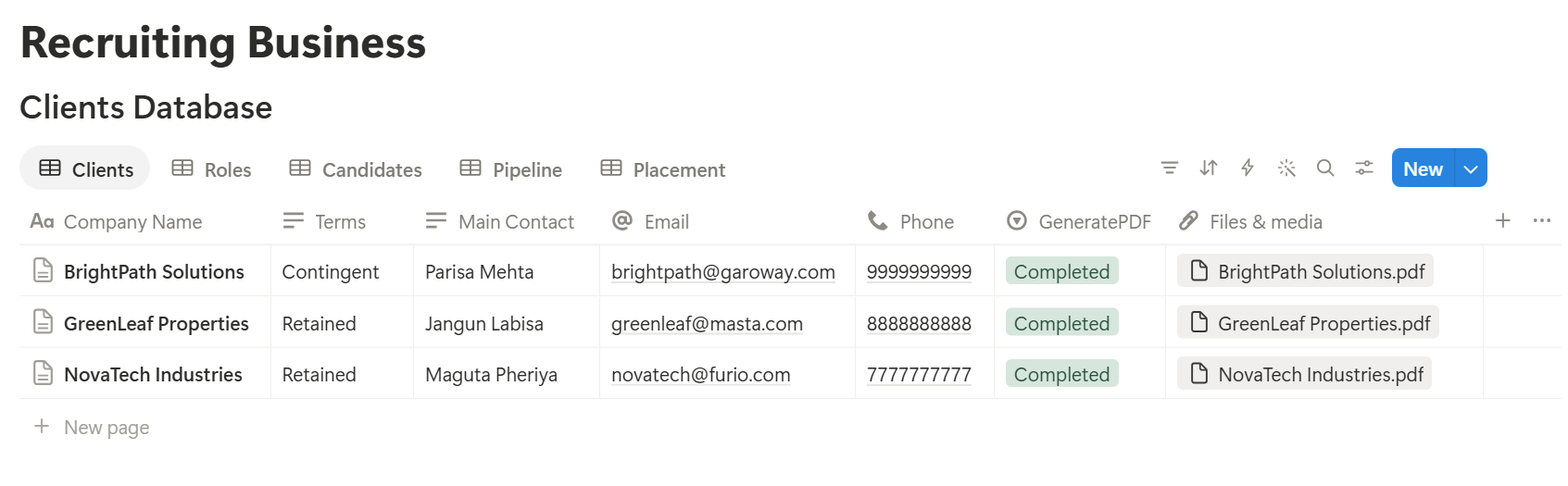
A shortlist or a weekly client report lists several linked records, such as several candidates for one role. Before you rely on a template for that, test it with a sample role that has several candidates, and check that each appears the way you want. If it doesn’t, a simple fallback is a short text summary property on the role, which you update before each report.
Start with the candidate profile, since you send one for almost every submission. Use Preview first and check for empty fields, wrong date formats, and details that shouldn’t be there. Check the consent box before you send anything.
Key Takeaway: Record consent, stage, and last contact for every candidate. If those three are always up to date, profiles, reports, and invoices come straight from data you already have.
Who Can See What
Your workspace will hold candidate details, client terms, and fee information, so control access from the start.
Common Mistakes
Sending a profile without consent. Check the box every time, because it protects the candidate and you.
Recording sensitive details. Health, religion, age, and family plans don’t belong in the notes, even if a candidate mentions them.
Keeping data forever. Old records are a risk, so review and delete them according to the rules where you work.
Too many stages. Seven is plenty. Extra stages mean extra clicks, and recruiters will skip them.
Not recording why candidates drop out. Reasons are the most useful thing in the database.
Chasing everyone equally. Offers out and submissions waiting on the client are the most time-sensitive items, so look at those first.
No owner for the structure. Pick one person responsible for the setup. Properties get renamed and formulas break, so tell that person not to rename properties used in PDF templates, because the placeholders must match exactly.
Skipping a test week. Run a week with made-up candidates and roles first, and fix what annoys the team before you use real data.
Frequently Asked Questions
Can Notion be used as an applicant tracking system?
For a small agency, Notion can work as a lightweight tracking system for clients, roles, candidates, and pipeline stages. It doesn’t post jobs, parse resumes, send email sequences, or run checks, so use dedicated tools for those.
How do I track candidates in Notion?
Create a Candidates database and a Pipeline database that links each candidate to a role, with a stage property. Use a board view grouped by stage for each role.
How do I calculate placement fees in Notion?
Add a salary and a fee percent to each Placement record, then use a formula that multiplies the two. Add a formula that adds the guarantee days to the start date, to show when the guarantee ends.
Is it safe to store candidate information in Notion?
Notion lets you control who sees each page, but your duties depend on the data protection rules where you work. Record consent, collect only what you need, keep sensitive details and ID documents out, and review old records.
Can I create candidate profiles from Notion?
You can export a page as a PDF, or use a template-based tool such as PDFOutput to fill a profile template with data from each candidate record. Only send profiles with the candidate’s consent, and test the layout on sample records first.
How do I see which roles need attention?
Add an Opened On date and a formula that counts the days open, then make a view of open roles sorted by that number. Roles open for a long time with few interviews need a conversation with the client.
Can I share the pipeline with a client?
You can create a PDF report for a role, showing the candidates and their stages, and send that. It’s safer than giving the client access to a workspace that holds other clients and candidates.
Related Reading
Conclusion
A good recruiting agency setup in Notion shows you the whole pipeline: which roles are open, where each candidate stands, who needs a call, and which invoices are due. Start with candidates, roles, and a short list of stages, record consent from day one, and run a week with made-up data first. When your candidate profiles, shortlists, and invoices need to leave Notion, PDFOutput can fill your template from each record and save the PDF to your chosen storage.
Want candidate profiles and invoices as clean PDFs? Try PDFOutput.