Guides
How to Use Notion for Real Estate: Contacts, Listings, and Offers
Learn how to set up Notion for real estate with contacts, listings, viewings, and offers, and create PDF listing sheets and seller reports.
By Sanat Biswal · 2026-10-12 · 5 min read

{/ synced-from-notion — do not edit manually /}
Most real estate agents keep their information in too many places. Contacts are in a phone, notes are in an app, and prices are in a spreadsheet. When a client calls, it takes time to find everything about them.
Notion can bring all of this into one workspace. This guide shows you how to set it up for contacts, listings, viewings, and offers. It also shows how to turn that information into PDFs you can send to clients.
How to use Notion for real estate: To use Notion for real estate, create 4 databases as follows:
Link them together, add a few formulas to remind you who to follow up with, and make simple views for your daily work.
When you need to send something to a client, such as a listing sheet or a seller report, create a PDF from the record.
What Notion Offers In more detail: Notion works really well as a simple CRM for solo agents and small teams. Each contact, property, viewing, and offer is a record.
Records can link to each other, so a viewing can show which buyer saw which property. Notion does not send bulk emails, post listings on property websites, or replace the contract forms your brokerage requires.
For documents that clients receive, you can export a page as a PDF or generate one from a template.
What Notion Can and Can’t Do
Notion is good for:
- Keeping contacts, properties, viewings, and offers in one place
- Reminding you when to follow up
- Tracking how long a property has been listed
- Creating simple documents for clients
- Sending email campaigns
- Publishing listings on property portals
- Replacing your brokerage’s official contracts and records
- Contacts stores the people you work with. Add the following properties: Name, Role (Buyer, Seller, or Both), Phone, Email, Source, Budget, Stage (New, Active, Under Offer, Closed, or Cold), and Last Contacted.
- Properties stores the homes. Add the following properties: Address, Status (Coming Soon, Active, Under Offer, or Sold), Asking Price, Area, Bedrooms, Bathrooms, Listed Date, and Photos.
- Viewings stores each visit to a property. Add the following properties: Date, Time, Feedback, and Interest (Low, Medium, or High).
- Offers stores each offer. Add the following properties: Offer Amount, Date, Status (Pending, Countered, Accepted, or Rejected), and Notes.
- In Properties, add a relation to Contacts called Seller.
- In Viewings, add a relation to Properties and a relation to Contacts.
- In Offers, add a relation to Properties and a relation to Contacts called Buyer.
- Follow up today: Contacts where the follow-up flag shows.
- Viewings this week: a calendar view of Viewings.
- Active listings: a gallery view of Properties with the status set to Active.
- Offers waiting: Offers with the status set to Pending or Countered.
- New lead: source, budget, timeline, and a short checklist for the first call.
- Viewing: date, property, buyer, what they liked, what they did not like, and the next step.
- Listing: property details, photos, selling points, and seller notes.
- Listing sheets: a one-page summary of a property with photos, price, and key details
- Seller reports: the viewings, feedback, and offers for a property this week
- Buyer shortlists: a few properties with notes on each
- Viewing schedules: a list of addresses and times for the day
- Create your template with your logo and layout.
- Add placeholders in double curly braces where the data should go, such as
{{Address}}or{{Asking_Price}}. - Make sure each placeholder matches the name of a Notion property.
- Start the document with a Notion database button or a status property.
- Ready to Generate creates a PDF from the database record.
- Generate Page converts the Notion page into a PDF.
- Generate PDF and Doc creates a PDF and a Google document.
- Preview creates a Google document so you can check it before making the final PDF.
- Give an assistant access only to the pages they need.
- Do not give sellers or buyers access to your workspace. Send them a PDF instead.
- Keep offer details private from anyone who does not need them.
- Review who has access every few months.
- Notion Proposal Template
- How to Export a Notion Database to PDF
- How to Add Your Logo and Brand Colors to Notion PDFs
- Notion to Excel
Notion is not made for:
You will also be storing personal information about clients. Check your brokerage’s rules and the privacy laws where you work before you add real client data. Only store what you need.
Step 1: Create 4 Databases
Start with these 4 databases. You can add more later.
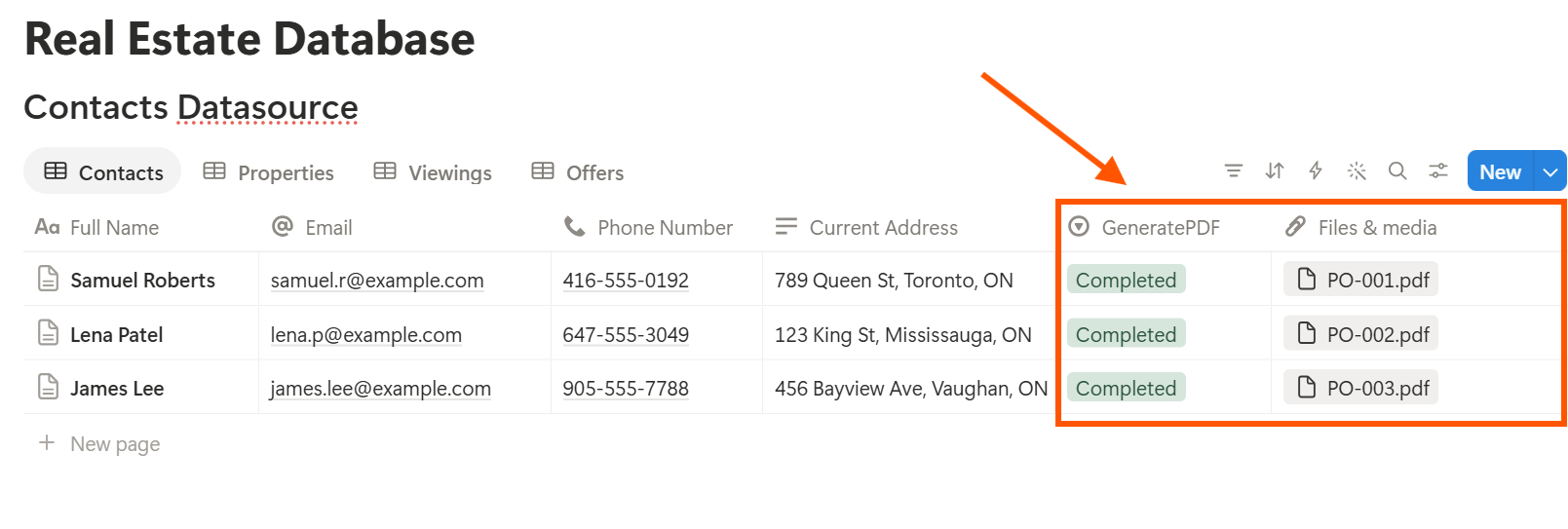
Step 2: Link the Databases Together
A relation connects a record in one database to a record in another. This is what makes Notion more useful than a spreadsheet.
Add these relations:
Now when you open a property, you can see every viewing and every offer for it. When you open a contact, you can see every property they have viewed.
Step 3: Add a Few Formulas
Formulas do small calculations for you. These five are enough to start.
On Contacts:
Days since contact: dateBetween(now(), prop("Last Contacted"), "days") Follow-up flag: if(prop("Stage") == "Active" and prop("Days since contact") > 7, "Follow up", "")
The first one counts the days since you last spoke to someone. The second shows “Follow up” if an active contact has not heard from you in more than seven days. You can change the number to fit how you work.
On Properties:
Days on market: dateBetween(now(), prop("Listed Date"), "days") Price per area: if(prop("Area") > 0, prop("Asking Price") / prop("Area"), 0)
On Offers:
Offer vs asking: (prop("Offer Amount") - prop("Asking Price")) / prop("Asking Price")
For the last formula, Offers needs to show the asking price. Add a rollup from the linked property to bring it in, then format the result as a percent.
Test every formula with a few made-up records before you use real ones.
Pro Tip: Update Last Contacted right after each call. If you wait until the end of the day, the follow-up flag will not be accurate.
Step 4: Make Views for Your Daily Work
A view is a different way of looking at the same database. Create these four:
Open these each morning, and you will know what to do first.
Step 5: Add Templates to Save Time
If entering information takes too long, you will stop doing it. Templates fix this by filling in the page layout for you.
Make a template for each of these:
Try them on your phone. Notion’s mobile app has fewer options than the desktop version, so check that your templates work the way you need.
Step 6: Create PDFs for Clients
Clients do not use your Notion workspace, so some records need to become files. Common examples are:
For a single page, you can use Notion’s export option. How to Export Notion to PDF shows the settings, and How to Export a Notion Database to PDF helps if your page is a table.
If you send the same type of document every week, you will want it to look the same each time, with your logo and colors.
Notion’s own export gives you limited control over this. How to Add Your Logo and Brand Colors to Notion PDFs explains how a template solves it.
Step 7: Generate PDFs with PDFOutput
PDFOutput creates documents from your Notion data using a template. A template can be a Google document, a Word file, a PDF file, or a Notion page.
Here is how it works:
These are some of the status options:
You can save the finished file to a property in your database, so it stays on the property record. You can also save it to a Google Drive folder and store the link in a property.
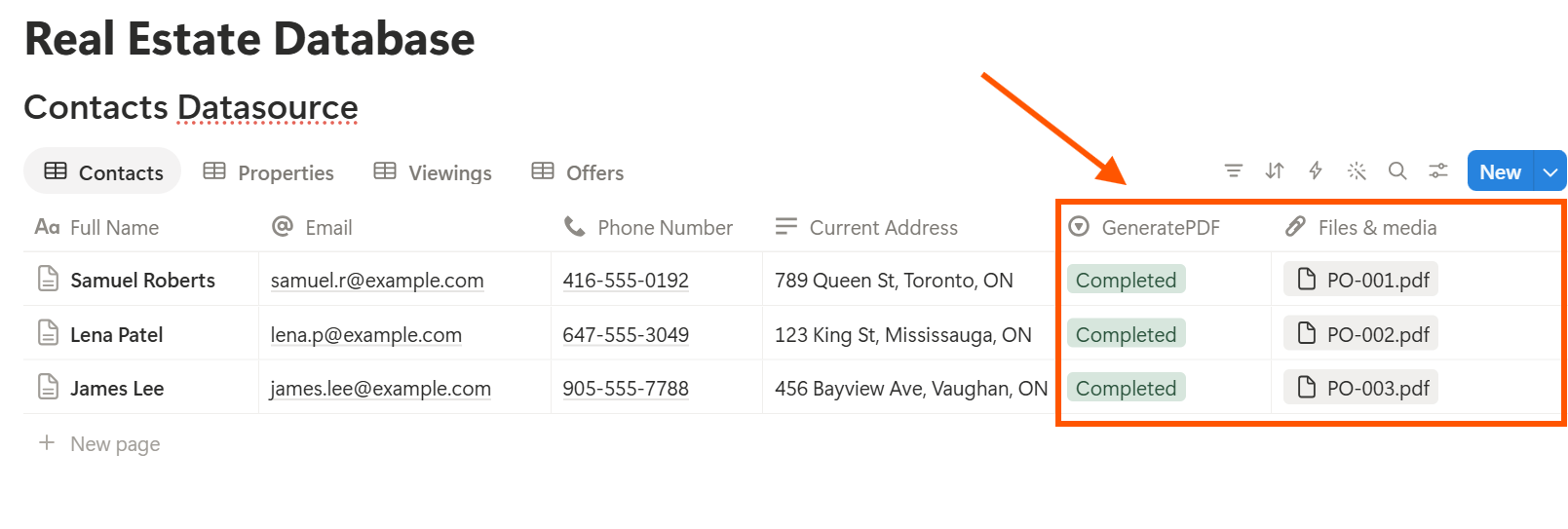
Start with a listing sheet, since you will use it the most. Use Preview first and check for empty fields, wrong price formats, and long descriptions that do not fit.
Key Takeaway: Start small. Four databases, a few formulas, and one good listing sheet are enough to save you time. Add more once you are using the basics every day.
Step 8: Keep Client Information Safe
Decide who can see what before you share anything.
Frequently Asked Questions
Can I use Notion as a real estate CRM?
Yes, if you are a solo agent or part of a small team. It can store contacts, properties, viewings, and offers, and remind you to follow up. It does not send email campaigns or publish listings on property websites.
Can I make a listing sheet in Notion?
Yes. Store the property details in a database record, then export the page as a PDF. You can also use a template-based tool like PDFOutput to fill a listing sheet template with the property’s data. Test it on a few sample records first.
How do I track leads in Notion?
Create a Contacts database with a Stage property and a Last Contacted date. Then add a formula that shows a reminder when an active lead has not been contacted in a set number of days.
Can I use Notion instead of my brokerage’s system?
Check with your brokerage first. Many require contracts and records to be kept in their approved system. Notion can sit next to it as a place for your own notes and planning.
Is it safe to store client information in Notion?
Notion lets you control who can see each page. Your responsibilities depend on your brokerage and local privacy rules, so check them before adding real client data.
Related Reading
Conclusion
A good real estate setup in Notion does two things: it tells you who to call, and it helps you send professional documents. Start with four databases, link them, and add a few formulas. Use it for a week and fix whatever feels slow. When your listing sheets and seller reports need to leave Notion, PDFOutput can fill your template from each record and save the PDF to your chosen storage.
Want listing sheets and seller reports as clean PDFs? Try PDFOutput.