Guides
How to Use Notion for Photographers: Bookings, Shoots, and Client Galleries
Learn how to set up Notion for a photography business with inquiries, bookings, shoot plans, editing queues, and gear, plus PDF contracts, quotes, and shoot timelines.
By Sanat Biswal · 2026-10-19 · 5 min read

{/ synced-from-notion — do not edit manually /}
A photographer’s best work happens behind the camera.
Everything around it, like answering inquiries, sending quotes, chasing deposits, planning shoots, and editing on time, is where the hours often disappear.
When these live in an inbox, a calendar, and a folder named “Final_v3,” something gets missed, and it’s usually the follow-up that would have turned a lead into a booking.
Notion can help to hold the business side of photography in one place. This guide is for portrait, wedding, family, and commercial photographers, solo or in a small studio.
It shows how to set up leads, clients, shoots, an editing queue, and gear, and how to turn records into PDFs such as quotes, contracts, and shoot timelines.
It is to be considered as a general information about organizing a business, not as a legal advice.
Short answer on how to use Notion for Photographers:
To use Notion for a photography business, create linked databases for Leads, Clients, Shoots, an Editing Queue, and Gear.
Use formulas to calculate balances and editing deadlines and to flag leads that need a follow-up. Make views for your week. Keep your photos in proper storage and link to them.
When you need to send something to a client, such as a quote, a contract, or a shoot timeline, create a PDF from the record.
Detailed answer on how to use Notion:
Notion works well for photographers as a planning and client management workspace.
Each shoot is a record linked to a client, with a package, a price, a deposit, a shoot date, and an editing deadline. A pipeline view shows every lead and booking at a glance.
Notion isn’t photo storage, editing software, or a gallery delivery service. It doesn’t take payments or offer an online booking page. It works best beside those tools, and you link to them.
For documents that clients receive, you can export a page as a PDF or generate one from a template.
Table of Contents
What Notion Can and Can’t Do for Photographers
Notion is good for:
- Tracking every lead and booking in one pipeline.
- Calculating prices, deposits, and balances.
- Planning shoots with timelines, shot lists, and checklists.
- Managing an editing queue with deadlines.
- Keeping a record of your gear and its service dates.
- Creating consistent quotes, contracts, and timelines.
- Storing or delivering large photo files.
- Editing, culling, or retouching images.
- Taking payments.
- Offering a public booking calendar.
- Copyright and usage rights. Who owns the images, and what can the client do with them? Print, share online, or use commercially? Put this in your contract in plain words, written or checked by someone qualified.
- Model and property releases. If you plan to use images in your portfolio, ads, or for sale, you may need written permission from the people in them. Record whether each client agreed, and keep the signed form safely.
- Children. Photos of children raise extra questions about consent. Check what applies where you work.
- Client information. Names, addresses, and event details are personal. Collect only what you need.
- Payment details. Never store card numbers in Notion.
- Large files. Keep original images in storage built for them, and link from Notion. Notion’s file size limits depend on your plan.
- Leads stores inquiries. Add these properties: Name, Email, Phone, Type (Wedding, Portrait, Family, Commercial, or Event), Wanted Date, Source, Status (New, Quote Sent, Following Up, Booked, or Lost), First Contact, Last Contact, and Notes.
- Clients stores the people you work for. Add: Name, Email, Phone, Address (if you need it), Release Signed (checkbox), and Notes.
- Shoots is the main database. Add: Shoot Name, Client (relation), Type, Package, Shoot Date, Location, Package Price, Travel Fee, Deposit Paid, Balance (a formula), Status (Booked, Planned, Shot, Editing, Delivered, or Archived), Gallery Link, and Contract Signed (checkbox).
- Editing Queue stores the work after the shoot. Add: Shoot (relation), Task (Cull, Edit, Retouch, or Export), Due Date, Status (To Do, In Progress, or Done), and Image Count.
- Gear stores your equipment. Add: Item, Type (Body, Lens, Light, Bag, or Other), Serial Number, Purchase Date, Value, Last Service, and Service Interval (in months).
- Follow up today: Leads with the flag, sorted by oldest contact.
- New inquiries: Leads with the status New, which should be empty by the end of each day.
- Pipeline: a board of Leads grouped by Status.
- Lost leads: Leads with the status Lost. Add a reason, because the pattern tells you whether your price, timing, or style is the issue.
- Basics: date, call time, location, and contact numbers
- Timeline: key moments with times. For a wedding, this includes getting ready, ceremony, family groups, and portraits.
- Shot list: must-have images, with names for family groups
- Location notes: parking, light, backup indoor spots, and permissions
- Weather and light: a backup plan, and sunrise or sunset times for the day
- Client notes: what they love, what they don’t, and anything sensitive
- Upcoming shoots: a calendar view of Shoots, so you can see double bookings.
- Needs a plan: Shoots in the next two weeks with no shoot plan filled in.
- This week: Shoots with a date in the next seven days.
- Editing queue: all tasks not Done, sorted by deadline.
- Due soon: Shoots with the flag.
- This week’s editing: tasks due in the next seven days.
- Change the status to Delivered, and record the delivery date.
- Send a short message with the link, how long it stays online, and what the client can do with the images.
- Ask for a review or a testimonial after a week or two, with permission to share a few favorites if your contract allows.
- Back up the final images and originals according to your own policy, and record where they are.
- Add a note for yourself: what went well, what you’d change, and any ideas for the next shoot.
- Set the status to Archived when everything is complete.
- Quotes and proposals. Notion Proposal Template shows a structure that works.
- Contracts: with wording checked by someone qualified
- Model and property releases: forms for people appearing in your work
- Shoot timelines: a one-page schedule for the day
- Shot lists: for weddings, family groups, and commercial briefs
- Invoices and receipts. Notion Receipt Template shows how to structure one.
- Delivery notes: what’s included, how long the gallery stays online, and usage rights
- Price guides and package sheets: a clean, branded PDF you can send to new inquiries
- Thank-you cards with a link to leave a review
- Create your template with your logo and layout.
- Add placeholders in double curly braces where the data should go, such as
{{Client_Name}}or{{Shoot_Date}}. - Make sure each placeholder matches the name of a Notion property.
- Start the document with a Notion database button or a status property.
- Ready to Generate creates a PDF from the database record.
- Generate Page converts the Notion page into a PDF.
- Generate PDF and Doc creates a PDF and a Google document.
- Preview creates a Google document so you can check it before making the final PDF.
- Generate E-Signed Doc creates an e-signed PDF in the database workflow.
- If you have an assistant or second shooter, share only the shoots they work on.
- Keep prices, balances, and notes private from people who don’t need them.
- Don’t give clients access to your workspace. Send them a finished PDF and a gallery link.
- Keep original images out of Notion, and in storage built for them.
- Never store passwords or card details.
- Remove access on the day someone leaves.
- Review who has access every few months.
- How to Use Notion for Event Planners
- How to Use Notion for Freelancers
- Notion Proposal Template
- Notion Receipt Template
Notion is not made for:
If you already use gallery delivery, payment, or scheduling tools, treat Notion as the planning and records layer beside them.
Add a link to each client’s gallery on the shoot record.
Rights, Releases, and Privacy
Photography involves some rules that other small businesses don’t face.
Rules about copyright, releases, and privacy differ by country, so check yours before you set up your process. While you are testing, use made-up clients.
Use The 5 Databases
Start with these 5 databases. You can add more later.
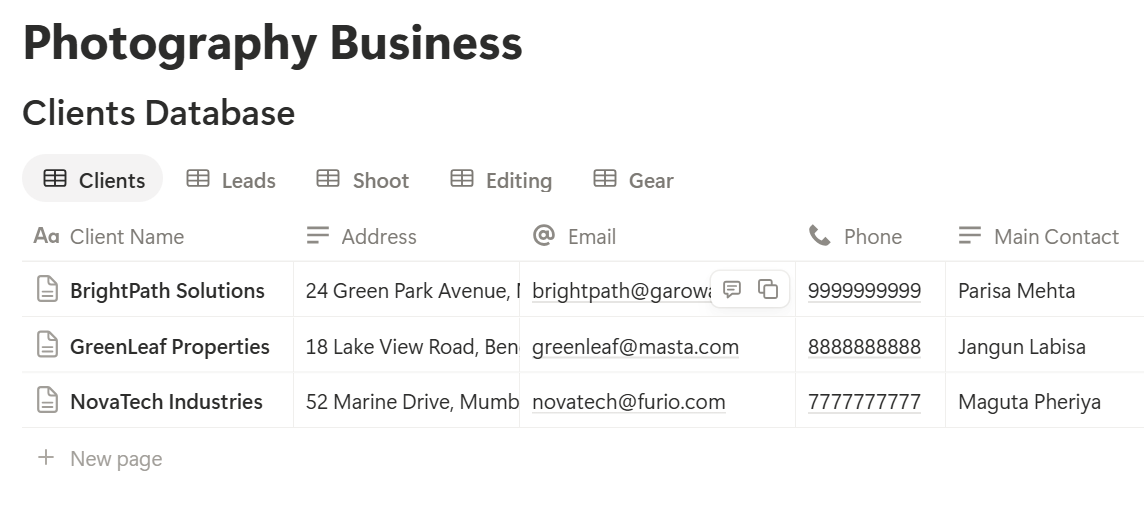
A relation connects a record in one database to a record in another. Link Shoots to Clients, and link the Editing Queue to Shoots. Now a shoot page shows its client, its money, its editing tasks, and its gallery link.
Leads: Don’t Let Inquiries Go Cold
Most photographers lose bookings by being slow, not by being expensive. Someone asks about your wedding package, gets a quote on Tuesday, and hears nothing else. By Friday, they have booked someone who followed up.
A short formula keeps leads alive:
*Days since contact: dateBetween(now(), prop("Last Contact"), "days") Follow-up flag: if(or(prop("Status") == "Quote Sent", prop("Status") == "Following Up") and prop("Days since contact") >= 3, "Follow up", "")*
The flag shows Follow up for any quote that’s been sitting for three days. Change the number to suit your pace.
Make these views:
Use a short Inquiry reply template with the questions you always ask: date, location, number of people, hours needed, and the budget range. Answering these in your first reply saves a round of email.
Pro Tip: Update Last Contact the moment you reply. If you wait, the follow-up flag will point you at the wrong people.
Booking: Packages, Deposits, and Balances
When a lead says yes, turn it into a shoot. Create the shoot record, link the client, and set the status to Booked once the contract is signed and the deposit is paid. A date isn’t held until both happen. That rule protects you from holding dates for people who never commit.
The Money
On Shoots, add one formula:
Balance: prop("Package Price") + prop("Travel Fee") - prop("Deposit Paid")
Here is a made-up portrait session. Amounts are in your own currency.
| Item | Amount |
|---|---|
| Package: 3-hour portrait session | 450 |
| Travel fee | 30 |
| Total | 480 |
| Deposit paid | 150 |
| Balance due | 330 |
Many photographers ask for the balance before the shoot or before delivery, so choose what fits your contract. Test the formula with made-up shoots and check the numbers against a calculator.
The Contract
Your contract should cover the date, location, hours, price, deposit, cancellation and rescheduling terms, delivery timeline, usage rights, and what happens if you’re ill or the weather is bad. The wording should be checked by someone qualified where you work. Store the signed copy in a secure place, tick Contract Signed, and link to it.
Before the Shoot: Plan and Pack
A smooth shoot is mostly planned before you pick up the camera.
Use a Shoot plan template with these sections:
For weddings and events, send the timeline to the client as a PDF for approval.
A one-page version helps everyone involved. How to Use Notion for Event Planners covers how planners build run-of-show documents, which you can borrow.
The Packing Checklist
Create a Pack list template with two parts: gear, and small things people forget. Gear includes bodies, lenses, flashes, batteries, memory cards, and a backup of everything. The small things include a charger, a lens cloth, a reflector, and a printed copy of the timeline. Tick items as you pack, and the night-before panic disappears.
Check the list against the Gear database, so you know each item is working and serviced. A spare body or card saves a wedding.
Views for Planning
After the Shoot: The Editing Queue
Editing is where photographers fall behind, because there’s always something more urgent. A queue with deadlines keeps promises.
Add a Turnaround Days number to each shoot, using what you promised in the contract. Then add:
*Edit Deadline: dateAdd(prop("Shoot Date"), prop("Turnaround Days"), "days") Days left: dateBetween(prop("Edit Deadline"), now(), "days") Deadline flag: if(prop("Status") != "Delivered" and prop("Days left") < 0, "Overdue", if(prop("Status") != "Delivered" and prop("Days left") <= 5, "Due soon", ""))*
The flag shows Due soon within five days of the deadline. Change the number to match your workflow.
For each shoot, break the editing into tasks in the Editing Queue: cull, edit, retouch, export. A few notes help, such as the number of images kept at each stage. Make these views:
If a deadline is going to slip, tell the client before it does. A short message beats silence every time.
Delivery: Galleries and Follow-Up
When the editing is done, upload the images to your gallery or delivery service, and paste the link into Gallery Link on the shoot. Don’t paste passwords or private keys into Notion. Send gallery passwords through a secure route.
Then close the loop:
Many clients return for family sessions, anniversaries, or referrals. A simple view of past clients sorted by their last shoot date helps you reach out at the right time, if they agreed to hear from you.
Gear: Know What You Own
Your gear is both a tool and an asset. A simple database helps with service, insurance, and repairs.
On Gear, add:
*Next Service: dateAdd(prop("Last Service"), prop("Service Interval"), "months") Service flag: if(dateBetween(prop("Next Service"), now(), "days") <= 30, "Service soon", "")*
Add a Total Value summary at the bottom of the table view, using the sum of each item’s value.
Keep serial numbers in the records, because insurers and repair centers ask for them. Attach receipts, or link to them, and note the warranty end date.
Insurance, equipment cover, and business rules vary by place, so check what applies to you.
A Week for a Portrait and Wedding Photographer
To see how the pieces fit, here is one made-up week.
Monday. She opens Follow up today. Two quotes have been waiting for three days. She sends a short note to each, and updates Last Contact. One lead replies by afternoon and books.
Tuesday. She creates a shoot record for the new booking, sets the status to Booked once the deposit and signed contract arrive, and sends the client a questionnaire.
Wednesday. She finishes the shoot plan for Saturday’s wedding. She sends the timeline to the couple as a PDF, and they approve it by email.
Thursday. The Editing queue shows a portrait session due in two days. She finishes the final edits, exports the images, and uploads the gallery.
Friday. She packs from the checklist, checks the gear flags, and charges the batteries. The Balances due view shows one payment outstanding, so she sends a polite reminder.
Saturday. She shoots the wedding. The timeline is in her pocket, and the shot list is on her phone.
Sunday. She backs up the images, changes the status to Editing, and sets the editing tasks and deadline. The couple was promised a sneak peek in three days, and it’s already in the queue.
Nothing lived only in her head.
The Documents That Leave Notion
Clients don’t use your workspace, so some records need to become files:
For a single page, you can use Notion’s export option. How to Export Notion to PDF shows the settings.
Clients judge a photographer partly by the look of the paperwork, and Notion’s own export gives you limited control over layout. How to Add Your Logo and Brand Colors to Notion PDFs explains how a template solves that.
Generating PDFs with PDFOutput
PDFOutput creates documents from your Notion data using a template. A template can be a Google document, a Word file, a PDF file, or a Notion page. If you already have a contract or price guide designed in Word or Google Docs, you can reuse it.
Here is how it works:
These are some of the status options:
The e-signed option may help with contracts and releases. Whether an electronic signature is valid for a given contract depends on your location and the type of document, so check before you rely on it.
You can save the finished file to a property in your database, so a contract stays on its shoot record. You can also save it to a Google Drive folder and store the link in a property.
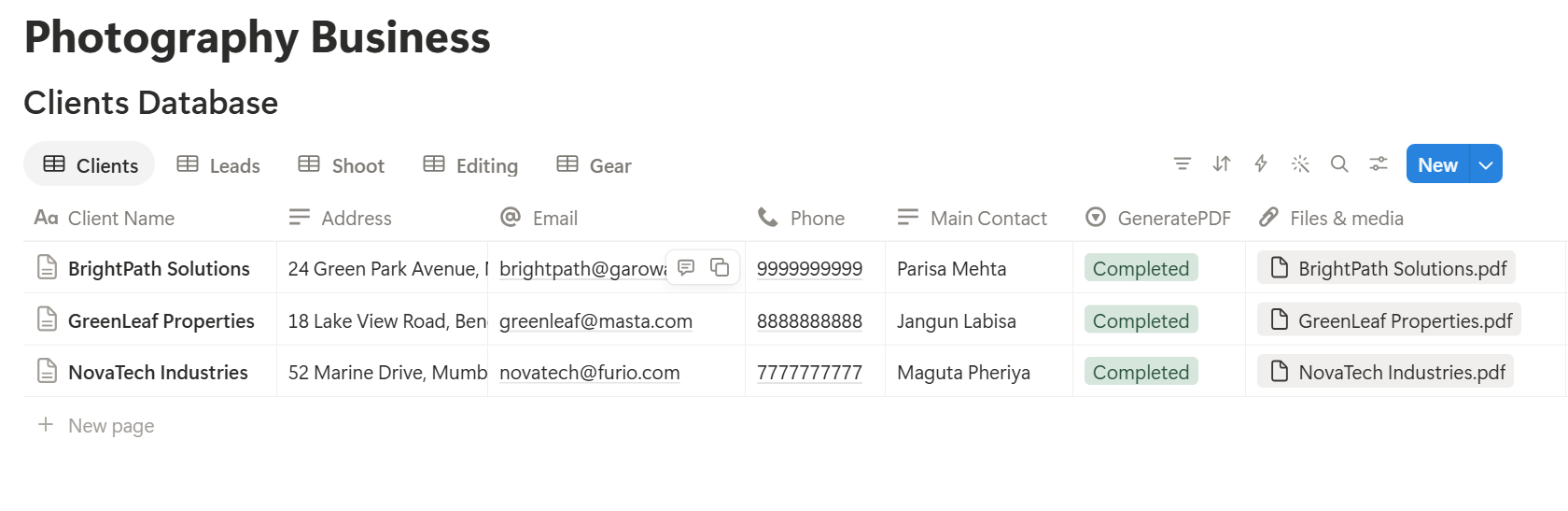
A shoot timeline or a shot list has several items, which may be stored as linked records. Before you rely on a template to list them all, test it with a sample shoot that has several, and check that each appears the way you want. If it doesn’t, a simple fallback is to keep the timeline in a text property on the shoot, and use that in the template.
Start with the quote or contract, since every booking needs one. Use Preview first and check for empty fields, wrong date formats, and totals that don’t match your records.
Key Takeaway: Fast follow-ups and clear deadlines win more bookings and keep clients happy. Track leads, balances, and editing dates, and the documents come straight from data you already have.
Who Can See What
Your workspace will hold client details, prices, and your own plans, so control access from the start.
Common Mistakes
Holding a date without a deposit. A date is only booked when the contract is signed and the deposit is paid.
Forgetting to follow up. Many leads simply need a second message. A flag does the remembering for you.
Vague usage rights. If your contract doesn’t say what the client can do with the images, expect questions later.
Promising turnaround you can’t meet. Set deadlines you can keep, and track them.
Using Notion as photo storage. Keep originals in proper storage, with a backup, and link to them.
Too many properties. If a shoot takes ten minutes to log, you will stop logging. Keep it short.
No owner for the structure. If you work with a team, pick one person responsible for the setup. Properties get renamed and formulas break, so tell that person not to rename properties used in PDF templates, because the placeholders must match exactly.
Skipping a test. Run one pretend booking through the setup first, and fix what annoys you before you use real client data.
Frequently Asked Questions
Can Notion be used for a photography business?
Yes. It can organize leads, clients, shoots, editing tasks, and gear, and it can create PDFs for quotes, contracts, and timelines. It isn’t photo storage, editing software, or a payment tool.
How do I track photography clients in Notion?
Create a Leads database with a status and a last contact date, and a Clients database linked to a Shoots database. Add a formula that flags quotes with no follow-up after a set number of days.
Can I store photos in Notion?
You can upload files, but Notion isn’t built for large photo libraries, and file limits depend on your plan. Keep original images in proper storage with a backup, and link to them from the shoot record.
How do I track editing deadlines in Notion?
Add a turnaround time to each shoot, and a formula that adds it to the shoot date. Make a view of shoots not yet delivered, sorted by deadline, with a flag for overdue and due-soon items.
Can I create photography contracts from Notion?
You can export a page as a PDF, or use a template-based tool such as PDFOutput to fill a contract template with data from each shoot record. The contract wording should be checked by someone qualified, and you should test the layout on a few sample records first.
How do I deliver galleries to clients?
Use a gallery or file delivery service, and paste the link into the shoot record. Send passwords through a secure route, and don’t store them in Notion.
Is it safe to store client information in Notion?
Notion lets you control who sees each page, but your duties depend on the privacy rules where you work. Collect only what you need, keep card details out, and take extra care with photos of children.
Related Reading
Conclusion
A good photography setup in Notion helps you do three things: follow up while leads are warm, keep every editing promise, and send paperwork that looks as good as your work. Start with leads, shoots, and an editing queue, keep your images in proper storage, and run one pretend booking through the system first. When your quotes, contracts, and timelines need to leave Notion, PDFOutput can fill your template from each record and save the PDF to your chosen storage.
Want quotes and contracts as clean PDFs? Try PDFOutput.