Guides
How to Use Notion for a Manufacturing Business
Set up Notion for manufacturing with work orders, inventory, quality checks, and suppliers, then turn records into PDFs like inspection reports.
By Sanat Biswal · 2026-10-11 · 5 min read

{/ synced-from-notion — do not edit manually /}
A work order starts as a message sent to the shop floor. But, by the time it reaches the packing table, you find information missing in the datasheet such as supplier email that nobody can find about. When a customer asks about where their 200 brackets are and where is it placed, someone who is accountable for this walks around asking more about the information.
Notion is a perfect candidate that can replace a manufacturing system for small and mid sized businesses. It’s a solid workspace that helps to keep work orders, materials, quality checks, and suppliers connected onto, so the answer to “where’s that order?” would be available within no time.
Short answer: But to use Notion for manufacturing, build linked databases for products, materials, work orders, quality inspections, and suppliers.
Use relations so that a work order knows its product and materials, use formulas to flag low stock and late jobs, and also board views for the shop floor. When a record has to leave Notion, such as an inspection report or purchase order, generate it as a PDF.
In more detail: Notion works best for manufacturers as the coordination layer: planning, tracking, and documentation.
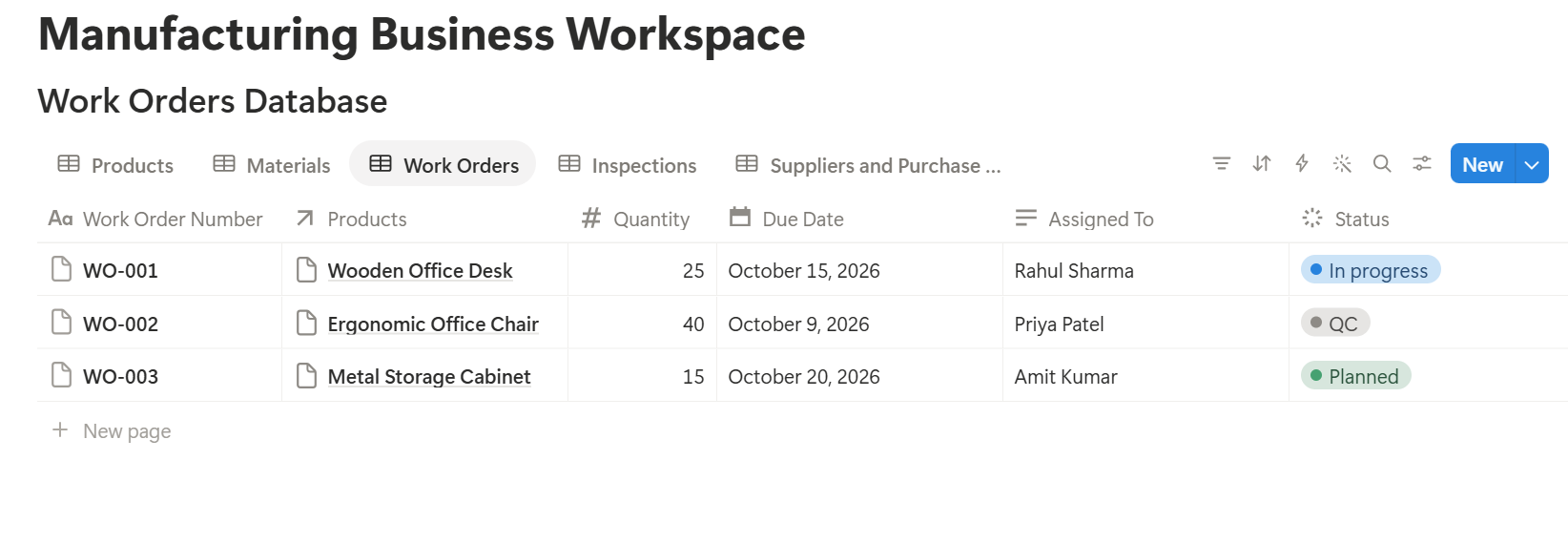
Each work order is a database record linked to the product it makes, the materials it uses, and the inspections it needs. Views show each person what matters to them, planners see due dates, operators see today’s jobs, and quality sees what’s waiting for a check.
Notion isn’t built for machine data, barcode scanning, or regulated production records, so keep it next to those systems, not in place of them.
What Notion Is (and Isn’t) for on the Shop Floor
Being clear about this would save you months of frustration.
| Good fit | Poor fit |
|---|---|
| Work order planning and status | Real-time machine monitoring |
| Material and stock tracking at small scale | Barcode scanning at high volume |
| Quality checklists and inspection logs | Validated records for strictly regulated industries |
| Supplier and purchase order tracking | Full ERP accounting and payroll |
| SOPs, training notes, and checklists | Complex scheduling across many machines |
What are the 5 Databases You Need
You can get started with 5 databases. You can add more later, but these cover most small shops that need to get started.
Three Formulas Worth Having
``
Reorder flag:   if(prop("Stock") <= prop("Reorder Point"), "Reorder", "")
Late flag:      if(prop("Status") != "Done" and prop("Due Date") < now(), "Late", "")
Defect rate:    if(prop("Quantity Checked") > 0, prop("Quantity Rejected") / prop("Quantity Checked"), 0)
`
Format the defect rate as a percent and test it against a calculator. Formulas are only useful if you trust them.
Pro Tip: Use the same property names across databases, for example Due Date everywhere. It keeps formulas readable and makes PDF templates easier to set up later.
Follow One Order Through the System
Here’s how the pieces fit together, using a job for 200 steel brackets.
Nobody asked anyone anything. Every question, from where it is, to what’s holding it up, to what it’ll cost, has an answer on the record.
Views That Fit How Each Person Works
One database, several views. Build these early:
- Shop floor board: Work Orders grouped by Status, filtered to open jobs.
- Today: a table of jobs with a due date of today or earlier, sorted by priority.
- Low stock: Materials where the Reorder flag shows.
- Waiting on QC: Work Orders with Status set to QC.
- Open purchase orders: POs that haven’t been received, sorted by expected date.
- Work orders: printed copies for the floor or signed off by a supervisor.
- Inspection reports: sent to customers or kept for audits.
- Purchase orders: sent to suppliers.
- Delivery notes and packing lists: shipped with the goods.
- Ready to Generate creates a PDF from the database record.
- Generate Page converts the Notion page into a PDF.
- Generate PDF and Doc creates a PDF and a Google document.
- Preview creates a Google document so you can check it first.
- Building everything at once. Start with work orders and materials, and add inspections once those work.
- Copying your spreadsheet into one huge table. Split data into linked databases.
- Skipping the test. Run three real jobs through before you trust it.
- Letting status mean different things to different people. Write down what Planned, In Progress, QC, and Done actually mean.
- No owner. Pick one person responsible for the structure, or it slowly drifts.
- How to Export Notion to PDF
- How to Export a Notion Database to PDF
- How to Add Your Logo and Brand Colors to Notion PDFs
- Notion to Excel
Put the ones a person uses most on a single dashboard page for their role.
Templates and Forms Save Typing
A database template for Work Orders can start every new job with a standard checklist: material check, setup, first-piece approval, final inspection. A template for Inspections can include the checklist items for each product type.
Notion forms are handy for operators who only need to report something, like a defect or a stoppage. The form adds a record to the right database without giving them access to the rest of it. Check what your plan offers.
The Documents That Need to Be PDFs
Notion is great for the work. But some records have to leave it, and a raw Notion page is a poor thing to hand a customer or a supplier.
For a one-off, the built-in export is fine. How to Export Notion to PDF covers the settings. For databases, see How to Export a Notion Database to PDF.
When you produce these documents all week and they need your company branding, a template is the better route, and How to Add Your Logo and Brand Colors to Notion PDFs explains why.
Generating These Documents with PDFOutput
PDFOutput generates documents from Notion data using a template. The template can be a Google document, Word file, PDF file, or Notion page. You mark where data goes with placeholders in double curly braces, such as {{Work_Order_Number}} or {{Quantity_Rejected}}`, and each placeholder has to match the related Notion property name.
You start generation from a Notion database button or a status property. A few of the status options:
Finished files can be saved to a database property, so an inspection report stays attached to its inspection record, or to a Google Drive folder with the link stored in a database property. Use the same layout for each report type, and every inspection report looks the same, which auditors and customers tend to appreciate.
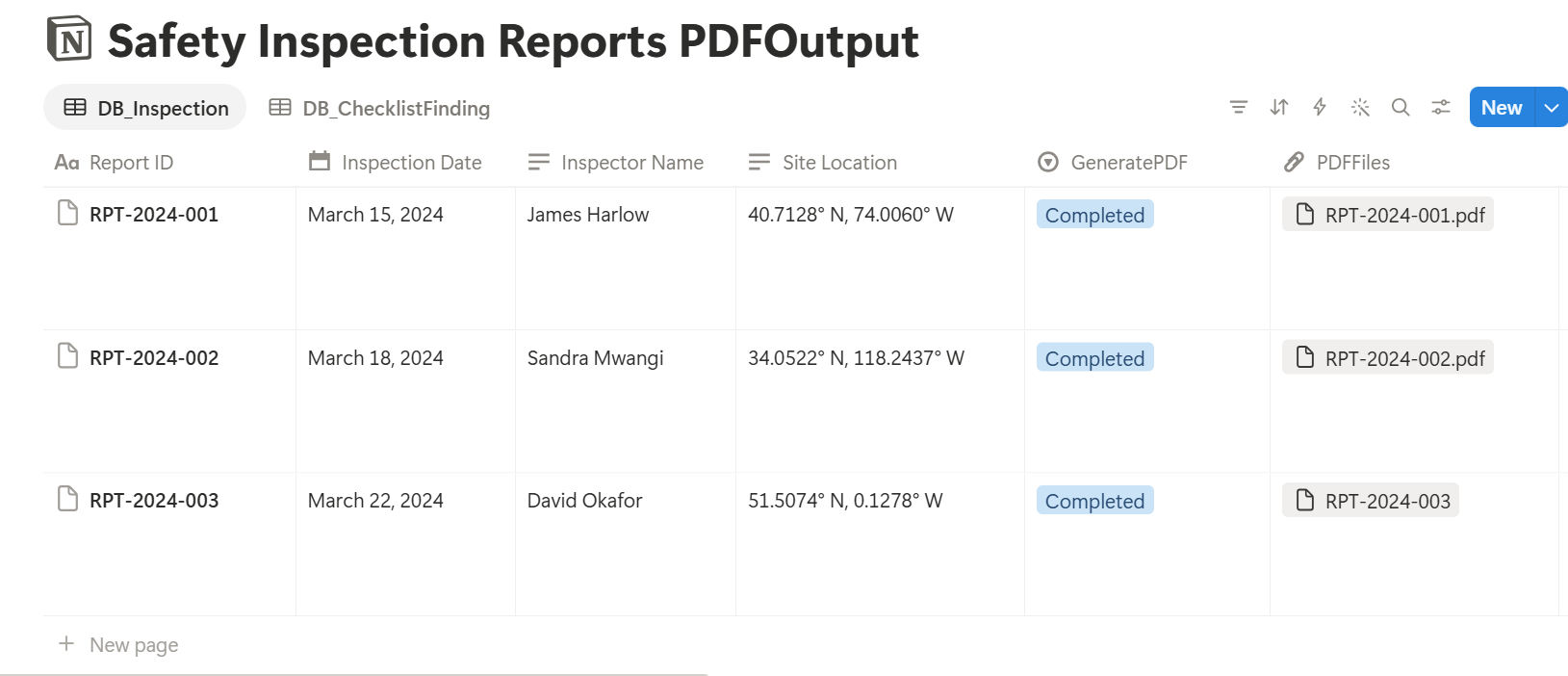
Run Preview on a sample inspection first. Look for blank fields, tables that stretch, and any photos that don’t show.
Key Takeaway: Start with work orders and the relations around them. Once jobs, materials, and inspections are connected, every report is just a view of data you already have.
Set Access Before You Roll It Out
Not everyone needs to see everything. Operators rarely need supplier pricing, and customers should never see your internal notes. Share only the pages each role needs, keep cost and margin data limited, and decide who can edit work order statuses. If you use a customer-facing document, generate a PDF from the record, so you share the finished report and not the workspace.
Mistakes to Avoid
Frequently Asked Questions
Can Notion be used for manufacturing?
Yes, for coordination tasks such as work orders, materials tracking, quality checklists, and supplier management. It isn’t designed for machine data or heavily regulated production records, so keep it alongside the systems that handle those.
Can Notion replace an ERP for a small manufacturer?
It can cover planning and tracking, but it doesn’t replace accounting, payroll, or detailed inventory costing. Some small shops run Notion for operations and a separate tool for accounts.
How do I track inventory in Notion?
Create a Materials database with Stock and Reorder Point properties, then add a formula that shows a Reorder flag. You can import existing data with a CSV file. See Notion to Excel for working with CSV files.
How do I create a work order in Notion?
Add a Work Orders database with a Unique ID, a relation to the product, a quantity, a due date, and a status. Use a database template so each new job starts with a standard checklist.
Can I generate inspection reports from Notion?
Yes. You can export a record’s page as a PDF, or use a template-based tool such as PDFOutput to fill a report template with the inspection’s data. Test it on a few sample records first.
Is Notion secure enough for a factory?
You control who sees each page, so limit access by role. Check your own security, retention, and customer confidentiality requirements before you store sensitive data.
Related Reading
Conclusion
Notion suits a manufacturing business as the place where jobs, materials, quality checks, and suppliers connect. Start with work orders, add relations and a few formulas, and give each role a view that fits. When records need to become customer-ready documents, PDFOutput can fill your template from each Notion record and save the PDF back to your chosen storage workflow.
Want your inspection reports and purchase orders as clean PDFs? Try PDFOutput.