Guides
How to Use Notion for a Logistics Business: Shipments, Drivers, and Delivery Proof
Learn how to set up Notion for a small logistics business with shipments, drivers, vehicles, and delivery records, and create PDF delivery notes and reports.
By Sanat Biswal · 2026-10-16 · 5 min read

{/ synced-from-notion — do not edit manually /}
While dispatching goods, a logistics business needs answers to a lot of questions such as what was the load for Tuesday? Which delivery is going to miss the slot? Who can take the extra pickup load? Did the customer opt for signing for it? If the answers happen to live inside phone calls, chat messages, or a spreadsheet that 3 other people can edit, answering every question takes about 10 minutes to reach to a conclusion.
Notion can keep the answers in one place. This guide is organized around the questions a dispatcher actually asks, and shows the Notion setup that answers each one. It also shows how to turn records into PDFs such as delivery notes and monthly reports. It is general information about organizing a business, not legal or customs advice.
Short answer on use of Notion for a logistics business
To use Notion for a logistics business, create linked databases for Customers, Shipments, Drivers, Vehicles, and a Maintenance Log.
Use formulas to flag late shipments, measure on-time delivery, and show when a vehicle is due for service. Make views for the dispatcher and the drivers. When you need to give a customer a document, such as a delivery note or a monthly report, create a PDF from the record.
Detailed Answer on how to use Notion for logistics business
Notion works well for small carriers, courier companies, and local delivery businesses as a planning and records layer. Each shipment is a record linked to a customer, a driver, and a vehicle.
Because the records are linked, you can see everything a driver has on today, every shipment a customer has had this month, and every service a vehicle has had.
Notion is not a GPS tracking system, a route optimizer, or a fleet telematics tool, and it doesn’t replace them. For documents that customers receive, you can export a page as a PDF or generate one from a template.
What Notion Can and Can’t Do for a Logistics Business
Notion is good for:
- Keeping shipments, customers, drivers, and vehicles in one place.
- Showing the status of every job on a board.
- Flagging late shipments and overdue vehicle services.
- Recording proof of delivery and incidents.
- Calculating on-time delivery rates.
- Creating consistent delivery notes, reports, and invoices.
- Live GPS tracking.
- Route optimization.
- Customs filings or other regulated shipping documents.
- Real-time driver messaging.
- Customers stores who you deliver for. Add the following properties: Company, Contact Person, Email, Phone, Billing Address, and Notes.
- Shipments is the main database. Add the following properties : Shipment Number (a Unique ID with a prefix like SH), Customer (relation), Pickup Address, Delivery Address, Pickup Date, Promised By, Delivered At, Status (Booked, Collected, In Transit, Delivered, or Problem), Driver (relation), Vehicle (relation), Weight, and Notes.
- Drivers stores your team. Add the following properties : Name, Phone, Licence Expiry, and Status (Available, On Route, or Off).
- Vehicles stores your fleet. Add the following properties : Registration, Type, Capacity, Odometer, Last Service Date, Last Service Odometer, Service Interval (km), and Status (Available, In Use, or In Workshop).
- Maintenance Log stores each service or repair. Add the following properties : Vehicle (relation), Date, Type, Cost, and Notes.
- Delivery notes and proof of delivery for customers
- Shipment summaries for a customer’s monthly review
- Driver job sheets: a printable list of today’s jobs
- Vehicle inspection records for your files or an inspector
- Incident reports after damage or delay
- Invoices for completed jobs. How to Use Notion for Freelancers covers invoicing basics.
- Supplier orders for parts and fuel cards
- Create your template with your logo and layout.
- Add placeholders in double curly braces where the data should go, such as
{{Shipment_Number}}or{{Delivery_Address}}. - Make sure each placeholder matches the name of a Notion property.
- Start the document with a Notion database button or a status property.
- Ready to Generate creates a PDF from the database record.
- Generate Page converts the Notion page into a PDF.
- Generate PDF and Doc creates a PDF and a Google document.
- Preview creates a Google document so you can check it before making the final PDF.
- Generate E-Signed Doc creates an e-signed PDF in the database workflow.
- Give drivers access only to their own jobs and the delivery form.
- Keep pricing, margins, and customer billing details out of driver views.
- Share customer-facing information as a PDF, and don’t give customers access to your workspace.
- Remove access on the day someone leaves.
- Review who has access every few months.
- How to Use Notion for a Manufacturing Business
- How to Use Notion for an E-commerce Business
- How to Use Notion for a Construction Business
- How to Export a Notion Database to PDF
Notion is not made for:
If you already use tracking or routing software, treat Notion as the records and planning layer beside it.
Using 5 Databases to Setup
Create these 5 databases first. Each question below builds on them.
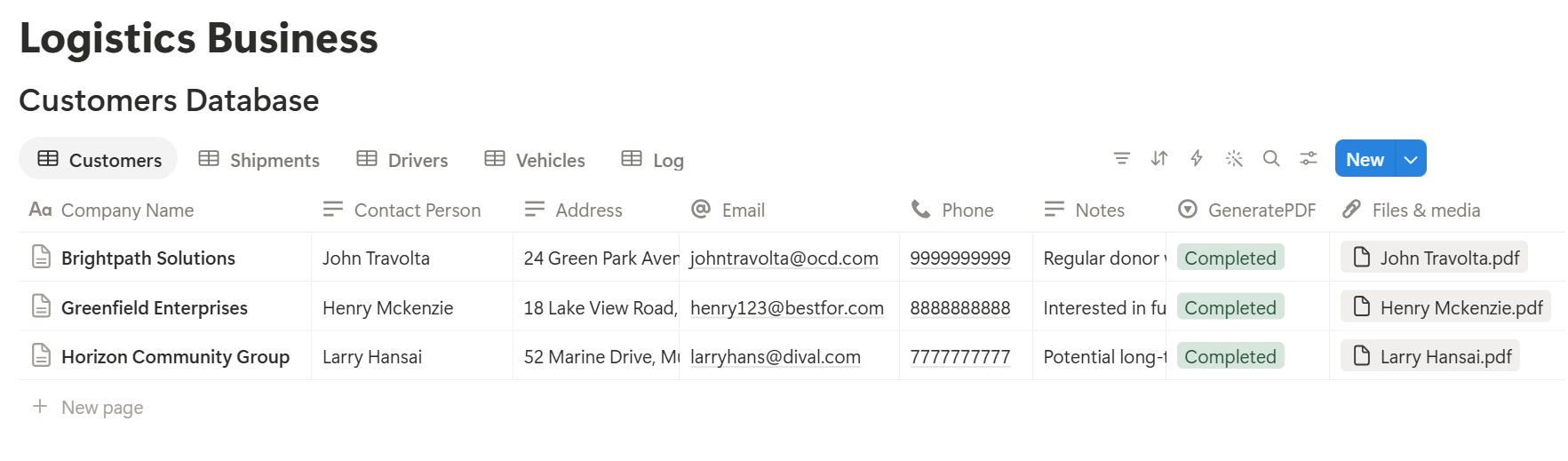
A relation connects a record in one database to a record in another. Link Shipments to Customers, Drivers, and Vehicles, and link the Maintenance Log to Vehicles. Now a driver page shows their jobs, and a vehicle page shows its service history.
Customer addresses and driver details are personal information. Collect only what you need, and check the privacy rules where you work before adding real data. While you are testing, use made-up customers and drivers.
Where Is This Shipment Right Now?
The simplest answer is a board.
Create a board view of Shipments grouped by Status, with the shipment number, customer, driver, and promised time on each card. Move a card when something changes. A dispatcher can see every job at a glance, and a customer service person can answer a phone call without asking anyone.
Notion shows the status you set, not a live position. If you need a map, use tracking software, and paste the tracking link into a Link property on the shipment so the two stay connected.
Add a short note each time something unusual happens, such as “Customer asked to redeliver Thursday.” A dated line in the notes saves a lot of arguing later.
Which Shipments Are Going to Be Late?
You don’t want to find out from an angry customer. Add two formulas to Shipments:
Hours left: dateBetween(prop("Promised By"), now(), "hours") Late flag: if(prop("Status") != "Delivered" and prop("Hours left") < 0, "Late", if(prop("Status") != "Delivered" and prop("Hours left") <= 4, "At risk", ""))
The flag shows Late for anything past its promised time, and At risk for anything within four hours of it. Change the four hours to suit your jobs.
Here is how a made-up morning might look:
| Shipment | Promised by | Status | Hours left | Flag |
|---|---|---|---|---|
| SH-2041 | 10:00 | Delivered | n/a | None |
| SH-2042 | 11:30 | In Transit | 3 | At risk |
| SH-2043 | 09:00 | Collected | -1 | Late |
| SH-2044 | 16:00 | Booked | 7 | None |
Pro Tip: Set the promised time when you book the job, not when the driver leaves. A flag is only useful if the time behind it is the one you actually promised.
Who Is Free, and Which Vehicle Can Take It?
Assigning jobs is easier when you can see who has what.
On Drivers, add a rollup from Shipments that counts jobs that are not yet delivered, and name it Open Jobs. Make a view of Drivers with Status set to Available, showing Open Jobs, so you can give the next job to the person with the lightest load.
On Vehicles, show Capacity beside the shipment’s Weight when you assign. If you want a warning, add a formula on Shipments that compares the weight to the vehicle’s capacity, using a rollup that pulls the capacity in from the linked vehicle:
Overweight: if(prop("Weight") > prop("Vehicle Capacity"), "Over capacity", "")
Also keep an eye on driver licence expiry dates. A simple formula on Drivers helps:
Licence flag: if(dateBetween(prop("Licence Expiry"), now(), "days") <= 30, "Renew soon", "")
Rules about driving hours, licences, and vehicle loading differ by country and by type of vehicle. Notion can remind you of dates, but it doesn’t know those rules, so check what applies to you.
Did We Deliver It, and Can We Prove It?
A delivery without proof is an argument waiting to happen.
When a driver delivers, update the shipment with the Delivered At time, and attach a photo or a signature image to a Files property. Add a short Received By field with the name of the person who accepted it, and a Condition on Delivery select with options such as Good, Damaged, or Partial.
A form can make this easier. Notion forms can add an answer to a database, so a driver can submit the delivery details from a phone, and the record is updated. Check what your plan allows, and test it on the devices your drivers use. Notion’s mobile app has fewer options than the desktop version.
Once the record is complete, the paperwork is mostly done. A delivery note, or proof of delivery, can be created from the same record and sent to the customer. The next sections cover that.
How Are We Really Doing?
Feelings about performance are often wrong. Numbers help.
Add a formula on Shipments that returns a checkbox:
On time: prop("Delivered At") <= prop("Promised By")
On Drivers, add a rollup from Shipments on the On time property, and choose Percent checked. Name it On-time %. Do the same on Customers if you want to see how you are doing for each account.
Then make a monthly view of Shipments filtered to the current month. It shows how many jobs you did, how many were on time, and how many had problems. Add a Problem Type select, such as Delay, Damage, or Wrong Address, to shipments with the status Problem. After a few months, the pattern will show you where to improve.
Keep the numbers honest. A late delivery caused by the customer still counts in your records, but a note explaining why helps when you review performance.
Is the Fleet Safe to Drive?
A broken-down truck costs much more than a service. On Vehicles, add these formulas:
Km since service: prop("Odometer") - prop("Last Service Odometer") Service flag: if(prop("Km since service") >= prop("Service Interval"), "Service due", if(prop("Km since service") >= prop("Service Interval") * 0.9, "Service soon", ""))
The flag shows Service soon at 90 percent of the interval, so you can book the workshop before the vehicle is overdue. Update the odometer when drivers return, and enter each service in the Maintenance Log.
Create a Pre-trip check database template for drivers, with a short list: tyres, lights, brakes, fluids, load secured, documents on board. Keep it short, so it gets done properly. Check what your local rules require for vehicle inspections, because Notion records are working records and may not satisfy a legal requirement by themselves.
The Documents That Leave Notion
Customers, drivers, and partners don’t use your workspace, so some records need to become files:
For a single page, you can use Notion’s export option. How to Export Notion to PDF shows the settings, and How to Export a Notion Database to PDF helps when you want a table, such as a driver’s day. Customers also notice how your documents look, and Notion’s own export gives you limited control over layout. How to Add Your Logo and Brand Colors to Notion PDFs explains how a template solves that.
Official shipping documents, such as customs forms or documents required for certain goods, are a separate matter. Use the forms your regulator or carrier requires, and don’t rely on a Notion layout for them.
Generating PDFs with PDFOutput
PDFOutput creates documents from your Notion data using a template. A template can be a Google document, a Word file, a PDF file, or a Notion page. If you already have a delivery note layout in Word or Google Docs, you can reuse it.
Here is how it works:
These are some of the status options:
You can save the finished file to a property in your database, so a delivery note stays on its shipment record. You can also save it to a Google Drive folder and store the link in a property. Whether an e-signed document is accepted as proof of delivery depends on your customer agreements and local rules, so check before you rely on it.
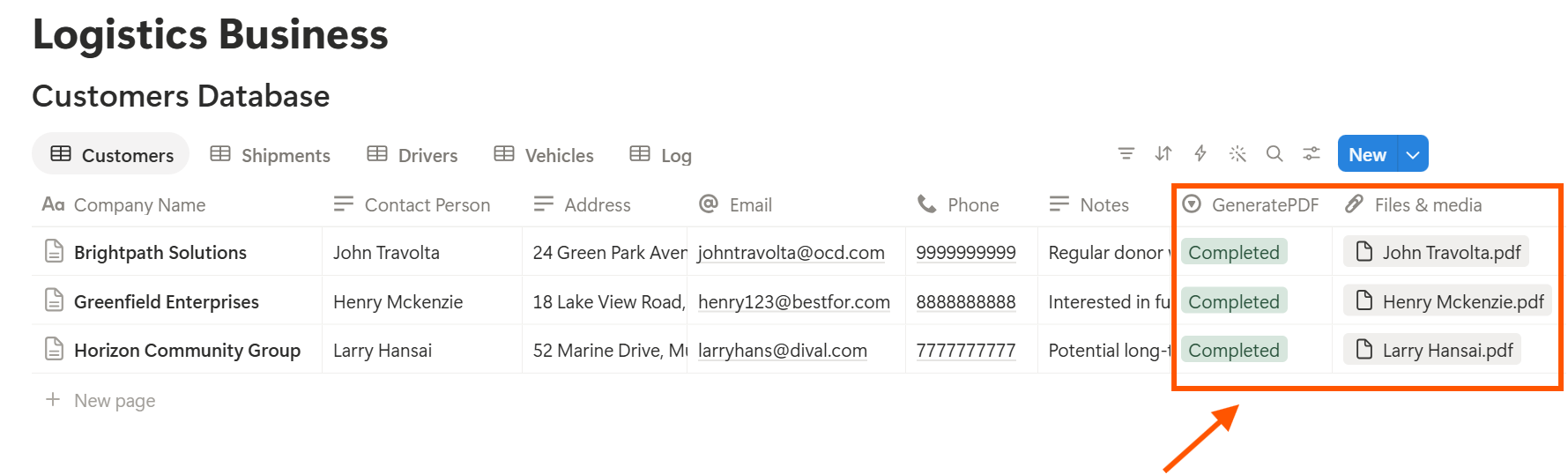
Start with the delivery note, since every job needs one. Use Preview first and check for empty fields, wrong date formats, and addresses that run past their boxes.
Key Takeaway: Start with shipments, a board, and a late flag. If every job has a status and a promised time, most of your daily questions answer themselves.
Who Can See What
Your workspace will hold customer addresses, driver details, and pricing, so control access.
Common Mistakes
Treating Notion like live tracking. It shows what people enter. If drivers forget to update, statuses go stale. Keep the update steps few and easy.
Too many statuses. Five is plenty. More statuses mean more clicks, and drivers will skip them.
Promised times that aren’t real. If the promised time is always a guess, the late flag teaches you nothing.
Forgetting the odometer. Service flags only work if the odometer is updated.
No owner for the structure. Pick one person responsible for the setup. Properties get renamed and formulas break, so tell that person not to rename properties used in PDF templates, because the placeholders must match exactly.
Skipping a test week. Run a week of made-up shipments first, and fix what annoys the drivers before you use real data.
Frequently Asked Questions
Can Notion be used for logistics?
Yes, for planning and records: shipments, customers, drivers, vehicles, maintenance, and delivery proof. It isn’t a GPS tracking, routing, or fleet telematics tool.
How do I track shipments in Notion?
Create a Shipments database linked to customers, drivers, and vehicles, with a status property. Use a board view grouped by status, and add a formula that flags late and at-risk shipments.
Can Notion track vehicle maintenance?
Yes. Create a Vehicles database with the last service odometer and a service interval, and add a formula that flags vehicles due for service. Link a Maintenance Log to each vehicle.
How do I measure on-time delivery in Notion?
Add a formula on each shipment that checks whether the delivered time is on or before the promised time, then roll it up on each driver or customer with the Percent checked calculation.
Can I create delivery notes from Notion?
You can export a page as a PDF, or use a template-based tool such as PDFOutput to fill a delivery note template with data from each shipment record. Test it on a few sample records first.
Can drivers use Notion on their phones?
Notion has a mobile app, though some actions are easier on a computer. Test your delivery form on the phones your drivers actually use.
Is Notion good for customs and shipping compliance?
No. Use the official forms and systems your regulator or carrier requires. Notion can hold working copies and reminders.
Related Reading
Conclusion
A good logistics setup in Notion answers the dispatcher’s daily questions: where each job is, which ones are late, who is free, whether it was delivered, how you’re doing, and whether the fleet is safe. Start with shipments, a status board, and a late flag. Use made-up data for a week, and fix whatever slows the drivers down. When your delivery notes and reports need to leave Notion, PDFOutput can fill your template from each record and save the PDF to your chosen storage.
Want delivery notes and reports as clean PDFs? Try PDFOutput.