Guides
How to Use Notion for Interior Designers: Projects, Suppliers, and Client Approvals
Learn how to set up Notion for interior design with projects, a furniture schedule, supplier lead times, and client approvals, plus PDF proposals, schedules, and purchase orders.
By Sanat Biswal · 2026-10-19 · 5 min read

{/ synced-from-notion — do not edit manually /}
An interior design project is a combination of numerous small decisions taken together.
Which sofa to be used, in which fabric, from which supplier, arriving on which week, approved by whom?
When the answers live in email threads, screenshots, and a spreadsheet with forty columns, one missed approval can mean a custom order nobody wanted, and a very awkward conversation.
Notion can hold the whole project in one place. This guide is for independent interior designers and small studios.
It shows how to set up projects, a furniture and fittings schedule, suppliers, and client approvals, and how to turn records into PDFs such as proposals, schedules, and purchase orders.
This is general information about how to organize a business, but not to be considered a legal or financial advice.
Quick answer on how to use Notion for interior designers:
To use Notion for interior design, create linked databases for following:
Use formulas to work out client prices from trade costs and markup, calculate the date each item must be ordered, and flag items that are late to order.
Record every client approval before you place an order. When you need to give someone a document, such as a proposal, a schedule, or a purchase order, create a PDF from the record.
Detailed guide on how to use Notion:
Notion works well for designers because every project is different, but the pieces repeat: rooms, items, suppliers, budgets, and sign-offs.
Each item is a record linked to a project and a supplier, with a trade cost, a markup, a client price, and a lead time. A formula turns the install date and the lead time into an order-by date. An approvals log shows what the client agreed to and when.
Notion isn’t design software, a rendering tool, or accounting software. It works best beside those tools. For documents that clients and suppliers receive, you can export a page as a PDF or generate one from a template.
Table of Contents
What Notion Can and Can’t Do for Interior Designers
Notion is good for:
- Keeping clients, projects, and rooms in one place.
- Building a schedule of every item in a project.
- Calculating client prices, markup, and budgets.
- Working out when each item must be ordered.
- Recording client approvals with dates.
- Creating consistent proposals, schedules, and purchase orders.
- Drawing plans or building 3D renderings.
- Searching supplier catalogs.
- Accounting, tax, and payments.
- Managing complex construction schedules.
- Trade prices are confidential. Suppliers often give designers special prices. Many agreements say you shouldn’t share them. Keep trade cost and markup in views and documents that clients never see.
- Clients’ homes are private. Addresses, floor plans, photos of rooms, and alarm or access details are sensitive. Collect only what you need, and don’t store door codes or passwords.
- Payment details such as card numbers should never be stored in Notion.
- Contracts and deposits. Custom orders are often non-refundable. Your agreement should explain what the client is committing to, and the wording should be checked by someone qualified.
- Clients stores who you work for. Add these properties: Name, Email, Phone, Address, Preferred Contact, and Notes.
- Projects stores each job. Add: Project Name, Client (relation), Status (Proposal, Design, Ordering, Installing, or Complete), Start Date, Install Date, Budget, and Notes.
- Items is the main database, your furniture, fixtures, and fittings schedule. Add: Item, Project (relation), Room, Supplier (relation), Product Code, Link, Image, Quantity, Unit Cost (trade), Markup (percent), Client Price (formula), Line Total (formula), Lead Time (weeks), Needed By, Order By (formula), and Status (Proposed, Approved, Ordered, Delivered, Installed, or Issue).
- Suppliers stores where you buy. Add: Company, Contact, Phone, Account Number, Trade Discount, Payment Terms, and Typical Lead Time.
- Approvals stores what the client agreed to. Add: Project (relation), What Was Approved, Items (relation), Requested On, Approved On, Approved By, How (Email, Meeting, or Signed Form), and Status (Waiting, Approved, or Declined).
- The home and the people: who lives there, ages, pets, and how they use each room
- What isn’t working now
- Style: things they love, things they hate, and photos they’ve saved
- Practical needs: storage, durability, allergies, and accessibility
- Budget: a range, and what’s flexible
- Timeline: key dates, such as a move-in or an event
- Decision makers: who must approve
- What it is: the name, a picture, the product code, and a link
- Where it goes: the room
- Who supplies it: linked to the Suppliers database
- How many, and how much: quantity, trade cost, and markup
- When it’s needed: the date, and the supplier’s lead time
- Where it stands: the status
- By room: a gallery view of Items grouped by Room, with the image on each card. This is the view you’ll use to talk to clients.
- By supplier: a table of Items grouped by Supplier, for orders and chasing.
- Needs approval: Items with the status Proposed.
- To order: Items with the status Approved and an Order By date coming up.
- Write exactly what’s being approved: the items, finishes, sizes, colors, and prices. Link the items.
- Send the approval request as a PDF, so the client sees what you see.
- When the client replies, record who approved, when, and how (email, meeting, or a signed form).
- Change the linked items to Approved.
- Only then place the order.
- Waiting for approval: Approvals with the status Waiting, sorted by requested date.
- Approved this month: Approvals with a recent approval date.
- Chase list: approvals waiting for more than seven days.
- Deliveries calendar: a calendar view of Items by expected delivery date.
- Overdue deliveries: Items with the status Ordered and an expected date in the past.
- By supplier: a table of open orders, grouped by supplier, so one chase email covers several items.
- Final schedule: what was installed, where, and from whom
- Care instructions: for fabrics, finishes, and materials
- Warranties and supplier contacts
- Replacement notes: codes and finishes, in case something needs replacing later
- Photos: after the install, if the client agrees
- Design proposals and fee agreements. Notion Proposal Template shows a structure that works, with wording checked by someone qualified.
- Concept summaries: images, colors, and notes for client discussion
- Furniture and fittings schedules: a client version, with images and client prices, and no trade costs
- Approval sheets: exactly what’s being approved, with a space to sign
- Purchase orders for suppliers. How to Use Notion for an E-commerce Business covers purchase orders in more detail.
- Budget summaries: spend by room, compared with the budget
- Delivery and installation schedules
- Snag lists and handover packs
- Invoices and receipts
- Create your template with your logo and layout.
- Add placeholders in double curly braces where the data should go, such as
{{Project_Name}}or{{Client_Name}}. - Make sure each placeholder matches the name of a Notion property.
- Start the document with a Notion database button or a status property.
- Ready to Generate creates a PDF from the database record.
- Generate Page converts the Notion page into a PDF.
- Generate PDF and Doc creates a PDF and a Google document.
- Preview creates a Google document so you can check it before making the final PDF.
- Generate E-Signed Doc creates an e-signed PDF in the database workflow.
- Keep trade cost, markup, and margins out of every view a client or contractor might see.
- Share only a project’s pages with an assistant or freelancer working on it.
- Don’t give clients access to your workspace. Send them a finished PDF, or share a client-facing page with care and check what it shows.
- Don’t store door codes, alarm codes, or passwords.
- Remove access on the day someone leaves.
- Review who has access every few months.
- How to Use Notion for a Construction Business
- How to Use Notion for Event Planners
- How to Use Notion for an E-commerce Business
- Notion Proposal Template
Notion is not made for:
If you already use design, quoting, or accounting software, treat Notion as the planning and records layer beside it.
Link to files, and don’t try to replace them.
Trade Prices, Client Data, and Privacy
Interior designers handle information that needs care.
Rules about consumer protection, deposits, and data differ by country, so check yours. While you are testing, use made-up clients.
Use These 5 Databases
Start with these 5 databases to begin with. You can add more later.
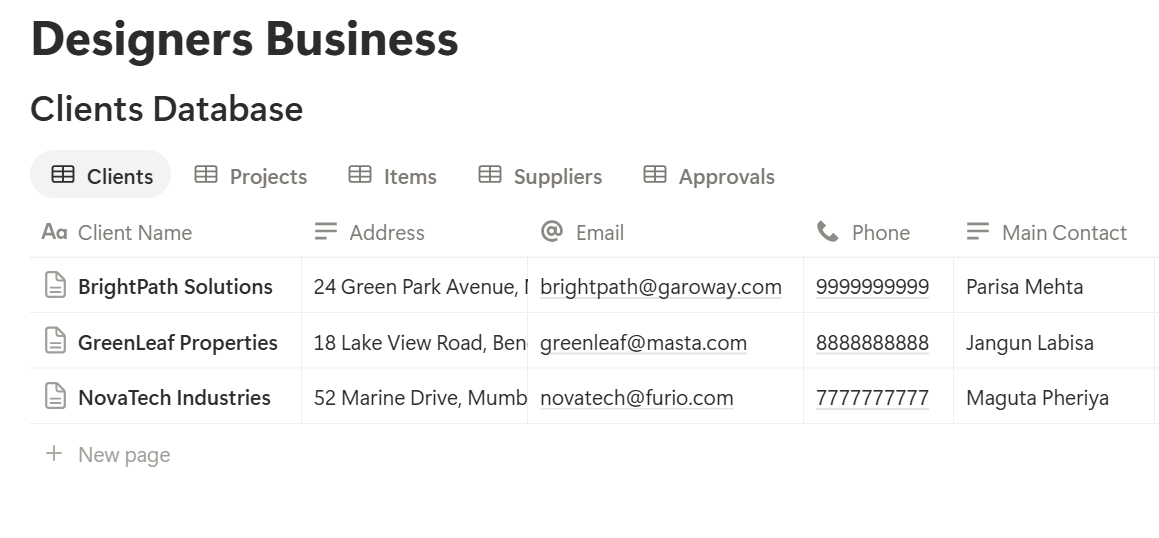
A relation connects a record in one database to a record in another. Link Projects to Clients, Items to Projects and Suppliers, and Approvals to Projects and Items.
Now a project page shows every item, every supplier, and every approval for the job.
Brief and Concept: Start With Questions
Good design starts with listening. Use a Client brief template on each project, with these sections:
Write the client’s own words. They help when a conversation drifts, and they remind you of the goal.
For the concept, add a Concept page to the project. Notion can hold images, colors, notes, and links to a moodboard in your design tool. Keep the page tidy.
A concept that explains itself in one scroll is easier to approve than one that needs a meeting to decode.
Specification: The Furniture and Fittings Schedule
The Items database is where the project becomes real. Each item gets a record with its details:
Make views to see it from different angles:
Give every item a clear product code, finish, and size. “Grey sofa” isn’t a specification. “Three-seater, fabric code 2214, slate, 220 cm wide” is.
Budget: Costs, Markup, and Client Prices
Most designers add a markup to trade prices. Notion can do the math, so you aren’t re-working a spreadsheet at midnight.
On Items, add these formulas:
Client Price: prop("Unit Cost") (1 + prop("Markup")) Line Total: prop("Client Price") prop("Quantity")
Format Markup as a percent. Here is a made-up set of items for a living room, with a 25% markup. Amounts are in your own currency.
| Item | Qty | Trade cost | Client price | Line total |
|---|---|---|---|---|
| Sofa | 1 | 1,600 | 2,000 | 2,000 |
| Armchair | 2 | 600 | 750 | 1,500 |
| Rug | 1 | 400 | 500 | 500 |
| Table lamp | 2 | 120 | 150 | 300 |
| Total | 3,440 | 4,300 |
On Projects, add rollups that sum the Line Total of all linked items and compare them to the budget:
*Spend vs budget: prop("Items Total") - prop("Budget") Over budget: if(prop("Items Total") > prop("Budget"), "Over budget", "")*
A budget flag appears when the schedule passes the client’s number, so you can talk about it early. Also add a rollup by room, using a view grouped by Room with a sum under Line Total. Delivery, installation, tax, and fees vary, so add them as separate lines. Test the formulas with made-up items, and check the totals against a calculator.
Pro Tip: Keep trade cost and markup properties hidden in every view that clients might see, and make a separate client-facing view with only the item, image, quantity, and client price.
Approvals: No Sign-Off, No Order
The costliest mistake in interior design is ordering something the client hasn’t approved. Custom pieces can rarely be returned. A simple rule protects everyone: no approval recorded, no order placed.
Create an approval record for each decision:
Put the exact details in the record. “Sofa approved” is vague. “Three-seater sofa, fabric 2214 in slate, 220 cm, price 2,000, delivery in 12 weeks” is something you can point to later.
If a client changes their mind after ordering, record the change with a date, what it costs, and who agreed. Notion keeps the history, so nobody has to argue from memory.
Views for approvals:
Ordering: Lead Times and Deliveries
Long lead times catch designers out. A sofa that takes twelve weeks has to be ordered before the room is ready, or the client will be sitting on boxes.
On Items, add:
Order By: dateSubtract(prop("Needed By"), prop("Lead Time") 7 + 14, "days") Order flag: if(prop("Status") == "Approved" and prop("Order By") < now(), "Order now", "")*
The first formula works backward from the date you need an item, subtracting its lead time in weeks and a buffer of 14 days.
The second shows Order now for any approved item whose order-by date has passed. Change the buffer to suit your suppliers. Make a view called Order now, sorted by Order By.
Once an item is ordered, add the order date, the supplier’s order number, and the expected delivery date. When it arrives, inspect it.
Record any damage with photos before accepting the delivery, and set the status to Issue if something is wrong.
Make these views:
Supplier terms, deposits, and payment dates differ, so record them in each supplier’s page.
Installation and Handover
Installation day is where preparation pays off.
Use an Install plan template with these sections: the date and access arrangements, the delivery sequence, who is on site, items to inspect, and a contact list. Check items against the schedule as they’re installed, and mark them Installed.
At the end, do a snag walk with the client. Write each issue as a record with the room, the problem, a photo, who is responsible, and a target date. A view of unresolved snags gives you a clear list to close out.
Then create a Handover pack page with these sections:
Set the project status to Complete. Ask for feedback, and note anything you’d do differently.
A Week on a Living Room Project
To see how the pieces fit, here is one made-up week.
Monday. The designer opens the Order now view. The sofa’s order-by date was last Friday, but it’s still marked Proposed. She checks Approvals, and sees the request has been waiting for nine days.
Tuesday. She calls the client, who approves the sofa and rug. She records who approved, when, and how, and changes both items to Approved.
Wednesday. She places the sofa order and the rug order, adds the supplier order numbers and the expected delivery dates, and changes the status to Ordered.
Thursday. A supplier emails to say the lamps will be two weeks late. She updates the expected date. The Overdue deliveries view now shows a clash with the install date, so she calls the client to agree an alternative lamp.
Friday. She creates a client-facing schedule for the living room, showing images, quantities, and client prices, and nothing about trade costs. She sends it as a PDF with a request for approval of the new lamp.
Nothing slipped, and nothing was ordered without a recorded yes.
The Documents That Leave Notion
Clients and suppliers don’t use your workspace, so some records need to become files:
For a single page, you can use Notion’s export option. How to Export Notion to PDF shows the settings, and How to Export a Notion Database to PDF helps with tables, such as a schedule.
Clients judge a designer by every document they receive, and Notion’s own export gives you limited control over layout. How to Add Your Logo and Brand Colors to Notion PDFs explains how a template solves that.
Generating PDFs with PDFOutput
PDFOutput creates documents from your Notion data using a template. A template can be a Google document, a Word file, a PDF file, or a Notion page.
If you already have a proposal or schedule layout in Word or Google Docs, you can reuse it.
Here is how it works:
These are some of the status options:
The e-signed option may help with approval sheets and fee agreements. Whether an electronic signature is valid for a given agreement depends on your location and the type of document, so check before you rely on it.
You can save the finished file to a property in your database, so a proposal stays on its project record. You can also save it to a Google Drive folder and store the link in a property.
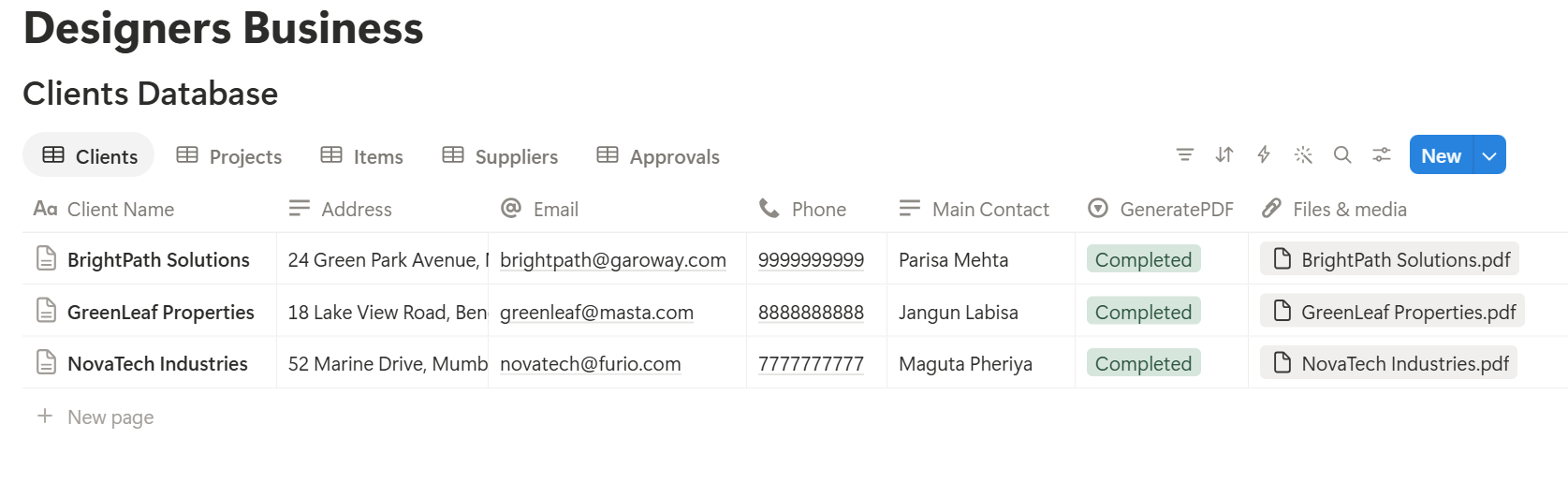
A client schedule lists many items, and each item is its own record linked to the project. Before you rely on a template to list all of them, test it with a sample project that has several items, and check that each appears the way you want.
A template only shows the fields you place in it, so a client version can leave out cost and markup. Confirm that with a test, and open the final PDF before you send it. If a template can’t list linked items, a simple fallback is to use Notion’s own export of a client-facing view with only the columns the client should see.
Start with the proposal or the approval sheet, whichever you send most often. Use Preview first and check for empty fields, wrong date formats, and totals that don’t match your records.
Key Takeaway: Record every approval, calculate order-by dates from lead times, and keep two versions of every schedule, one for you with costs and one for the client without. Do that, and most expensive mistakes disappear.
Who Can See What
Your workspace will hold trade prices, markups, and client details, so control access from the start.
Common Mistakes
Ordering before approval. It’s the single most expensive mistake. Make “no approval, no order” the rule.
Showing trade prices to clients. Always check the final PDF before you send it.
Vague specifications. If the finish, size, and code aren’t recorded, mistakes are likely.
Forgetting lead times. An order-by flag prevents a room from sitting empty for weeks.
Not recording changes. Every change after approval needs a date, a cost, and who agreed.
Too many properties. If an item takes five minutes to log, you will stop logging. Keep it short.
No owner for the structure. If you work with a team, pick one person responsible for the setup. Properties get renamed and formulas break, so tell that person not to rename properties used in PDF templates, because the placeholders must match exactly.
Skipping a test. Run one pretend room through the setup first, and fix what annoys you before you use real client data.
Frequently Asked Questions
Can Notion be used for interior design?
Yes. It can organize clients, projects, a furniture and fittings schedule, suppliers, budgets, and approvals. It isn’t design or rendering software, and it doesn’t handle accounting.
How do I create a furniture schedule in Notion?
Create an Items database linked to each project and supplier, with a room, a quantity, a cost, a markup, and a status. Use a gallery view grouped by room for client discussions.
How do I calculate markup in Notion?
Add a Unit Cost and a Markup percent to each item, then use a formula that multiplies the cost by one plus the markup. Multiply the result by the quantity for the line total.
How do I track client approvals in Notion?
Create an Approvals database linked to projects and items. Record exactly what was approved, who approved it, when, and how. Change items to Approved only after that.
How do I know when to order an item?
Add a needed-by date and a lead time to each item, then use a formula that subtracts the lead time and a buffer from the needed-by date. Flag approved items whose order-by date has passed.
Can I create client proposals and schedules from Notion?
You can export a page as a PDF, or use a template-based tool such as PDFOutput to fill a proposal template with data from each project record. Test it on a few sample projects first, and check that no trade costs appear.
Should clients have access to my Notion workspace?
Usually not. Your workspace holds trade prices, markups, and other clients’ details. Send clients a finished PDF instead.
Related Reading
Conclusion
A good interior design setup in Notion keeps the whole project in one place: what was specified, what the client approved, what it costs, and when it must be ordered. Start with items, approvals, and order-by dates, keep trade prices away from client documents, and run one pretend room through the system first.
When your proposals, schedules, and purchase orders need to leave Notion, PDFOutput can fill your template from each record and save the PDF to your chosen storage.
Want proposals and schedules as clean PDFs? Try PDFOutput.