Guides
How to Use Notion for a Healthcare Clinic: Operations, Supplies, and Compliance Logs
Set up Notion for a clinic with supplies, equipment, rosters, and compliance logs, plus PDF records, and learn what patient data should stay out of it.
By Sanat Biswal · 2026-10-14 · 5 min read

{/ synced-from-notion — do not edit manually /}
Running a clinic means running two businesses at once.
One is care: seeing patients, making decisions, writing clinical notes. The other is operations: ordering supplies, servicing equipment, scheduling staff, cleaning rooms, and keeping the logs an inspector might ask to see.
The second side of business is where small clinics lose the most time, and it’s where Notion can help the most.
This guide shows how to set up Notion for the operations side of a clinic. It also explains, plainly, what should stay out of Notion. Health information is more sensitive than most data, and the rules about it are strict. This is general information about organizing a practice, not legal, medical, or compliance advice.
How to use notion for healthcare clinic?
To use Notion for a healthcare clinic, build linked databases for supplies, equipment, staff, and daily logs. Add formulas that flag expiring stock and equipment that is due for service, and make views for each person’s day.
Keep patient clinical records in a system that is built and approved for health data. When you need a document for staff, partners, or inspectors, create a PDF from the record.
Detailed Guide on How to Use Notion for Healthcare Clinic?Notion works well as an operations workspace for a clinic. Each supply item, piece of equipment, shift, and log entry is a record, and the records can be linked, so a piece of equipment can show its service history and a cleaning log can show who signed it off.
Notion isn’t an electronic health record system, and it isn’t designed to replace one. Whether you can store any patient information in it depends on the laws where you work, your agreements with Notion, and your own policies. For documents that leave the workspace, you can export a page as a PDF or generate one from a template.
Step 1: Decide What Belongs in Notion
Before you build anything, draw a clear line. This is the most important step in the whole guide.
| Usually a good fit | Usually a poor fit |
|---|---|
| Supply and stock tracking | Clinical notes and diagnoses |
| Equipment service schedules | Test results and images |
| Staff rosters and leave | Prescriptions and medication records |
| Cleaning and opening checklists | Anything identifying a patient together with a health condition |
| Standard operating procedures (SOPs) | Controlled medication registers required by law |
| Training records and onboarding | Official consent forms that must live in a regulated system |
| Referral partner contacts (organizations, not patients) | Insurance and billing data tied to named patients |
Step 2: Check the Privacy Rules First
Health privacy laws differ by country and region. Examples include HIPAA in the United States, GDPR in the European Union, and a range of national and local health data rules elsewhere. This list is only a starting point, so find out which rules apply to your clinic.
Before you put any patient-related information into any tool, ask:
- Do the laws that apply to us allow storing this data in a cloud workspace?
- Do we need a signed agreement with the tool’s provider before using it for health data? Does one exist for the plan we use?
- Where is the data stored, and who at the provider can access it?
- Do our patient agreements promise anything about how data is handled?
- Who in our clinic needs access to what, and is it logged?
- Supplies stores everything you stock. Add these properties: Item Name, Category (Consumables, Cleaning, Office, or Other), Supplier (relation), On Hand, Reorder Level, Unit, Expiry Date, and Storage Location.
- Equipment stores each piece of equipment. Add: Name, Serial Number, Location, Purchase Date, Last Service, Service Interval (in days), and Service Contact.
- Staff and Roster stores your team and their shifts. Add: Name, Role, Contact, and a separate Shifts database with Date, Staff Member (relation), Start Time, End Time, and Status (Planned, Confirmed, or Leave).
- Daily Logs stores your recurring checks. Add: Date, Log Type (Opening, Closing, Cleaning, or Temperature Check), Completed By (relation to Staff), Completed (checkbox), and Notes.
- In Supplies, add a relation to a Suppliers database (company name, contact, delivery days, minimum order).
- In Daily Logs, add a relation to Staff, so each log shows who signed it.
- In Equipment, add an optional relation to a Service History database, so every service visit is recorded against the equipment it relates to.
- Reorder list: Supplies where the Reorder flag shows, grouped by supplier.
- Expiring soon: Supplies where the Expiry flag shows, sorted by date.
- Service due: Equipment where the Service flag shows.
- This week’s roster: a calendar view of Shifts.
- Today’s logs: Daily Logs filtered to today, so the person opening the clinic sees what to complete.
- Incomplete logs: Daily Logs where Completed is not checked, for the manager.
- Opening checklist: a short list of checks before the first appointment.
- Closing checklist: a short list of checks at the end of the day.
- Cleaning log: areas, who cleaned them, and any issues.
- New staff onboarding: access, training steps, policies to read, and a sign-off.
- Incident report (non-clinical): date, what happened, who was involved, and actions taken. Check your own rules about where incident records must be kept.
- SOP page: purpose, steps, who is responsible, and review date.
- Compliance logs: a record of cleaning, temperature checks, or equipment service for an inspector
- Equipment service records: a history of maintenance for one device
- Staff rosters: a printable schedule for the wall or for a partner organization
- Supply orders: a clean order sheet for a supplier
- SOPs and training records: a copy for staff or an auditor
- Receipts for self-pay services: a simple proof of payment. Notion Receipt Template shows how to structure one, though receipts tied to named patients raise the privacy questions from Step 2.
- Create your template with your logo and layout.
- Add placeholders in double curly braces where the data should go, such as
{{Equipment_Name}}or{{Last_Service}}. - Make sure each placeholder matches the name of a Notion property.
- Start the document with a Notion database button or a status property.
- Ready to Generate creates a PDF from the database record.
- Generate Page converts the Notion page into a PDF.
- Generate PDF and Doc creates a PDF and a Google document.
- Preview creates a Google document so you can check it before making the final PDF.
- Generate E-Signed Doc creates an e-signed PDF in the database workflow.
- Share each page only with the people who need it.
- Keep staff contact details and pay information out of views that others can open.
- Use separate access levels for managers, clinical staff, and front desk.
- Don’t share the workspace with outside parties. Send a finished PDF instead.
- Remove access on the day someone leaves.
- Review who has access every few months.
- Write down your rules for what may and may not be stored in Notion, and make sure every new staff member reads them.
- How to Use Notion for a School
- How to Use Notion for a Manufacturing Business
- How to Use Notion for a Restaurant
- Notion PDF Export Not Working
If the answer to any of these is unclear, treat that data as off limits until you have a clear yes, ideally from a compliance professional. A simple rule that keeps most clinics safe: use Notion for operations that don’t involve identifiable patient information, and keep patient records in a system built for it.
While you test your setup, use made-up data only.
Step 3: Build the Core Databases
Start with 4 databases. You can add more once these work.
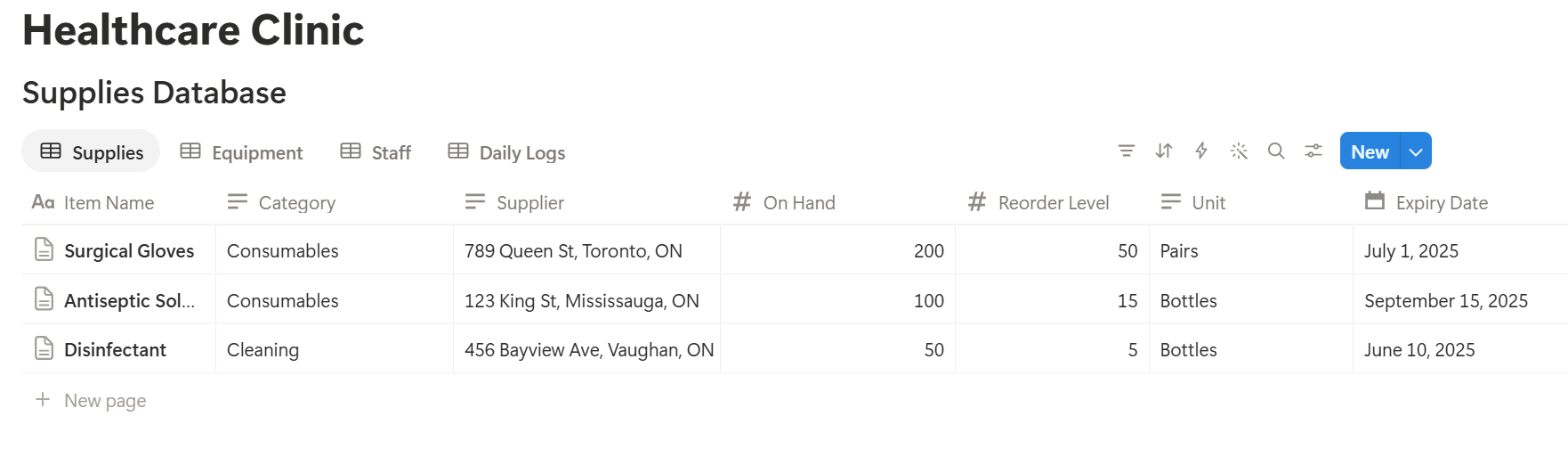
Notice what is missing: there’s no Patients database. That is on purpose.
Step 4: Link the Databases Together
A relation connects a record in one database to a record in another. This is what makes Notion more than a set of lists.
Add these relations:
Now a piece of equipment shows its full service history in one place, and a log entry shows exactly who completed it.
Step 5: Add Formulas That Do the Watching
A clinic’s operational risks are mostly about dates and quantities: things that expire, things that run out, and things that are due for attention. Formulas watch these for you.
On Supplies:
Days to expiry: dateBetween(prop("Expiry Date"), now(), "days") Expiry flag: if(prop("Days to expiry") \< 0, "Expired", if(prop("Days to expiry") \<= 30, "Expiring soon", "")) Reorder flag: if(prop("On Hand") \<= prop("Reorder Level"), "Reorder", ""))
On Equipment:
Next Service: dateAdd(prop("Last Service"), prop("Service Interval"), "days") Service flag: if(prop("Next Service") \< now(), "Service due", "")
The thirty-day warning is only an example, so change it to match how quickly you can reorder.
On Daily Logs, you can track completion over time by rolling up the Completed checkbox with Percent checked, grouped by week. A drop in the percentage tells you where routines are slipping.
Test each formula with made-up items and compare the results with a calendar. A flag that is wrong is worse than no flag, because people stop trusting the system.
An important limit: keep registers that the law requires for controlled or regulated medication in the official format your regulator expects, and not in Notion.
Pro Tip: Add a Checked By and a date to anything people rely on. A flag that says "Expired" means little if nobody knows who last confirmed the stock count.
Step 6: A Week in an Imaginary Clinic
To see how the pieces fit, here’s a week in a small clinic with five staff members. The clinic and numbers are made up for illustration.
Monday. The clinic manager opens the home page. The Reorder view shows six items below their reorder level, grouped by supplier. She creates one order per supplier. One supplier has a minimum order noted on its record, so she adds two more items to meet it.
Tuesday. A delivery arrives. The person receiving it updates On Hand and the Expiry Date for each batch. The reorder flags disappear. One item arrives with a shorter shelf life than expected, and the Expiring soon flag appears, so the team knows to use it first.
Wednesday. The Equipment view shows the autoclave with a Service due flag. The manager opens its record, sees the last service date and the contact for the service company, and books a visit. When the engineer comes, she logs the visit and updates Last Service. The flag clears.
Thursday. A staff member is off sick. The manager opens the roster, changes the shift status to Leave, and sees who is available to cover. Nobody is sent a long chain of messages.
Friday. Before the weekend, the manager checks the Daily Logs view. Every opening and cleaning log for the week is complete except Thursday’s closing check, so she follows up while it’s still fresh.
Nothing in this week involved patient information, and the clinic still saved hours of searching, asking, and guessing.
Step 7: Create Views for Each Role
A view is a different way of looking at the same database. Build these early:
Give the front desk a page with the roster and today’s logs, and give the clinic manager the full set.
Step 8: Build Templates for Routine Work
Templates fill in a page layout for you, so each routine starts the same way.
Make a template for each of these:
Keep each checklist short. A long checklist gets ticked without being checked.
Step 9: Create PDFs for Staff, Partners, and Inspectors
Not everyone who needs a record works in your Notion workspace. Common examples that don’t involve patient information include:
For a single page, you can use Notion’s export option. How to Export Notion to PDF shows the settings. Clinic documents also say something about your professionalism, and Notion’s own export gives you limited control over layout. How to Add Your Logo and Brand Colors to Notion PDFs explains how a template solves that.
Step 10: Generate PDFs with PDFOutput
PDFOutput creates documents from your Notion data using a template. A template can be a Google document, a Word file, a PDF file, or a Notion page. If your clinic already has a layout for logs or letters in Word or Google Docs, you can reuse it.
Here is how it works:
These are some of the status options:
The e-signed option may help with things like staff policy acknowledgements. Whether an electronic signature is valid for a given document depends on your location and the type of document, so check before you rely on it.
You can save the finished file to a property in your database, so a service record stays on its equipment page. You can also save it to a Google Drive folder and store the link in a property.
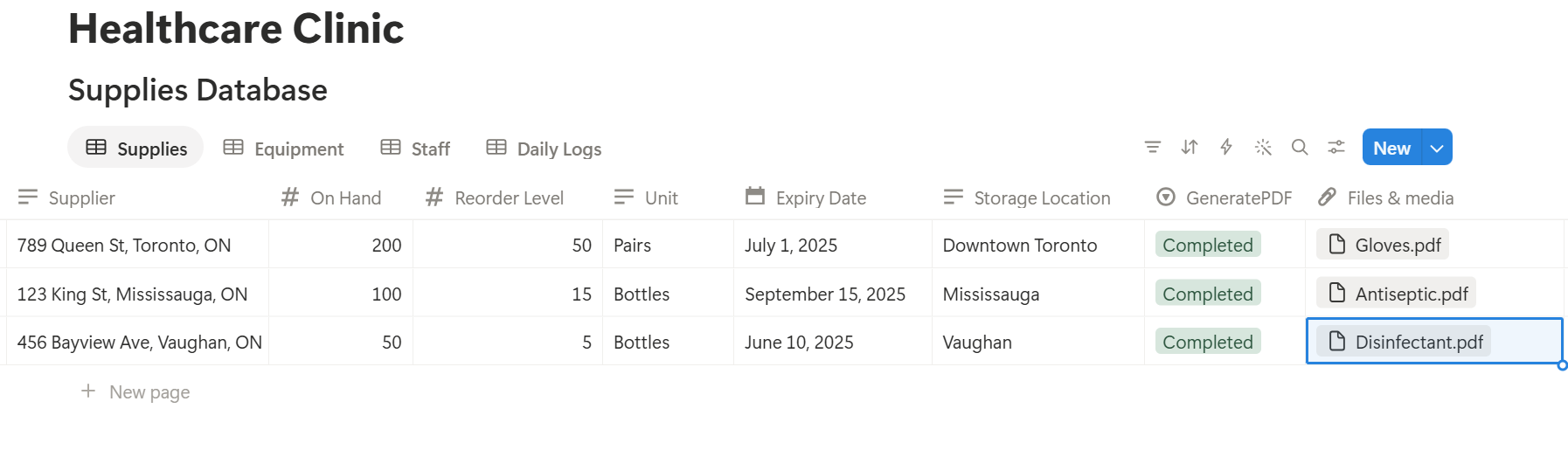
Start with an equipment service record, since it has clear fields and no patient information. Use Preview first and check for empty fields, wrong date formats, and long notes that don’t fit.
Before using any document tool with health-related data, ask the provider how data is handled, where it’s stored, and what agreements are available. Keep those answers with your compliance records.
Key Takeaway: Use Notion for what runs the clinic, not for what the clinic knows about patients. Operations like supplies, equipment, rosters, and logs give you most of the time savings with a fraction of the risk.
Step 11: Control Who Can See What
Even without patient data, a clinic workspace holds information worth protecting, such as staff details, supplier terms, and security routines.
Common Mistakes
Sliding into patient data. It starts innocently: a note about “the patient in room 3,” a name in a log. Over time, identifiable details creep in. Write your rules down, and remind people regularly.
Treating Notion as the official record. If a regulator expects a specific record in a specific format, Notion isn’t it. Use Notion as a working layer next to the official systems.
Letting stock counts go stale. Reorder and expiry flags only help if On Hand and Expiry Date are updated at receiving time. Make it part of the delivery routine.
Checklists that are too long. People tick boxes without checking. Fewer items, done properly, beat a long list.
No owner. Without one person responsible for the structure, properties get renamed, duplicates appear, and formulas break. Pick an owner, and tell them not to rename properties that PDF templates use, because the placeholders must match exactly.
Skipping the test. Run a full week with made-up data, and fix what annoys people before you use real records.
Frequently Asked Questions
Can Notion be used for a healthcare clinic?
Yes, for operations such as supplies, equipment schedules, staff rosters, checklists, and procedures. It isn’t designed to replace an electronic health record system, so keep patient clinical records in a system built for health data.
Is Notion HIPAA compliant?
Whether a tool can be used for health data depends on the laws that apply to you, the plan you use, and the agreements you have with the provider. Check with Notion and a compliance professional before storing any identifiable patient information, and don’t assume a tool is suitable because others use it.
Can I store patient information in Notion?
Only after you’ve confirmed that the laws, agreements, and settings that apply to you allow it. If you can’t get a clear answer, keep patient information out of Notion and use a system designed for it.
How do I track medical supplies in Notion?
Create a Supplies database with On Hand, Reorder Level, and Expiry Date properties, and add formulas that flag low and expiring stock. Keep any legally required registers for controlled items in their official format.
How can Notion help with equipment maintenance?
Create an Equipment database with a last service date and a service interval, then add a formula that calculates the next service date and flags anything overdue. You can also link each service visit to the equipment it relates to.
Can I create compliance logs from Notion?
You can keep cleaning, opening, and temperature logs as database records and export them as PDFs, or use a template-based tool such as PDFOutput to fill a log template with the data from each record. Check what your regulator requires before relying on any record format.
Can staff use Notion on their phones?
Notion has a mobile app, though some actions are easier on a computer. Test your checklists on the devices your staff actually use.
How do I keep a clinic workspace organized?
Pick one owner, write down what may and may not be stored, use clear property names, and review the setup every few months.
Related Reading
Conclusion
The best Notion setup for a clinic is a quiet one: supplies that warn you before they run out, equipment that tells you when it needs service, rosters everyone can see, and logs that get completed. Settle the privacy questions first, keep patient records in a system built for them, and test with made-up data before you use real records. When your logs, service records, and orders need to leave Notion, PDFOutput can fill your template from each record and save the PDF to your chosen storage.
Want clean logs and service records straight from Notion? Try PDFOutput.