Guides
How to Use Notion for a Gym or Fitness Studio: Members, Classes, and Renewals
Learn how to set up Notion for a gym or fitness studio with members, memberships, classes, and check-ins, then create PDF agreements and progress reports.
By Sanat Biswal · 2026-10-15 · 5 min read

{/ synced-from-notion — do not edit manually /}
A gym lives and prospers only because of the retention that it gets from the customers. Getting a new member through the door is the expensive part, and losing them quietly after three months is the costly part.
Most small gyms and studios don’t lose members because of a bad class. They lose them because nobody notices that a regular customer coming by has stopped coming, or that a membership ran out a week ago and no one has followed up yet.
Notion can help overcome this problem.
This guide shows how to set up Notion for members, memberships, classes, and check-ins, and how to turn that information into PDFs such as agreements and progress reports.
Note: It is general information about organizing a business, not legal or health advice.
Short answer on how to use Notion for gym or fitness studio?
To use Notion for a gym or fitness studio, create 4 linked databases:
- Members,
- Memberships,
- Class Sessions, and
- Check-ins.
- Organizing members, memberships, and notes in one place.
- Tracking when memberships end and who to follow up with.
- Logging visits and spotting members who are drifting away.
- Planning classes, trainers, and capacity.
- Keeping equipment checks and cleaning routines.
- Creating consistent agreements, receipts, and progress reports.
- Taking recurring payments.
- Door access or membership card scanning.
- A member-facing app for booking classes.
- Payroll for staff and trainers.
- Contact details are normal and expected.
- Health details, such as injuries, medical conditions, or medications, are much more sensitive. Collect only what a trainer truly needs, and check the rules where you work about how that information must be stored and who may see it.
- Photos and body measurements, if you track them for progress, need the member’s clear permission.
- Payment details such as card numbers should never be stored in Notion. Keep them with your payment provider.
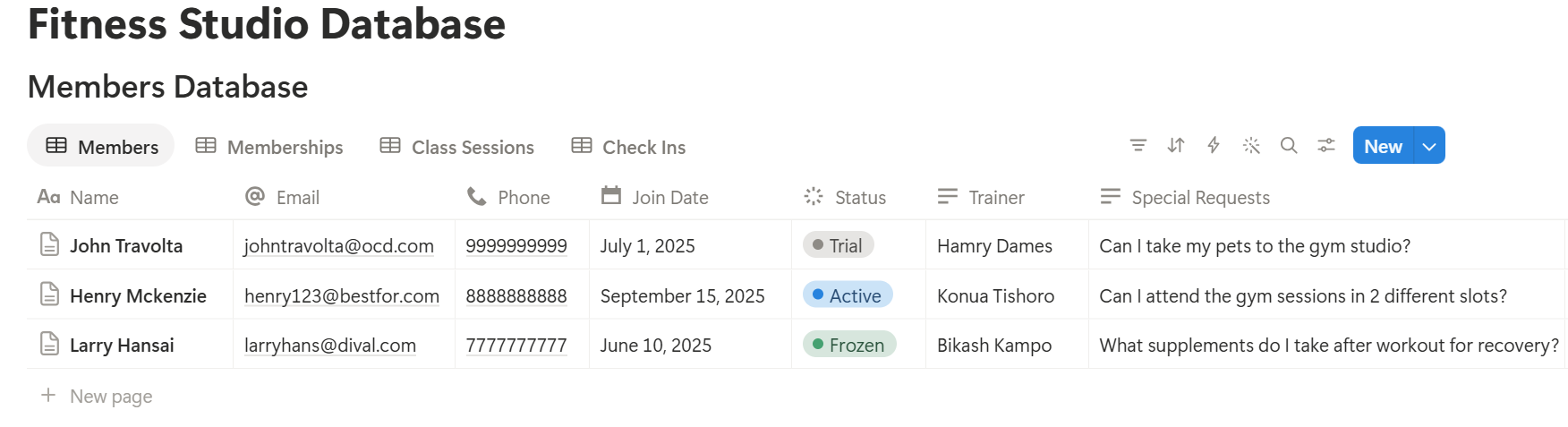
- Members Database : This stores the people who train with you. Add these properties: Name, Email, Phone, Join Date, Status (Trial, Active, Frozen, or Cancelled), Preferred Trainer, and Notes. Keep notes about goals and preferences, and leave out medical detail unless you have a clear need.
- Memberships Database : This stores what each member has bought. Add: Member (relation), Plan (Monthly, Quarterly, Annual, or Class Pack), Start Date, Term (in months), Price, and Payment Status (Paid, Pending, or Overdue).
- Class Sessions Database : This stores each class on the timetable. Add: Class Name, Date and Time, Trainer, Capacity, and Room.
- Check-ins Database : This stores each visit. Add: Date, Member (relation), Class (relation to Class Sessions, optional), and Type (Class, Open Gym, or Personal Training).
- In Memberships, add a relation to Members.
- In Check-ins, add a relation to Members and to Class Sessions.
- Renew soon: Memberships with the Renew soon flag, sorted by end date. This is the owner’s most valuable view.
- At risk: Members with the At risk flag, for a quick check-in message from a trainer.
- Overdue payments: Memberships with Payment Status set to Overdue.
- This week’s classes: a calendar view of Class Sessions, with the fill rate shown.
- New trials: Members with the status Trial, so someone can follow up before the trial ends.
- New member onboarding: goals, schedule preferences, a welcome message, and a first-week checklist.
- Trial follow-up: a checklist for the call after the first visit.
- Class plan: warm-up, main work, cool-down, and equipment needed.
- Equipment check: a short list of items to inspect and a space for notes.
- Cleaning checklist: areas, who cleaned them, and any issues.
- Monday. The owner opens the Renew soon view. Nine memberships end within two weeks. A trainer sends each one a short, personal message instead of a generic reminder.
- Tuesday. The At risk view shows seven members who haven’t visited in over two weeks. Two are on holiday, which the trainers already know. The other five get a friendly message asking if they want to book a session.
- Wednesday. The evening class hits 100% fill rate for the third week in a row. The owner sees it in the calendar view and decides to add a second session.
- Thursday. Three trial members are due for follow-up. The new trials view lists them, so none are forgotten.
- Friday. The Overdue payments view shows two memberships. The owner sends a polite reminder to each and updates the status when the money arrives.
- Membership agreements: plan, price, term, and terms of use
- Waivers and consent forms, if your local rules call for them (have these wording checked by someone qualified)
- Receipts and payment statements: proof of payment. Notion Receipt Template shows how to build one.
- Progress reports: attendance, goals, and notes from a trainer, for personal training clients
- Class timetables: a printable schedule for the wall or for new members
- Welcome packs: a short guide for new members
- Create your template with your logo and layout.
- Add placeholders in double curly braces where the data should go, such as
{{Member_Name}}or{{Plan}}. - Make sure each placeholder matches the name of a Notion property.
- Start the document with a Notion database button or a status property.
- Ready to Generate creates a PDF from the database record.
- Generate Page converts the Notion page into a PDF.
- Generate PDF and Doc creates a PDF and a Google document.
- Preview creates a Google document so you can check it before making the final PDF.
- Generate E-Signed Doc creates an e-signed PDF in the database workflow.
- Give the front desk access to check-ins and class lists, not to prices, margins, or notes.
- Let trainers see their own clients, not the whole member list.
- Keep any health-related notes in a separate, restricted page, or leave them out of Notion entirely.
- Do not give members access to your workspace. Send them a finished PDF.
- Remove access on the day someone leaves.
- Review who has access every few months.
- Collecting too much. A long form feels thorough, but it creates more to protect. Ask only for what you will use.
- Letting check-ins slip. Retention flags depend on visit data. Make logging part of the arrival routine, or let members check themselves in through a form.
- Using the same limits for everyone. A 14-day absence means different things for a daily gym-goer and a weekly yoga student. If you can, set the at-risk limit by plan or class type.
- Treating a flag as a verdict. An at-risk flag means “say hello,” not “this person has quit.” A personal message works better than an automated nudge.
- No owner. Pick one person responsible for the structure. Properties get renamed, duplicate databases appear, and formulas break. Tell that person not to rename properties used in PDF templates, because the placeholders must match exactly.
- Skipping the test. Run a few weeks with made-up members, and fix what annoys the front desk before you use real data.
- How to Use Notion for a Healthcare Clinic
- How to Use Notion for Freelancers
- Notion Receipt Template
- How to Export a Notion Database to PDF
Use formulas to show when memberships end, how often each member visits, and how full each class is. Create desired views for the front desk and for the owner.
When you need to give a member a document, such as an agreement or a progress report, create a PDF from the record.
Notion works well for small gyms, studios, and personal training businesses as a place to run the business behind the front door. Each member has a membership, each membership has an end date, and each visit is logged as a check-in.
Because the records are linked, you can see who hasn’t visited in two weeks, whose membership ends this month, and which classes are always runs full.
Notion doesn’t take payments, scan membership cards, or run a booking app for members. But, for the documents that members receive, you can export a page as a PDF or generate one from a template.
What Notion Can and Can’t Do for a Gym?
Notion is good for:
Notion is not made for:
If your gym already uses booking or billing software, treat Notion as the planning and follow-up layer beside it, and don’t try to rebuild those tools.
How to start with notion to create the entire setup…
Start With Member Privacy
Members trust you with personal details, and some of what gyms collect is sensitive. Think about what you really need before you start typing.
Privacy rules differ by country and by type of business, so check yours before you add real member data.
While you are testing, use made-up members.
Step 1: Create 4 Different Databases
Start with the following 4 databases. You can add more later.
Step 2: Link the Databases Together
A relation connects a record in one database to a record in another. This is what lets Notion do the counting for you.
Add these relations:
Now a member page shows their memberships and every visit in one place, and a class page shows who attended.
Step 3: Add Formulas That Watch Retention
These formulas do the watching for you.
On Memberships:
*End Date: dateAdd(prop("Start Date"), prop("Term"), "months") Days left: dateBetween(prop("End Date"), now(), "days") Renewal flag: if(prop("Days left") < 0, "Ended", if(prop("Days left") <= 14, "Renew soon", ""))*
On Members, add a rollup from Check-ins that shows the latest check-in date, and name it Last Visit. Then add:
*Days since visit: dateBetween(now(), prop("Last Visit"), "days") At-risk flag: if(prop("Status") == "Active" and prop("Days since visit") > 14, "At risk", "")*
On Class Sessions, add a rollup that counts the linked check-ins, and name it Attended. Then add:
Fill rate: if(prop("Capacity") > 0, prop("Attended") / prop("Capacity"), 0)
Format Fill Rate as a percent. The 14-day limits are only examples, so change them to fit how your members train. A studio where people come once a week needs a longer limit than a gym where people come daily.
Test each formula with made-up members and compare the results with a calendar.
How a Membership Looks Over Time
Here is one made-up member with a three-month plan, so you can see how the flags behave.
| Date | What happens | Days left | Flag shown |
|---|---|---|---|
| 1 January | Quarterly plan starts | 90 | None |
| 15 March | Two weeks left | 15 | None |
| 17 March | Two weeks or less left | 14 | Renew soon |
| 1 April | Plan ends | 0 | Renew soon, then Ended |
Pro Tip: Log check-ins at the front desk as people arrive. Visit data entered at the end of the week from memory will be wrong, and the at-risk flag will mislead you.
Step 4: Make Views for Each Person
A view is a different way of looking at the same database. Create these five:
Give the front desk a page with today’s classes and the check-in form. Give the owner a page with renewals, at-risk members, and class fill rates.
Step 5: Use Templates and Forms
Templates fill in a page layout for you, so routines start the same way every time.
Make a template for each of these:
A Notion form can collect trial sign-ups or feedback and add each answer to the right database, so staff don’t retype it. Check what your plan allows.
Step 6: A Week in an Imaginary Studio
To see how it fits together, here is a week at a small studio with 120 members. The studio and numbers are made up for illustration.
None of this needed a report to be built. The questions were already answered by the records.
Step 7: Create PDFs for Members
Members don’t use your Notion workspace, so some records need to become files. Common examples are:
For a single page, you can use Notion’s export option.
How to Export Notion to PDF shows the settings, and How to Export a Notion Database to PDF helps when your page is a table, such as a timetable.
Members also notice how your documents look. A plain export tells them nothing about your brand, and Notion’s own export gives you limited control over layout.
How to Add Your Logo and Brand Colors to Notion PDFs explains how a template solves that.
Step 8: Generate PDFs with PDFOutput
PDFOutput creates documents from your Notion data using a template. A template can be a Google document, a Word file, a PDF file, or a Notion page. If you already have an agreement or progress report layout in Word or Google Docs, you can reuse it.
Here is how it works:
These are some of the status options:
The e-signed option may help with membership agreements. Whether an electronic signature is valid for a given agreement or waiver depends on your location and the type of document, so check before you rely on it. You can save the finished file to a property in your database, so the agreement stays on the membership record. You can also save it to a Google Drive folder and store the link in a property.
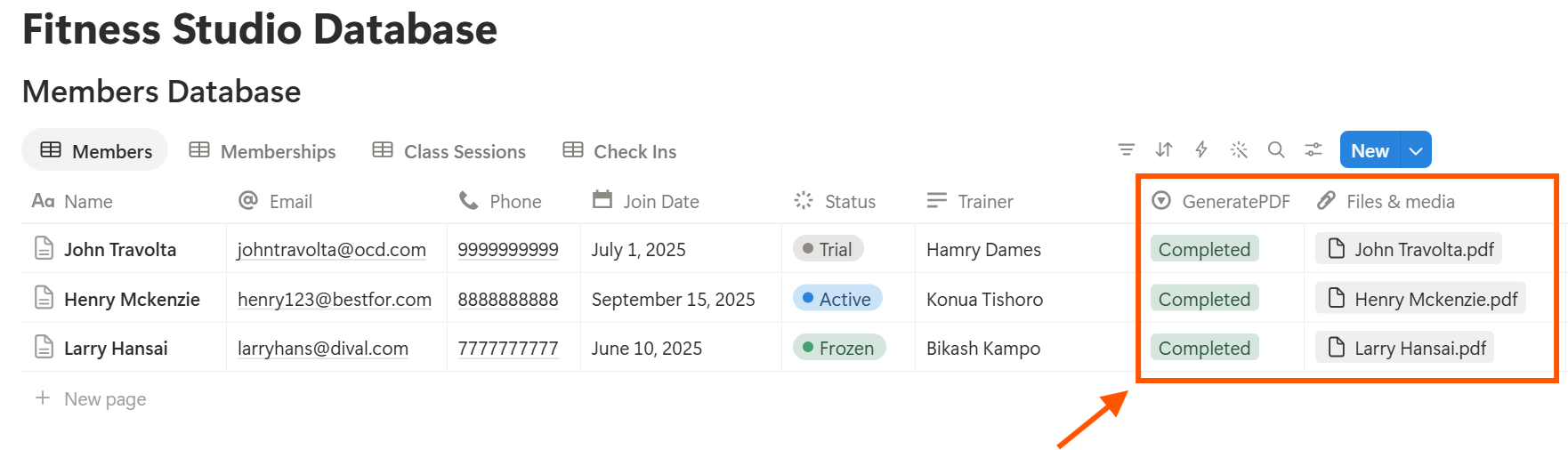
Start with the membership agreement, since every new member needs one. Use Preview first and check for empty fields, wrong date formats, and a price or term that doesn’t match your records.
Key Takeaway: Retention is the real prize. Start with members, memberships, and check-ins, so you can see who is about to leave before they do. Add classes and documents once those three work.
Step 9: Control Who Can See What
Decide who can see what before you share anything.
Common Mistakes
Frequently Asked Questions
Can Notion be used to run a gym?
Yes, for the planning and follow-up side: members, memberships, class schedules, check-ins, and equipment routines. It doesn’t take payments, scan membership cards, or run a booking app, so use dedicated tools for those.
How do I track gym memberships in Notion?
Create a Memberships database linked to Members, with a start date and a term in months. Add a formula that calculates the end date and a flag that shows when a membership is ending soon.
How can I spot members who are about to leave?
Log every visit as a check-in, roll up each member’s last visit date, and add a formula that flags active members who haven’t visited in a set number of days. Then follow up personally.
Can I track class attendance in Notion?
Yes. Create a Class Sessions database and link each check-in to a session. A rollup counts attendance, and a formula divides it by capacity to show how full each class is.
Can I create membership agreements from Notion?
You can export a page as a PDF, or use a template-based tool such as PDFOutput to fill an agreement template with data from each membership record. Have the agreement wording checked by someone qualified, and test the layout on sample records first.
Is it safe to store member information in Notion?
Notion lets you control who sees each page, but your duties depend on the privacy rules where you work. Collect only what you need, keep payment card details out, and take extra care with any health information.
Can personal trainers use Notion?
Yes. A solo trainer can use the same setup with fewer databases: clients, sessions, and progress notes.
How to Use Notion for Freelancers covers the invoicing side.
Related Reading
Conclusion
A good gym setup in Notion has three parts: memberships that warn you before they end, visit records that show who is drifting away, and documents that look professional. Start with four databases and a few formulas, with privacy settled first. Use it for a month, then fix what feels slow.
When your agreements, receipts, and progress reports need to leave Notion, PDFOutput can fill your template from each record and save the PDF to your chosen storage.
Want member agreements and reports as clean PDFs? Try PDFOutput.