Guides
How to Use Notion for a Farm: Crops, Livestock, and Harvest Records
Learn how to set up Notion for a farm with fields, plantings, livestock, treatments, and harvest records, plus PDF delivery notes, field records, and yield reports.
By Sanat Biswal · 2026-10-19 · 5 min read

{/ synced-from-notion — do not edit manually /}
A farm runs on a calendar that doesn’t care how busy you are.
Seed goes in when the soil is ready. Animals need treatment on a schedule. Harvest happens when the crop is ripe, whatever else is going on.
In between, you find a notebook in the tractor, receipts that are present in a glovebox, and a vet’s number on the wall. When someone asks what went on a field two seasons ago, the answer is usually “I think it was in that book.”
Notion can help answer you all these questions in one place.
This guide is for small and mid-sized farms with crops, livestock, or both.
It follows the farm year, from planning in winter to review after harvest, and shows how to set up fields, plantings, animals, treatments, costs, and harvests.
It also shows how to turn records into PDFs such as delivery notes, field records, and yield reports.
This is all general information and is not to be considered as agronomic, veterinary, legal, or financial advice.
Short answer on how to use Notion for farm crops:
To use Notion for a farm, create linked databases for Fields, Plantings, Harvests, Livestock, Treatments, and Costs.
Use formulas to work out expected harvest dates, yield per field, profit per field, and the date an animal is safe to sell after a treatment. Keep official records in the format your regulator requires, and use Notion as the working copy.
When you need to give someone a document, such as a delivery note or a field record, create a PDF from the record.
Detailed Guide on using Notion for farm crops
Notion works well for a farm as a shared working record.
Each field, planting, animal group, treatment, cost, and harvest is a record, and the records are linked, so a field page shows what was planted, what was applied, what it cost, and what it produced.
Notion isn’t weather forecasting, field mapping, sensor software, or accounting software, and it doesn’t replace records your regulator or buyers require in a set format. It works best beside those tools.
For documents that buyers, vets, and inspectors receive, you can export a page as a PDF or generate one from a template.
Table of Contents
What Notion Can and Can’t Do for a Farm
Notion is good for:
- Keeping fields, crops, and animals in one place.
- Recording what was planted, applied, and harvested.
- Working out expected harvest dates and yields.
- Tracking treatments and the date animals can be sold.
- Watching costs and profit by field.
- Creating consistent delivery notes, field records, and reports.
- Weather forecasts or soil sensor data.
- Field maps and GPS boundaries.
- Machine data from tractors and equipment.
- Accounting, tax, and payroll.
- Replacing official records in the format your regulator requires.
- Official records. Many places require farms to keep specific records, such as chemical applications, medicines given to animals, animal movements, and food safety checks. The format, the detail, and the time you must keep them differ by country and by what you grow or raise. Check what applies to you, and keep the official version in the format required. A Notion record can be your working copy, but it may not meet the rules by itself.
- Certification and buyers. Organic, quality assurance, and buyer schemes often ask for particular records. Ask your certifier or buyer what they need before you design your databases.
- Safety. Notes about chemicals and treatments should point to the label and safety sheet, and not replace them. Follow the product label and the advice of your vet or adviser.
- Business details. Land locations, yields, prices, and staff details are sensitive. Share only with the people who need them.
- Payment details. Never store card numbers or bank logins in Notion.
- Fields stores each field or plot. Add these properties: Field Name, Area (in hectares or acres), Soil Notes, Map Link, and Status (In Use, Fallow, or Rented Out).
- Plantings stores each crop in a field for a season. Add: Field (relation), Crop, Variety, Season, Planting Date, Days to Maturity, Expected Harvest (a formula), Status (Planned, Planted, Growing, Harvested, or Failed), and Notes.
- Harvests stores each harvest. Add: Planting (relation), Harvest Date, Quantity, Unit (for example tonnes or kilograms), Quality Notes, Storage Location, and Sold To.
- Livestock stores animals or groups. Add: Name or Tag, Species, Group (for example “Ewes, north paddock”), Birth Date, Status (Active, Sold, or Died), Location, and Notes.
- Treatments stores medicines and procedures. Add: Animal or Group (relation), Treatment Date, Product, Dose, Given By, Withdrawal Days, Safe to Sell From (a formula), and Vet or Adviser.
- Costs stores money out and in. Add: Description, Date, Amount, Type (Seed, Fertilizer, Chemicals, Fuel, Labour, Feed, Vet, Other, or Sale), Field (relation, optional), and Animal Group (optional).
- Goals: yield targets, new crops, or areas to improve
- Budget: estimated costs for seed, inputs, labour, and fuel
- Key dates: when you expect to plant, spray, and harvest
- Jobs to do in winter: equipment servicing, fence repairs, and training
- Contracts and buyers: what’s already agreed
- Seed and variety, with the batch number if you have one
- Seed rate and depth, if you track them
- Soil conditions and weather on the day
- Who did the work, and what machinery was used
- Jobs this week: tasks with a date in the next seven days.
- Fields by status: a board of Plantings grouped by Status, so you can see what’s growing and what’s next.
- Scouting notes: the latest notes by field, for walking the farm.
- Do not sell: Treatments with the hold flag, so nobody sells an animal by mistake.
- Treatments this month: a record of what was given, to which animals, and by whom.
- By animal: each animal’s full treatment history.
- Deliveries this week: sales with a delivery date in the next seven days.
- Unpaid sales: sales with a payment status of Unpaid, sorted by date.
- By buyer: sales grouped by buyer, so you can see who you rely on.
- Delivery notes: what was delivered, to whom, from which field or group
- Field records: what was planted, applied, and harvested in a field, for an adviser or an audit
- Treatment records: what was given to which animals, for a vet or inspection, in the format your regulator requires
- Harvest and yield reports: the numbers for a season
- Invoices and receipts. Notion Receipt Template shows how to structure one.
- Work orders for contractors: a clear job description for a contractor or a seasonal worker
- Seasonal summaries: for a bank, a landlord, or a partner. Notion to Excel helps if your accountant wants the numbers in a spreadsheet.
- Price lists and box sheets: for direct sales
- Create your template with your farm’s name and layout.
- Add placeholders in double curly braces where the data should go, such as
{{Field_Name}}or{{Harvest_Date}}. - Make sure each placeholder matches the name of a Notion property.
- Start the document with a Notion database button or a status property.
- Ready to Generate creates a PDF from the database record.
- Generate Page converts the Notion page into a PDF.
- Generate PDF and Doc creates a PDF and a Google document.
- Preview creates a Google document so you can check it before making the final PDF.
- Generate E-Signed Doc creates an e-signed PDF in the database workflow.
- Give seasonal workers access to the tasks and checklists they need, not to costs, prices, or buyers.
- Keep yields, prices, and profit out of views that other staff can open.
- Share a field or an animal record with a vet or adviser only as a finished PDF.
- Don’t give buyers access to your workspace. Send them a finished PDF.
- Never store bank logins, card numbers, or passwords.
- Remove access on the day someone leaves.
- Review who has access every few months.
- How to Use Notion for a Restaurant
- How to Use Notion for a Logistics Business
- How to Use Notion for an E-commerce Business
- Notion to Excel
Notion is not made for:
If you already use mapping, accounting, or herd management software, treat Notion as the planning and records layer beside it.
Add a link to a map or a file on the field record, and don’t try to copy it.
Records, Rules, and Privacy
Farming comes with more record-keeping rules than most small businesses face.
While you are testing, use made-up fields and animals to test this out.
Use these 6 Databases
Start with these 6 databases to begin with. You can add more later, such as Equipment and Work Log.
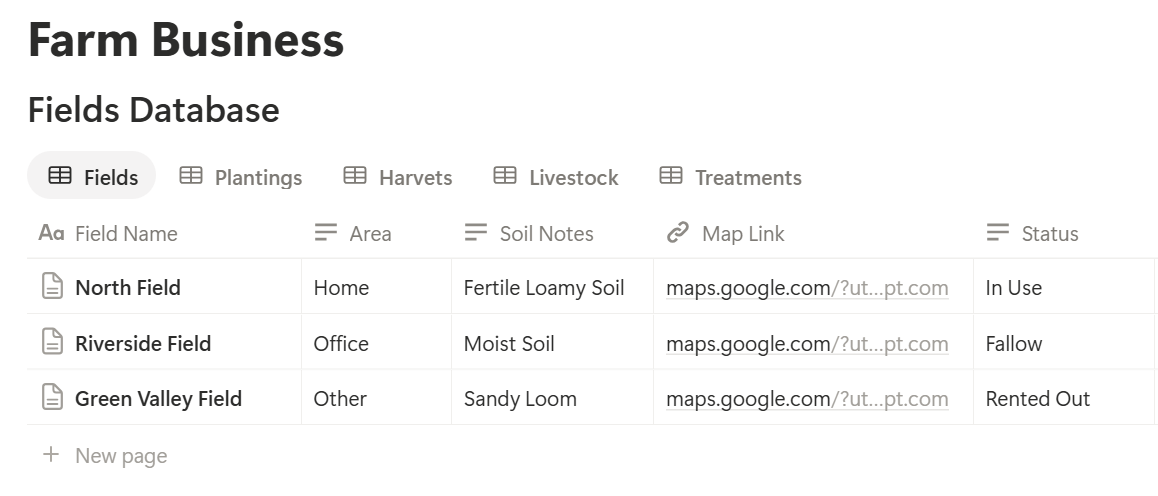
A relation connects a record in one database to a record in another. Link Plantings to Fields, Harvests to Plantings, Treatments to Livestock, and Costs to Fields. Now a field page shows its plantings, its harvests, and its costs together.
Winter: Plan the Season
Winter is for decisions, and it’s the best time to set up the system.
Create a Plantings record for each field and crop you plan to grow next season, with the status Planned. Add the variety, the area, and notes on rotation, such as what was grown there last year and why this crop follows it. A table view grouped by Field shows the whole rotation at a glance.
Add a Season plan page with:
Link last season’s results, so the plan builds on facts and not on memory.
Planting: Field and Crop Records
When planting happens, update the record, and don’t start a new one. Set the status to Planted and enter the Planting Date.
On Plantings, add these formulas:
*Expected Harvest: dateAdd(prop("Planting Date"), prop("Days to Maturity"), "days") Days to harvest: dateBetween(prop("Expected Harvest"), now(), "days") Harvest flag: if(prop("Status") == "Growing" and prop("Days to harvest") <= 14 and prop("Days to harvest") >= 0, "Harvest soon", "")*
The flag shows Harvest soon in the two weeks before the expected date. Days to maturity is an estimate. Weather, variety, and sowing date change it, so treat the date as a guide and check the crop itself. Test the formulas with made-up plantings and check them against a calendar.
Record what you did at planting:
A short note now saves a long search later.
Pro Tip: Write down what went wrong as well as what went right. "Late frost hit the lower corner" is the kind of line you'll be glad of in three years.
Growing: Tasks and Inputs
Between planting and harvest, the work is checks, treatments, and decisions.
Add a Field task record each time something is done: fertilizer, spraying, irrigation, weeding, or scouting. Record the field, the date, the product, the amount, and who did it. If a product is a regulated chemical, follow the label and your local rules, and keep the official record in the required format. Use Notion as the working copy, and link to the product label.
Link the cost of inputs to the field through the Costs database, so a field page shows what you’ve spent. A rollup on Fields that sums Costs by season gives the running total.
Make these views:
Weather matters more than any formula. Notion can’t forecast it. Keep a note of the weather events that mattered, such as frost, drought, hail, or flooding, with dates, because they explain yields and may matter for insurance.
Livestock: Animals, Health, and Withdrawal Dates
Livestock records matter for animal welfare, for food safety, and for the law.
Animals and Groups
Add each animal, or each group if you manage them together. Record a tag or name, species, birth date, location, and status. A table view grouped by Group or Location gives you a count at a glance.
On Livestock, add a formula for age:
Age (months): dateBetween(now(), prop("Birth Date"), "months")
Treatments and Safe-to-Sell Dates
Some medicines have a withdrawal period, which means the animal, its meat, or its milk can’t be sold for a set time after treatment. Missing it can be a serious food safety and legal problem, so this is the most important formula in the livestock section.
On Treatments, add:
*Safe to Sell From: dateAdd(prop("Treatment Date"), prop("Withdrawal Days"), "days") Hold flag: if(prop("Safe to Sell From") > now(), "Do not sell", "")*
Here is a made-up example.
| Item | Value |
|---|---|
| Animal group | Ewes, north paddock |
| Treatment date | 3 June |
| Product | Entered from the label |
| Withdrawal period | 14 days |
| Safe to sell from | 17 June |
Make these views:
For health plans, a Vet visit template with the date, the vet’s name, what was found, what was advised, and follow-up dates keeps everything in one place.
Harvest: Yields and Storage
At harvest, record the numbers while they’re fresh.
For each Harvest record, link it to its planting, and enter the date, the quantity, the unit, the quality notes, and where it’s stored. On Plantings, add a rollup that sums Quantity from Harvests, and name it Total Harvested. Then add a formula for yield, using the field’s area brought in with a rollup:
Yield per area: if(prop("Area") > 0, prop("Total Harvested") / prop("Area"), 0)
Here is a made-up wheat field. Amounts are in your own currency.
| Item | Value |
|---|---|
| Field | North field, 10 hectares |
| Crop | Wheat |
| Harvested | 45 tonnes |
| Yield per hectare | 4.5 tonnes |
| Costs: seed | 1,200 |
| Costs: fertilizer | 2,000 |
| Costs: fuel | 800 |
| Costs: labour | 1,500 |
| Total costs | 5,500 |
| Sold at 180 per tonne | 8,100 |
| Profit | 2,600 |
| Profit per hectare | 260 |
For storage, keep a Storage property on each harvest and a view grouped by location. Check stored grain, hay, and produce on a schedule, and record the checks. Safe storage conditions depend on the crop, so follow your adviser’s guidance.
Selling: Delivery Notes and Invoices
Selling is where records turn into money, and where mistakes are costly.
For each sale, record the buyer, the product, the quantity, the price, and the delivery date. A Sale record in the Costs database, or a separate Sales database if you prefer, works. Link it to the harvest or the animal group it came from, so you can trace what was sold from where.
Make views for money:
Buyers often ask for a delivery note or traceability details, such as the field, the harvest date, and any treatments. Having them linked makes that quick. Check what your buyer, your certifier, and your local rules require.
Direct selling, such as farm shops, boxes, or markets, adds more records, such as orders, packing lists, and customers. Keep it simple at first, and add more once the basics are working.
Review: Which Fields and Animals Pay?
After harvest, take an afternoon to look at the year.
On Fields, group costs and sales by season, and compare fields with a table view. Which fields earned the most per hectare? Which ones cost more than they returned? Was it the field, the crop, the weather, or the timing? Write a short Season review note for each field, with three lines: what worked, what didn’t, and what you’ll change.
For livestock, review the numbers that matter for your animals, such as births and losses, treatments given, feed costs, and sales. A group that needs a lot of treatment, or costs more in feed than it earns, deserves a closer look.
These numbers leave out many costs, such as machinery, land, your own time, and loans, so use them as a guide for decisions about fields and groups, and check the full figures with an accountant. Record-keeping and tax rules differ by place. Test every formula with made-up numbers and check it with a calculator.
A Week on a Mixed Farm
To see how the pieces fit, here is one made-up week on a farm with crops and sheep.
Monday. The farmer opens Jobs this week. Two fields need a fertilizer pass, and a field of barley shows Harvest soon. He opens the barley record and sees the expected date and the days to go.
Tuesday. He treats a group of ewes. Before he does, he records the product, the dose, and the withdrawal period from the label. The Do not sell view now shows the group until 17 June, so nobody puts them on the sale list by mistake.
Wednesday. He spreads fertilizer on both fields, and records the product, the amount, and the cost. The field pages update their cost totals.
Thursday. The vet visits to check a lame ewe. The farmer fills in the vet visit template, and adds the follow-up date to his Jobs list.
Friday. A buyer asks for details of last year’s wheat from the north field. He opens the planting record, and finds the variety, the inputs, the harvest date, and the yield in one place. He sends a summary as a PDF in ten minutes.
Saturday. He walks the barley, writes scouting notes, and updates the status to Harvest soon.
Nothing lived only in the tractor notebook.
The Documents That Leave Notion
Buyers, vets, advisers, and inspectors don’t use your workspace, so some records need to become files:
For a single page, you can use Notion’s export option. How to Export Notion to PDF shows the settings, and How to Export a Notion Database to PDF helps with tables, such as a list of treatments.
Buyers and inspectors notice how tidy your records look, and Notion’s own export gives you limited control over layout. How to Add Your Logo and Brand Colors to Notion PDFs explains how a template solves that.
Generating PDFs with PDFOutput
PDFOutput creates documents from your Notion data using a template. A template can be a Google document, a Word file, a PDF file, or a Notion page. If you already have a delivery note or record layout in Word or Google Docs, you can reuse it.
Here is how it works:
These are some of the status options:
The e-signed option may help with delivery receipts and contractor agreements. Whether an electronic signature is valid for a given document depends on your location and the type of document, so check before you rely on it. You can save the finished file to a property in your database, so a delivery note stays on its sale record.
You can also save it to a Google Drive folder and store the link in a property.
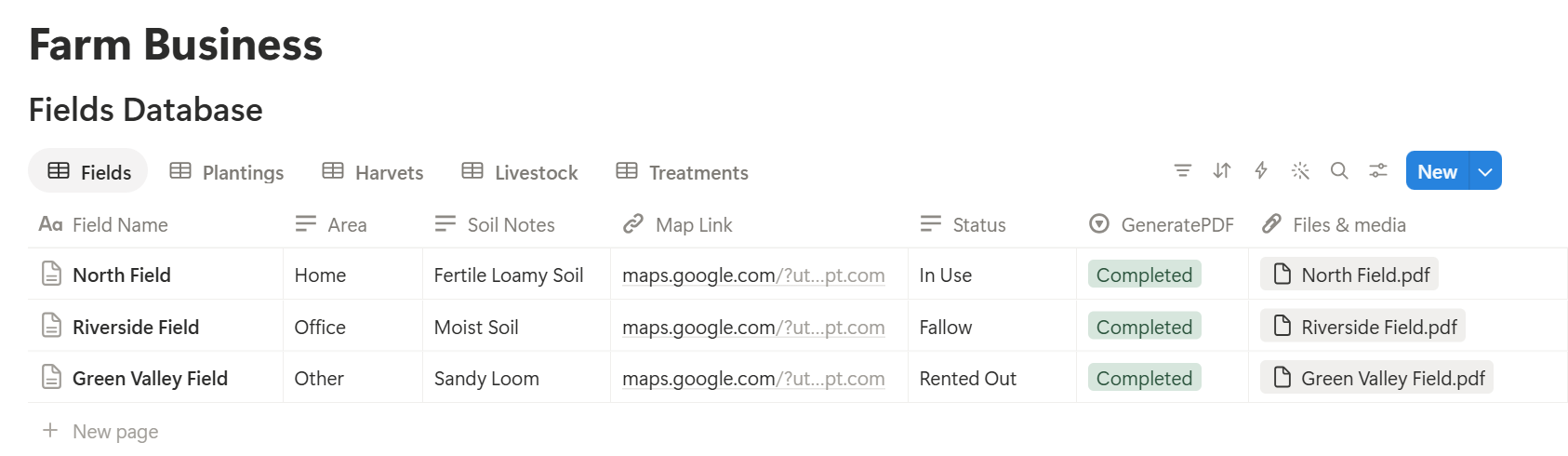
A field record lists many inputs, and a treatment record may list many animals, each stored as its own linked record. Before you rely on a template to list them all, test it with a sample field that has several, and check that each appears the way you want. If it doesn’t, a simple fallback is to keep a short text summary on the field or group, and use that in the template, or to export a filtered view with Notion’s own export.
Start with the delivery note, since you send one with every sale. Use Preview first and check for empty fields, wrong date formats, and quantities that don’t match your records.
Key Takeaway: Record what you did, when, and where, and tie it to a field or an animal group. If the records are linked, delivery notes, field records, and yield reports come from data you already have.
Who Can See What
Your workspace will hold yields, prices, land details, and staff information, so control access from the start.
Common Mistakes
Treating Notion as the official record. If your regulator or certifier requires a set format, keep that record, and use Notion as the working copy.
Trusting a withdrawal date from a formula. Take the period from the product label and your vet. A formula only does the date sum.
Not recording the small jobs. The scouting walk, the missed gate, and the odd frost explain results. Write them down.
Mixing units. If one harvest is in tonnes and another in kilograms, yields mislead. Pick one unit per crop.
Updating at night from memory. Record jobs the same day when you can, and keep notes short. If phone signal is poor in your fields, test how Notion behaves there, and enter records once you’re back in range.
Too many properties. If a task takes five minutes to log, you will stop logging. Keep it short.
No owner for the structure. If you work with a team, pick one person responsible for the setup. Properties get renamed and formulas break, so tell that person not to rename properties used in PDF templates, because the placeholders must match exactly.
Skipping a test. Run one pretend season through the setup in winter, and fix what annoys you before you use real records.
Frequently Asked Questions
Can Notion be used for farm management?
Yes, for planning and working records: fields, plantings, livestock, treatments, costs, and harvests. It doesn’t forecast weather, map fields, read machine data, or replace official records in the format your regulator requires.
How do I track crops in Notion?
Create a Fields database and a Plantings database linked to it, with a crop, a planting date, days to maturity, and a status. Add a formula that calculates the expected harvest date, and a flag for when harvest is close.
How do I track livestock treatments in Notion?
Create a Treatments database linked to your animals or groups, with the date, product, dose, and withdrawal days. Add a formula that adds the withdrawal days to the treatment date, and a flag that shows “Do not sell” until that date has passed. Take withdrawal periods from the label and your vet.
How do I calculate yield and profit per field in Notion?
Roll up the harvest quantity on each planting and divide by the field’s area to get the yield. Roll up the costs and sales linked to each field, and subtract costs from sales for the profit. Check the results against a calculator.
Can I create delivery notes and field records from Notion?
You can export a page as a PDF, or use a template-based tool such as PDFOutput to fill a delivery note or record template with data from each record. Test it on a few sample records first, and check what your buyer or regulator needs.
Can I use Notion in the field with poor signal?
Notion has a mobile app, though some actions are easier on a computer, and how it behaves with a weak signal depends on your device and plan. Test it in your own fields, and plan to enter anything that doesn’t save once you’re back in range.
Is it safe to store farm information in Notion?
Notion lets you control who sees each page, but your duties depend on the rules where you work. Keep official records in the required format, share yields and prices only with people who need them, and keep bank details out.
Related Reading
Conclusion
A good farm setup in Notion follows the year: plan in winter, record plantings and treatments as they happen, capture yields at harvest, and review what paid. Start with fields, plantings, and treatments, keep your official records in the format required, and run a pretend season through the system first. When your delivery notes, field records, and yield reports need to leave Notion, PDFOutput can fill your template from each record and save the PDF to your chosen storage.
Want delivery notes and field records as clean PDFs? Try PDFOutput.