Guides
How to Use Notion for Event Planning: From First Call to Final Invoice
Learn how to set up Notion for event planning with clients, vendors, budgets, and a run-of-show, then create PDF quotes, schedules, and vendor sheets.
By Sanat Biswal · 2026-10-15 · 5 min read

{/ synced-from-notion — do not edit manually /}
An event planner never works on just one event. A wedding in March, a corporate dinner in April, and a product launch in May all need your attention at the same time.
Each one has its own client, its own vendors, its own budget, and its own list of things that can go wrong.
Notion can help to keep all of that in one place. This guide follows one made-up event, a corporate dinner for 120 guests, from the first client call to the final invoice.
Along the way, it will show how to set up Notion for clients, vendors, budgets, tasks, and the day-of schedule, and how to turn those records into PDFs.
Quick answer on how to use notion for event planning?
To use Notion for event planning, create linked databases for Events, Clients, Vendors, Tasks, and Budget Items.
Use formulas to count down to the event date, flag overdue tasks, and show how far over or under budget you are.
Build a run-of-show for the day itself. When you need to send something to a client or vendor, such as a quote, a schedule, or a vendor brief, create a PDF from the record.
Notion works well for independent planners and small agencies because every event follows a similar pattern but has its own details.
Each event is a record, and tasks, vendors, budget lines, and schedule items are linked to it.
A template will let you start each new event with the same task list, so nothing gets forgotten. Notion doesn’t take payments, sell tickets, or manage online registration.
For documents that clients and vendors receive, you can export a page as a PDF or generate one from a template.
What Notion Can and Can’t Do for Event Planners
Notion is good for:
- Running several events at once without mixing anything up.
- Reusing a task list and timeline for each new event.
- Tracking budgets against actual costs.
- Keeping vendor details, quotes, and contracts organized.
- Building the run-of-show for the day.
- Creating consistent quotes, schedules, and vendor briefs.
- Selling tickets or taking in any new registrations.
- Taking payments from the customers.
- Seating out the chart design
- Sending bulk invitations
- Events stores each event. Add these properties: Event Name, Client (relation), Event Date, Venue, Guest Count, Status (Inquiry, Proposal Sent, Confirmed, In Planning, Done, or Lost), and Budget.
- Clients stores who you work for. Add: Name, Contact Person, Email, Phone, and Notes.
- Vendors stores your suppliers. Add: Company, Category (Venue, Catering, Flowers, AV, Photography, or Other), Contact, Email, Phone, and Rating (your own score).
- Tasks stores what needs to happen. Add: Task Name, Event (relation), Due Date, Owner, and Status (To Do, Doing, Waiting, or Done).
- Budget Items stores each cost. Add: Item, Event (relation), Vendor (relation), Estimated, Actual, and Paid (checkbox).
- Confirm the venue and sign the contract
- Choose the catering menu and confirm dietary needs
- Book AV and test the equipment
- Order flowers and signage
- Send the draft schedule to the client
- Confirm the final guest count
- Final costs: update every Actual figure and tick Paid when you settle with each vendor.
- Client invoice: compare the final costs to the original budget, and send the invoice. How to Use Notion for Freelancers covers invoicing in more detail.
- Vendor ratings: score each vendor while it is fresh.
- Notes for next time: what worked, what didn’t, and what you would change.
- Feedback: ask the client what they thought, and record it.
- Quotes and proposals for clients
- Client schedules: the draft timeline for approval
- The run-of-show: a printed copy for you and your team
- Vendor briefs: one page per vendor with the times, the location, and what you need from them
- Budget summaries: a clear comparison of estimate and actual
- Final invoices
- Create your template with your logo and layout.
- Add placeholders in double curly braces where the data should go, such as {{Event_Name}}
or{{Event_Date}}`. - Make sure each placeholder matches the name of a Notion property.
- Start the document with a Notion database button or a status property.
- Ready to Generate creates a PDF from the database record.
- Generate Page converts the Notion page into a PDF.
- Generate PDF and Doc creates a PDF and a Google document.
- Preview creates a Google document so you can check it before making the final PDF.
- Generate E-Signed Doc creates an e-signed PDF in the database workflow.
- How to Use Notion for an Agency
- How to Use Notion for a Restaurant
- Notion Proposal Template
- How to Use Notion for Freelancers
Notion is not made for:
If you already use ticketing or registration software, treat Notion as the planning layer beside it.
The Setup: Use of 5 Databases
Create these once, and use them for every event.
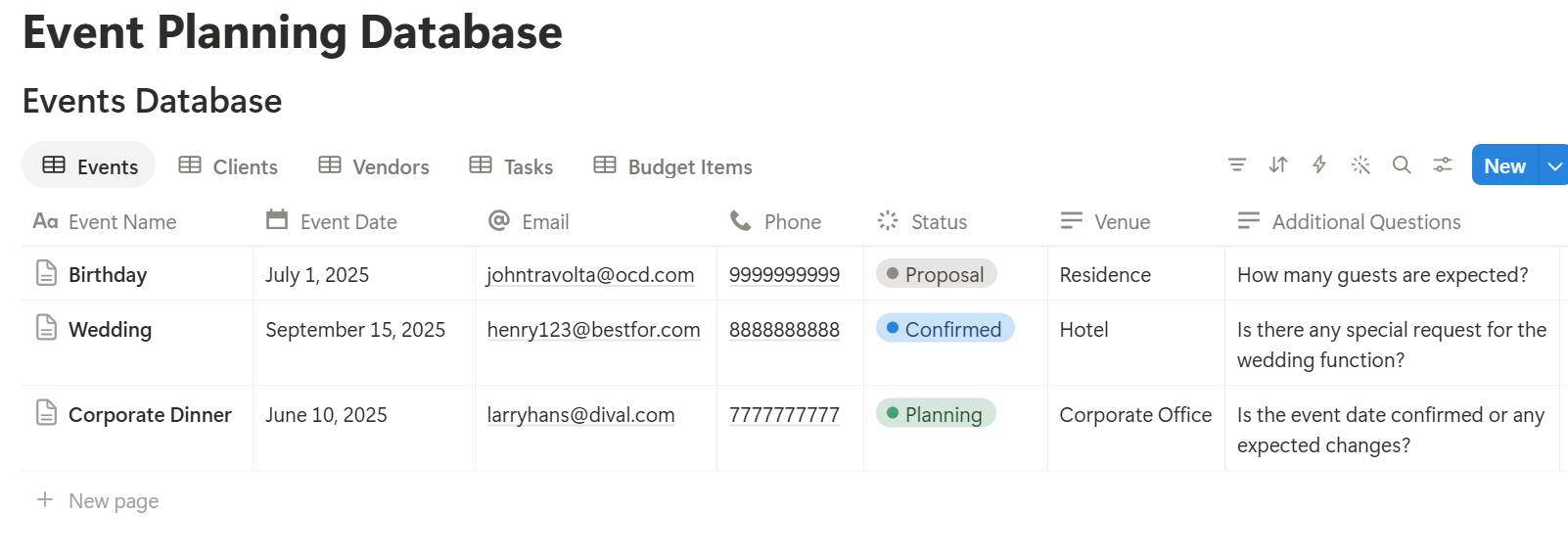
A relation connects a record in one database to a record in another. Link Tasks and Budget Items to Events, and link Budget Items to Vendors. Now an event page shows its tasks and costs, and a vendor page shows every event you have used them for.
Phase 1: Before You Sign (Inquiry to Proposal)
Our example starts with a call. A company wants a dinner for 120 guests in six weeks.
Create an event record with the status Inquiry, and link it to a new client record. Fill in the date, the guest count, and the budget the client mentioned. Use a short template for the call itself: goals, must-haves, things to avoid, and who decides.
Then write the proposal. If you want a structure for it, Notion Proposal Template walks through one. When it goes out, change the status to Proposal Sent. When the client says yes, change it to Confirmed.
A board view of Events grouped by status shows your whole pipeline at a glance. Check the Proposal Sent column every Monday, because proposals that sit unanswered usually need a nudge.
Phase 2: Planning (Six to Eight Weeks Out)
Once an event is confirmed, a task template saves you hours. Make a template for each event type, such as Corporate Dinner or Wedding, with the standard tasks already listed and relative due dates in your notes.
For the corporate dinner, the starter list might include:
Add these formulas to the Events database:
``
Days to go: dateBetween(prop("Event Date"), now(), "days")
`
And these to Tasks:
`
Overdue: if(prop("Status") != "Done" and prop("Due Date") < now(), "Overdue", "")
`
Now every event shows how many days remain, and every late task is flagged. Test the formulas with made-up events and compare the results with a calendar.
Pro Tip: Give every task an owner, even if the owner is you. A task that belongs to everyone belongs to no one.
Vendors
Add each vendor you book as a budget item linked to the event, with their quote as the estimated cost. After the event, rate the vendor on your Rating property. Over time, your Vendors database becomes an honest record of who is worth using again.
The Budget in Practice
Budgets slip in small ways. Here is the made-up dinner’s budget after catering and AV costs changed. Amounts are in your own currency.
| Item | Estimated | Actual | Difference |
|---|---|---|---|
| Venue | 4,000 | 4,000 | 0 |
| Catering | 6,000 | 6,300 | +300 |
| Flowers | 800 | 650 | -150 |
| AV | 1,200 | 1,500 | +300 |
| Total | 12,000 | 12,450 | +450 |
`
Difference: prop("Actual") - prop("Estimated")
`
On Events, add a rollup that sums Estimated, one that sums Actual, and then a formula for the gap:
`
Over budget: if(prop("Total Actual") > prop("Total Estimated"), "Over budget", "")
`
The flag appears the moment the actual costs pass the estimate, so you can talk to the client before the invoice, not after. Format the numbers as currency, and check the totals against a calculator.
Phase 3: The Final Two Weeks
Two weeks out, the work shifts from planning to confirming.
Guest numbers. If you track guests, add a Guests database linked to the event, with Name, Attending (checkbox), and Dietary Needs. A rollup on the event that counts the checked boxes shows your confirmed number. Guest details are personal, and dietary needs can reveal health information, so collect only what the caterer needs, share it only with them, and check the privacy rules where you work.
Vendor confirmations. Make a view of Budget Items for this event, showing vendor, status, and a Confirmed checkbox. Call anyone who hasn’t confirmed.
The run-of-show. This is the minute-by-minute schedule for the day. Create a Schedule database linked to the event, with Start Time, Duration, Activity, Owner, and Notes. For our dinner it might look like this:
| Time | Activity | Owner |
|---|---|---|
| 15:00 | Venue access and setup | Planner |
| 16:30 | AV check | AV vendor |
| 17:30 | Catering team arrives | Caterer |
| 18:30 | Guests arrive | Planner |
| 19:00 | Welcome speech | Client |
| 19:30 | Dinner service | Caterer |
| 21:30 | Awards | Client |
| 22:30 | Close and pack down | Planner |
Phase 4: Event Day
On the day, you don’t want to hunt through a workspace. Make one page for the event that holds the run-of-show, the vendor contact list, the guest count, and an emergency list: venue contact, nearest first aid, and a backup contact for each key vendor.
Notion’s mobile app has fewer options than the desktop version, so open the page on your phone ahead of time and check that it loads well. Most planners also print a copy, which is the next part.
Phase 5: After the Event
The work isn’t done when the guests leave. Use a wrap-up template on the event with these items:
Change the status to Done. Your next event will start from a better template than this one did.
The Documents That Leave Notion
Clients and vendors don’t use your workspace, so several records need to become files:
For a single page, you can use Notion’s export option.
How to Export Notion to PDF shows the settings, and How to Export a Notion Database to PDF helps with tables such as a run-of-show.
Event clients judge you partly on how your documents look, and Notion’s own export gives you limited control over layout.
How to Add Your Logo and Brand Colors to Notion PDFs explains how a template solves that.
Generating PDFs with PDFOutput
PDFOutput creates documents from your Notion data using a template. A template can be a Google document, a Word file, a PDF file, or a Notion page. If you already have a quote or schedule layout in Word or Google Docs, you can reuse it.
Here is how it works:
These are some of the status options:
The e-signed option may help with client agreements and vendor contracts. Whether an electronic signature is valid for a given contract depends on your location, and the contract wording should be checked by someone qualified. You can save the finished file to a property in your database, so the quote stays on the event record. You can also save it to a Google Drive folder and store the link in a property.
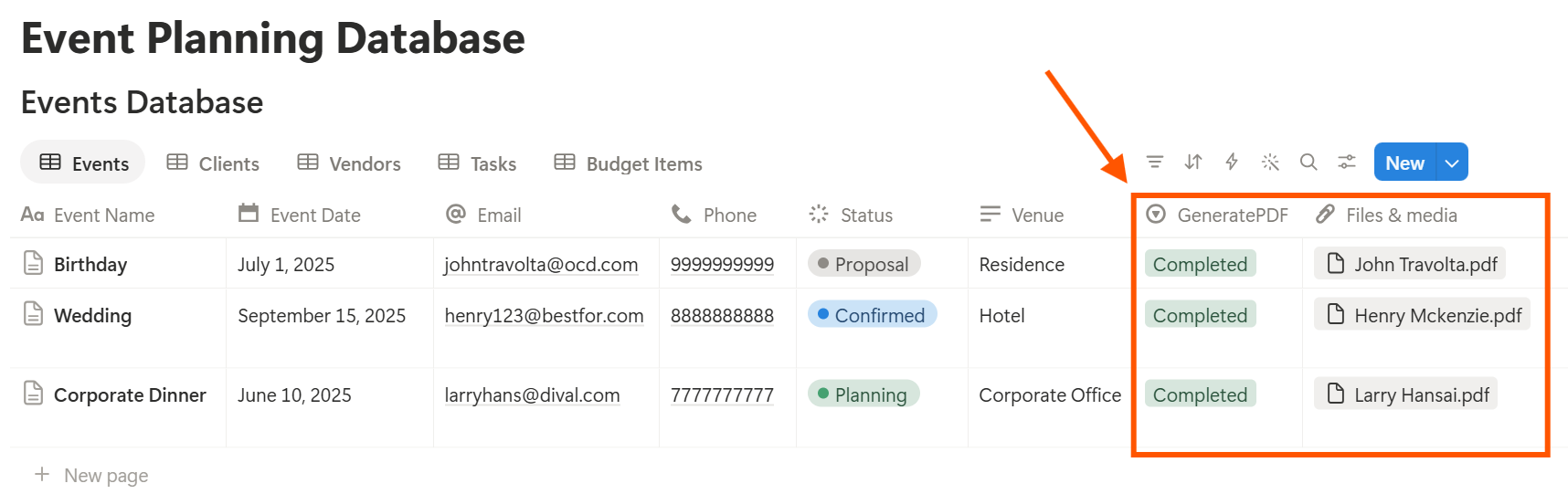
Start with the client quote, since you send one for every event. Use Preview first and check for empty fields, wrong date formats, and amounts that don’t match your budget.
Key Takeaway: Build the event template once and reuse it. A good task list, a clear budget, and a run-of-show you can print are what keep an event calm on the day.
What Usually Goes Wrong
Budgets that nobody updates. The over-budget flag only works if Actual is filled in as bills arrive. Make it part of paying each vendor.
Task lists that live only in your head. Anything not in the task database doesn’t get reminders, and doesn’t get delegated.
Collecting too much guest data. Ask for what the caterer and venue need, and nothing else.
Too many properties. If you have to scroll sideways to enter a task, you will stop doing it. Cut what you don’t use.
No owner for the structure. Pick one person responsible for the setup. Properties get renamed and formulas break, so tell that person not to rename properties used in PDF templates, because the placeholders must match exactly.
Skipping a test event. Plan a pretend event in Notion first, and fix what annoys you before you use real clients.
Frequently Asked Questions
Can Notion be used for event planning?
Yes. It can hold your events, clients, vendors, tasks, budgets, and run-of-show. It doesn’t sell tickets, take payments, or manage online registration.
How do I track an event budget in Notion?
Create a Budget Items database linked to each event, with Estimated and Actual columns. Add a rollup on the event that sums each column, and a formula that flags when actual costs pass the estimate.
How do I build a run-of-show in Notion?
Create a Schedule database linked to the event, with start time, duration, activity, owner, and notes. Sort it by start time, and export it as a PDF for the day.
Can I reuse an event plan?
Yes. Make a template for each event type with the standard tasks already listed, and start every new event from it.
Can I create quotes and vendor briefs from Notion?
You can export a page as a PDF, or use a template-based tool like PDFOutput to fill a quote template with data from each event record. Test it on a few sample records first.
Should clients have access to my Notion workspace?
Usually not. Your workspace holds other clients, vendor prices, and internal notes. Send clients a finished PDF instead.
Is it safe to store guest lists in Notion?
Guest details are personal, and dietary needs can reveal health information. Collect only what you need, limit who can see it, and check the privacy rules where you work.
Related Reading
Conclusion
A good event planning setup in Notion has four parts: a task template you reuse, a budget that warns you early, vendor records you can trust, and a run-of-show you can print. Start with five databases, plan one pretend event, and fix what feels slow. When your quotes, schedules, and vendor briefs need to leave Notion, PDFOutput can fill your template from each record and save the PDF to your chosen storage.
Want quotes and schedules as clean PDFs? Try PDFOutput.