Guides
How to Use Notion for an E-commerce Business: Products, Orders, and Suppliers
Set up Notion for an online store with products, orders, suppliers, and returns, then generate packing slips and purchase orders as PDFs.
By Sanat Biswal · 2026-10-12 · 5 min read

{/ synced-from-notion — do not edit manually /}
E-commerce businesses running deals online have a lot of things to manage in order to keep everything running in order.
Here’s a typical example, a supplier sends an email which mentions that there will be a stock outage for 3 weeks for one of the best selling products, but now its difficult to keep track of everything as nothing has been properly documented and monitored.
Most online stores don’t struggle with the storefront. Platforms like Shopify, WooCommerce, and Etsy handle that. They struggle with everything behind it: stock planning, supplier orders, returns, and the “who’s dealing with this?” questions that pile up.
The back office is where Notion helps to manage everything in one place.
How to use Notion for managing e-commerce business?
To start using Notion for an e-commerce business, start to build linked databases for products, orders, suppliers, purchase orders, and returns.
Keep your store platform as the home for checkout and payments, and use Notion for planning and operations. Add formulas to flag low stock, views for each job, and PDFs for the documents that leave Notion, such as packing slips and purchase orders.
How to use Notion to plan for e-commerce business in detail?Notion sits beside your store, not in place of it. Your platform takes the order and the payment. Notion holds the operational view, which products are running low, which supplier owes you a delivery, which returns are waiting for a decision.
Using relations connects the pieces, so a product knows its supplier and a return knows its order. Formulas flag problems early, and views give each person a short list instead of a giant table.
For anything a supplier or customer needs to receive, a PDF is cleaner than a Notion link.
What Belongs in Notion and What Doesn’t
Get this boundary right first. Most failed setups try to make Notion do the platform’s job.
| Keep in your store platform | Keep in Notion |
|---|---|
| Checkout, payments, and taxes at the point of sale | Stock planning and reorder decisions |
| The customer-facing product pages | Supplier details, lead times, and order history |
| The official order record | Purchase orders and delivery tracking |
| Shipping labels and carrier integration | Returns and refund tracking |
| Customer accounts | Internal notes, SOPs, and launch checklists |
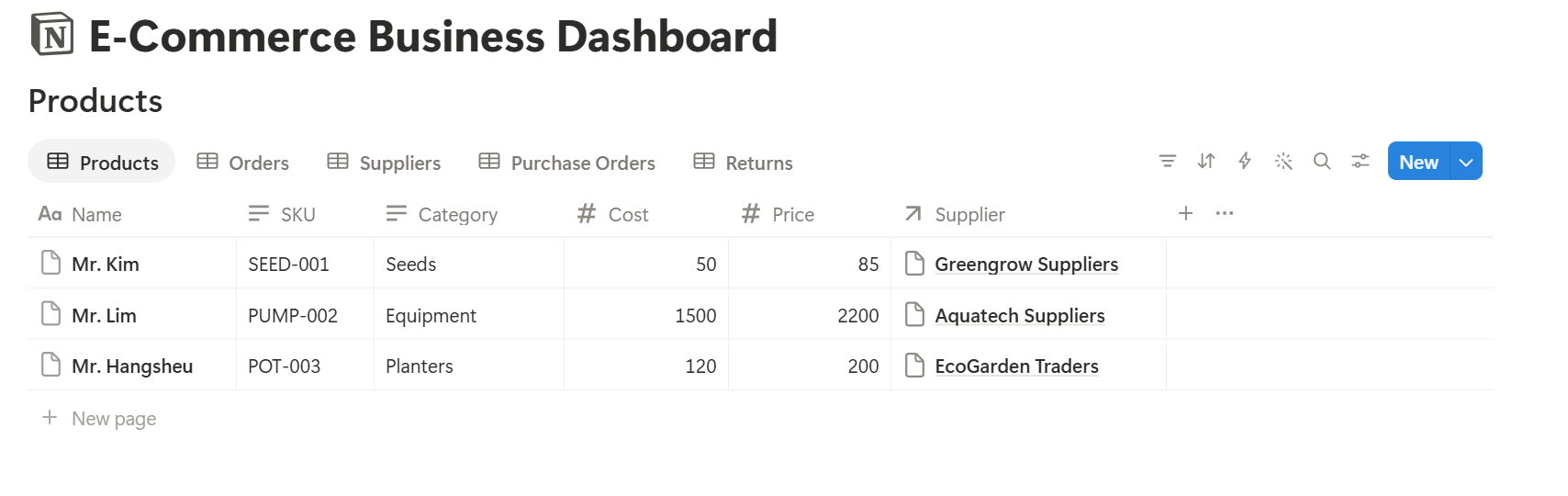
Use of the 5 Databases
5 databases cover most small stores. Resist adding more until these are working.
Formulas Worth Setting Up
Reorder flag: if(prop("On Hand") <= prop("Reorder Point"), "Reorder", "") Margin: if(prop("Price") > 0, (prop("Price") - prop("Cost")) / prop("Price"), 0) Days of cover: if(prop("Daily Sales") > 0, prop("On Hand") / prop("Daily Sales"), "") Late PO: if(prop("Status") == "Sent" and prop("Expected Date") < now(), "Late", "")
The days-of-cover formula needs a Daily Sales number, which you can enter by hand or work out from recent orders. Format margin as a percent, and check a few products against a calculator before you trust them.
Pro Tip: Set each product's Reorder Point using the supplier's lead time. If a supplier takes 14 days and you sell three a day, your reorder point should cover at least 42 units, plus some buffer.
Getting Orders into Notion
You’ve got two realistic options, and neither requires code to start.
CSV import. Most store platforms let you export orders as a CSV. Import it into your Orders database on a schedule, such as every morning. This is simple, and it tells you which fields you really use.
Notion to Excel covers how CSV files behave, including the date and character problems that trip people up.
An automation tool. Tools that connect your store to Notion can add new orders as they arrive. Check what your platform and plan support, and test with a few orders before you rely on it.
Start with CSV. If you find yourself importing twice a day, that’s your sign to look at automation.
A Day in the Life: Four Views That Do the Work
One database with the right views beats five scattered lists.
- Fulfillment board: Orders grouped by Fulfillment Status, so the packer drags cards from New to Packed to Shipped.
- Reorder list: Products where the Reorder flag shows, grouped by supplier, so you can build one purchase order per supplier.
- Inbound stock: Purchase Orders with Status set to Sent, sorted by expected date, with the Late flag visible.
- Open returns: Returns where the refund status isn’t complete.
- Packing slips that go in the box
- Purchase orders for suppliers
- Invoices for wholesale customers
- Return authorizations for customers sending something back
- Stock reports for an accountant or a business partner
- Ready to Generate creates a PDF from the database record.
- Generate Page converts the Notion page into a PDF.
- Generate PDF and Doc creates a PDF and a Google document.
- Preview creates a Google document so you can check the layout first.
- Rebuilding your store platform in Notion. Let it keep checkout, payments, and the official order record.
- Importing every field. Bring over only what you use.
- Letting stock counts go stale. Reorder flags only help if On Hand is updated. Make it part of receiving a delivery.
- One giant Products table. Use views to show each person a short list.
- Skipping a test. Run a week of real orders through before you depend on it.
- No owner. Pick one person responsible for the structure.
- How to Export Notion to PDF
- How to Export a Notion Database to PDF
- Notion Proposal Template
- Notion to Excel
Put them on one dashboard page for the owner, and give anyone who only packs orders a page with the fulfillment board alone.
Templates and Forms for Repeat Work
A purchase order template can start every new PO with the right fields and a short checklist: confirm price, confirm delivery date, send. A returns template can include a condition-check list so nothing gets refunded before the item is inspected.
A Notion form is a tidy way to collect return requests or supplier updates without giving anyone access to the workspace. Check what your plan allows.
The Documents That Have to Leave Notion
This is where a Notion setup meets the real world. Suppliers and customers don’t see your workspace, so some records have to become files:
For a one-off, the built-in export works.
How to Export Notion to PDF walks through the settings, and How to Export a Notion Database to PDF helps with tables.
When these documents need your logo and a consistent look, How to Add Your Logo and Brand Colors to Notion PDFs explains why that belongs in a template.
For wholesale quotes, Notion Proposal Template shows a structure that works, and Notion Receipt Template covers proof of payment.
Generating Packing Slips and Purchase Orders with PDFOutput
PDFOutput generates documents from Notion data using a template. The template can be a Google document, Word file, PDF file, or Notion page. You mark where data goes with placeholders in double curly braces, such as {{Order_Number}} or {{Supplier_Name}}, and each placeholder has to match the related Notion property name.
You start generation from a Notion database button or a status property. A few of the status options:
Finished files can be saved to a database property, so a packing slip stays attached to its order, or to a Google Drive folder with the link stored in a database property. Name files by order number or PO number, so they’re easy to find later.
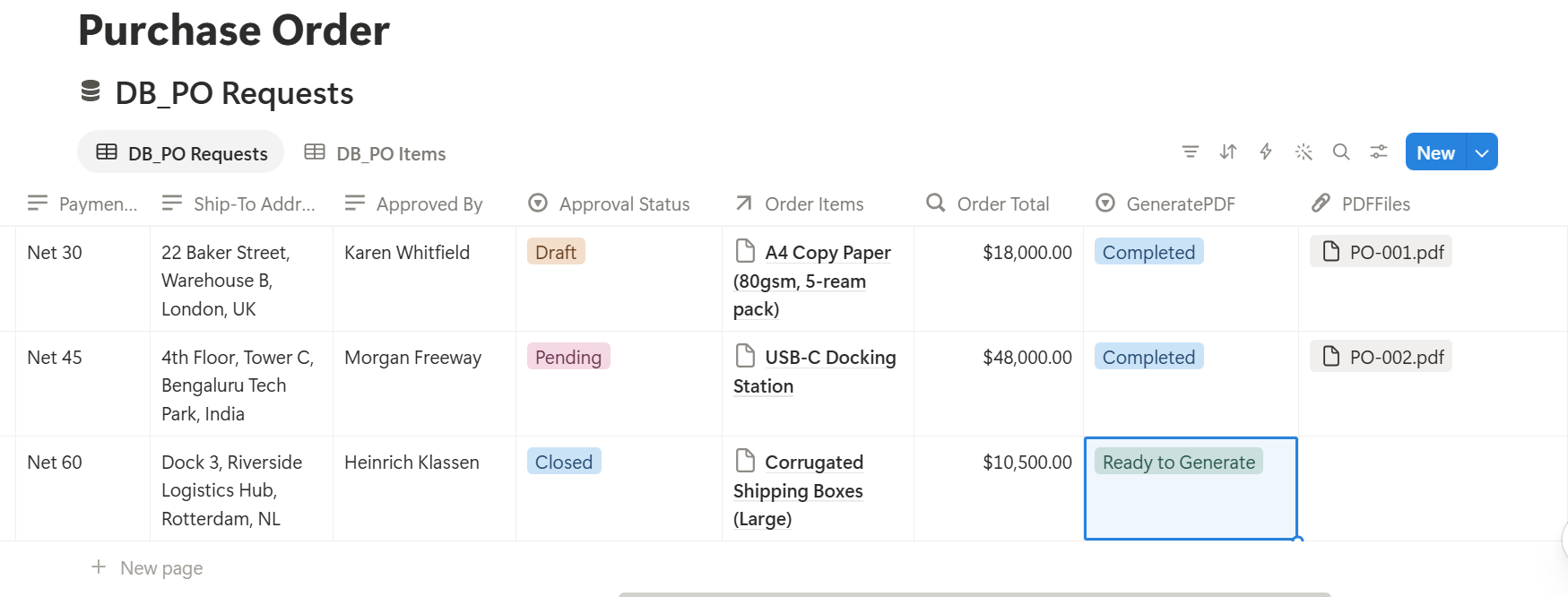
Run Preview on a sample order first. Look for blank fields, wrong dates, and layouts that get cramped when an order has several items.
Key Takeaway: Let your store platform take the order and Notion run everything behind it. If suppliers and customers only ever see clean PDFs, your internal setup can stay as flexible as you like.
Who Needs Access to What
Your packer doesn’t need your supplier costs. Your virtual assistant doesn’t need your margins. Share only the pages each person needs, build views that hide cost and margin properties, and keep customer details limited to the people who handle orders. When you work with an outside supplier or customer, send a finished PDF, and don’t invite them into your workspace.
Mistakes That Waste Weeks
Frequently Asked Questions
Can Notion be used for an e-commerce business?
Yes, for the operational side: stock planning, supplier orders, returns, and internal documentation. It doesn’t process payments or run a storefront, so keep those with your store platform.
How do I track inventory in Notion?
Create a Products database with On Hand and Reorder Point properties, then add a formula that flags items at or below the reorder point. Update On Hand when deliveries arrive and orders ship.
How do I get Shopify or Etsy orders into Notion?
You can export orders as a CSV and import them into a Notion database, or use an automation tool that sends new orders in as they arrive. Check what your platform and plan support.
Can I generate packing slips from Notion?
Yes. You can export an order’s page as a PDF, or use a template-based tool such as PDFOutput to fill a packing slip template with the order’s data. Test it on a few sample orders first.
Can Notion replace my inventory software?
For a small catalog, it can handle planning and tracking. If you need barcode scanning, multi-warehouse stock, or automatic syncing across channels, dedicated inventory software is a better fit.
Is it safe to put customer information in Notion?
Notion lets you control who sees each page. Limit customer details to the people who need them, bring over only the fields you use, and check the privacy rules that apply to your business.
Related Reading
Conclusion
Notion works well for an online store as the quiet back office: products that know their suppliers, reorder flags that warn you early, and returns that don’t get lost. Keep your platform in charge of checkout, import orders to start, and test for a week before you commit. When packing slips and purchase orders need to look professional, PDFOutput can fill your template from each Notion record and save the PDF back to your chosen storage.
Want clean packing slips and supplier orders straight from Notion? Try PDFOutput.