Guides
How to Use Notion for a Dental Clinic: Appointments, Supplies, and Equipment
Learn how to set up Notion for a dental clinic’s operations: chair schedules, supplies, equipment service, lab cases, and logs, plus PDF service records and orders.
By Sanat Biswal · 2026-10-20 · 5 min read

{/ synced-from-notion — do not edit manually /}
A dental clinic thrives when there’s routine developed to run it properly.
The sterilizer always needs to be checked. The anesthetic cartridges kept must be in date for use. The compressor is due a service. A crown is overdue back from the lab, and a patient is arriving on Thursday expecting it.
Most of this isn’t clinical work. It’s the machinery that lets clinical work happen, and it usually happens to live on sticky notes, a wall calendar, and in the memory of a practice manager who tries to keep it in check.
Notion can act as the tool that can hold that machinery together in one place. This guide is written especially for dental clinics of any size.
It shows how to set up chair schedules, supplies, equipment, lab cases, and routine logs, and how to turn those records into PDFs such as service records and supply orders.
It also explains what should stay out of Notion and can be managed otherwise.
This is all general information about organizing a practice, but not any form of legal, or medical, or compliance advice.
Short answer on how to use Notion for dental practice:
To use Notion for a dental clinic, build linked databases for Daily Schedule Summaries, Supplies, Equipment, Lab Cases, Routine Logs, and Staff Training.
Use formulas to work out chair use and no-show rates from counts, flag supplies that are expiring, flag equipment that is due for service, and flag lab cases that are late.
Keep patient records, charting, images, and prescriptions in a system built and approved for patient data.
When you need to give someone a document, such as a service record or a supply order, create a PDF from the record.
In more detail:
Notion works well as the operations workspace for a dental clinic.
Each supply item, piece of equipment, lab case, and log entry is a record, and the records are linked, so a sterilizer shows its service history and a supplier shows its orders.
Notion isn’t a practice management system, a patient record, an imaging tool, or an insurance claims tool.
Whether any patient information can be stored in it depends on the laws where you work, your agreements with the provider, and your own policies, and the safest design is to keep patient-identifying details out.
For documents that suppliers, labs, and inspectors receive, you can export a page as a PDF or generate one from a template.
Table of Contents
What Notion Can and Can’t Do for a Dental Clinic
Notion is good for:
- Planning chair use and watching no-show rates.
- Tracking supplies, expiry dates, and reorders.
- Recording equipment service dates and checks.
- Following dental lab cases from sent to received.
- Keeping routine checklists and logs.
- Storing procedures, policies, and training records.
- Creating consistent service records and supply orders.
- Patient charting, notes, or treatment plans.
- X-rays and other images.
- Prescriptions and medication records.
- Insurance claims and billing.
- Appointment reminders to patients.
- Daily Schedule Summaries stores counts, not patients. Add these properties: Date, Chair, Slots Available, Slots Booked, Attended, and No-shows.
- Supplies stores everything you stock. Add: Item, Category (Consumable, Anaesthetic, Impression Material, Cleaning, or Other), Supplier (relation), In Stock, Reorder Level, Lot Number, Expiry Date, and Storage Location.
- Equipment stores each piece of kit. Add: Name, Type (Sterilizer, Compressor, Suction, Handpiece Set, X-ray Unit, or Other), Serial Number, Location, Last Service, Service Interval (months), Warranty End, and Service Contact.
- Lab Cases stores work sent out. Add: Case ID, Lab (relation), Type (Crown, Bridge, Denture, or Other), Sent On, Due Back, Received On, and Status (Sent, In Progress, Received, or Problem).
- Routine Logs stores checks and checklists. Add: Date, Routine (Opening, Closing, Weekly, or Monthly), Completed By, Completed (checkbox), and Notes.
- Staff Training stores dates. Add: Person, Training, Date Completed, Expiry Date, and Certificate Link.
- Opening checklist: equipment powered up and checked, surfaces and surgery set up, supplies in place, and any alerts from the day before reviewed
- Closing checklist: equipment shut down, waste handled, surfaces cleaned, sterilized items stored, and the day’s counts entered
- Weekly checks: the things you check once a week
- Monthly checks: the things you check once a month
- Today’s routines: logs for today, so the person opening the clinic sees what to complete.
- Missed routines: logs from earlier days where Completed isn’t ticked, for the practice manager.
- This month: all logs for the month, for review.
- Reorder list: supplies with the Reorder flag, grouped by supplier.
- Check dates: supplies with the expiry flag, sorted by date.
- By storage location: supplies grouped by cabinet or room, so stock checks are quick.
- Service due: equipment with a service flag, sorted by date.
- By type: equipment grouped by type.
- Warranty ending: equipment with the warranty flag.
- Repairs this year: the Service Log filtered to this year, with a sum of costs, to see what each piece of kit really costs to keep running.
- Open cases: cases not yet Received, sorted by due date.
- Late or due soon: cases with a flag.
- By lab: cases grouped by lab, to see who is reliable.
- Equipment service records: the history of one piece of equipment, for an engineer, an auditor, or an inspector
- Supply orders: a clean order sheet for each supplier
- Lab case lists: open cases for a lab, by Case ID and due date, with clinical details kept in your practice system
- Staff rotas: a printable weekly schedule
- Training records: a list of certificates and expiry dates
- Policy and procedure documents: copies for staff, with a sign-off page
- Routine and check summaries: a monthly record of completed checks, as a working summary beside the official logs
- Monthly operations reports: chair use, no-show rates, and costs, for the owner or accountant. Notion to Excel helps if your accountant wants the numbers in a spreadsheet.
- Create your template with your clinic’s name and layout.
- Add placeholders in double curly braces where the data should go, such as
{{Equipment_Name}}or{{Last_Service}}. - Make sure each placeholder matches the name of a Notion property.
- Start the document with a Notion database button or a status property.
- Ready to Generate creates a PDF from the database record.
- Generate Page converts the Notion page into a PDF.
- Generate PDF and Doc creates a PDF and a Google document.
- Preview creates a Google document so you can check it before making the final PDF.
- Generate E-Signed Doc creates an e-signed PDF in the database workflow.
- Give nurses and reception access to routines, supplies, and the schedule summaries, not to staff pay or contracts.
- Keep staff training, registration details, and rota notes limited to the practice manager and owner.
- Give an outside engineer only a finished PDF of the service record, and not workspace access.
- Don’t share the workspace with suppliers, labs, or patients.
- Write down your rules about what may and may not be stored in Notion, and make sure every new team member reads them.
- Remove access on the day someone leaves.
- Review who has access every few months.
- How to Use Notion for a Healthcare Clinic
- How to Use Notion for a Manufacturing Business
- How to Use Notion for a Salon or Spa
- How to Export a Notion Database to PDF
Notion is not made for:
If you already use a practice management system, treat Notion as the operations layer beside it. It’s the clinic’s back room, and not the patient’s file.
Patient Data: Draw the Line First
Dental records are health records, and the rules about them are strict. Before you build anything, decide what will never go into Notion.
| Usually a good fit | Usually a poor fit |
|---|---|
| Counts of appointments, attendance, and no-shows | Patient names with appointment details |
| Supply stock, lot numbers, and expiry dates | Clinical notes, diagnoses, and treatment plans |
| Equipment service history | X-rays, photos, and scans |
| Lab case IDs and due dates | Prescriptions and medication records |
| Staff rotas and training dates | Insurance and billing details tied to patients |
| Procedures and policies | Anything that identifies a patient together with a condition |
Examples include HIPAA in the United States and GDPR in the European Union, among many others.
Check which rules apply to your clinic, and ask a compliance professional if you’re not sure. If you can’t get a clear yes for a type of data, keep it out of Notion.
Follow this simple design rule to keep the clinic operation safe from any trouble:
Always use IDs, not names.
A lab case is “Case 1042”, and the link to the patient lives in your practice system.
An appointment summary is a count, and not a list of people.
While you are testing, use only made-up data only.
Use of the 6 Databases
Start with these 6 databases. You can add more later.
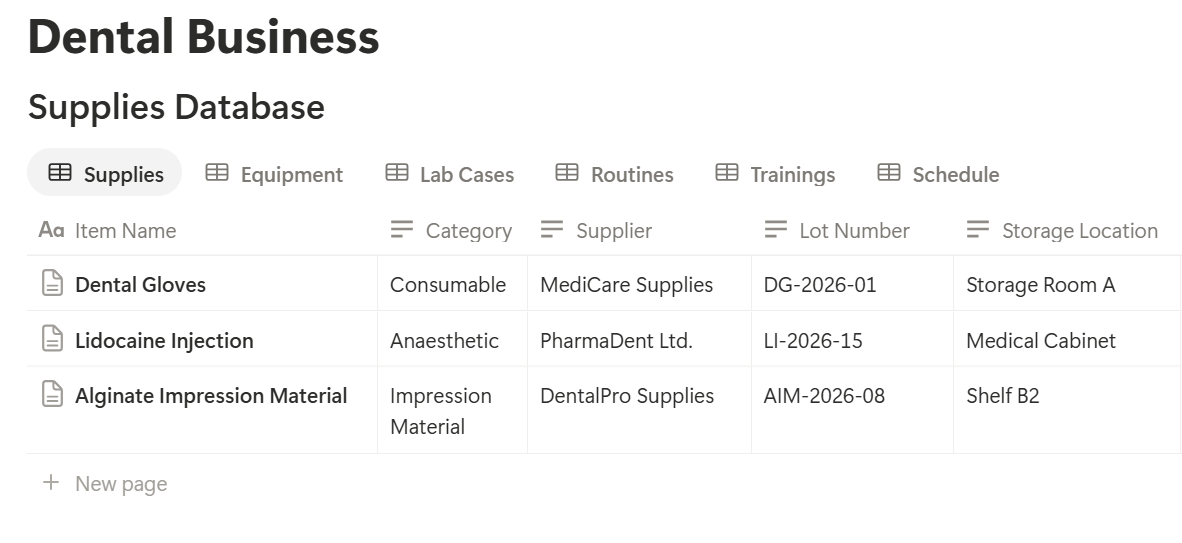
A relation connects a record in one database to a record in another.
Link Supplies to a Suppliers database, Lab Cases to a Labs database, and add a Service Log database linked to Equipment.
Now an equipment page shows its full service history in one place.
Every Day: Chair Schedules Without Patient Names
You don’t need patient names to understand how busy your chairs are. Counts are enough, and counts are far safer.
At the end of each day, the front desk adds one summary record per chair, copied from the practice system: slots available, slots booked, patients attended, and no-shows.
Then add two formulas:
*Chair use: if(prop("Slots Available") > 0, prop("Attended") / prop("Slots Available"), 0) No-show rate: if(prop("Slots Booked") > 0, prop("No-shows") / prop("Slots Booked"), 0)*
Format both as percents. Here is a made-up day for three chairs with eight slots each.
Counts are for the day.
| Item | Count |
|---|---|
| Slots available (3 chairs x 8) | 24 |
| Slots booked | 21 |
| Attended | 19 |
| No-shows | 2 |
| Chair use | 79% |
| No-show rate | 9.5% |
Group the summaries by weekday in a table view, with an average under each percent column, and you can see the pattern in a minute. Test the formulas with made-up numbers and check them with a calculator.
Pro Tip: Enter the counts the same time every day, such as at closing. A habit beats a perfect system you forget to use.
Every Day: Opening and Closing Routines
Routine checks are easy to skip when the day is busy, and hard to explain when someone asks about them later.
Make database templates for the routines you do, with a short checklist for each:
Each day, someone clicks New and gets the same list. They tick the items, add their name, and write a note if something was wrong.
Keep each list short, because a long checklist gets ticked without being checked.
Infection control routines, such as sterilizer cycles, tests, and water line care, are governed by your regulator, your equipment manufacturer’s instructions, and your own protocols.
Use the official format and frequency they require, and treat your Notion checklist as a working copy and a reminder. Don’t use it to replace a required log unless you’ve checked that it meets the rules.
Make views of Routine Logs:
Supplies: Expiry Dates and Reordering
Out-of-date material is a risk, and running out in the middle of a procedure is a bad day. Formulas watch both for you.
On Supplies, add:
*Days to expiry: dateBetween(prop("Expiry Date"), now(), "days") Expiry flag: if(prop("Days to expiry") < 0, "Expired", if(prop("Days to expiry") <= 60, "Expiring soon", "")) Reorder flag: if(prop("In Stock") <= prop("Reorder Level"), "Reorder", "")*
The flags show Expiring soon within 60 days of expiry, and Reorder when stock is at or below the reorder level. Change the 60 days to match how fast you use each item.
Expired items should be removed from use and handled as your protocols require.
Make these views:
Record the lot number and expiry date when stock arrives. Some materials and anaesthetics need extra care with dates and storage, so follow the manufacturer’s instructions.
Keep any record that links a lot number to a patient in your patient system, as your rules require, and not in Notion.
A weekly stock check takes ten minutes. Update In Stock as part of it, because the flags are only as good as the counts.
Equipment: Service, Checks, and Records
A sterilizer, a compressor, and an X-ray unit are the heart of the clinic.
A breakdown costs a day or more, and a missed inspection can cost more than that.
On Equipment, add:
*Next Service: dateAdd(prop("Last Service"), prop("Service Interval"), "months") Service flag: if(dateBetween(prop("Next Service"), now(), "days") < 0, "Service overdue", if(dateBetween(prop("Next Service"), now(), "days") <= 30, "Service soon", ""))*
The flag shows Service soon 30 days before the next service date, and Service overdue after it. Set the interval from the manufacturer’s guidance and your regulator’s requirements.
Some equipment, such as X-ray units, may need inspections and tests by qualified people at set intervals under the rules where you work, so check what applies to you.
Add a Service Log database linked to Equipment, with the date, what was done, who did it, the cost, and a link to the report or certificate.
After each visit, update Last Service on the equipment record. Add a warranty end date, and a flag for it:
Warranty flag: if(dateBetween(prop("Warranty End"), now(), "days") <= 60 and dateBetween(prop("Warranty End"), now(), "days") >= 0, "Warranty ending", "")
A warranty that expires next month is the best time to ask for a check.
Make these views:
If a piece of equipment fails, a short Fault report template with the date, what happened, what you did, and who you called keeps the story straight.
Check where incident records must be kept under your rules.
Lab Cases: Never Let a Crown Go Missing
Dental lab work travels. A case goes out, comes back, and has to be fitted on a day the patient is expecting it. A case that’s lost between the lab and the clinic ruins that day.
Track each case by its Case ID, which is a number from your practice system, and not by the patient’s name. On Lab Cases, add:
*Days to due: dateBetween(prop("Due Back"), now(), "days") Lab flag: if(prop("Status") != "Received" and prop("Days to due") < 0, "Overdue", if(prop("Status") != "Received" and prop("Days to due") <= 3, "Due soon", ""))*
The flag shows Due soon within three days of the due date, and Overdue after it. Check it each morning. If a case is overdue, call the lab before the patient arrives, and don’t wait for the appointment.
Make these views:
When a case arrives, check it against the order, mark it Received, and note any problem. A rollup of late cases by lab over a few months tells you which lab to keep. The lab order form itself, with the clinical details, belongs in your practice system. A Notion record only needs the ID, the type, and the dates.
Your Team: Rotas and Training Dates
Dental teams hold a lot of dates that matter: registrations, certificates, and training that expires.
On Staff Training, add:
*Days to expiry: dateBetween(prop("Expiry Date"), now(), "days") Training flag: if(prop("Days to expiry") < 0, "Expired", if(prop("Days to expiry") <= 90, "Renew soon", ""))*
A view of training with a flag, sorted by date, gives the practice manager one list to work through each month. Keep certificate files in a secure place and link to them.
Professional registration numbers and personal details are sensitive, so store only what you need.
For the rota, use a Shifts database with person, date, start and end times, and chair, shown as a calendar view. Put leave and training days on the same calendar, so clashes are visible before they cause a gap.
A Day at a Three-Chair Clinic
To see how the pieces fit, here is one made-up day.
7:45 am. The practice manager opens the home page. The Today’s routines view shows the opening checklist. A weekly check is due, so it appears too. The Lab flags show one case due back today and one overdue.
8:00 am. She calls the lab about the overdue case, and gets a new date. She notes it on the record and tells the dentist. The patient can be called well before the appointment.
9:30 am. A nurse notices the composite is nearly gone. She updates the stock count, and the Reorder flag appears.
12:30 pm. The Equipment view shows the compressor with a Service soon flag. The manager books the engineer for next week, and adds a note to the record.
3:00 pm. A delivery arrives. The nurse enters lot numbers and expiry dates for the new stock, and the Expiring soon flag clears on an item that has been replaced.
5:30 pm. At closing, the front desk enters the day’s counts. The chair use is 79%, and the no-show rate is 9.5%.
6:00 pm. The closing checklist is ticked. The manager creates the supplier order from the Reorder list, and sends it as a PDF.
No patient names were needed anywhere.
The Documents That Leave Notion
Suppliers, labs, engineers, and inspectors don’t use your workspace, so some records need to become files. These all avoid patient information:
For a single page, you can use Notion’s export option. How to Export Notion to PDF shows the settings, and How to Export a Notion Database to PDF helps with tables, such as a rota.
Suppliers and inspectors notice how organized your records look, and Notion’s own export gives you limited control over layout. How to Add Your Logo and Brand Colors to Notion PDFs explains how a template solves that.
Generating PDFs with PDFOutput
PDFOutput creates documents from your Notion data using a template. A template can be a Google document, a Word file, a PDF file, or a Notion page. If you already have an order or record layout in Word or Google Docs, you can reuse it.
Here is how it works:
These are some of the status options:
The e-signed option may help with policy acknowledgements. Whether an electronic signature is valid for a given document depends on your location, so check before you rely on it.
You can save the finished file to a property in your database, so a service record stays on its equipment page. You can also save it to a Google Drive folder and store the link in a property.
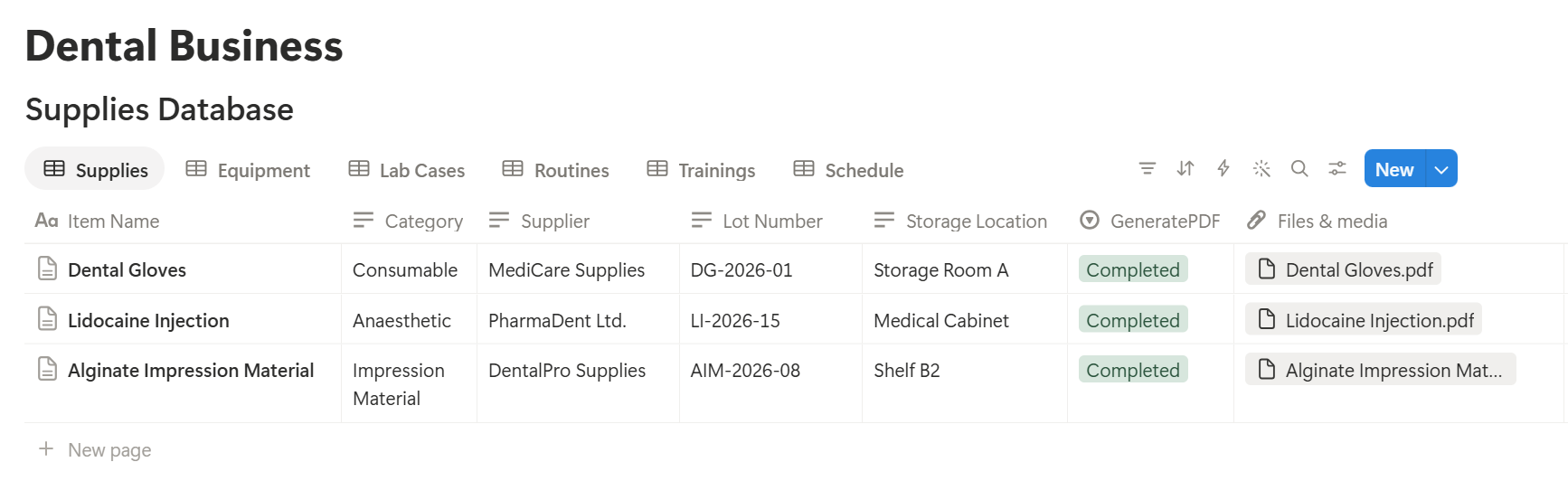
An equipment service record lists many entries, and a supply order lists many items, each stored as its own linked record.
Before you rely on a template to list them all, test it with a sample record that has several, and check that each appears the way you want. If it doesn’t, a simple fallback is to keep a short text summary on the record, and use that in the template.
Before using any document tool with health-related information, ask the provider how data is handled, where it’s stored, and what agreements are available, and keep the answers with your compliance records. The safest approach is to generate documents only from records that contain no patient information, as in this guide.
Start with the equipment service record or the supply order. Use Preview first and check for empty fields, wrong date formats, and details that don’t match your records.
Key Takeaway: Use Notion for what runs the clinic, and your practice system for what you know about patients. Counts, IDs, dates, and checklists give you most of the time savings with a fraction of the risk.
Who Can See What
Even without patient data, a clinic workspace holds information worth protecting, such as supplier terms, staff details, and security routines.
Common Mistakes
Letting patient names creep in. It starts with “Mr Jones’s crown” in a note. Use case IDs, and remind people regularly.
Treating Notion as the official log. If your regulator requires a set format for sterilization or other logs, keep that record, and use Notion as the reminder.
Letting stock counts go stale. Flags only help if In Stock and expiry dates are updated when stock arrives.
Long checklists. People tick boxes without checking. Fewer items, done properly, beat a long list.
Skipping service dates because the kit still works. Missed services cause the breakdowns that close a clinic for a day.
Not recording who did what. A tick without a name can’t answer a question later.
No owner for the structure. Pick one person responsible for the setup. Properties get renamed and formulas break, so tell that person not to rename properties used in PDF templates, because the placeholders must match exactly.
Skipping a test. Run a week with made-up data first, and fix what annoys the team before you use real records.
Frequently Asked Questions
Can Notion be used for a dental clinic?
Yes, for operations such as supplies, equipment service, lab case tracking, routine checklists, and staff training dates. It isn’t a practice management system or a patient record, so keep patient information in a system built and approved for it.
Can I store patient information in Notion?
Only after you’ve confirmed that the laws, agreements, and settings that apply to you allow it. If you can’t get a clear answer, keep patient information out of Notion, and use IDs and counts instead of names.
Is Notion HIPAA compliant?
Whether a tool can be used for health data depends on the laws that apply to you, the plan you use, and the agreements you have with the provider. Check with Notion and a compliance professional before storing any identifiable patient information, and don’t assume a tool is suitable because others use it.
How do I track chair use without patient names?
Create a Daily Schedule Summaries database with counts of slots available, booked, attended, and no-shows for each chair. Add formulas that divide the counts to give chair use and the no-show rate.
How do I track dental lab cases in Notion?
Create a Lab Cases database with a case ID from your practice system, a lab, a sent date, and a due date. Add a formula that flags cases that are overdue or due soon, and keep clinical details in your practice system.
How do I track equipment service in Notion?
Create an Equipment database with a last service date and a service interval, then add a formula that calculates the next service date and flags anything overdue. Link a Service Log to each piece of equipment.
Can I create service records and supply orders from Notion?
You can export a page as a PDF, or use a template-based tool such as PDFOutput to fill a record or order template with data from each record. Test it on a few sample records first, and use records that contain no patient information.
Related Reading
Conclusion
The best Notion setup for a dental clinic is a quiet back room: supplies that warn you before they expire, equipment that tells you when it needs service, lab cases you never lose track of, and routines that get done. Settle the patient data question first, use IDs and counts, and test with made-up data before you use real records.
When your service records, supply orders, and rotas need to leave Notion, PDFOutput can fill your template from each record and save the PDF to your chosen storage.
Want clean service records and supply orders straight from Notion? Try PDFOutput.