Guides
How to Use Notion for Consultants: Clients, Projects, and Deliverables
Learn how to set up Notion for consulting with clients, engagements, deliverables, and time tracking, plus PDF proposals, status reports, and sign-off sheets.
By Sanat Biswal · 2026-10-18 · 5 min read

{/ synced-from-notion — do not edit manually /}
A consultant sells judgment, but the day-to-day work is a lot of small things:
When these live in separate places, you spend more time looking than thinking.
Notion can bring them into one workspace. This guide is for independent consultants and small consulting firms.
It shows how to set up clients, engagements, deliverables, and time tracking, how to check whether a fixed-fee project was worth it, and how to turn records into PDFs such as proposals, status reports, and sign-off sheets. It is general information about organizing a business, not legal or financial advice.
To use Notion for consulting, create linked databases for Clients, Engagements, Deliverables, Time Entries, and a Knowledge Library.
Use formulas to track hours against the plan, work out your effective hourly rate on fixed-fee projects, and flag late deliverables. Make views for your week. When you need to send something to a client, such as a proposal, a status report, or a sign-off sheet, create a PDF from the record.
Notion works well for consultants because every engagement is different, but the shape is the same:
- a client,
- a scope,
- a set of deliverables, and
- hours spent.
- What Notion Can and Can’t Do for Consultants
- Client Confidentiality Comes First
- The Five Databases
- Win: From Lead to Proposal
- Scope: Agree What You Are Delivering
- Deliver: Track Deliverables and Hours
- Was the Project Worth It? Effective Hourly Rate
- Report: Weekly Status Updates
- Close: Handover and Lessons
- Your Knowledge Library
- A Week of Consulting
- The Documents That Leave Notion
- Generating PDFs with PDFOutput
- Who Can See What
- Common Mistakes
- Frequently Asked Questions
- Related Reading
- Conclusion
- Keeping clients, engagements, and notes in one place.
- Tracking deliverables and their due dates.
- Logging time and comparing it with the plan.
- Checking whether a fixed-fee project was profitable.
- Storing your own frameworks, templates, and lessons learned.
- Creating consistent proposals, reports, and sign-off sheets.
- Accounting, tax, or invoicing rules.
- Contract signing that must meet legal standards.
- A secure client portal.
- Heavy project scheduling with dependencies.
- Your contract and NDA. Some clients limit where their information may be stored, who may see it, or whether it may leave their systems. Read what you signed.
- What you really need. Notes about the work are usually enough. Avoid copying raw data, passwords, or personal records into Notion.
- Who can see it. If you work with a team or subcontractors, share only what each person needs.
- Clients stores who you work for. Add these properties: Company, Main Contact, Email, Industry, Status (Prospect, Active, or Past), and Notes.
- Engagements is the main database. Add: Engagement Name, Client (relation), Type (Fixed Fee, Retainer, or Hourly), Fee, Planned Hours, Start Date, End Date, Status (Proposal, Active, On Hold, or Done), and Health (Green, Amber, or Red).
- Deliverables stores what you promised. Add: Deliverable, Engagement (relation), Due Date, Owner, Status (Not Started, In Progress, In Review, or Approved), and Approved On.
- Time Entries stores hours worked. Add: Date, Engagement (relation), Hours, and What You Did.
- Knowledge Library stores your reusable work. Add: Title, Type (Framework, Template, Case Note, or Checklist), Topic, Last Used, and Notes.
- Interview plan (due week 1)
- Ten stakeholder interviews (due week 3)
- Findings summary (due week 5)
- Recommendations deck (due week 6)
- My week: Deliverables due in the next seven days, sorted by date.
- At risk: Deliverables with an Overdue or Due soon flag.
- Hours watch: Engagements with an Over plan or Near plan flag.
- Pipeline: a board of Engagements grouped by status.
- Status: Green, Amber, or Red, with one sentence on why
- Done this week: the main things completed
- Next week: what’s planned
- Risks and decisions needed: anything the client must act on
- Hours: used so far against the plan
- Final deliverables: list them, and tick each one off as approved.
- Handover: what the client needs to keep the work going, and who owns what.
- Final hours and fee: the effective rate, compared with the plan.
- Lessons: what worked, what didn’t, and what you’d change next time.
- Reusable material: anything worth adding to your Knowledge Library, with the client’s information removed.
- Next steps: follow-up work, a check-in date, or a testimonial request.
- A framework you use to structure a problem
- A template for interview guides, workshop agendas, or reports
- A checklist for common tasks, such as kicking off a project
- A case note about a past project, with names and sensitive details removed
- Proposals: the problem, approach, timeline, and fee. Notion Proposal Template shows how to structure one.
- Statements of work: scope, deliverables, assumptions, and what’s out of scope
- Weekly status reports: one page, with the status color
- Deliverable sign-off sheets: a record that the client approved a deliverable
- Meeting notes and action logs: what was agreed and who does what
- Invoices: the fee for the period
- Final reports and handover summaries
- Create your template with your logo and layout.
- Add placeholders in double curly braces where the data should go, such as
{{Engagement_Name}}or{{Health}}. - Make sure each placeholder matches the name of a Notion property.
- Start the document with a Notion database button or a status property.
- Ready to Generate creates a PDF from the database record.
- Generate Page converts the Notion page into a PDF.
- Generate PDF and Doc creates a PDF and a Google document.
- Preview creates a Google document so you can check it before making the final PDF.
- Generate E-Signed Doc creates an e-signed PDF in the database workflow.
- Keep each client’s engagement private from other clients, especially if you work with subcontractors.
- Share with a subcontractor only the engagement they work on.
- Keep fees, rates, and your effective hourly rate out of views that others don’t need.
- Don’t give clients access to your workspace. Send them a finished PDF.
- Keep your Knowledge Library free of client-confidential details.
- Remove access on the day a subcontractor’s work ends.
- Review who has access every few months.
- How to Use Notion for an Agency
- How to Use Notion for Freelancers
- Notion Proposal Template
- Notion to Word
Each engagement is a record, and its deliverables and time entries link back to it. A rollup adds up the hours, and a formula compares them with the fee, so you can see profitability while the work is still running.
A Knowledge Library keeps your frameworks and past work where you can reuse it. Notion isn’t accounting software, a contract tool, or a client portal. For documents that clients receive, you can export a page as a PDF or generate one from a template.
Table of Contents
What Notion Can and Can’t Do for Consultants
Notion is good for:
Notion is not made for:
If you already use accounting software or a time tracker, treat Notion as the planning and records layer beside it.
Client Confidentiality Comes First
Consultants often see sensitive client information: strategy, financials, staff details, and plans. Before you add anything to Notion, check three things.
Never store client logins or passwords in Notion. Use a password manager. Privacy and confidentiality rules differ by country and by industry, so check what applies to you. While you are testing, use made-up clients.
Use these 5 Databases
Start with these 5 databases. You can add more later.
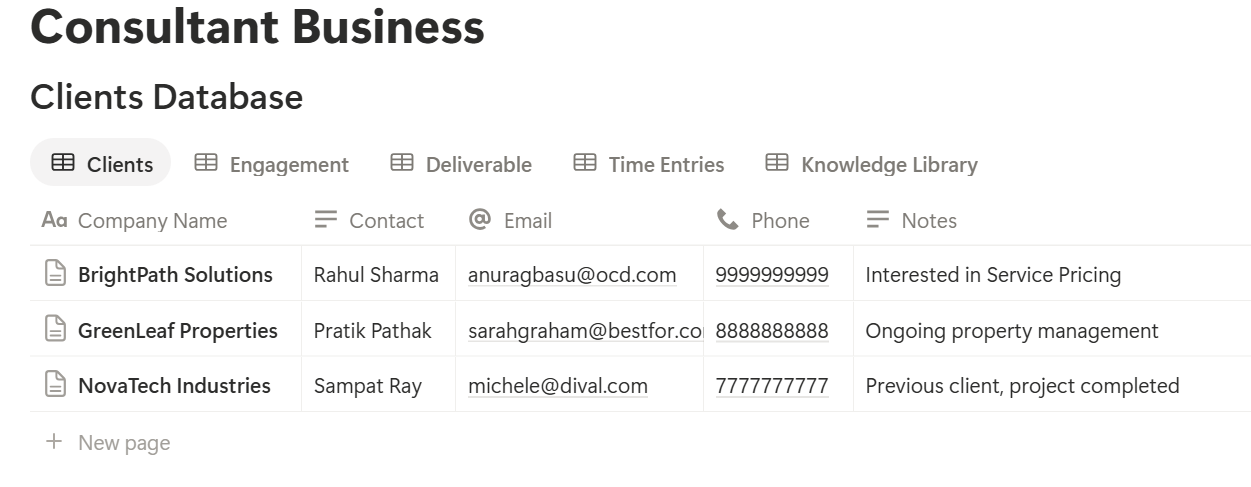
A relation connects a record in one database to a record in another. Link Engagements to Clients, and link Deliverables and Time Entries to Engagements. Now an engagement page shows its deliverables, its hours, and its client together.
Win: From Lead to Proposal
Most consulting work starts with a conversation, so capture it.
Create an engagement record with the status Proposal as soon as a client shows serious interest. Use a Discovery call template with these sections: the client’s problem, what they have tried, who decides, the timeline, the budget range, and any red flags. Writing down their own words helps you write a proposal that sounds like it understood them.
When you write the proposal, lead with the problem. Notion Proposal Template walks through a structure that works. Send it as a PDF, and change the status when the client says yes.
A board view of Engagements grouped by status shows your pipeline. Check the Proposal column every Monday, because a proposal that sits unanswered usually needs a nudge.
Scope: Agree What You Are Delivering
Unclear scope is the biggest cause of unhappy consulting projects. Fix it at the start.
When an engagement is confirmed, write the scope in the engagement page, then turn it into a Deliverables list. For each deliverable, add a clear description, a due date, and what “approved” means. For example, a market assessment might have:
Add a short section to the engagement called Out of scope, listing what you are not doing. Add another called Assumptions, such as “the client will provide data by week 1.” When something changes, record it as a change with a date and the client’s agreement, so the scope stays honest.
The wording in a statement of work or contract should be checked by someone qualified. Notion keeps the working version, and the signed document should be stored safely elsewhere.
Deliver: Track Deliverables and Hours
Once work starts, two things matter: are deliverables on time, and are hours under control?
Formulas for Deliverables
*Days to due: dateBetween(prop("Due Date"), now(), "days") Flag: if(prop("Status") != "Approved" and prop("Days to due") < 0, "Overdue", if(prop("Status") != "Approved" and prop("Days to due") <= 3, "Due soon", ""))*
The flag shows Overdue for anything late and Due soon for anything within three days. Change the three days to suit your work.
Formulas for Engagements
Add a rollup on Engagements that sums Hours from Time Entries, and name it Hours Logged. Then add:
*Hours used: if(prop("Planned Hours") > 0, prop("Hours Logged") / prop("Planned Hours"), 0) Overrun: if(prop("Hours used") > 1, "Over plan", if(prop("Hours used") >= 0.8, "Near plan", ""))*
Format Hours used as a percent. The Near plan flag appears at 80 percent of planned hours, which gives you time to talk to the client before the budget is gone, not after.
Views
Test the formulas with made-up engagements and check the numbers against a calculator.
Pro Tip: Log time the same day. Hours remembered at the end of the week are almost always lower than hours actually worked, which makes projects look more profitable than they were.
Was the Project Worth It? Effective Hourly Rate
On a fixed-fee project, the number that matters isn’t the fee. It’s what you earned per hour of real work.
Add a formula to Engagements:
Effective Rate: if(prop("Hours Logged") > 0, prop("Fee") / prop("Hours Logged"), 0)
Format it as currency. Here is a made-up fixed-fee project, compared with what you planned. Amounts are in your own currency.
| Plan | Actual | |
|---|---|---|
| Fee | 12,000 | 12,000 |
| Hours | 60 | 80 |
| Effective rate | 200 | 150 |
For retainers, track the hours used each month against the hours included. A rollup filtered to the current month shows how much of the retainer is left:
Retainer left: prop("Included Hours") - prop("Hours This Month")
If a client always uses all of the retainer, that’s useful to know when you renew.
Report: Weekly Status Updates
Clients feel safe when they know where things stand. A short weekly update does more for trust than a long report at the end.
Use a Weekly update template on each engagement, with these sections:
Keep it to one page. If a project is Amber or Red, say so clearly and early, and say what you suggest. Clients rarely mind bad news. They mind surprises.
Send the update as a PDF. The documents section below explains how.
Close: Handover and Lessons
The end of a project is when you capture the value.
Use a Closing template with these items:
Set the engagement’s status to Done. Check your contract for any rules about returning or deleting client materials, and follow them.
Your Knowledge Library
Most consultants reinvent the same frameworks again and again. A library means you stop doing that.
Each entry in the Knowledge Library has a title, a type, a topic, and the date it was last used. Add the entries as you go:
Add a tag for the topic, and a short line on when to use it. Search for the topic when you start a new engagement. After a year, this becomes the most valuable database you own.
Be careful about the line between your own methods and your clients’ confidential information. Anything that came from a client’s data should be removed or made anonymous before it goes into the library, and your contract may say more about what you can reuse.
A Week of Consulting
To see how the pieces fit, here is one made-up week for a solo consultant with three active engagements.
Monday. She opens My week. Two deliverables are due this week, and the Hours watch view shows one engagement near its plan. She decides to talk to that client on Wednesday.
Tuesday. She runs a stakeholder interview, and writes notes into the engagement page from the interview template. She logs two hours in the Time Entries database the same afternoon.
Wednesday. She calls the client with the near-plan engagement. Together they agree to move one task to a later phase, and she records the change with the date.
Thursday. She finishes a deliverable, moves it to In Review, and sends it to the client.
Friday. She writes the weekly updates for all three engagements from the template. Each takes ten minutes, because the facts are already in Notion. She sends them as PDFs, and updates her pipeline view for a new lead.
Nothing was lost in an inbox.
The Documents That Leave Notion
Clients don’t use your workspace, so some records need to become files:
For a single page, you can use Notion’s export option. How to Export Notion to PDF shows the settings. If a client asks for an editable file, Notion to Word explains the options. Clients judge a consultant partly by the look of the documents, and Notion’s own export gives you limited control over layout. How to Add Your Logo and Brand Colors to Notion PDFs explains how a template solves that.
Generating PDFs with PDFOutput
PDFOutput creates documents from your Notion data using a template. A template can be a Google document, a Word file, a PDF file, or a Notion page. If you already have a report layout in Word or Google Docs, you can reuse it.
Here is how it works:
These are some of the status options:
The e-signed option may help with deliverable sign-offs and statements of work. Whether an electronic signature is valid for a given agreement depends on your location and the type of document, so check before you rely on it. You can save the finished file to a property in your database, so a status report stays on its engagement. You can also save it to a Google Drive folder and store the link in a property.
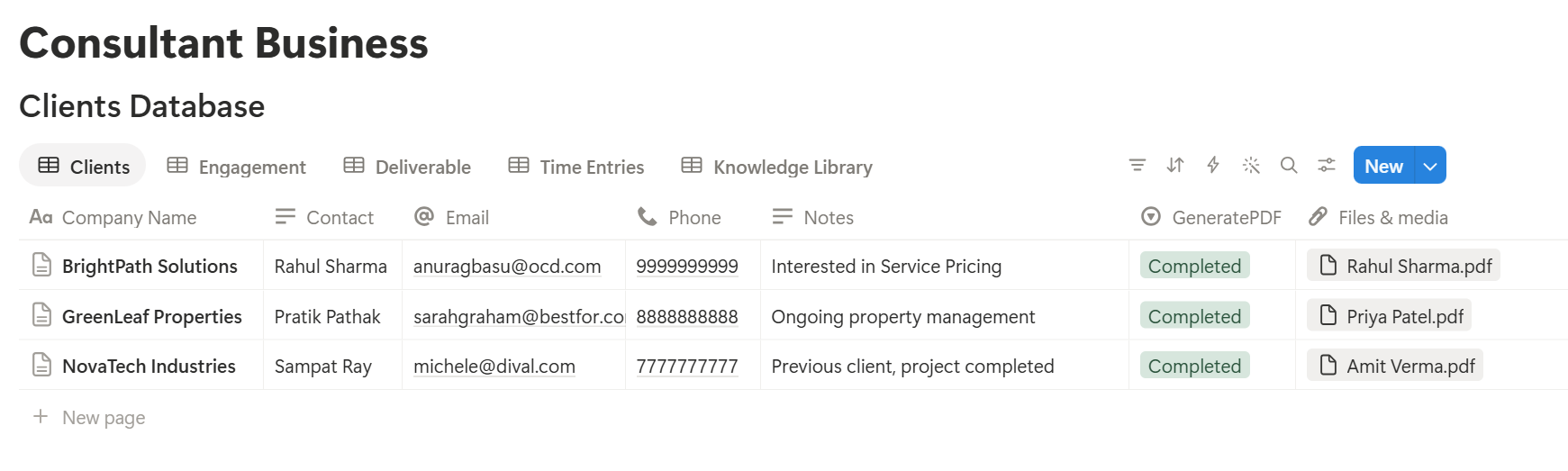
Deliverables live in their own database. Before you rely on a template to list every deliverable on a report, test it with a sample engagement that has several deliverables, and check that each appears the way you want. If it doesn’t, a simple fallback is a short text summary property on the engagement, which you update for each report.
Start with the weekly status report, since you send it most often. Use Preview first and check for empty fields, wrong date formats, and numbers that don’t match your records.
Key Takeaway: Capture scope, deliverables, and hours as you go. If those three are recorded, proposals, status reports, and invoices all come from data you already have.
Who Can See What
Your workspace will hold client information, fees, and your own notes, so control access from the start.
Common Mistakes
Vague scope. If a deliverable doesn’t say what “done” means, expect an argument. Write it down.
Not logging time. Without hours, you can’t see profitability, and you’ll price the next project from a guess.
Hiding bad news. An Amber or Red status sent early is a conversation. One sent late is a problem.
Copying client material into your library. Keep your reusable work clean of confidential details.
Too many properties. If you have to scroll sideways to log a deliverable, you’ll stop doing it. Cut what you don’t use.
No owner for the structure. If you work with a team, pick one person responsible for the setup. Properties get renamed and formulas break, so tell that person not to rename properties used in PDF templates, because the placeholders must match exactly.
Skipping a test. Run one pretend engagement through the setup first, and fix what annoys you before you use real client data.
Frequently Asked Questions
Can Notion be used for a consulting business?
Yes. It can organize clients, engagements, deliverables, hours, notes, and a library of your own frameworks. It isn’t accounting software, a contract tool, or a client portal.
How do I track consulting hours in Notion?
Create a Time Entries database linked to each engagement, with a date and hours, and add a rollup on the engagement that sums the hours. Compare it with planned hours using a formula.
How do I know if a fixed-fee project was profitable?
Divide the fee by the hours logged to get your effective hourly rate, then compare it with the rate you planned. A formula on the engagement can do the sum for you.
How do I track deliverables in Notion?
Create a Deliverables database linked to each engagement, with a due date and a status. Add a formula that flags overdue and upcoming items.
Can I create proposals and status reports from Notion?
You can export a page as a PDF, or use a template-based tool such as PDFOutput to fill a proposal or report template with data from each record. Test it on a few sample records first.
Should clients have access to my Notion workspace?
Usually not. Your workspace holds other clients, fees, and internal notes. Send clients a finished PDF instead.
Is it safe to store client information in Notion?
Notion lets you control who sees each page, but your duties depend on your contracts and the rules where you work. Check your NDA, store only what you need, and never keep passwords there.
Related Reading
Conclusion
A good consulting setup in Notion does a few things well: it keeps scope and deliverables clear, shows you when hours are drifting, tells you whether a fixed-fee project paid off, and gives you a library of your own methods. Start with engagements, deliverables, and time, run one pretend project through it, and fix whatever slows you down. When your proposals, status reports, and sign-off sheets need to leave Notion, PDFOutput can fill your template from each record and save the PDF to your chosen storage.
Want proposals and status reports as clean PDFs? Try PDFOutput.