Guides
How to Use Notion for a Construction Business: One Job, From Estimate to Handover
Follow one renovation job from estimate to handover to see how a construction business can run on Notion, with site reports, change orders, and PDFs.
By Sanat Biswal · 2026-10-12 · 5 min read

{/ synced-from-notion — do not edit manually /}
Construction paperwork has an awkward habit. It gets written at the end of a long day, when people are tired remembering from memory. And it’s the first thing anyone asks for when something happens to go wrong.
Notion can’t weave a magic to make things accessible, but it can make the required paperwork easier to maintain with honesty. Rather than listing out every database you could build, this guide follows one imaginary job from the first estimate to the final handover, and shows what Notion can do at each stage of the process. The company and numbers are made up for simple illustration.
The quick version: To use Notion for a construction business, give every job its own project record, and link estimates, site reports, change orders, and snag lists to it. Use formulas to keep contract values and budgets current, build views for the office and the site, and turn records into PDFs when they have to go to clients, subcontractors, or inspectors.
The fuller picture:
Notion can work for a small and mid-sized contractor as a coordination layer. Each project is a record, and everything about the job hangs off it through the relations being setup, including the estimate, daily site reports, change orders, and the punch list.
As those records are linked, a change order can update the contract value without anyone doing sums, and a site report can be pulled up by date in seconds.
Notion isn’t a replacement for scheduling software, accounting, or the safety systems your jurisdiction requires. When a client or inspector needs a document, you generate a PDF from the record.
First Question, Is Notion Right for Your Needs?
For a crew of 3 to 30 doing renovations, extensions, fit-outs, or trade work, usually its a yes. You get to have flexibility, you control the structure, and you aren’t paying per seat for the features that you don’t use.
It’s a weaker fit if you need detailed scheduling across many overlapping jobs, heavy equipment tracking, or integrated accounting.
Large contractors often run dedicated construction management software for those. And whatever you use, safety records, contracts, and retention rules vary by country, so check what applies to you before you decide where official records live.
Example of a Job
We will take the example of a kitchen renovation for a homeowner. The contract is 48,000. It starts in three weeks, runs for ten, and involves the following people:
- a plumber,
- an electrician, and
- a tiler.
- today’s status,
- the revised contract value,
- open change orders, and
- the number of unresolved snag items.
- Daily site reports
- Change orders
- Progress invoices
- Snag lists
- Handover summaries
- The first is the site report that stops being written. If it takes ten minutes, it gets skipped by Wednesday. Cut fields until it takes five, and make the form open on a phone.
- The second is the change order that lives in a text message. If it isn’t a record, it isn’t counted, and the revised contract is wrong. Make “no record, no work” the rule.
- The third is the structure that nobody owns. Properties get renamed, someone adds a duplicate database, and the formulas stop matching. Pick one person responsible for the setup, and tell them to avoid renaming properties used in PDF templates, because the placeholders must match exactly.
- Notion Proposal Template
- How to Export a Notion Database to PDF
- How to Add Your Logo and Brand Colors to Notion PDFs
- Notion to Excel
Here’s what would happen in Notion from start to finish.
Starting with the Job Estimate
The job starts off as an estimate. You keep an Estimates database with the client, the scope, a list of cost lines, and a total. If you want ideas for structuring the document that the client can see, Notion Proposal Template can help cover that.
When the client says yes, the status changes to Accepted, and you create the project record from it. That one step matters. The contract value, client details, and scope carry forward, so nobody retypes them. From now on, everything else adds on to the project.
Day One: One Hub Per Project
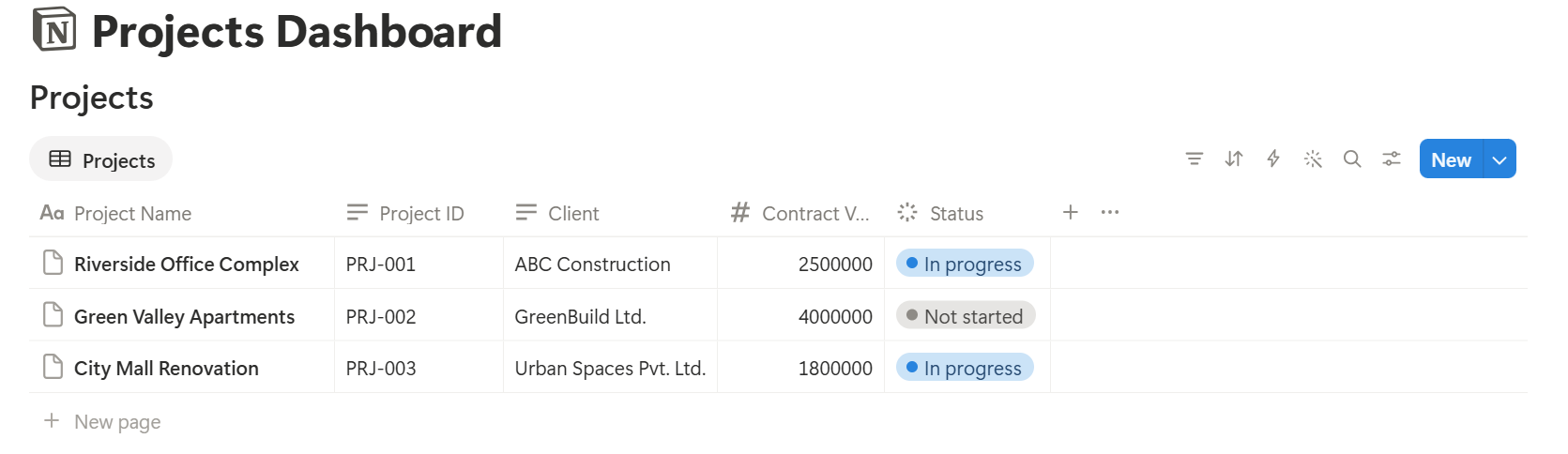
The project record is the home page for the job. It holds the address, client contact, start and finish dates, the original contract value, and links to everything below.
Open it and you should see 4 things without scrolling much:
If you have to hunt for those, the hub needs simplifying.
Every Day: The Site Diary
This is the habit that pays for the whole system. A site report is one record per project per day, and it takes about five minutes if the template is good.
The fields that earn their place: date, project, weather, crew on site, work completed, delays and why, materials delivered, safety notes, and photos. Keep the text fields short. A foreman who has to write an essay will skip it, but one who answers six quick prompts won’t.
The payoff comes weeks later. A client says the tiling was delayed because of you. You filter the site reports for that week, and the log shows the delivery arrived four days late and when the crew couldn’t work because of rain. Dated, specific notes carry far more weight than anyone’s memory.
When the Client Changes Their Mind: Change Orders
Every renovation has them. The homeowner wants the sink moved. Then better tiles. Then an extra outlet.
Each is a record in a Change Orders database, linked to the project, with a description, an amount, and a status: Pending, Approved, or Rejected.
The trick is one small formula on each change order, so only approved amounts count:
Approved Amount: if(prop("Status") == "Approved", prop("Amount"), 0)
On the project record, roll up Approved Amount with a sum, and add a formula for the revised value:
Revised Contract: prop("Original Contract") + prop("Approved Changes")
Here’s how our job looks after three changes:
| Change | Amount | Status | Counts toward contract? |
|---|---|---|---|
| Move the sink | 1,850 | Approved | Yes |
| Upgrade the tiles | 2,400 | Approved | Yes |
| Add an outlet | 350 | Pending | Not yet |
| Approved total | 4,250 | ||
| Revised contract | 52,250 |
Getting Paid: Progress Billing
Many jobs are billed in stages. A simple version is a Billing database linked to the project, with a stage name, a percentage or fixed amount, a due date, and a status. A rollup can show how much has been billed against the revised contract, and a formula can show what’s left.
Payment terms, retention, and legal requirements for construction invoices differ widely, so follow your contract and check local rules. The point of Notion here is visibility: you can see at a glance whether the money you’ve earned has been invoiced.
The End: Snag Lists and Handover
Near the finish, you walk the site with the client and write down what isn’t right. Each item becomes a record in a Snag List database: description, location, responsible trade, photo, and a Done checkbox.
On the project, roll up that checkbox with Percent checked, and you have a completion figure everyone understands. The job isn’t finished at 94%, but you can see the six remaining items and who owns them.
At handover, gather the final pack: the signed-off snag list, warranty details, any certificates, and a summary of changes. A project record that has been kept up to date makes this a half-hour task, not a scramble.
Where the PDFs Come In
Most of what we just built lives in Notion, but the people on the other end don’t. The homeowner, the inspector, and the subcontractor all need files.
For one-off pages, Notion’s own export is enough, and How to Export Notion to PDF explains each setting. For tables like a snag list, How to Export a Notion Database to PDF helps.
But a contractor’s documents are the same type again and again, and clients notice sloppy ones, so it’s worth building templates.
PDFOutput generates documents from Notion data using a template. The template can be a Google document, Word file, PDF file, or Notion page. You mark where data goes with placeholders in double curly braces, such as {{Project_Name}} or {{Revised_Contract}}, and each placeholder has to match the related Notion property name.
You start a document with a Notion database button or a status property. Set a change order’s status to Ready to Generate and PDFOutput creates a PDF from that record. Preview creates a Google document first, so you can check the layout.
Generate PDF and Doc gives you both, and Generate E-Signed Doc creates an e-signed PDF in the database workflow, which is worth a look for change orders that need a client’s approval.
Check whether e-signatures are accepted for your contracts before relying on that. The finished file can be saved to a database property, so it stays with its change order or site report, or to a Google Drive folder with the link stored in a database property.
The documents worth templating first:
Put your logo and company details in the template, and every document looks the same.
How to Add Your Logo and Brand Colors to Notion PDFs explains why that belongs there and not in each page.
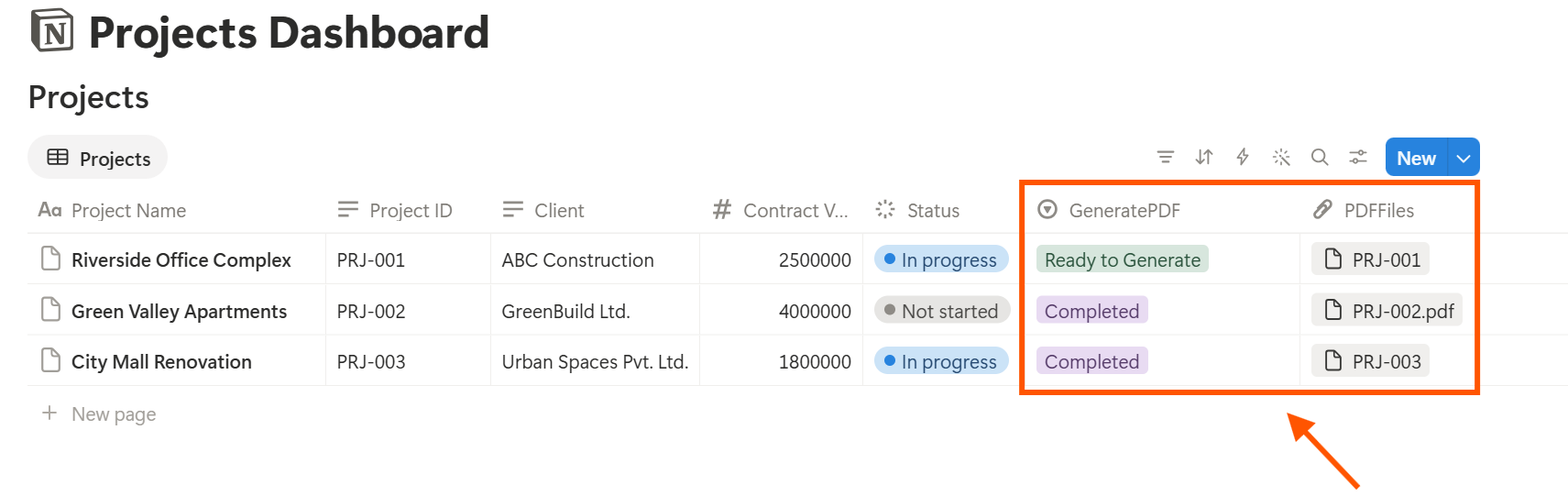
Run Preview on a sample record first, and check for blank fields, dates in the wrong format, and long descriptions that stretch the layout.
Who Sees What
Clients should see finished documents, not your workspace. Subcontractors need their own tasks and maybe the site schedule, but not your margins. Keep costs, markups, and internal notes in views that only the office can open, and send everyone else a PDF.
Three Ways This Setup Quietly Fails
It rarely breaks loudly. It fades.
Questions People Ask
Can Notion be used for a construction business?
Yes, for coordination: project records, site reports, change orders, billing tracking, and snag lists. It doesn’t replace scheduling software, accounting, or required safety systems.
How do I track change orders in Notion?
Create a Change Orders database linked to the project, with an amount and a status. Add a formula that returns the amount only when the status is Approved, then roll it up on the project and add it to the original contract.
Can I make daily site reports in Notion?
Yes. Use a database template with short prompts for weather, crew, work completed, delays, deliveries, and safety notes, and attach photos. You can then export a record as a PDF.
Can Notion generate PDF reports for clients?
You can export a page as a PDF, or use a template-based tool such as PDFOutput to fill a report template with each record’s data. Test it on a few sample records first.
Is Notion good for subcontractor management?
It can track who is doing what, their contact details, and their tasks. Share only the pages each subcontractor needs, and send formal documents as PDFs.
Does it work on a building site?
Notion has a mobile app, though some actions are easier on a computer. Test your site report form on the phones your crew actually uses.
Related Reading
The Bottom Line
A good construction setup in Notion isn’t clever. It’s a project record that everything attaches to, a site report that gets written, and change orders that are real records. Build that, run one job through it, and fix what’s annoying before you add more. When documents have to leave Notion, PDFOutput can fill your template from each record and save the PDF back to your chosen storage.
Want site reports and change orders as clean PDFs? Try PDFOutput.