Guides
How to Use Notion for a Cleaning Business: Jobs, Crews, and Quotes
Set up Notion for your cleaning business in seven days, 30 minutes a day: clients, quotes, recurring jobs, crew sheets, and PDF quotes and invoices.
By Sanat Biswal · 2026-10-19 · 5 min read

{/ synced-from-notion — do not edit manually /}
If you are looking to get your cleaning business organized in the next weekend, then you don’t need to wait that long. All you need is quick 7 short sessions of 30 mins each to organize everything together.
This guide is a one-week plan.
Each day builds one piece, and each day ends with a simple check so you know it works before you move on.
By Sunday, you’ll have clients, quotes, jobs, crew sheets, and PDFs. It is general information about organizing a business, not legal or financial advice.
Short answer on how to use Notion for cleaning business:
To use Notion for a cleaning business, build six linked databases over the next week:
Use formulas to price quotes by the size of the space, find clients who are due for a visit, and check job profit.
Keep key and alarm codes out of Notion. Then create PDF quotes, job sheets, and invoices from the records.
Table of Contents
Read This Before Day 1
Notion is good at planning and records. It isn’t made for planning routes, tracking where crews are, running payroll, or taking payments.
Keep using your other tools for those, and use Notion for the picture that connects them.
Two rules before you type anything:
Privacy, insurance, worker status, and chemical safety rules differ by country, so check what applies to you.
Day 1: List Your Clients
Time: 30 minutes
Goal: every client and site in one table.
Create a database called Clients with these properties:
- Name
- Type (Home, Office, or Other)
- Address
- Contact and Phone
- Area (in square meters or square feet)
- Frequency (One-off, Weekly, Fortnightly, or Monthly)
- Last Clean (a date)
- Access Note (how to get in, never the code)
- Special Instructions (pets, products to avoid, areas to skip)
- Status (Active, Paused, or Ended)
- Today by crew: today’s jobs, grouped by crew and sorted by start time.
- Week calendar: a calendar view, so you can spot gaps and clashes.
- Unassigned: jobs with no crew yet.
- Issues: jobs with the status Issue.
- To schedule: active clients with the Due flag, sorted by next clean date.
- Lapsed clients: active clients whose next clean was more than a week ago, so you can find out why.
- Quotes. Notion Proposal Template shows how to structure one.
- Job sheets for crews, without any access codes
- Invoices and receipts. Notion Receipt Template shows how to structure one.
- Service agreements, with wording checked by someone qualified
- Monthly summaries for office clients
- Ready to Generate creates a PDF from the database record.
- Generate Page converts the Notion page into a PDF.
- Generate PDF and Doc creates a PDF and a Google document.
- Preview creates a Google document so you can check it before making the final PDF.
- Generate E-Signed Doc creates an e-signed PDF in the database workflow.
- Photo galleries for before and after shots
- Client portals and online booking
- Complex pricing for every room type
- Staff performance dashboards
- Automations that create jobs for you
- How to Use Notion for Property Management
- How to Use Notion for a Hotel
- Notion Proposal Template
- Notion Receipt Template
If your clients are in a spreadsheet, export it as a CSV file and import it into the database. Notion to Excel explains how CSV files behave, including the date problems that trip people up.
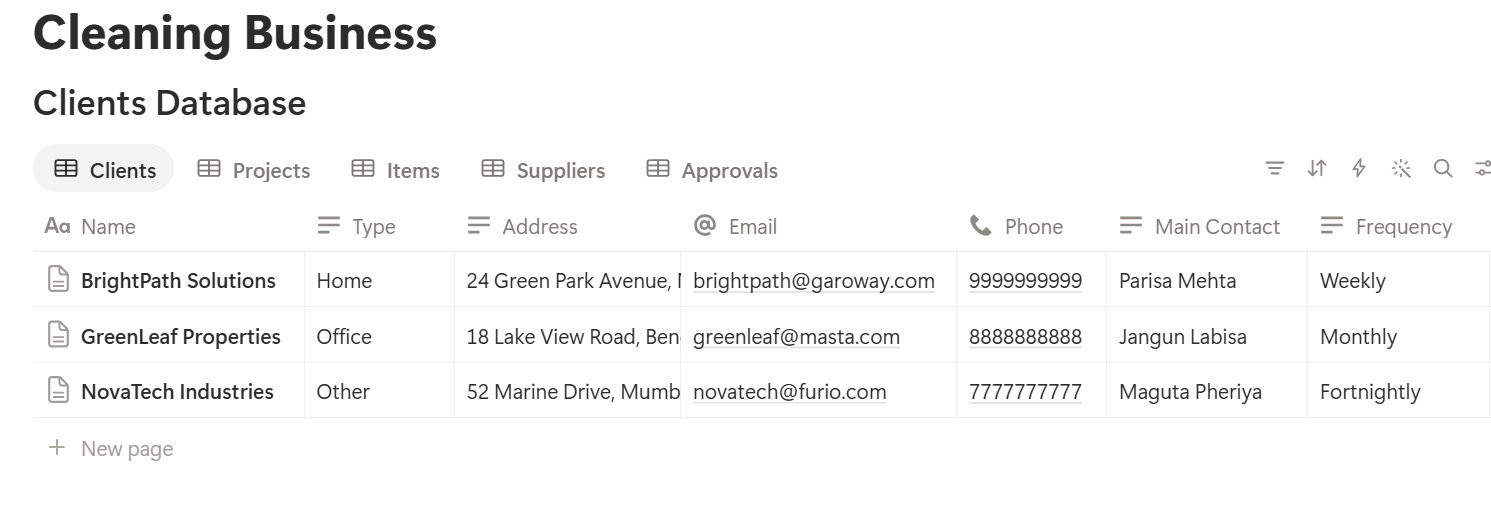
Done when: you can open the table and see every active client, how often they’re cleaned, and when they were last cleaned.
Skip if: you only have two or three clients. Type them in by hand.
Day 2: Price a Quote the Same Way Every Time
Time: 30 minutes
Goal: a quote you can work out in a minute, with no guesswork.
Create a database called Quotes with these properties:
Client or Lead, Area, Cleaning Type (Standard, Deep, or Move-out), Productivity (how much one cleaner cleans in an hour), Crew Size, Labour Rate (what you charge per labour hour), Supplies Fee, Sent On, Valid Until, and Status (Draft, Sent, Accepted, or Declined).
Then add three formulas:
*Labour Hours: prop("Area") / prop("Productivity") Hours On Site: prop("Labour Hours") / prop("Crew Size") Price: prop("Labour Hours") prop("Labour Rate") + prop("Supplies Fee")
Here is a made-up home quote. Amounts are in your own currency.
| Item | Value |
|---|---|
| Area | 120 sq m |
| Productivity | 30 sq m per labour hour |
| Labour hours | 4 |
| Crew size | 2 |
| Hours on site | 2 |
| Labour rate | 35 per labour hour |
| Supplies fee | 10 |
| Price | 150 |
Done when: you enter 120, 30, 2, 35, and 10, and the price shows 150.
Skip if: you only do hourly jobs. Then a single hourly price may be enough.
Pro Tip: After each first visit, compare the hours you quoted with the hours it took. If you keep going over, your productivity number is too hopeful, and your prices are too low.
Day 3: Set Up Jobs and Crews
Time: 30 minutes
Goal: every visit is a record, and every crew can see its day.
Create two databases.
Crew has: Name, Role (Cleaner or Team Lead), Phone, Hourly Cost, and Status (Active or Off).
Jobs has: Client (relation), Date, Start Time, Crew (relation), Job Type, Hours Planned, Hours Actual, Status (Scheduled, On the Way, In Progress, Done, or Issue), Price, and Notes.
A relation connects a record in one database to a record in another. Link Jobs to Clients and to Crew. Now a client page shows every visit.
Make these views of Jobs:
Then make a job sheet template that each new job starts from. It should have the address and time, contact number, how to get in, a checklist by room, special instructions, supplies to bring, and a space for notes.
Keep each checklist short and specific. “Kitchen: wipe counters, clean hob, empty bin, clean sink” works better than “clean kitchen.”
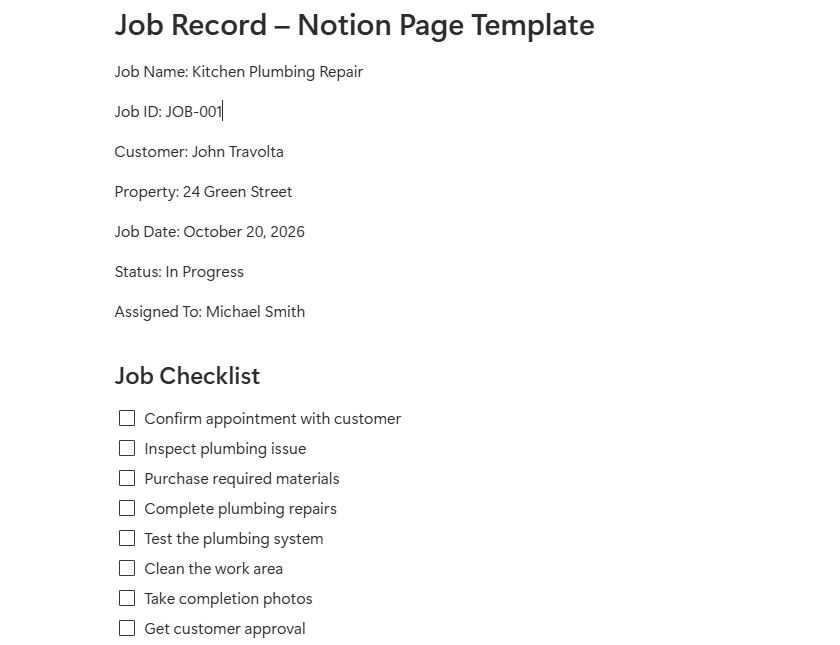
Done when: you create three test jobs for two test crews and can see each crew’s day in one view.
Skip if: you work alone. Skip the Crew database, and just use the Jobs database.
Day 4: Find Who Is Due This Week
Time: 30 minutes
Goal: no regular client slips through the cracks.
Regular clients are most of your income, and they usually leave quietly. A flag spots a missed visit before it becomes a lost client.
On Clients, add three formulas:
*Interval: if(prop("Frequency") == "Weekly", 7, if(prop("Frequency") == "Fortnightly", 14, if(prop("Frequency") == "Monthly", 28, 0))) Next Clean: if(prop("Interval") > 0, dateAdd(prop("Last Clean"), prop("Interval"), "days"), "") Due flag: if(prop("Interval") > 0 and prop("Status") == "Active" and prop("Next Clean") <= dateAdd(now(), 7, "days"), "Due", "")*
Then make two views:
Each time a job is marked Done, update the client’s Last Clean date. Create the next job from a template, or use a database automation if your plan has one.
Done when: you set a test client’s Last Clean to eight days ago with a weekly frequency, and the Due flag appears.
Skip if: all your work is one-off. Then you don’t need recurring flags.
Day 5: Add Quality Checks and Supplies
Time: 30 minutes
Goal: catch problems before the client does, and never run out mid-job.
Clients rarely complain. They just find someone else. A quick check by a team lead catches problems early.
Create Inspections with: Job (relation), Inspector, Date, Items Checked, Items Passed, and Notes. Add one formula:
Pass rate: if(prop("Items Checked") > 0, prop("Items Passed") / prop("Items Checked"), 0)
Format it as a percent. Use the results to find where support or training is needed, and not to blame.
If a client reports a problem, create a job of the type Re-clean, link it to the original, and write what went wrong. A fast fix and a polite message keep most clients.
Create Supplies with: Item, Type (Chemical, Tool, or Consumable), In Stock, Reorder Level, Unit Cost, and Safety Sheet Link. Add:
Reorder flag: if(prop("In Stock") <= prop("Reorder Level"), "Reorder", "")
Make a Reorder list view of items with the flag. Do a quick stock count once a week. Link every chemical to the manufacturer’s safety data sheet, and check the storage and training rules that apply where you work.
Done when: you lower a test item’s stock below its reorder level, and it appears on the reorder list.
Skip if: you’re a solo cleaner who buys supplies as you go.
Day 6: Check Which Jobs Make Money
Time: 30 minutes
Goal: know which clients are worth keeping.
A full schedule doesn’t mean a profitable one. On Jobs, add Labour Cost (actual hours times the crew’s hourly cost), Travel Cost, and Supplies Cost. Then:
*Profit: prop("Price") - prop("Labour Cost") - prop("Supplies Cost") - prop("Travel Cost") Margin: if(prop("Price") > 0, prop("Profit") / prop("Price"), 0)*
Format Margin as a percent. Here is a made-up job. Amounts are in your own currency.
| Item | Amount |
|---|---|
| Price | 150 |
| Labour (4 hours at 18) | 72 |
| Supplies | 10 |
| Travel | 8 |
| Profit | 60 |
| Margin | 40% |
This leaves out overheads like insurance, vehicles, and your own time, so use it as a guide for decisions about jobs, and check the real figures with an accountant.
Done when: a test job with those numbers shows a profit of 60 and a margin of 40%.
Skip if: you haven’t recorded actual hours yet. Start recording them first, because the numbers mean little without them.
Day 7: Turn Records Into PDFs
Time: 30 minutes
Goal: a quote and a job sheet that look professional, made from your data.
Clients and crews don’t all use your workspace, so some records need to become files. These are the most useful:
For a single page, use Notion’s export: click •••, choose Export, and set the format to PDF. How to Export Notion to PDF explains each setting.
Notion’s own export gives you limited control over your logo and layout, and How to Add Your Logo and Brand Colors to Notion PDFs explains how a template solves that.
Using PDFOutput
PDFOutput creates documents from your Notion data using a template. A template can be a Google document, a Word file, a PDF file, or a Notion page. You add placeholders in double curly braces where data should go, such as {{Client_Name}} or {{Price}}, and each one must match the name of a Notion property.
Then you start the document with a Notion database button or a status property. These are some of the status options:
The finished file can be saved to a property in your database, so a quote stays on its record, or to a Google Drive folder with the link stored in a property.
The e-signed option may help with service agreements, but whether an electronic signature is valid depends on your location and the document, so check first.
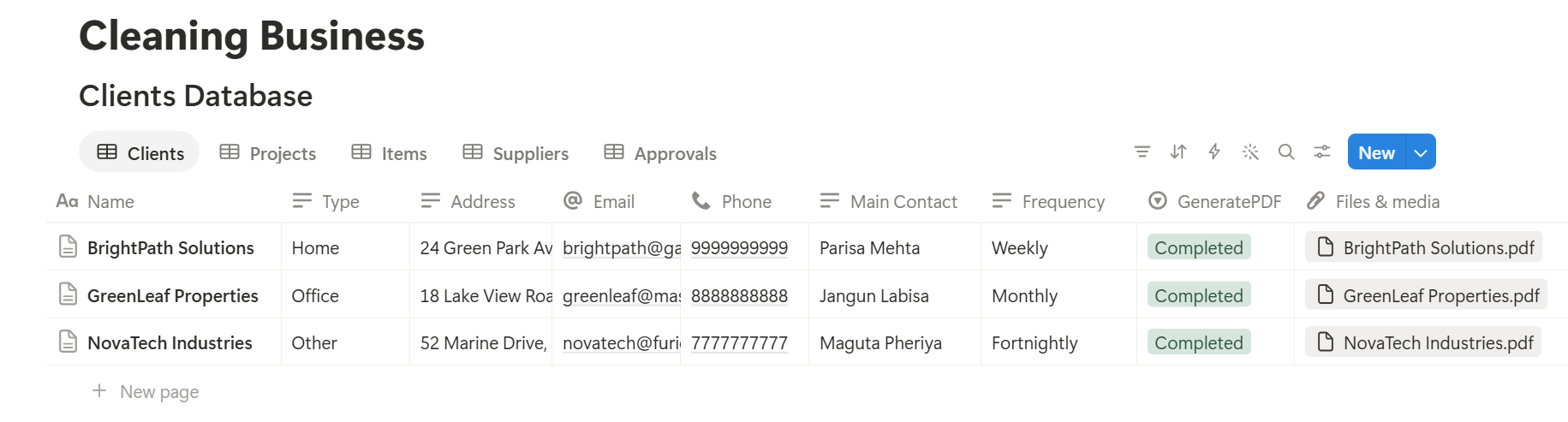
A job sheet with a checklist, or a monthly summary with many visits, relies on linked records. Test it with a sample client that has several visits, and check that each one appears. If it doesn’t, keep the checklist as text on the job and use that in the template.
Done when: you generate a quote PDF from a test record, using Preview first, and the price, dates, and names are right.
Skip if: you send very few quotes. The built-in export may be all you need.
Key Takeaway: Price from the size of the space, flag clients who are due, and check profit per job. After that, quotes, job sheets, and invoices come from data you already have.
Your Week-One Scorecard
Check yourself before you use real data.
| Check | Done? |
|---|---|
| Clients are listed with frequency and last clean date | |
| The quote formula gives the price you expect | |
| Test jobs show up by crew and by day | |
| The Due flag appears on a client who is overdue | |
| The reorder list shows a low item | |
| The profit formula matches a hand calculation | |
| A test quote PDF looks right | |
| No key codes or passwords are stored anywhere |
What to Skip for Now
You can leave these for later, once the basics are working:
Add one thing at a time, and use it for a month before you add the next.
Frequently Asked Questions
Can Notion be used to run a cleaning business?
Yes. It can organize clients, quotes, recurring jobs, crew schedules, supplies, and quality checks. It doesn’t plan routes, track location, run payroll, or take payments, so use dedicated tools for those.
How do I schedule recurring cleans in Notion?
Add a frequency and a last clean date to each client, then use a formula that adds the interval to the last clean to give the next visit. Make a view of clients whose next clean falls in the coming week.
How do I price a cleaning quote in Notion?
Divide the area by how much one cleaner can clean per hour to get labour hours, multiply by your labour rate, and add a supplies fee. Check the productivity number against real jobs.
Should I store key codes in Notion?
No. Never store key codes, alarm codes, or passwords in Notion. Record how access works, and keep the code in a secure tool built for that.
Who should see prices and wages?
Only the people who need them. Keep prices, margins, and wages out of views that crews can open, and send clients a finished PDF instead of access to your workspace.
Can I create quotes and job sheets from Notion?
You can export a page as a PDF, or use a template-based tool such as PDFOutput to fill a quote or job sheet template with data from each record. Test it on a few sample records first.
Related Reading
Conclusion
You don’t need a perfect system, just a working one. Spend a week on it, 30 minutes a day, and check each day before you move on. By the end, you’ll have prices you trust, regular clients who never slip away, crews who know their day, and quotes that look professional.
When your quotes, job sheets, and invoices need to leave Notion, PDFOutput can fill your template from each record and save the PDF to your chosen storage.
Want quotes and invoices as clean PDFs? Try PDFOutput.