Guides
How to Use Notion for an Auto Repair Shop: Job Cards, Parts, and Estimates
Learn how to set up Notion for an auto repair shop with job cards, parts, customers, and estimates, plus PDF estimates, job cards, and invoices.
By Sanat Biswal · 2026-10-18 · 5 min read

{/ synced-from-notion — do not edit manually /}
In an auto repair shop, a job card is the whole story of a car’s visit.
It says who dropped the car off, what they asked for, what the technician found, which parts went in, what the customer agreed to pay, and when it will be ready.
When that story is on a paper slip stuck to a windscreen, it gets greasy, lost, and misread.
Notion can hold that story in one shared place that the front desk, the technicians, and the owner can all see. This guide is for small and mid-sized repair shops. It shows how to set up customers, vehicles, job cards, parts, and estimates, and how to turn records into PDFs such as estimates, job cards, and invoices. It is general information about organizing a business, not legal advice.
Short answer: To use Notion for an auto repair shop, create linked databases for Customers, Vehicles, Job Cards, Line Items, Parts, and Suppliers.
Use formulas to calculate line totals, tax, and job totals, and to flag late jobs and low stock.
Make a status board so everyone can see where each car is. When you need to give a customer a document, such as an estimate or an invoice, create a PDF from the record.
In more detail: Notion works well for small shops as a shared workspace for jobs, parts, and customer history.
Each job card is linked to a customer and a vehicle, and its line items list the parts and labour. A rollup adds the lines into a total, and a status board shows every car in the shop at a glance.
Notion isn’t a full shop management system. It doesn’t look up parts from catalogs, read diagnostic tools, decode VINs, or take payments. It works best beside those tools.
For documents that customers receive, you can export a page as a PDF or generate one from a template.
Table of Contents
What Notion Can and Can’t Do for a Repair Shop
Notion is good for:
- Keeping customers, vehicles, and job history in one place.
- Showing the status of every car on a board.
- Building estimates and invoices from linked line items.
- Tracking parts stock and flagging low items.
- Planning bays and promised times.
- Creating consistent estimates, job cards, and invoices.
- Looking up parts from supplier catalogs.
- Reading data from diagnostic tools.
- Decoding VINs automatically.
- Taking card payments.
- Accounting and payroll.
- Contact details and the vehicle registration are normal and expected.
- VIN and odometer readings belong to the vehicle record. They are useful for service history and warranty questions.
- Payment details such as card numbers should never be stored in Notion. Keep them with your payment provider.
- Photos of vehicles are helpful for recording damage at drop-off. Keep them tied to the job card, and don’t keep photos that show people.
- Customers stores the people you work for. Add these properties: Name, Phone, Email, Preferred Contact (Phone, Text, or Email), and Notes.
- Vehicles stores each car, van, or bike. Add: Registration, Make, Model, Year, VIN, Owner (relation to Customers), Odometer, Last Service Date, and Notes.
- Job Cards is the main database. Add: Job Number (a Unique ID with a prefix like JC), Vehicle (relation), Customer (rollup from the vehicle), Drop-off Date, Promised By, Bay (Bay 1, Bay 2, Bay 3, or Outside), Technician, Complaint (what the customer says), Findings, Status (see below), Estimate Approved (checkbox), Approved On, and Approved By.
- Line Items stores each part and each hour of labour. Add: Description, Job Card (relation), Type (Part or Labour), Quantity, Unit Price, and Line Total (a formula).
- Parts stores your stock. Add: Part Name, Part Number, Supplier (relation), Cost, Selling Price, In Stock, Reorder Level, and Bin Location.
- Suppliers stores where you buy. Add: Company, Contact, Phone, Account Number, and Typical Delivery Time.
- Complaint: what the customer says, in their words
- Condition at drop-off: existing dents, scratches, warning lights, fuel level, and photos
- Items in the vehicle: anything the customer left inside
- Contact: the best number, and when it’s OK to call
- Promised time: the day and time you told them
- Send the estimate to the customer as a PDF.
- Record the customer’s reply: tick Estimate Approved, and fill in Approved On and Approved By, with how they approved (call, text, or email).
- Don’t start the work until approval is recorded.
- If the technician finds more work, make a new estimate for the extra items and get approval again.
- Estimate: the car is waiting to be inspected or priced
- Awaiting Approval: the estimate has been sent
- Approved: ready to start
- In Progress: a technician is working on it
- Waiting on Parts: the job is paused until parts arrive
- Ready: the work is done, and the customer can collect
- Collected: the car has been picked up and paid for
- Shop board: a board view of Job Cards grouped by Status. This is the one everyone watches.
- Bay planner: a table view of jobs In Progress, grouped by Bay.
- My jobs: jobs assigned to each technician.
- Waiting on parts: jobs with that status, so you can chase suppliers.
- Calendar: a calendar view by Promised By date.
- Reorder list: Parts with the Reorder flag, grouped by supplier.
- Low margin: Parts sorted by margin, lowest first, so you can spot items priced too low.
- Change the status to Ready, and contact the customer.
- Prepare the invoice, which is the job card’s line items and total.
- At pickup, change the status to Collected, and record the payment date and method (but not card details).
- Update the vehicle’s Last Service Date and Odometer.
- Estimates: the line items, totals, and what’s included. Notion Proposal Template shows how to structure a document that wins agreement.
- Job cards: a printable sheet for the technician with the complaint, notes, and checklist
- Invoices and receipts: what the customer paid. Notion Receipt Template shows how to structure one.
- Vehicle inspection reports: findings with photos, and what’s recommended
- Parts orders for suppliers
- Warranty notes: what was done, which parts were fitted, and the cover offered, if you offer any
- Service reminders: a short, friendly notice
- Create your template with your logo and layout.
- Add placeholders in double curly braces where the data should go, such as
{{Job_Number}}or{{Total}}. - Make sure each placeholder matches the name of a Notion property.
- Start the document with a Notion database button or a status property.
- Ready to Generate creates a PDF from the database record.
- Generate Page converts the Notion page into a PDF.
- Generate PDF and Doc creates a PDF and a Google document.
- Preview creates a Google document so you can check it before making the final PDF.
- Generate E-Signed Doc creates an e-signed PDF in the database workflow.
- Give technicians access to their own jobs, with the complaint, findings, and checklist, but not prices or margins.
- Keep part costs, margins, and supplier terms out of views that other staff don’t need.
- Don’t give customers access to your workspace. Send them a finished PDF.
- Keep customer phone numbers to the people who need them.
- Remove access on the day someone leaves.
- Review who has access every few months.
- How to Use Notion for a Manufacturing Business
- How to Use Notion for a Logistics Business
- Notion Proposal Template
- Notion Receipt Template
Notion is not made for:
If you already use a parts catalog, a till, or accounting software, treat Notion as the job and records layer beside them.
Customer and Vehicle Information
Repair shops hold personal details, so think about what you really need.
Rules about written estimates, customer approval, warranties, and keeping records differ by country and sometimes by state. Check what applies to you before you set up your process. While you are testing, use made-up customers and vehicles.
Start With 6 Databases
Start with these 6 databases. You can add more later.
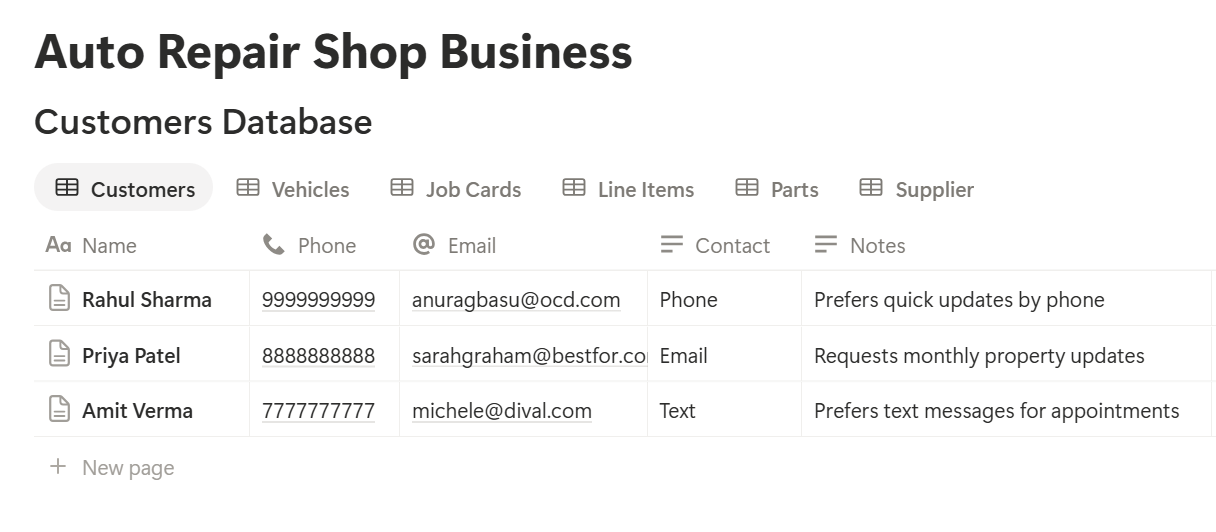
A relation connects a record in one database to a record in another. Link Vehicles to Customers, Job Cards to Vehicles, Line Items to Job Cards, and Parts to Suppliers. Now a vehicle page shows every job it has had, and a job card shows its line items and its total.
Drop-Off: Opening a Job Card
The job card starts at the front desk, with the customer standing there.
Use a New job card template, with these sections:
Recording condition at drop-off protects both you and the customer. A dated photo of a scratch, taken before work starts, settles a lot of arguments.
Set the Status to Estimate, and let the technician take a look.
The Estimate: Pricing and Approval
An estimate is a promise about price, and most customers want to know the total before you start.
Building the Estimate
After inspecting the vehicle, the technician writes up what’s needed. Add each part and each job’s labour as a line item linked to the job card. Add these formulas to Line Items and Job Cards:
Line Total (Line Items): prop("Quantity") prop("Unit Price") Tax (Job Cards): prop("Subtotal") * prop("Tax Rate") Total (Job Cards): prop("Subtotal") + prop("Tax")*
On Job Cards, add a rollup that sums Line Total from Line Items, and name it Subtotal. Add a Tax Rate number property, formatted as a percent. Here is a made-up estimate for a front brake job. Amounts are in your own currency.
| Item | Quantity | Unit price | Line total |
|---|---|---|---|
| Brake pad set, front | 1 | 85 | 85 |
| Brake discs, front | 2 | 60 | 120 |
| Brake fluid | 1 | 15 | 15 |
| Labour (hours) | 2.5 | 50 | 125 |
| Subtotal | 345 | ||
| Tax at 10% | 34.50 | ||
| Total | 379.50 |
Getting Approval
Many places require customer approval before work begins, and some require the estimate to be in writing. Check your local rules. Whatever the rules, a clear process helps:
Keeping approval on the record means nobody has to remember who agreed to what.
Pro Tip: Add a "Declined work" note when a customer says no to something recommended, such as worn tyres. It protects you, and it gives you a reason to follow up at the next visit.
In the Bay: Tracking the Repair
Once a job is approved, everyone needs to know where it stands.
A Simple Status Flow
Use a Status property with these options, and keep them to this short list:
Views for the Shop
Watching the Clock
Add two formulas on Job Cards:
*Days in shop: dateBetween(now(), prop("Drop-off Date"), "days") Late flag: if(prop("Status") != "Collected" and prop("Status") != "Ready" and prop("Promised By") < now(), "Late", "")*
The late flag shows any job past its promised time that isn’t ready. Check it in the morning and after lunch. A quick call to a customer before they call you makes a big difference.
Also ask technicians to add notes in the Findings box as they work. If the job is long, a short note each day is better than a long one at the end.
Parts: Stock and Ordering
Waiting for a part is the biggest cause of late jobs. A little stock control helps.
Formulas for Parts
*Reorder flag: if(prop("In Stock") <= prop("Reorder Level"), "Reorder", "") Margin: if(prop("Selling Price") > 0, (prop("Selling Price") - prop("Cost")) / prop("Selling Price"), 0)*
Format margin as a percent, and check it against a calculator.
Keep stock tracking for the things you use often, such as oil, filters, wipers, bulbs, and brake pads. Parts you order for one specific job don’t need a stock record. Add them straight to the job’s line items with a note on the supplier.
Views for Parts
Update In Stock when parts arrive and when they go on a job. A weekly stock check takes ten minutes and keeps the flags honest. Follow your local rules for storing and disposing of oil, batteries, and other hazardous items.
Pickup: Invoice and Follow-Up
When the work is finished, the customer wants three things: the car, a clear bill, and confidence it’s fixed.
Before pickup, check the job card against the estimate. If the total changed, make sure the extra work was approved and recorded. Then:
Service Reminders
Customers come back when someone reminds them. On Vehicles, add:
*Next Service: dateAdd(prop("Last Service Date"), 6, "months") Reminder flag: if(dateBetween(prop("Next Service"), now(), "days") <= 14, "Service due", "")*
The six months is only an example. Use the interval that fits each type of service or the maker’s schedule. A view called Service due shows vehicles that are due soon.
Contact only customers who agreed to receive reminders, and record that agreement on the customer record.
A Tuesday at a Three-Bay Shop
To see how the pieces fit, here is one made-up Tuesday.
8:00 am. The service advisor opens the shop board. Two jobs are In Progress, one is Waiting on Parts, and one is Ready for collection today. The late flag shows one job that was promised for yesterday evening.
8:15 am. She calls the customer with the late job, explains the delay, and sets a new promised time. A note on the job card records the call.
9:00 am. A customer arrives with a noise from the front wheel. The advisor opens a new job card, records the complaint and condition, and takes photos. Status: Estimate.
10:30 am. The technician finds worn pads and discs. He adds line items, and the total appears. The advisor sends the estimate as a PDF.
11:15 am. The customer replies by text. The advisor ticks Estimate Approved, records the time and method, and moves the job to Approved.
1:00 pm. The Reorder list shows oil filters are low. The advisor creates a parts order for the supplier.
3:30 pm. The brake job is done. Status moves to Ready, and the customer is called.
5:00 pm. The customer collects the car. The invoice goes out as a PDF, the status moves to Collected, and the vehicle’s last service date and odometer are updated.
Nobody searched for a paper slip.
The Documents That Leave Notion
Customers, suppliers, and technicians don’t all use your workspace, so some records need to become files:
For a single page, you can use Notion’s export option. How to Export Notion to PDF shows the settings, and How to Export a Notion Database to PDF helps with tables.
Customers judge a shop partly by its paperwork, and Notion’s own export gives you limited control over layout. How to Add Your Logo and Brand Colors to Notion PDFs explains how a template solves that.
Generating PDFs with PDFOutput
PDFOutput creates documents from your Notion data using a template. A template can be a Google document, a Word file, a PDF file, or a Notion page. If you already have an estimate or invoice layout in Word or Google Docs, you can reuse it.
Here is how it works:
These are some of the status options:
The e-signed option may help with estimate approvals. Whether an electronic signature is accepted for approving repair work depends on your location, so check before you rely on it. You can save the finished file to a property in your database, so an estimate stays on its job card. You can also save it to a Google Drive folder and store the link in a property.
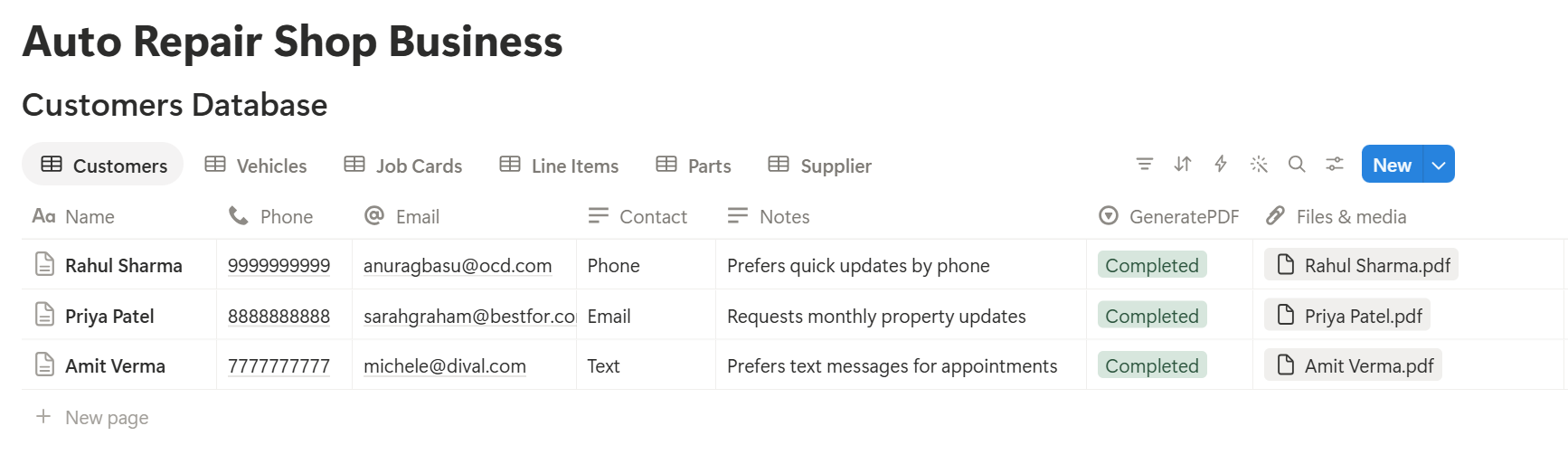
Line items live in their own database, linked to the job card. Before you rely on a template for itemized estimates, test it with a sample job that has several lines, and check that each part and labour line appears the way you want. If it doesn’t, a simple fallback is to keep a short text summary of the work on the job card, and use that in the template.
Start with the estimate, since every job needs one. Use Preview first and check for empty fields, wrong date formats, and totals that don’t match your records.
Key Takeaway: The job card is the center of everything. If each job has its line items, its status, and its approval recorded, estimates, invoices, and reminders all come from data you already have.
Who Can See What
Your workspace will hold customer details, prices, and margins, so control access from the start.
Common Mistakes
Starting work before approval is recorded. It is the most common cause of disputes about the bill. Make “no approval, no work” the rule.
Too many statuses. Seven is plenty. More statuses mean more clicks, and technicians will skip them.
Putting everything in one table. Parts and labour belong in a Line Items database, so Notion can add them up.
Promising times you can’t keep. A late flag only helps if the promised time is realistic.
Stale stock counts. The reorder flag only works if In Stock is updated. Do a weekly count.
No notes during the job. A job card with no findings makes it hard to explain the bill later. A line or two per day is enough.
No owner for the structure. Pick one person responsible for the setup. Properties get renamed and formulas break, so tell that person not to rename properties used in PDF templates, because the placeholders must match exactly.
Skipping a test week. Run a week of made-up jobs first, and fix what annoys the technicians before you use real data.
Frequently Asked Questions
Can Notion be used to run an auto repair shop?
For small and mid-sized shops, Notion can organize customers, vehicles, job cards, parts, and estimates. It doesn’t look up parts catalogs, read diagnostic tools, or take payments, so use dedicated tools for those.
How do I create a job card in Notion?
Create a Job Cards database linked to vehicles, with a complaint, findings, a status, and a promised time. Add a Line Items database linked to each job for parts and labour, and use a database template so each new job starts with the same sections.
How do I make an estimate in Notion?
Add each part and each labour line as a line item linked to the job card, with a quantity and a unit price. Add a formula for each line total, a rollup for the subtotal, and formulas for tax and the total.
How do I track parts inventory in Notion?
Create a Parts database with In Stock and Reorder Level properties, and add a formula that flags parts at or below the reorder level. Update stock when parts arrive and when they go on a job.
Can I create invoices from Notion?
You can export a job card as a PDF, or use a template-based tool such as PDFOutput to fill an invoice template with data from each job. Test it on a few sample jobs first, especially jobs with several line items.
Can I send service reminders from Notion?
Notion can show you which vehicles are due, using a formula and a view. It doesn’t send messages on its own, so contact customers yourself or use a messaging tool, and only contact people who agreed to hear from you.
Is it safe to store customer information in Notion?
Notion lets you control who sees each page, but your duties depend on the privacy rules where you work. Collect only what you need, and keep card details out.
Related Reading
Conclusion
A good auto repair shop setup in Notion puts the whole story of each job in one place: what the customer asked for, what the technician found, what was approved, and what it cost. Start with job cards, line items, and a status board, use made-up jobs for a week, and fix whatever slows the technicians down.
When your estimates, job cards, and invoices need to leave Notion, PDFOutput can fill your template from each record and save the PDF to your chosen storage.
Want estimates and invoices as clean PDFs? Try PDFOutput.