Guides
How to Use Notion for an Agency: Clients, Projects, and Reports
Learn how to set up Notion for an agency with clients, projects, tasks, and time tracking, then create PDF client reports and proposals.
By Sanat Biswal · 2026-10-12 · 5 min read

{/ synced-from-notion — do not edit manually /}
Most agencies run with a combination of use of different tools. Tasks are created in one app, time recorded is in another spreadsheet, client feedback lies in inbox, and finally the monthly report becomes a document someone builds from scratch at the end of the month.
Nobody is sure which project is over budget until it actually becomes.
Notion helps to bring these pieces together and provides clarity into operations of a business. Th guide below shows you how to set up Notion for clients, projects, tasks, and time tracking, and how to turn that information into PDFs your clients can receive.
How to use Notion for Agencies? Quick Answer
To use Notion for an agency, first of all create linked databases for Clients, Projects, Tasks, and Time Entries.
Use formulas to show how much of each project’s budget has been used, and make views for daily work, use templates for repeated jobs such as client onboarding.
Finally when you need to send something to a client, such as a monthly report or a proposal, create a PDF from the record.
What exactly Notion helps to offers ?
Notion works really well for small and mid-sized agencies as a place to help plan their work and keep the records in one place.
Every client has projects, every project has tasks, and every task can have time logged against it.
Because these records are linked, a project can add up its own hours and compare them to its budgeted hours allocated. Notion is not a full fledged accounting or payroll system, and it does not replace the invoicing rules you need to follow.
For documents that clients receive, you can export a page as a PDF or generate one from a template.
What Notion Can and Can’t Do for an Agency?
Notion is good for:
- Keeping your clients, projects, and tasks in one place.
- Logging in hours and comparing them to a budget.
- Planning your content and campaigns.
- Storing client onboarding steps and agency processes in one system.
- Helps to create consistent client reports and proposals.
- Payroll or full accounting system.
- Detailed resource planning to be used across a large team.
- Automatic time tracking from your computer.
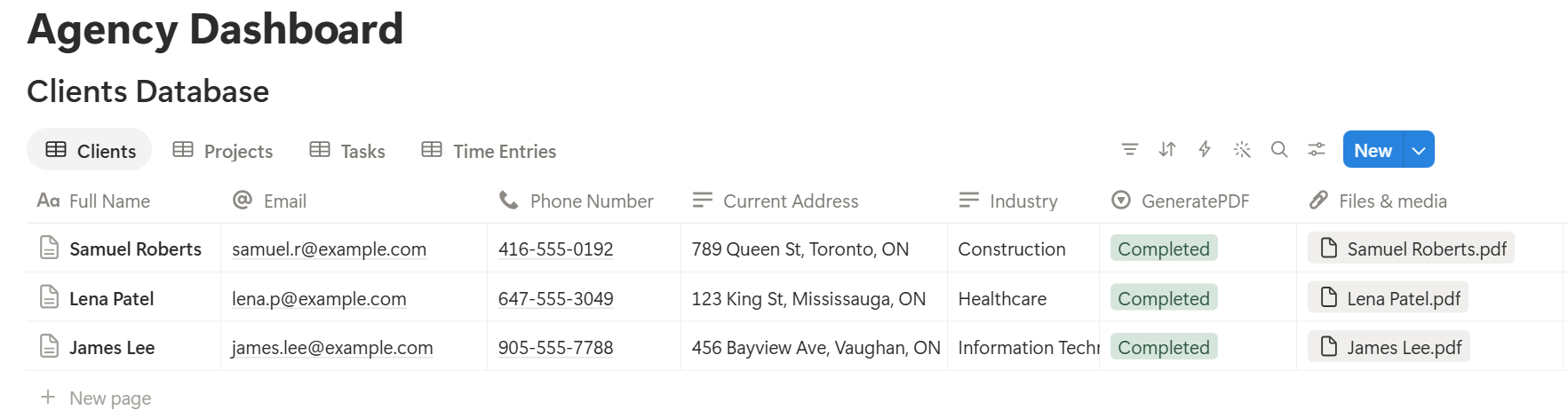
- Clients Database : This database stores who you work for. Add the following properties: Name, Main Contact, Email, Industry, Status (Active, Paused, or Past), and Start Date.
- Projects Database : This database stores each piece of work. Add the following properties : Project Name, Status (Planning, In Progress, In Review, or Done), Start Date, Due Date, Budget, Hourly Rate, and Owner.
- Tasks Database : This database stores the work inside each project. Add the following properties : Task Name, Assigned To, Status (To Do, Doing, Waiting on Client, or Done), Due Date, and Priority.
- Time Entries Database : This database stores hours worked. Add the following properties : Date, Person, Hours, and Notes.
- In Projects, add a relation to Clients.
- In Tasks, add a relation to Projects.
- In Time Entries, add a relation to Projects and to Tasks.
- My tasks: Tasks assigned to you, sorted by due date.
- Waiting on client: Tasks with the status Waiting on Client, so you know who to chase.
- Over budget: Projects where the Over Budget flag shows.
- Due this month: Projects sorted by due date, for planning.
- Client onboarding template : a checklist for access, brand files, goals, and the first meeting.
- Project kickoff template : scope, deliverables, timeline, and who is responsible for what.
- Monthly report template : sections for work done, results, and plans for next month.
- Meeting notes template : date, attendees, decisions, and next steps.
- Monthly reports: work done, results, and next steps
- Proposals: scope, timeline, and pricing. Notion Proposal Template shows how to structure one.
- Statements of work: a clear description of what you will deliver
- Content calendars: a list of what will be published and when
- Time summaries: hours worked on a project, if your contract includes that
- Create your template with your logo and layout.
- Add placeholders in double curly braces where the data should go, such as
{{Client_Name}}or{{Project_Name}}. - Make sure each placeholder matches the name of a Notion property.
- Start the document with a Notion database button or a status property.
- Ready to Generate creates a PDF from the database record.
- Generate Page converts the Notion page into a PDF.
- Generate PDF and Doc creates a PDF and a Google document.
- Preview creates a Google document so you can check it before making the final PDF.
- Generate E-Signed Doc creates an e-signed PDF in the database workflow.
- Keep hourly rates and budgets private from people who do not need them.
- Do not give clients access to your workspace. Send them a PDF instead.
- Give freelancers access only to the projects they work on.
- Check who has access every few months, and remove people who have left.
- Notion Proposal Template
- How to Export Notion to PDF
- How to Add Your Logo and Brand Colors to Notion PDFs
- Notion to Google Docs
Notion is not made for:
If you handle client data, passwords, or contracts, check your own rules and the terms in your client agreements before deciding what to store in Notion Database.
Step 1: Create 4 Databases
Start with these 4. You can add more later.
Step 2: Link the Databases Together
A relation connects a record in one database to a record in another. This is what lets Notion do the adding up for you.
Add these relations:
Now a client page shows all of its projects, and a project page shows all of its tasks and hours.
Step 3: Add Formulas to Track Budgets
On the Projects database, add a rollup that sums the Hours from Time Entries and name it Hours Logged. Then add these formulas:
*Spent: prop("Hours Logged") prop("Hourly Rate") Budget Used: if(prop("Budget") > 0, prop("Spent") / prop("Budget"), 0) Over Budget: if(prop("Budget Used") > 1, "Over budget", "")**
Format Budget Used as a percent. This version uses one hourly rate for the whole project. If your team has different rates, you will need to calculate the cost on each time entry instead.
On the Tasks database, add one more:
Overdue: if(prop("Status") != "Done" and prop("Due Date") \< now(), "Overdue", "")
Test each formula with a few made-up projects and check the results with a calculator.
Pro Tip: Ask your team to log time the same day. Budget numbers are only useful if the hours are up to date.
Step 4: Make Views for Daily Work
A view is a different way of looking at the same database. Create these 4 views:
Put the ones your team uses most on a single home page.
Step 5: Use Templates for Repeat Work
Agencies do the same things again and again. Templates save you from starting from a blank page each time.
Make a template for each of these:
Step 6: Plan Content and Campaigns
If you run content or social media for clients, add a Content database.
Add these properties: Title, Client, Channel, Publish Date, Status (Idea, Draft, In Review, Approved, or Published), and Owner.
Then add two views: a calendar view by publish date, and a board grouped by Status.
Clients often want to see this calendar, but it is better to send them a PDF than to give them access to your workspace.
Step 7: Create PDFs for Clients
Clients do not use your Notion workspace, so some records need to become files. Common examples are:
For a single page, you can use Notion’s export option. How to Export Notion to PDF shows the settings, and How to Export a Notion Database to PDF helps if your page is a table.
Agencies also care about how their documents look. If you send reports every month, you will want your logo and colors on each one.
Notion’s own export gives you limited control over this. How to Add Your Logo and Brand Colors to Notion PDFs explains how a template solves it.
Step 8: Generate PDFs with PDFOutput
PDFOutput creates documents from your Notion data using a template. A template can be a Google document, a Word file, a PDF file, or a Notion page.
Here is how it works:
These are some of the status options:
The e-signed option may help with statements of work or approvals. Check whether e-signatures are accepted under your client contracts before you rely on it.
You can save the finished file to a property in your database, so it stays on the project record. You can also save it to a Google Drive folder and store the link in a property.
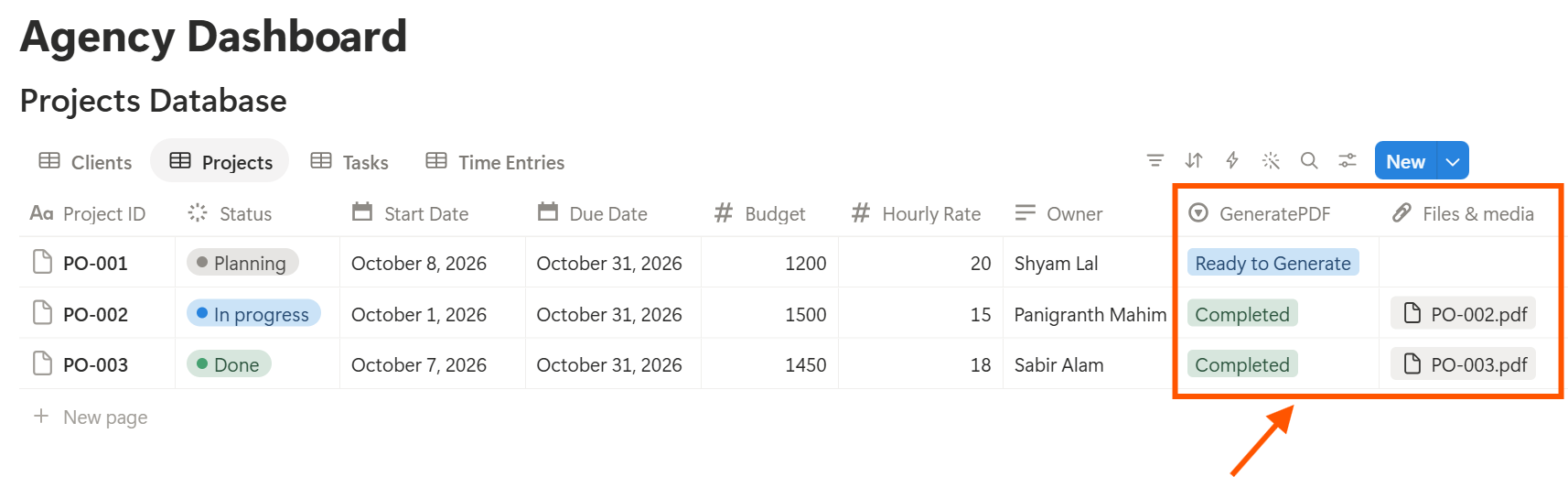
Start with the monthly report, since you will use it the most. Use Preview first and check for empty fields, wrong date formats, and long text that does not fit.
Key Takeaway: Start small. Four databases, a few formulas, and one good report template are enough to save time every month. Add more once your team uses the basics every day.
Step 9: Control Who Can See What
Decide who can see what before you share anything.
Frequently Asked Questions
Can Notion be used to manage an agency?
Yes, for planning and records. It can hold clients, projects, tasks, time entries, and content calendars. It does not replace accounting or payroll software.
How do I track time in Notion?
Create a Time Entries database with a date, a person, and hours, and link each entry to a project. On the project, add a rollup that sums the hours.
How do I track project budgets in Notion?
Add a Budget property and an Hourly Rate to each project, then multiply the hours logged by the rate. Divide that by the budget to see the percent used. Test the formulas on a sample project first.
Can I create client reports from Notion?
Yes. You can export a page as a PDF, or use a template-based tool like PDFOutput to fill a report template with the data from each record. Test it on a few sample records first.
Should clients have access to our Notion workspace?
Usually not. A workspace can contain information about other clients, rates, and internal notes. It is safer to send clients a finished PDF.
Can we use Notion for client approvals?
You can track approval status in a database. For a formal sign-off, you may need a PDF with a signature. PDFOutput lists a Generate E-Signed Doc option, but check that it works for your contracts.
Related Reading
Conclusion
A good agency setup in Notion has three things: clients linked to projects, hours that add up against a budget, and reports that look professional. Start with four databases and a few formulas. Use them for a month and fix what feels slow. When your reports and proposals need to leave Notion, PDFOutput can fill your template from each record and save the PDF to your chosen storage.
Want client reports and proposals as clean PDFs? Try PDFOutput.