Guides
How to Use Notion for an Accounting Firm: Clients, Deadlines, and Reports
Learn how to set up Notion for an accounting firm with clients, engagements, deadlines, and document requests, and create PDF client reports and letters.
By Sanat Biswal · 2026-10-13 · 5 min read

{/ synced-from-notion — do not edit manually /}
An accounting firm runs by its calendar. Every client has deadlines, every deadline needs documents, and documents always often arrive late.
Teams end up chasing paperwork across email threads, spreadsheets, and sticky notes, and it is hard to see which client is stuck without asking around for help on this.
Notion helps to bring these pieces together into one workspace. This guide shows you how to set it up for clients, engagements, deadlines, and document requests, and how to turn that information into PDFs that you can send.
It is general information about organizing a practice, not tax or accounting advice whatsoever.
How to use Notion for an Accounting Firm? Quick answer
To use Notion for an accounting firm, start with creation of 4 linked databases:
Use formulas to show upcoming deadlines and missing documents, and make views for each person’s week.
When you need to send something to a client, such as a report or an engagement letter, create a PDF from the record.
Here’s a detailed information on how notion can be used for accounting firms:
Notion is an excellent tool for small and mid-sized firms as a place to plan work and keep records.
Each client has engagements, such as bookkeeping or a yearly tax return. Each engagement has deadlines and a list of documents the client needs to send.
Because the records are linked, an engagement page shows what is due and what is still missing.
Notion is not accounting software, and it does not replace your ledger, tax software, or the working papers your professional rules require.
For documents that clients receive, you can export a page as a PDF or generate one from a template.
Keep Things Confidential
Accounting firms hold financial and personal information that clients expect to keep always private.
Before you add any client sensitive data to Notion, check these parameters:
Rules tend to be different for each country and by the type of work being done, so check rules applicable to your case first. While you are doing any testing, use dummy clients to test the database.
Keep official filing deadlines in your tax or practice software as well. But, use Notion as a second view of the same dates, and not as the only place they are recorded with information.
What Notion Can and Can’t Do for an Accounting Firm?
Notion is really good for:
- Keeping clients, engagements, and notes in one place,
- Tracking deadlines and tasks for each client,
- Chasing any missing documents,
- Logging time utilized against any engagements,
- Creating consistent client documents etc
- Bookkeeping or keeping a general ledger,
- Preparing or filing tax returns,
- Payroll processing,
- Storing large volumes of scanned documents etc
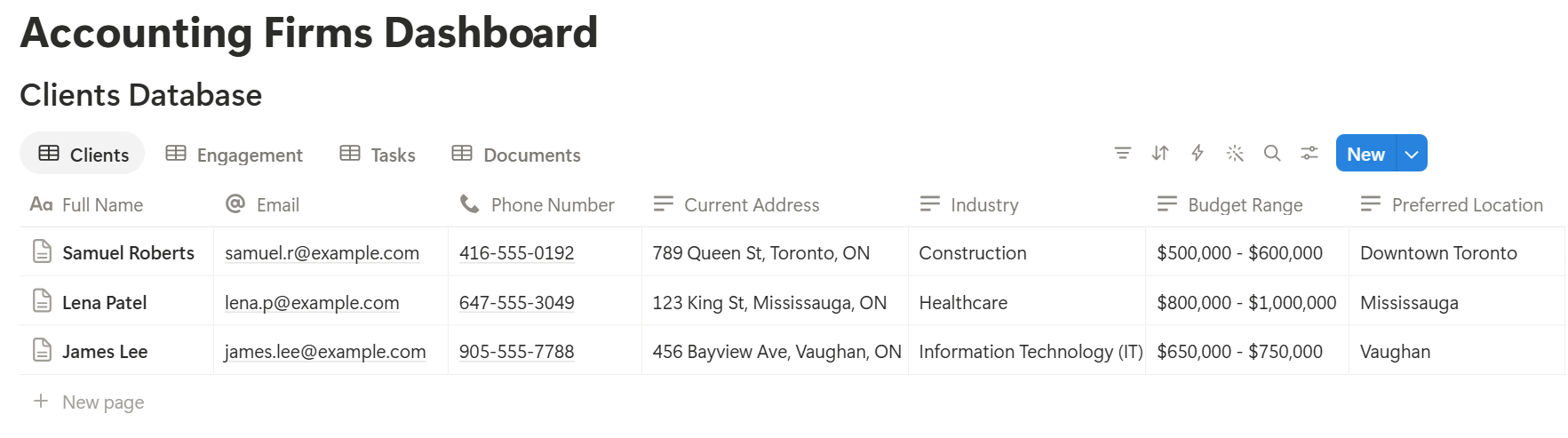
- Clients stores who you work for. Add these properties: Name, Type (Individual or Business), Main Contact, Email, Phone, Year End, and Status (Active, On Hold, or Past).
- Engagements stores each type of work for a client. Add: Engagement Name, Service (Bookkeeping, Tax Return, Payroll, Advisory, or Other), Period, Status (Not Started, Waiting on Client, In Progress, In Review, or Done), Responsible Person, and Fee.
- Tasks and Deadlines stores what needs to happen and when. Add: Task Name, Due Date, Type (Task or Deadline), Assigned To, and Status (To Do, Doing, or Done).
- Document Requests stores what you need from the client. Add: Document Name, Requested Date, Received (a checkbox), and Notes.
- In Engagements, add a relation to Clients.
- In Tasks and Deadlines, add a relation to Engagements.
- In Document Requests, add a relation to Engagements.
- Deadlines this week: Tasks and Deadlines with the flag Due soon or Overdue, sorted by date.
- Waiting on clients: Engagements with the status Waiting on Client, so you know who to follow up with.
- My work: tasks assigned to you that are not done.
- By client: Engagements grouped by client, for review meetings.
- New client onboarding: contact details, engagement letter, access to systems, and first-year checklist.
- Monthly bookkeeping: a checklist for bank statements, reconciliations, and review.
- Year-end tax return: a document request list and a review checklist.
- Client meeting note: date, people present, points discussed, and next steps.
- Create the document request list from a template when the engagement starts.
- Share the list with the client as a PDF, so they can see exactly what is needed.
- Tick each item as it arrives.
- Filter a view to engagements with missing documents, and follow up every week.
- Document request lists: what you need and by when
- Client reports: a short summary of the work done and the key figures
- Engagement letters: the scope of work, fees, and terms
- Invoices: the fees for the period
- Year-end summaries: a record of what was completed
- Create your template with your logo and layout.
- Add placeholders in double curly braces where the data should go, such as
{{Client_Name}}or{{Engagement_Name}}. - Make sure each placeholder matches the name of a Notion property.
- Start the document with a Notion database button or a status property.
- Ready to Generate creates a PDF from the database record.
- Generate Page converts the Notion page into a PDF.
- Generate PDF and Doc creates a PDF and a Google document.
- Preview creates a Google document so you can check it before making the final PDF.
- Generate E-Signed Doc creates an e-signed PDF in the database workflow.
- Share each client only with the people working on it.
- Keep fees and internal notes out of views that other staff do not need.
- Do not give clients access to your workspace. Send them a finished PDF.
- Check who has access every few months, and remove people who have left.
- Check how long you must keep client records, and where they should be stored.
- How to Use Notion for a Law Firm
- How to Use Notion for Freelancers
- Audit Report Automation Software
- Notion Receipt Template
Notion is not suitable for:
How to start using Notion for an accounting firm…
Step 1: Create 4 Databases
Start with the following 4 databases. You can add more later.
Step 2: Link the Databases Together
A relation connects a record in one database to a record in another. This is what lets Notion do the counting for you.
Add these relations:
Now a client page shows its engagements, and an engagement page shows its deadlines and what is still missing.
Step 3: Add Formulas for Deadlines and Missing Documents
On Tasks and Deadlines, add two formulas:
**Days left: dateBetween(prop("Due Date"), now(), "days") Flag: if(prop("Status") != "Done" and prop("Days left") \< 0, "Overdue", if(prop("Status") != "Done" and prop("Days left") \<= 7, "Due soon", ""))**
The flag shows Overdue for anything late and Due soon for anything within a week. You can change the seven days to fit how you work.
On Engagements, add a rollup from Document Requests that counts the unchecked Received boxes. Name it Documents Missing. Then add a formula:
Ready to start: if(prop("Documents Missing") == 0, "Ready", "Waiting on documents")
This tells you at a glance which engagements can move forward and which are stuck waiting for the client.
Test each formula with made-up clients and check the results against a calendar.
Pro Tip: Tick the Received box the day a document arrives. If you wait, the missing documents count will be wrong, and your team will stop trusting it.
Step 4: Make Views for Each Person’s Week
A view is a different way of looking at the same database. Create these four:
Put the ones your team uses most on one home page.
Step 5: Use Templates for Work You Repeat
Accounting work is full of repeating steps. Templates fill in a page layout for you, so you do not start from a blank page.
Make a template for each of these:
For work that repeats every month or year, create the new record from a template at the start of each period. Some plans also offer database automations that can do this for you, so check what yours includes.
Step 6: Chase Documents Without Awkward Emails
Late documents are the biggest cause of late work. A simple routine helps.
Clients usually respond better to a clear list than to a long email.
Step 7: Create PDFs for Clients
Clients do not use your Notion workspace, so some records need to become files. Common examples are:
The wording in engagement letters and any figures in reports should be checked by a qualified person. Notion and PDFOutput handle the layout and the data, not the accounting content.
For a single page, you can use Notion’s export option. How to Export Notion to PDF shows the settings.
If your reports are tables, Notion to Excel explains how to move data into a spreadsheet when a client wants numbers they can work with.
For audit work, Audit Report Automation Software covers a report workflow in more detail.
Step 8: Generate PDFs with PDFOutput
PDFOutput creates documents from your Notion data using a template. A template can be a Google document, a Word file, a PDF file, or a Notion page. Many firms already have report and letter layouts in Word or Google Docs, so you can reuse them.
Here is how it works:
These are some of the status options:
The e-signed option may help with engagement letters.
Whether an electronic signature is valid for a given document depends on your location and the type of document, so check before you rely on it. You can save the finished file to a property in your database, so it stays on the engagement record. You can also save it to a Google Drive folder and store the link in a property.
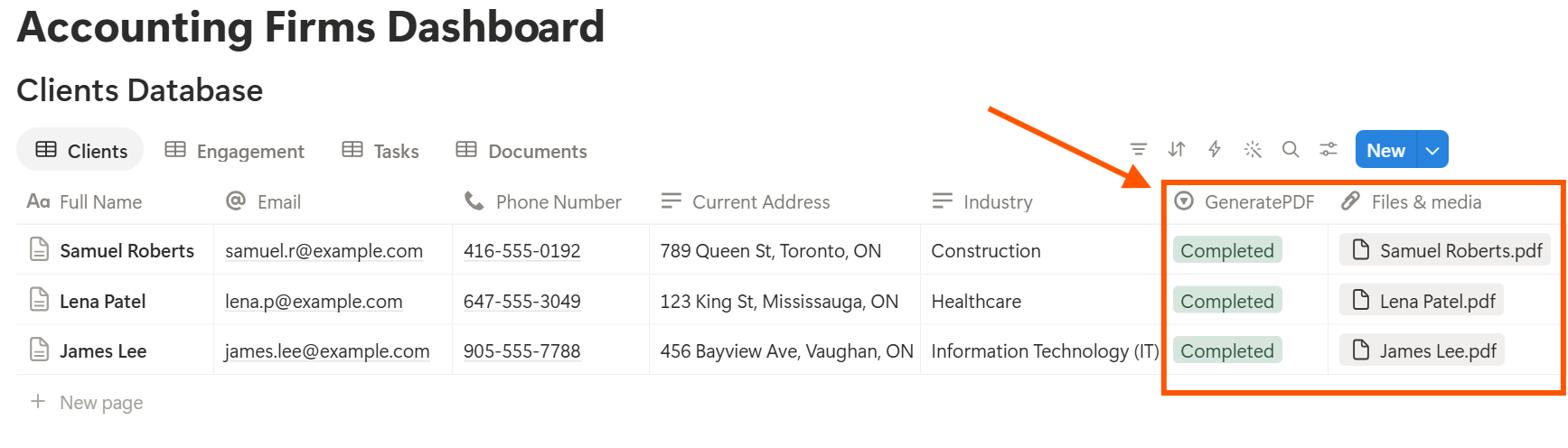
Start with the document request list, since you send it for every engagement. Use Preview first and check for empty fields, wrong date formats, and names that do not match your records.
Key Takeaway: Start small. Four databases, a few formulas, and one good document request list are enough to cut down on chasing. Keep official deadlines in your practice software too, and add more once your team uses the basics every day.
Step 9: Control Who Can See What
Decide who can see what before you share anything.
Frequently Asked Questions
Can Notion be used for an accounting firm?
For a small or mid-sized firm, Notion can organize clients, engagements, deadlines, and document requests. It does not replace accounting software, tax software, or the working papers your professional rules require.
How do I track client deadlines in Notion?
Create a Tasks and Deadlines database linked to engagements, with a due date and a formula that flags overdue and upcoming items. Also keep official filing deadlines in your tax or practice software.
How do I chase missing documents in Notion?
Create a Document Requests database linked to each engagement, with a Received checkbox. Add a rollup that counts missing items, and make a view of engagements that are still waiting.
Is Notion secure enough for client financial information?
Notion lets you control who sees each page, but your duties depend on your professional rules and client agreements. Check them before storing real client data, and test with made-up clients first.
Can I create client reports from Notion?
Yes. You can export a page as a PDF, or use a template-based tool like PDFOutput to fill a report template with data from each record. A qualified person should review the content, and you should test the layout on sample records first.
Can Notion replace my practice management software?
For a small firm, it can cover planning and tracking. If you need built-in time billing, client portals, or tax software links, dedicated practice management software may fit better.
Related Reading
Conclusion
A good accounting firm setup in Notion has three things: clients linked to engagements, deadlines you can see at a glance, and a clear way to track missing documents. Start with four databases and a few formulas, with confidentiality settled first. Use it for a month and fix what feels slow.
When your reports and letters need to leave Notion, PDFOutput can fill your template from each record and save the PDF to your chosen storage.
Want client reports and letters as clean PDFs? Try PDFOutput.