Guides
How to Export Notion to PDF (Desktop, Web, and Mobile)
Learn how to export Notion to PDF in under a minute, what each export setting does, and when to skip the manual route and generate PDFs automatically.
By Sanat Biswal · 2026-10-09 · 5 min read

{/ synced-from-notion — do not edit manually /}
Imagine this, its Friday and you are about to wrap up your work for the day, and a client just asked for "PDF of that project page." You know it's present in Notion. You're not totally sure where the PDF option lives and how it can be used, and you definitely don't want to simply send a link that might have change over the weekend.
Good news is that exporting from Notion to PDF takes just about a minute once you know where to click and how to export the document.
The part that trips people up isn't the export itself, it's the settings and the page you're looking to export. This guide covers both.
Here’s a quick way to export the PDF from notion:
Notion saves the file onto your device.
What Are You Trying to Do?
"Notion to PDF" can mean a few different jobs, and the best route depends on which one is yours.
Find your row first.
| If you want to... | Do this |
|---|---|
| Send one page to a person | Use the standard export (steps below) |
| Save a page as a record, like a signed-off plan | Standard export, then store the PDF with your files |
| Share something that stays up to date | Don't use a PDF. Share the page link instead |
| Export a database | Make a clean view first, then export (see the database section) |
| Send the same kind of document again and again | Skip manual exports and use a template (see the last section) |
| Print the page | Export to PDF first, then print the PDF |
The moment you export, it stops following your Notion page. That's exactly what you want for an invoice or a report, and exactly what you don't want for a live task list.
How to Export a Notion Page to PDF
Notion updates its menus from time to time, so if a label looks slightly different on your screen, look for the closest match.
Before You Click Export: Here’s a quick 60-Second Preparation Needed
Most often a bad pdf export often is due to use of a messy page, not a bad export that is done.
Try to spend a minute on one of these 4 things first.
Pro Tip: Keep a clean, export-ready copy of any page you send often. You'll skip the cleanup every time, and your original stays exactly how you like it.
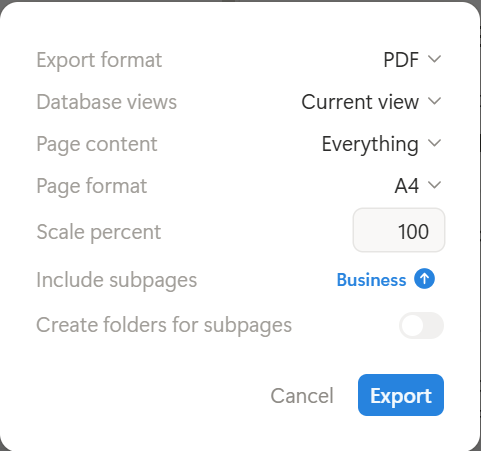
What Each Export Setting Actually Does
The export box has a handful of options, but nobody explains them well. Here they are explained in plain language.
Option names and availability can change with Notion updates and your plan, so check the dialog on your own screen.
Desktop, Web, and Mobile Output Device: What's Different for Export
The steps above work the same in the desktop app and in a web browser, since both show the full export options.
The mobile app can also export a page, but you may see fewer choices. If you need to get the exact control over page size and scale, do the export on a computer and use your phone for quick ones.
For more on that, see our Notion PDF export not working guide.
Exporting a Notion Database to PDF Files
Databases behave differently from pages. Notion treats each row as its own page, so the exported file may not look like the table you're staring at.
A simple approach works most of the time, create a view that shows only the properties the reader needs, then export from that view or place the view on a clean page and export that page.
Always open the PDF afterward and scroll through it to check the final output generated.
Another Route for PDF Export: Print to PDF from Your Browser
If you use Notion in a web browser, you can also press Ctrl+P (Cmd+P on a Mac) and choose "Save as PDF" as the destination. It's a handy backup when you want a quick copy.
The catch is that your browser, not Notion, decides how the pages are laid out, so the result may look different from a regular export, and page breaks can land in other awkward places. For anything that goes to a client, I'd stick with Notion's own export and check the result to see how the output looks like.
When the PDF Created Looks Wrong In Output
If you export and something looks off in the output created, such as cut-off tables, missing images, or collapsed content, the cause is almost always one of a short list.
Our guide to Notion PDF export not working walks through each problem and the fix.
If the real issue is that the PDF looks plain, with no logo, no brand colors, and no real header or footer, that's a limit of the built-in export.
Adding your logo and brand colors to Notion PDFs explains what you can and can't change.
Key Takeaway: Prep the page, check the three settings that matter most (page format, scale, and what's included), and always scroll through the PDF before you send it.
When Exporting by Hand Stops Making Sense
Manual export is perfect for the occasional page. It gets old fast when you're doing it for the same kind of document every week: invoices, project reports, quotes, audit summaries.
Each one means opening the page, cleaning it up, exporting, renaming the file, and finding somewhere to put it.
That's the job PDFOutput is built for. It generates documents from Notion data using a template, and the template can be a Google document, Word file, PDF file, or Notion page.
You mark where data goes with placeholders in double curly braces, such as {{Client_Name}}, and each placeholder has to match the related Notion property name.
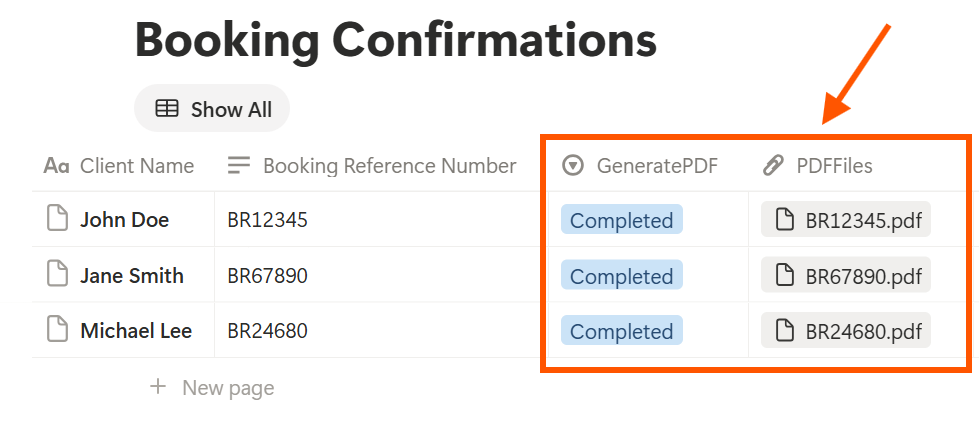
You start a document from a Notion database button or a status property. A few of the status options:
- Ready to Generate: creates a PDF from the database record.
- Generate Page: converts the Notion page into a PDF.
- Generate PDF and Doc: creates a PDF and a Google document.
- Preview: creates a Google document so you can check it before the final PDF.
Because the layout lives in the template, every document looks the same, which solves most of the branding issues from the last section.
A rough rule of thumb: if you export the same type of document more than a few times a month, a template will save you time. If it's a one-off, the built-in export is all you need.
Frequently Asked Questions
How do I export Notion to PDF?
Open the page, click the ••• menu, choose Export, set the format to PDF, adjust the page size and scale if needed, and click Export. The file downloads to your device.
Can I export Notion to PDF for free?
Notion's PDF export is generally available on its plans, including the free one, though some options may vary. Check the export dialog in your own workspace to see what you have.
Why is my Notion PDF cut off?
The content is usually wider than the page. Lower the scale, choose a larger page format, or reduce the number of visible table columns before you export.
Can I export a whole Notion workspace to PDF?
PDF export works page by page. Workspace-level exports are available in other formats, and what you can do depends on your plan and your role. Check your account's export settings for the current options.
Can I export Notion to PDF on my phone?
Yes, the mobile app offers an export option for a page, though you may see fewer settings than on desktop or web. Use a computer when you need precise control.
Does a Notion PDF update when I change the page?
No. A PDF is a snapshot of the page at the moment you export it. If you edit the Notion page later, export again.
Can I export Notion to PDF automatically?
Not with Notion's built-in export alone. A template-based tool such as PDFOutput can generate a PDF from a database record using a button or a status change. Test it with a few sample records before using it on live documents.
Conclusion
To export Notion to PDF, open the page, choose Export, pick PDF, check the page format and scale, and read through the finished file before you send it. A minute of prep, like opening toggles and uploading images, prevents most problems.
If you find yourself doing this over and over for the same kind of document, PDFOutput can generate the PDF from your Notion data and save it back to your chosen storage workflow.