Guides
How to Export a Notion Database to PDF Without the Mess
Export a Notion database to PDF without a cluttered result. Build a clean view, choose between one table or one page per row, and see how to automate it.
By Sanat Biswal · 2026-10-09 · 5 min read

{/ synced-from-notion — do not edit manually /}
Think of this, you get asked from your manager for a "list of open projects in the form of a PDF."
You open the Notion database, find the export option, click on it, and get something that looks nothing like the neat table that you have prepared on your screen. Columns you never looked at earlier are in there, and the one you need is actually cut off from the output.
That's the thing about databases that are being used. A normal Notion page exports roughly the way it actually looks. A database on the other hand is a pile of records with a view on top, so what you see on screen and actually lands in the PDF generated are actually 2 different things.
The fix for this is mostly about preparing the view needed before you export the file. Here is how to do that, and how to pick the right route for what the PDF is going to be generated for.
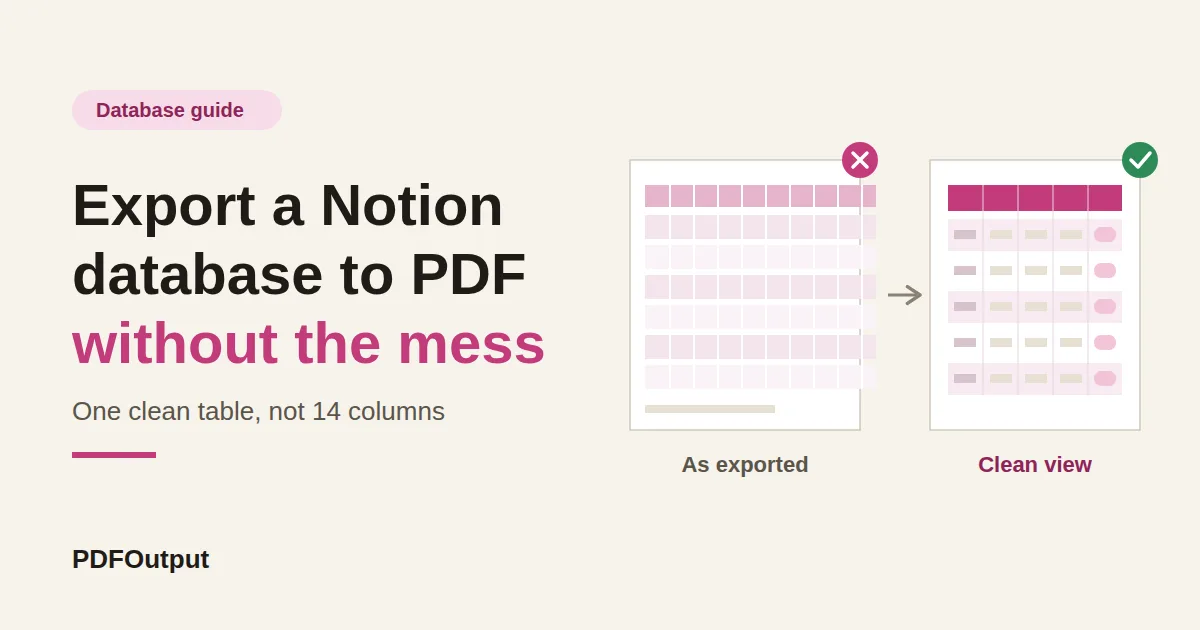
First, Decide What the PDF Is To Be Used For
"Exporting a database to a PDF" can mean 3 very different jobs. Pick what you actually need before you start doing anything.
| What you need | Best route |
|---|---|
| One document that shows many records, like a project list or a status overview | Route 1: export a clean view as one PDF |
| One document per record, like an invoice per client or a report per project | Route 2: export each row's page, or generate one per record |
| The raw data to sort and calculate in a spreadsheet | Skip PDF. Export as CSV instead |
Route 1: One PDF That Shows Many Records
This is the "list of open projects" situation. The goal is a single clean table, and the trick is to build it on purpose instead of exporting the database as it is.
/linked view of database and choose your source). This leaves your original database alone, so you can strip it down without changing anything that your team would use.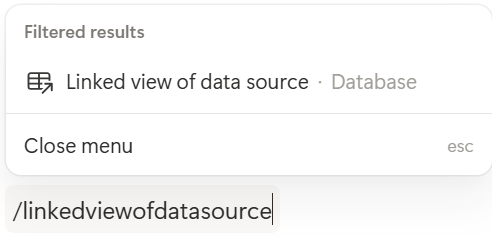
What Happens Before and After Exporting
Say you track client projects with 14 properties.
If you export it as is, the PDF has to fit all 14, so the text shrinks or columns run off the edge.
| Before | After | |
|---|---|---|
| Properties shown | 14 | 5 |
| Filter | None | Status is not "Done" |
| Sort | Creation date | Due date, soonest first |
| Result | Cut-off columns, tiny text, finished work mixed in | One readable table the reader can scan in a minute |
Everything else was useful to you and irrelevant to the enduser.
Pro Tip: Name the export page with something easy to understand and find such as "Open projects (PDF view)." In a month you'll want to export it again, and you'll be glad that you didn't have to rebuild it once again.
Which View Type Exports Best and Works?
Table views are the most predictable, so use one whenever the goal is to produce a clean document. Board, gallery, and calendar views can export, but how they look in the PDF is less reliable and depends on your content you have.
If the board is what you want to share, try the export on a copy first and open the file before you send it.
Route 2: One PDF Per Record
This is the other big use. You don't want a list, you want a document for each row: an invoice for each client, a report for each project, a one-page summary for each candidate.
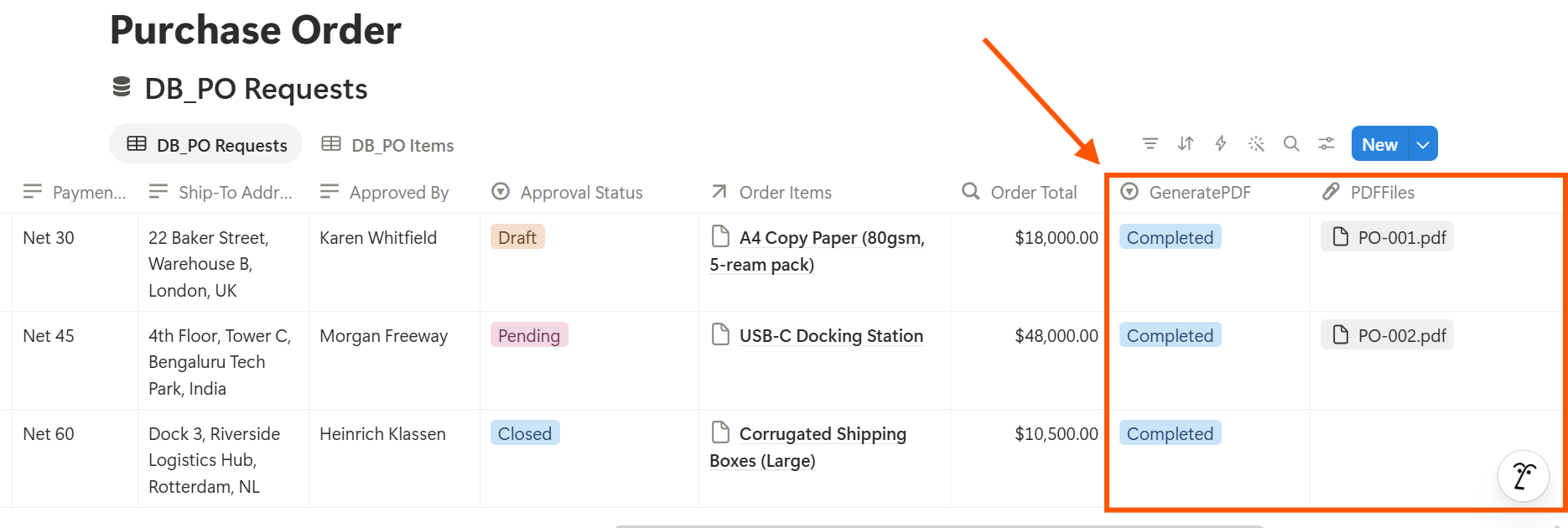
{{Client_Name}}, and each one has to match the related Notion property name.You trigger a document from a database button or a status property. For example:
- Ready to Generate creates a PDF from the database record.
- Generate Page converts the Notion page into a PDF.
- Generate PDF and Doc creates a PDF and a Google document.
- Preview creates a Google document for review before the final PDF.
- Cut-off columns. If the table runs off the right edge, hide a column or lower the scale.
- Missing images. Upload images to Notion instead of linking them from other sites.
- Wrong rows. Check that your filters did what you intended and that nothing private slipped in.
- Odd dates and blank cells. A blank cell in the PDF is a blank property in Notion, so fix it at the source.
- Page breaks in strange places. A heading alone at the bottom of a page is a sign to shorten a section or add a divider.
- It's a snapshot. The PDF doesn't update when your database changes. Export again when the data does.
- No interactivity. Filters, sorts, and clickable views don't carry over. The PDF shows one state of the data.
- Formulas and rollups show values only. You see the result at the time of export, not the calculation.
- Very large tables get long. A hundred rows means many pages. Filter down to what matters.
Finished files can be saved to a database property or a Google Drive folder, so each PDF stays attached to the record it came from.
If your PDFs need to look like yours, with a logo and brand colors, that belongs in the template.
How to add your logo and brand colors to Notion PDFs explains why, and what Notion can and can't do on its own.
What to Check Before You Send Any Database PDF
Open the file and scroll through every page. It takes a minute and it catches most problems. Look for:
If something is still off, Notion PDF export not working covers the usual causes and fixes.
Key Takeaway: Don't export a database as it is. Build a clean view with only the columns the reader needs, or export each row as its own page, then open the PDF and check it before you send it.
What Are The Things a Notion Database PDF Can't Do?
It helps to know the limits so you don't fight them.
Frequently Asked Questions
Can you export a Notion database to PDF?
Yes. You can export a page that contains a database view, or export an individual row as its own page. For the cleanest result, put a linked view on a dedicated page, hide the columns you don't need, and export that page as PDF.
Why does my Notion database look different in the PDF?
A database is a set of records shown through a view, and the export may not match what you see on screen. Properties that are hidden, filtered, or too wide for the page can change the result. Build a clean view first, then export.
How do I export only some rows of a Notion database to PDF?
Create a linked view with the filter you want, such as only open items, and export the page that contains it. Check the PDF afterward to confirm the right rows are there.
How do I export each row of a Notion database as a separate PDF?
Open each row as a full page and export it, or use a template-based tool to generate one PDF per record. PDFOutput can create a PDF from a database record using a button or a status property. Test it with a few sample records before you use it on live data.
Can I export a Notion database to Excel or CSV instead?
Yes. Notion exports databases as CSV through the Markdown & CSV option. That's usually better when you need to sort or calculate. See Notion to Excel for the steps.
Do formulas and relations show up in a database PDF?
They show as the values they had at the moment you exported. Formulas, rollups, and relations won't update inside the PDF.
Conclusion
A database PDF turns out well when you prepare for it. Put a linked view on a clean page, show only the columns that matter, filter out what the reader doesn't need, and open the file before you send it. If you need a separate document for each record, a template saves hours. PDFOutput can generate the PDF from each Notion record and save it back to your chosen storage workflow.