Guides
How to Choose a PDF Generator for Notion
Choose a PDF generator for Notion by checking templates, database triggers, output formats, storage, and pricing. See how PDFOutput fits this workflow.
By Sanat Biswal · 2026-10-22 · 10 min read

{/ synced-from-notion — do not edit manually /}
If you keep business records in Notion, you may also need invoices, reports, or certificates that are ready to send. A PDF generator for Notion can turn database records into finished documents, but the right fit depends on how you want to build, trigger, and store each file.
Use these checks to assess the workflow, then see how PDFOutput connects templates and Notion properties without making you rebuild each document by hand.
What to Evaluate in a PDF Generator for Notion
Start with the way the tool connects to your Notion data. A workable setup should let you choose a database, use its properties in a document template, and send the finished file back to a place your team can find.
Check the trigger, too. Do staff need to click a button on a database row? Would a status property be easier? Or does your team need a process that runs on a set schedule? These are different workflows, so name the trigger before choosing a tool.
Template choice matters as much as the trigger. Some teams already work in Word or Google Docs. Others have an approved PDF layout or a Notion page they want to reuse. PDFOutput accepts Word files, Google Docs, PDF files, and Notion pages as templates. Its homepage describes the product as a PDF generator for Notion that uses Google Docs, PDF, and Word.
Check which file types you can create. PDFOutput can generate PDFs, Google Docs, and PPTX files. If your team needs an editable document before it becomes a PDF, confirm that the workflow supports that output. Also check whether the tool can handle more than one record at a time.
Finally, test the output with a real record. Look for accurate names, dates, totals, page breaks, and file names. A polished template cannot fix a missing database value, and a correct database does not guarantee a readable document.
> 📌 Key Takeaway: Choose around your actual trigger, template format, output type, and storage needs, not a feature list in isolation.
Which Business Documents Can You Generate from Notion?
Any recurring document with fields that match your Notion records is a possible fit. The best starting point is a document your team already makes again and again, using the same layout with different names, dates, amounts, or details.
For example, an invoice can use a client name, invoice number, and amount from a database row. A certificate can use a recipient and completion date. A work report can pull an inspection result or project update into a format that is easier to share outside Notion.
PDFOutput’s listing on Notion describes repetitive documents such as invoices, agreements, contracts, certificates, reports, and letters. The document type is only part of the decision. Think about the data behind it and who checks the finished file.
| Document | Useful database fields | Workflow detail to plan |
|---|---|---|
| Invoices | Invoice number, client, dates, amounts | Include related line items and totals when needed. |
| Certificates | Recipient, course or item, issue date | Check names and dates before issuing a batch. |
| Agreements or contracts | Parties, terms, dates, status | Set a review step before sharing or signing. |
| Reports and letters | Owner, status, notes, key dates | Choose which fields belong in the external copy. |
| Product or price lists | Item names, descriptions, prices | Confirm the source data is current before export. |
These examples work when the document follows a stable pattern. Automation may be unnecessary for a one-off file with a unique layout, or when the source information changes too often to maintain reliably. For repeated product sheets, records and a reusable template can work together; see the product catalog guide.
How Notion Properties Become a Finished Document
The basic method is mail merge: a template holds placeholders, and the generator replaces each placeholder with a matching value from a Notion record. In a template, a placeholder looks like {{Client_Name}}. The database needs a property with the matching name.
Suppose a database has properties called Invoice_No, Client_Name, and Invoice_Amount. Add {{Invoice_No}}, {{Client_Name}}, and {{Invoice_Amount}} to the template. When the document is generated for a record, the matching values fill those spots.
Names must match precisely. A space, underscore, or change in capitalization can stop a placeholder from matching. Copying the property name into the template is safer than typing it from memory. Then preview a record with realistic data before turning on the workflow.
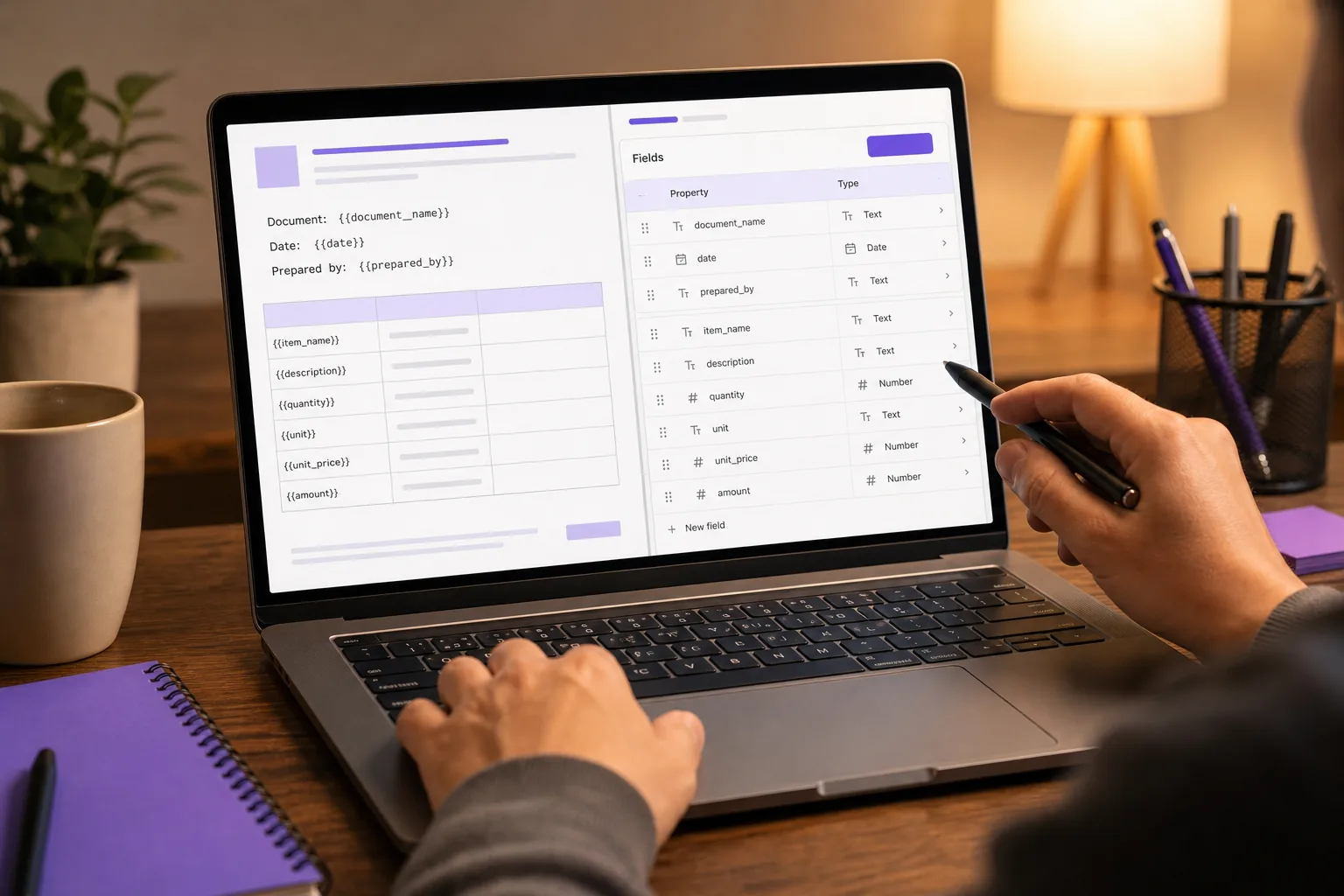
Some documents need data from linked databases. A relation connects one record to another, such as an invoice to a client or a set of line items. A rollup brings a value from related records into the main database, such as a subtotal. PDFOutput can use relations and rollups for documents that draw on multiple databases.
That setup needs care. First, confirm the relations are connected in Notion. Then check that the rollups show the values you expect. If the invoice needs several line items, test a record with more than one item so the output reflects the actual structure.
A Notion connection listing for PDFOutput describes matching template placeholders to database fields and generating a file for each row. That mapping is the key idea, whether your source template is a Word file, Google Doc, PDF, or Notion page.
Keep the template focused. Use separate layouts for documents with different purposes, and decide which fields belong in the file before mapping them. A customer-facing copy may need less detail than an internal report.
How PDFOutput Triggers PDF Generation in Notion
Once the database and template are connected, PDFOutput can use a button or a status property to start generation from Notion. That lets staff work from the record they are already updating, rather than copying its details into a separate document each time.
A button works well when a person decides a record is ready. For example, an admin can review an invoice, then click the button on its database row. A status property suits a workflow where the team marks the record as ready after its fields are complete.
PDFOutput uses a property named GeneratePDF for status-based generation. Setting a record to Ready to Generate starts PDF creation. Other available status choices cover different tasks:
- Ready to Generate: generates a PDF.
- Generate Page: converts a Notion page to PDF.
- Generate PDF and Doc: creates a PDF and a Google Document.
- Generate E-Signed Doc: creates an e-signed PDF in the database.
- Preview: creates a Google Document preview before PDF generation.
- Can the tool use the template file type we already have?
- Can staff start generation with a database button or status?
- Can it use related records and rollups for the fields we need?
- Where will the finished document be saved?
- Can we generate a preview before creating a final file?
- What review step should happen before a document is sent or signed?
The status property also gives the team a visible step in the record. A staff member can mark an item ready, then check its status as processing finishes. The resulting file can be stored back in the Notion database. PDFOutput can also save generated PDFs to a chosen Google Drive folder and store the Drive file link in a database field.
For recurring batches, PDFOutput supports batch PDF generation and merged PDFs. Related databases can supply details such as client information or line items. That can reduce repeated document work, but it still depends on complete records and a template that has been tested.
Here is a walkthrough of PDF generation in Notion:
Before using a trigger across the whole database, test one record with typical values and another with empty or unusual fields. That simple check can catch a mismatched placeholder before it affects a batch.
Pricing, Fit, and Questions to Ask Before You Automate
Price the workflow, not just the subscription. Think about how often you create the document, how many records need files at once, and how much review staff must do. A monthly or annual subscription may fit a recurring process; manual export may be enough for a document made once in a while.
PDFOutput has a free plan for testing, alongside subscription plans with monthly or annual billing. Check the current plan details against your expected document volume and the features your workflow needs. You can review PDFOutput’s pricing plans before setting up a live process.
Then ask a few plain questions:
Automation is a poor fit when the content changes completely for each file, the database is not kept current, or a human must rewrite most of the document anyway. It can also add needless steps if the team only needs an occasional export of a simple page. For invoice workflows, a PDF automation setup can connect records, templates, and generation triggers.
Scheduled triggers may matter to your process, too. Ask whether the tool supports the exact timing and conditions you need rather than assuming every status-based workflow can run on a schedule. For a non-technical team, a clear in-database button or status can be easier to understand and check.
> 💡 Pro Tip: Test a typical record, a record with several related items, and one with a blank optional field before automating a full batch.
FAQ
Can I generate a PDF directly from a Notion database?
Yes, a document automation workflow can use Notion database properties to fill a reusable template and generate a PDF. With PDFOutput, you can trigger generation using a database button or the GeneratePDF status property. The finished file can be saved back to a database field, so the record and its document stay connected.
What documents can I create from Notion records?
You can create repeatable documents such as invoices, agreements, contracts, certificates, reports, and letters. The usable limit is whether the document’s changing details exist as fields in Notion and can be placed into a template. Start with one document your team already creates often, then test its layout with real record data.
Can a Notion PDF generator use data from related databases?
Yes, PDFOutput can use relations and rollups to bring connected database information into a document. A relation links records, while a rollup displays a value from linked records, such as a total. Check that the Notion relationships are set up and populated before testing the template with multiple related items.
Can PDFOutput create files other than PDFs?
Yes. PDFOutput can generate Google Docs and PPTX files as well as PDFs. Its status options also include a choice to generate a PDF and Google Document together, plus a preview option that creates a Google Document before final PDF generation. Test the output you need with your chosen template.
When is document automation not worth setting up?
It may not be worth setting up when you only make a simple document once in a while, or when every file needs a different layout and substantial manual editing. Automation works best when the document has a stable structure and the source fields stay up to date. Compare setup and review effort with the repeated work it would replace.
Conclusion
Choose a PDF generator for Notion that matches your template, trigger, related data, output, and storage needs. If your team wants to create recurring documents from database records, test one workflow in PDFOutput with a real record, review the preview, and then decide whether to automate a larger batch.