Guides
How to Choose PDF Creator Software for Notion
Learn how to choose the best PDF creator software for Notion, automate document generation, and turn database records into polished PDFs.
By Sanat Biswal · 2026-09-03 · 15 min read

{/ synced-from-notion — do not edit manually /}
Most PDF tools help you edit a finished file. Far fewer can turn workspace database records into finished documents without manual copy and paste. If your team needs invoices, quotes, certificates, reports, or client packs on demand, the right PDF creator must connect the whole workflow. This guide explains what to check and how PDFOutput fits an automated database-based process.
What PDF Creator Software Should Do for a Database-Based Business
PDF creator software for a database-based workflow should do more than export a page. It should take structured data from your workspace database and place that data into a repeatable document template.
Think of a workspace database as the source of truth. Each row holds a record, while each property holds a value. An invoice row may contain an invoice number, client name, due date, tax rate, and total. A PDF template then turns those values into a document that looks ready to send.
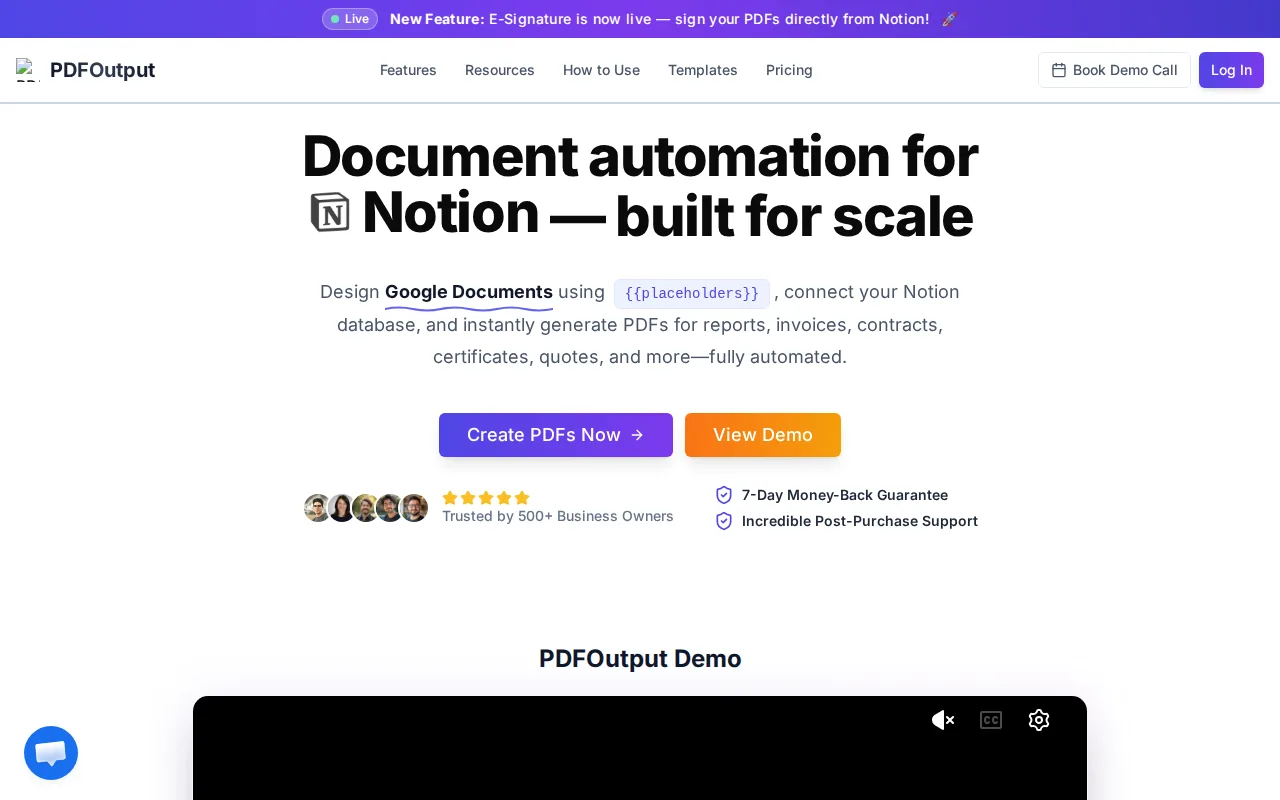
PDFOutput uses placeholders in the format{{placeholder_text}}. The placeholder name matches a database property. For example,{{Client_Name}}receives the value stored in the Client_Name property.
That mapping removes a common source of errors. You don't need to copy a name into an editable document file, check the total again, then save a new PDF with a different file name. The record holds the data. The template controls the layout. The automation joins them.
This setup works well for teams that repeat the same document process each day. A real estate office may produce listing sheets. A school may issue certificates. A supplier may prepare quotes from product records. An NGO may generate grant letters from a donor database.
PDFOutput accepts templates from editable document files, cloud-based document files, or existing PDF files. It can produce PDFs, editable document files, and PPTX files. You can also generate documents in bulk when one database view contains many records. For more details, see the guide How to convert notion page to pdfs on automation.
The system can work with database relations and rollups too. A relation connects one database to another. A rollup brings related values into the main record. That matters when one output needs line items, such as an invoice with several products or a project report with many tasks. For more details, see the guide How to use relation and rollup in Notion.
Structured records can feed different file types.
> 📌 Key Takeaway: Choose a PDF creator that connects your data source, template, output format, and storage step.
The Features to Evaluate Before Choosing a PDF Creator
The best PDF creator software for your team depends on the job. Start with the document flow, then check the editing features. A tool built for one-off edits may not handle a hundred database records well.
Template and data mapping
Look for clear placeholder rules. You should know how a field in your workspace database reaches the final document. The match should be easy to test and easy for a non-technical admin to fix.
PDFOutput uses double braces around a property name. This keeps the template readable in an editable document file or online document. It also lets your team change the design without rebuilding the data flow.
Editing and page control
A PDF creator should support the common fixes that happen after generation. Check whether it can edit text, add or replace images, and insert notes. Page tools should let you merge files, split pages, rotate them, or remove unwanted pages.
Conversion matters too. Your team may need to move between PDF, editable document files, online documents, images, or presentation files. Scanned documents may need OCR, which turns text inside an image into searchable text.
Batch generation and mail merge
Batch generation means one action can produce many files. Mail merge means each file receives values from a different record. Together, these features change the workload.
Without them, an admin may open one record, copy values, edit a template, export a file, rename it, and repeat the task. With them, the admin reviews the database first. The system then produces the files from the approved records.
Triggers and output control
Check how a user starts the process. A button inside the workspace database is useful for on-demand work. A scheduled trigger helps with recurring tasks. Automatic cloud storage keeps the output in a known place instead of leaving files in a downloads folder.
| Need | What to check | Why it affects the workflow |
|---|---|---|
| One document at a time | Button or manual record action | Lets staff generate a file while reviewing a record |
| Many documents | Bulk generation and mail merge | Removes repeated export work |
| Related line items | Relations and rollups | Brings products, tasks, or attendees into one output |
| Recurring output | Scheduled triggers | Supports regular reports or notices |
| Team storage | Automatic cloud storage | Gives staff one place to find completed files |
| Design changes | Editable document, online document, or PDF templates | Allows layout edits without changing the database |
These checks matter more than a long feature list. A tool may have strong annotation controls but still leave your team copying data by hand. For a database-based business, the key test is simple: can the software turn an approved record into the right file with few manual steps?
One research review of PDF tools found that automation and outside integrations were uncommon across the products it examined. That gap is why you should test the data connection before judging a tool by its editor menu.
Security, Accessibility, Platforms, and Integrations
PDF creator software becomes part of your business system once it handles client, finance, staff, or student records. Check security before you upload sensitive data or connect a database workspace.
Security checks
Ask where files are processed and stored. Review the service's access rules, retention terms, and account controls. Your team should also decide who can edit the source record and who can generate the final file.
For finished PDFs, look for password protection, encryption, permissions, and digital signatures when your process needs them. Redaction is different from covering text with a black shape. Proper redaction removes the hidden content, so test it before sending a sensitive file.
Keep the source record clean too. A protected PDF won't fix an open database with broad access. Set permissions at both ends of the workflow.
Accessibility
Accessibility affects people who use screen readers, keyboard controls, zoom tools, or high-contrast settings. A PDF may look fine on screen and still read badly in assistive software.
Accessible content should be perceivable, operable, understandable, and compatible. Review accessibility resources when evaluating digital content.
Use real text instead of placing key information inside a picture. Keep tables simple. Test a sample PDF with a screen reader before you send a large batch.
Platforms and integrations
A cloud workflow can help a remote team work from different devices, but it also adds account and access questions. Check whether your staff can start a job from the browser and whether the output remains available on the devices they use.
For database users, the most useful integration is usually the direct database connection. Shared cloud storage may fit teams that already keep common files there. An API can help a developer start generation from another system, but a small office may prefer a button or scheduled trigger.
Don't pay for a developer layer if your team only needs three repeatable documents. Choose the simplest path that meets your control and security needs.
> 💡 Pro Tip: Test one sensitive sample, one long record, and one record with missing fields before approving a PDF workflow.
How to Automate PDF Generation from a Database Workspace
Automating PDF generation from a database workspace is easiest when you build the flow in a few simple steps. Start with one document, not every document your business may need later.
Step 1: Set up the source database
Create or review the database workspace that holds the data. Give each property a clear name. Avoid vague labels such as “Info” or “Details.” Use names that make sense inside a template.
An invoice database might include Invoice_No, Client_Name, Invoice_Date, Due_Date, Invoice_Amount, and Payment_Status. A certificate database could use Student_Name, Course_Name, Completion_Date, and Certificate_ID.
By now, you should have one complete test record with values in every field your document needs.
Step 2: Prepare the template
Open an editable document file, collaborative document, or existing PDF layout. Place each placeholder where the matching value should appear. Use the exact database property name inside double braces.
For example, write{{Invoice_No}}where the invoice number belongs. Add a line-item area when the document needs several related records. Keep the first template plain. You can refine fonts, spacing, and color after the data mapping works.
By now, you should have a template with visible placeholders and no uncertain field names.
Step 3: Connect the template to PDFOutput
Choose the database and upload or attach the template. PDFOutput matches the placeholders to the database properties. Review the field mapping before generating a file.
Use a button in the workspace for on-demand generation. This works well when a salesperson approves a quote or an administrator marks a certificate as ready. The person stays in the workspace instead of switching between several apps.
Step 4: Test the output
Generate one file. Check the name, date, totals, page breaks, line items, and empty fields. Look for long client names that push text outside a box. Check whether a relation or rollup shows the expected values.
Fix the template or property name before you run a batch. A small test saves a large cleanup job.
Step 5: Add the right trigger
Use a button when a person should approve each file. Use a scheduled trigger for regular reports. Use bulk generation when many approved records need the same output.
Then set the output location. Automatic cloud-drive storage can give your team a consistent folder structure. Add a naming pattern that includes a useful identifier, such as the invoice number or project code.
By now, you should have a tested document flow that starts with a database record and ends with a stored file. Keep a short note beside the database that explains the required properties and the generation trigger.
For recurring client documents, the same template idea can support a longer approval process.
Automated PDF Workflows for B2B Teams and Common Documents
B2B teams often repeat document work because their data already lives in a database. The problem is the last mile. Someone still has to turn that data into a file a customer, supplier, auditor, student, or manager can read.
Sales and customer documents
A workspace database can hold leads, companies, contacts, deals, and follow-up dates. A PDF workflow can use those records for quotes, proposals, order summaries, meeting briefs, or onboarding packs.
When a deal reaches an approved status, a user can click a button to produce the customer document. The sales record remains the source. The PDF becomes the shareable version.
Finance and administration
Finance teams can generate invoices, receipts, payment reminders, expense summaries, credit notes, and monthly reports. A relation can connect an invoice to several products or service lines. A rollup can calculate values from those related records before the template receives them.
Bulk mail merge helps when a team issues many invoices at once. Scheduled generation can support a weekly outstanding-payment report, while shared cloud storage gives staff a central archive.
Manufacturing and suppliers
A manufacturer may keep items, suppliers, purchase orders, inspections, and delivery records in linked databases. Those records can feed purchase orders, packing slips, inspection sheets, product specifications, or supplier summaries.
The main gain is consistency. A staff member doesn't need to rebuild the same header and field layout for every order. The template holds the fixed content. The database holds the changing content.
Real estate and property teams
Property records can support listing sheets, viewing summaries, tenant notices, maintenance reports, and handover documents. Related databases can connect a property to rooms, tasks, vendors, or inspection items.
Schools and educational institutions
Schools can use a student or attendance database to produce attendance summaries, certificates, progress reports, permission forms, and event documents. Staff can generate one certificate at a time or create a batch after an event.
NGOs and community groups
Nonprofits may need donor receipts, volunteer certificates, grant reports, participant letters, and event records. A shared template reduces the risk of missing a name or using an old version.

PDFOutput can create single files, batch PDFs, merged PDFs, editable document files, and PPTX outputs. It can also use several related databases when one document needs more than one type of record.
Mail merge can produce separate files while keeping each recipient's values matched to the right template fields.
Automation isn't needed for every document. If you make two unique PDFs each month, manual work may be faster. If the document needs a great deal of human judgment, keep a review step before generation. Automation works best when the inputs are structured and the layout repeats.
> 📌 Key Takeaway: Automate documents with stable layouts and changing data. Keep approval and judgment with a person when the record needs review.
Pricing, Free-Tier Trade-Offs, and When Automation Is Worth It
Pricing should match the amount of document work you remove. A free PDF editor may be enough for occasional edits. It may not cover database mapping, batch mail merge, scheduled triggers, or shared storage.
What free tools can handle
Free tools often work well for a small one-off task. You may need to fix a typo, add a comment, merge a few pages, or sign a finished file. Some free plans also limit file size, page count, OCR pages, daily tasks, or batch actions.
Check those limits against your busiest day, not your average day. A process that works for three files may fail when an educational institution needs a full class set of certificates.
What a subscription can add
A subscription makes sense when the tool becomes part of a repeatable business process. In that case, you're paying for saved labor, fewer handoffs, and a known way to produce documents.
PDFOutput uses monthly or annual subscription plans. The available plan details include document outputs such as editable documents and PDF files, along with features for bulk generation, relations, rollups, and e-signatures. Review the current plan terms before choosing a level.
Measure the workflow before you buy. Write down how many documents you make each month. Then record the minutes spent on copying data, checking it, exporting files, renaming them, and placing them in storage.
A simple value test
Suppose an admin spends ten minutes preparing one invoice. The work includes copying values and checking the final file. At fifty invoices, that is more than eight hours before corrections.
Don't treat that example as a promised saving. Measure your own process. If a button and a tested template remove most of the repeated work, automation may pay for itself in time and reduced stress.
Also count the cost of mistakes. A wrong client name can cause rework. A missing line item can delay payment. An old certificate template can create a poor impression. A workflow that makes the source record and output easy to check has value beyond speed.
Questions to ask before subscribing
- Can we use our current editable document or PDF template?
- Can the system match placeholders to properties in our document database?
- Can we generate one file from a button?
- Can we generate many files from approved records?
- Can relations and rollups feed line items?
- Can the output go to cloud storage automatically?
- What happens when a field is empty or a value is very long?
- Can a person review the file before it is sent?
FAQ
What is the best PDF creator software for a workspace database?
The right PDF creator for a workspace database should map database properties into a reusable template. PDFOutput is built for that workflow, with placeholder mapping, batch generation, relations, rollups, and several output formats. The best fit still depends on your document volume, review needs, security rules, and preferred storage location.
Can I generate a PDF directly from a database?
Yes, you can generate a PDF from a database when the PDF tool connects to your workspace and supports field mapping. With PDFOutput, a template uses placeholders such as{{Client_Name}}. The matching database value replaces the placeholder when the file is generated.
What documents can I automate from a workspace database?
You can automate many repeatable documents, including invoices, quotes, certificates, contracts, reports, receipts, order forms, inspection sheets, and client packs. The key requirement is structured source data. If each record has the needed values, a template can place those values into a consistent output.
Can PDFOutput generate documents in bulk?
Yes, PDFOutput supports bulk document generation from database records. This lets you create separate files for several approved entries instead of exporting each record by hand. You can also merge PDFs when a final package needs several source documents in one file.
Is PDF automation worth it for a small business?
PDF automation can be worth it when your small business repeats the same document task each week. Compare the time spent copying data, checking files, and saving documents with the cost of a subscription. If you create only a few unique files, manual work may remain simpler.
Can database PDF automation use related records?
Yes, database PDF automation can use related records when the system supports relations and rollups. A relation connects records across databases. A rollup brings selected values into the main record. This setup works for invoices with line items, reports with tasks, or certificates tied to course records.
Conclusion
Choose a PDF creator that fits your workspace workflow, not one that only edits finished files. For structured records, repeatable templates, bulk mail merge, scheduled triggers, and cloud storage, PDFOutput gives you a clear path. Start with one document, test one complete record, then begin your PDFOutput subscription plan when the workflow is ready.