Guides
How to Add Your Logo and Brand Colors to Notion PDFs
Want a logo and brand colors on your Notion PDF? See what Notion can brand, what it can't, and three ways to get invoices and reports that look like yours.
By Sanat Biswal · 2026-10-09 · 5 min read

{/ synced-from-notion — do not edit manually /}
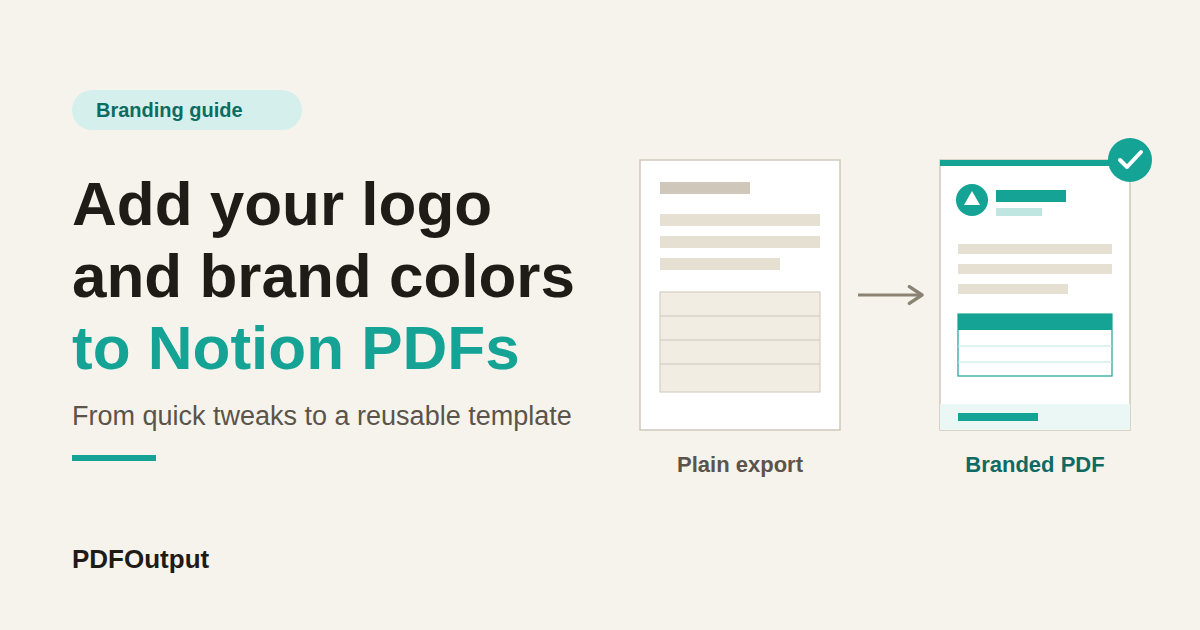
Consider this scenario, 2 invoices with different styles and formatting created in a document, one is a pdf file that has a clean logo created at the top with brand color on the headings and footer created with the payment details.
The other document happens to be a simple Notion Page that is simply saved as a PDF.
Same numbers. Same work. But the client will ultimately trust one of the 2 documents a little more, and its the one created as a proper PDF.
If you're looking for a way to add a logo to a Notion PDF, here's the honest take on this upfront:
Notion's available built-in export gives you very little control over branding aspect. You can experiment with it, you can work around it, but a fully on-branded document usually comes from somewhere else.
This guide will walk you through 3 levels, from quick wins to a proper setup that you build once and reuse forever.
What Notion Lets You Brand (and What It Doesn't)
Before you spend an hour fiddling on this topic, it helps to know where the walls are. Based on the options Notion offers today, here is how things stand.
| Brand element | Can you control it in a Notion PDF? |
|---|---|
| Logo at the top of the page | Partly. You can place an image block or use a page cover or icon |
| Brand colors | Partly. Notion has a fixed palette of text and background colors, not custom color codes |
| Fonts | Barely. You get a short list of built-in styles, not your own typeface |
| Header and footer on every page | Not in the way a design tool does it |
| Page numbers | Limited, so check what your export dialog offers |
| Custom layout and spacing | Limited. Notion decides how it lays out the page |
The takeaway is quite simple from this discussion.
Adding a few logo blocks and putting a few colored headings are possible. But a full pixel-perfect branded document is not what Notion's export is built for by default.
So, what are the possible options for us, lets look at the available options one by one…
Level 1: Make the Most of What Notion Provides in Itself
If you only send occasional documents few times, then creating a light touch is enough, you can get surprisingly quite far without leaving Notion.
Pro Tip: Make a "branded page" once in Notion with your logo and color already in place. Duplicate it every time you need a new document, so you never rebuild the header from scratch.
Where Level 1 runs out: Every document is a manual job, the colors are approximate, and there's no real header or footer. It's fine for a one-off document.
It's frustrating when this is repeated for the 10th invoice of the month and its done again and again.
Level 2: Design the Document Elsewhere, Then Bring In the Data
When branding really matters, a lot of people stop designing inside Notion and design the document in a tool built for layout.
This could be Google Doc, or a Word file, or even a PDF File you already have from a designer. The idea is to separate the 2 jobs.
Notion holds the data: client name, line items, dates, totals.
A separate file holds the look: logo, colors, fonts, header, footer, spacing.
Here is what that gets you compared with Level 1:
- Exact brand colors and your real fonts.
- A real header and footer with your logo, address, and payment details.
- A layout you control down to the margin.
- One design reused for every document.
- Build the data in Notion. An Invoices database with properties for client name, invoice number, issue date, due date, and total.
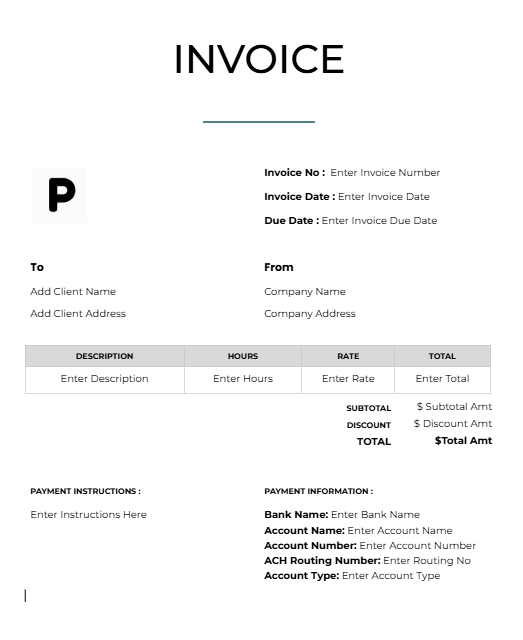
- Design the look once. A Google Doc with the studio logo at the top, a teal heading style, a footer with bank details, and a table for line items.
- Drop in placeholders. Replace the sample client name with
{{Client_Name}}, the invoice number with{{Invoice_Number}}, and so on, matching the Notion property names. - Test with a sample record. Set the status to Preview, then check the Google document for blank fields, odd date formats, and tables that stretch when there are many items.
- Go live. When it looks right, set real records to Ready to Generate and let the PDF save back to the record.
- Can I tell whose document this is without even reading a word?
- Is the logo sharp enough, not stretched out, and not pushed against the edge?
- Do the colors match the rest of the brand, such as the website?
- Is the one thing the reader must act on easy to find out(a due date, an approval)?
- Does the second page look like it belongs to the first page?
- Using a low-resolution logo. When you use a low resolution logo in your document, it often looks fuzzy in a PDF. Use a high-resolution PNG or a vector file if needed.
- Too many colors. One main color and one accent are enough. Using more variations often looks messy.
- Linking the logo instead of uploading it. Using linked images are one the most common reason when a logo goes missing.
- Placeholders that don't match. A typo error or case difference between
{{Client_Name}}and the Notion property is one of the classic reason why a field comes out blank. Copy the property name rather than retyping it into the document, that will help resolve the issue. - Skipping the preview. Test for the output with a record that has many line items included, as that’s where most layouts break.
The catch is the middle step. Without automation, you'd copy the numbers from Notion into the designed file by hand each time.
That's accurate but slow, and a typo in an invoice total is the kind of mistake you only notice after the client does. If you've been moving Notion content into editable files, Notion to Word and Notion to Google Docs show how that handoff works manually.
Level 3: Let a Template Fill in Your Notion Data
Level 3 keeps the design from Level 2 and removes the copying.
PDFOutput generates documents from Notion data using a template. The template can be a Google document, Word file, PDF file, or Notion page, so you can hand it the file your designer made.
You mark the spots where data should go with placeholders in double curly braces, such as {{Client_Name}} or {{Invoice_Total}}. Each placeholder has to match the related Notion property name, so a field called Client Name in Notion pairs with a placeholder you've written to match it.
From then on, your logo, brand colors, fonts, header, and footer live in the template. They don't change when the data changes, so every document comes out looking the same.
To make a document, use a Notion database button or a status property.
Set a record's status to Ready to Generate to create a PDF from that record. If you want to look it over first, Preview creates a Google document for review purpose.
PDFOutput can also generate Google Docs and PPTX files from Notion data. The finished file can be saved to a database property or a Google Drive folder, so each PDF stays attached to the record it came from.
Key Takeaway: Notion is good at holding your data and weak at holding your brand. Keep the data in Notion, put the brand in a template, and the two stop fighting each other.
Here’s an example for reference: A Branded Invoice
Here is what the setup will look like for a small studio sending invoices.
You do the design work one time. After that, a new invoice simply requires a change in status.
Test the Document Within 10-Seconds
Before you send any form of branded PDFs, run this check.
Look at the first page for ten seconds and ask:
If any answer is no, fix it directly in the template, not in the individual document created.
What are Common Branding Mistakes
Frequently Asked Questions
Can I add a logo to a Notion PDF?
You can place a logo as an image block at the top of a Notion page and export it, and it will usually appear in the PDF. Upload the image to Notion instead of linking it. For a logo in a repeating header on every page, you'll need a template-based tool.
Can I use my own brand colors in a Notion PDF?
Notion offers a preset color palette, so an exact brand color code usually isn't available. You can pick the closest preset. For exact colors, put them in a template and generate the PDF from that.
Can I use a custom font in Notion PDF exports?
Notion's built-in export is limited to its own font styles. If you need your own typeface, design the document in a tool that supports it and use that file as the template.
How do I add a header and footer to a Notion PDF?
Notion's export doesn't give you full control over headers and footers. Put them in a Google Doc, Word file, or PDF template, and generate your documents from it.
How do I make branded invoices from Notion?
Store the invoice data in a Notion database, design the invoice in a template, and use a tool like PDFOutput to fill the template for each record. Test with a few sample records before using it on live invoices.
Will my branded PDF look the same every time?
If the design lives in a template, yes. The data changes from record to record, while the logo, fonts, and layout stay the same.
Conclusion
Notion can carry a logo and a splash of color, but it was never meant to be a design tool. For occasional documents that are exported, the Level 1 tweaks are more than enough. For anything clients see regularly, put the branding in a template and let Notion do what it does best: hold your data. PDFOutput can fill that template from your Notion records and save the finished PDF back to your chosen storage workflow.